Thim Security – Advanced Protection for WordPress
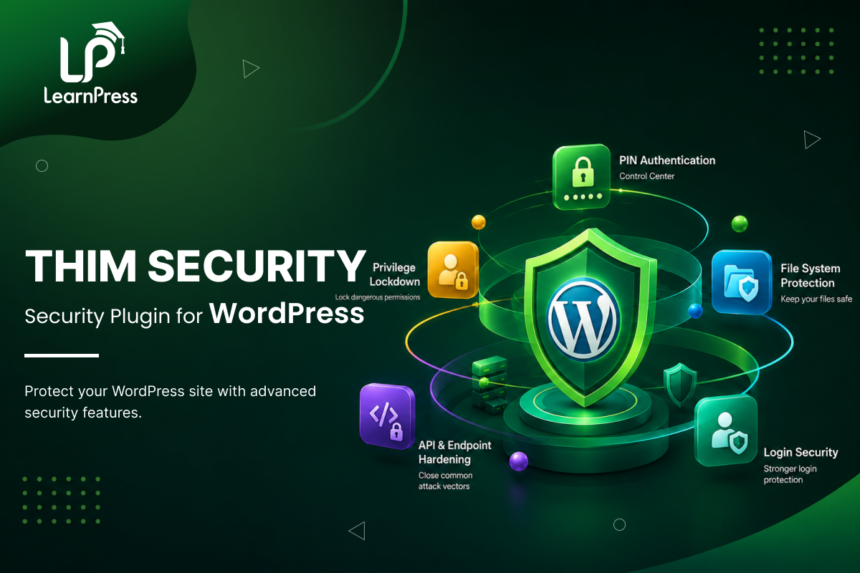
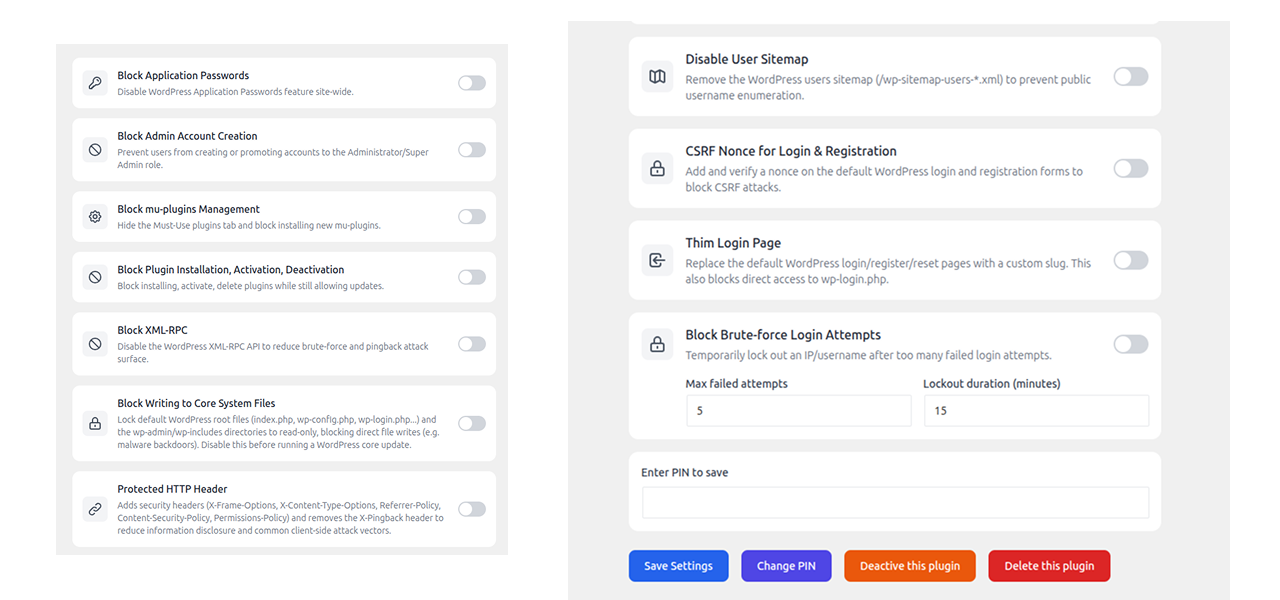
- Replace wp-login.php with a private custom login URL your users know but bots never will.
- After too many failed logins, brute-force protection kicks in and locks that IP out automatically.
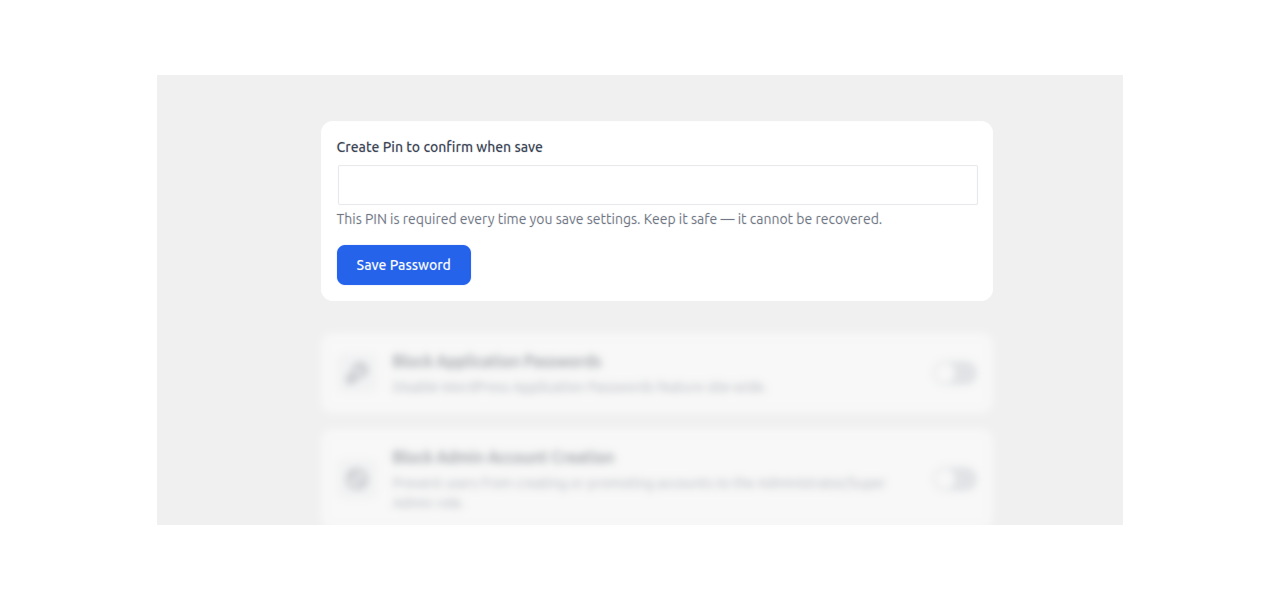
- A settings PIN gates every change you make, so no one can alter security configs without it.
- One settings panel controls admin account creation, plugin installation, and XML-RPC access.
- Core WordPress files including wp-config.php and .htaccess can be set to read-only in one click
How It Helps
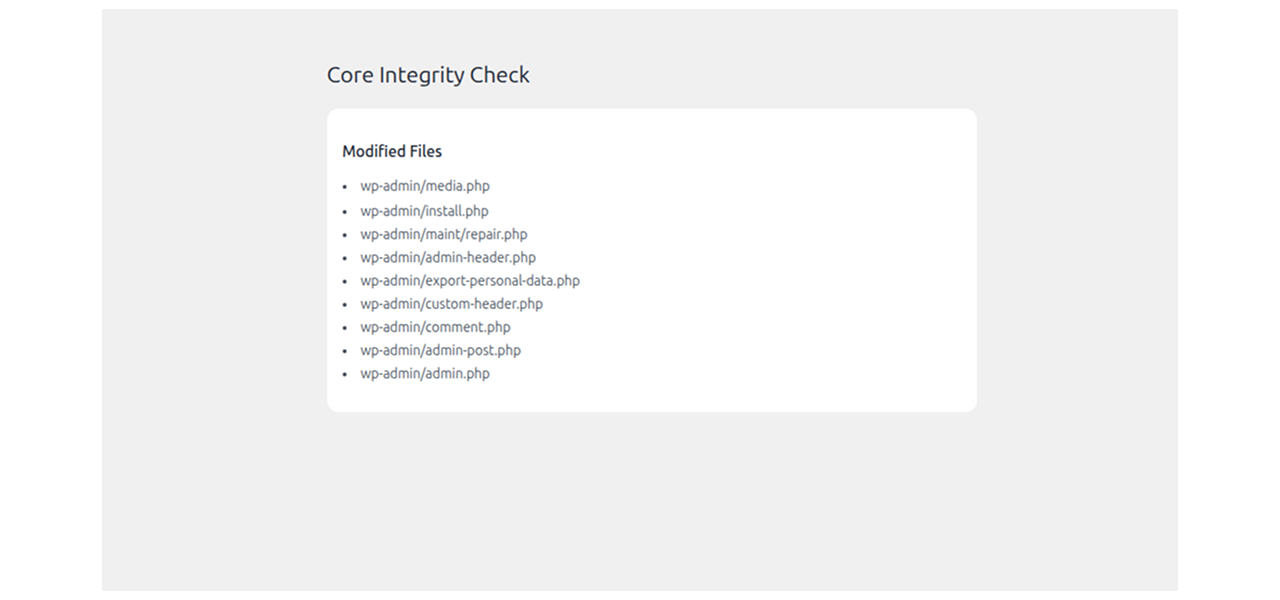
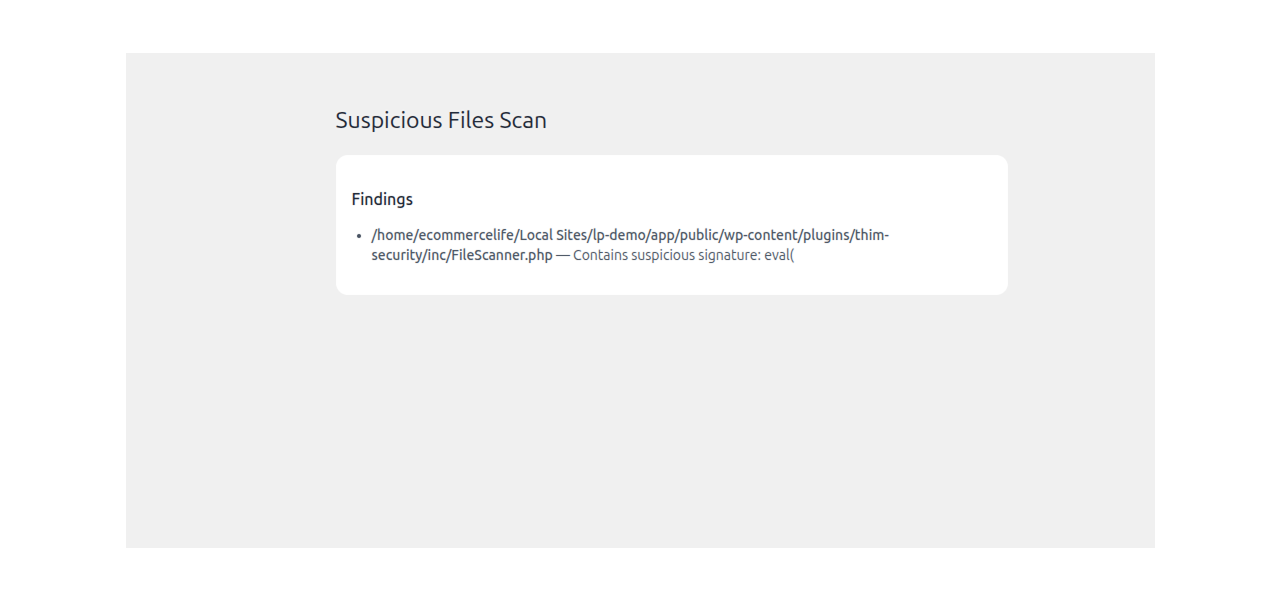
Most WordPress attacks target the same handful of entry points: the login page, XML-RPC, weak admin credentials, and unguarded file upload directories. Thim Security covers all of them from a single admin panel with simple toggles, no server config required. That said, it is not a firewall and does not replace a good hosting setup. Think of it as the layer of protection that handles what WordPress itself does not.
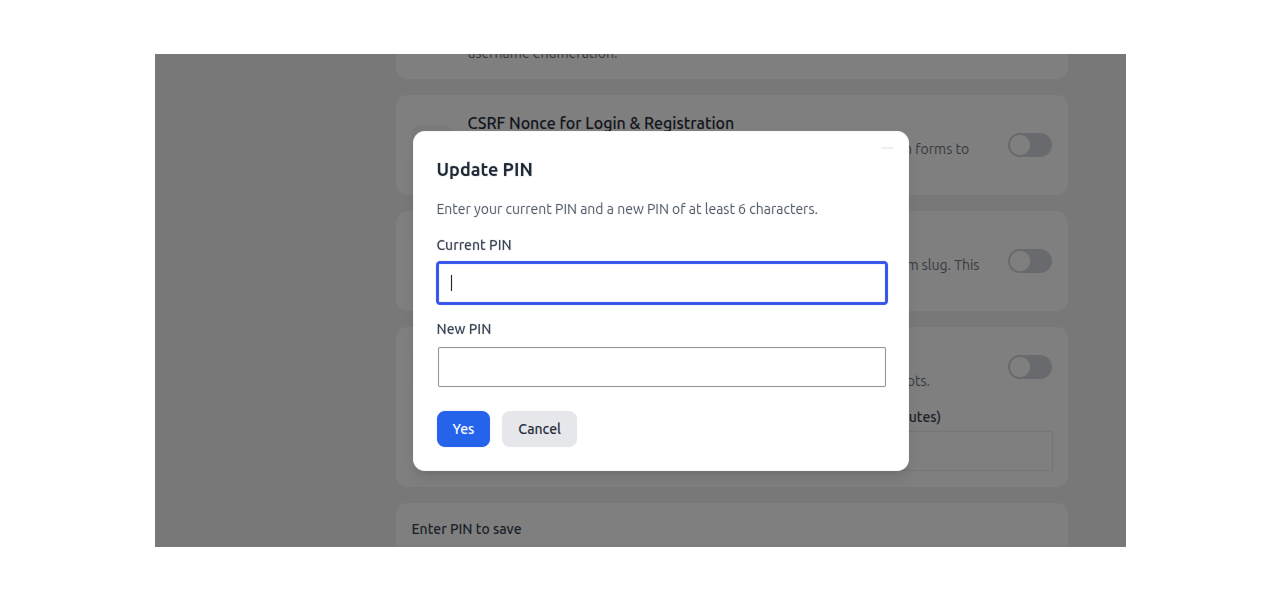
Before you can save any settings, Thim Security requires a PIN you set on first use. The same PIN is needed to deactivate or delete the plugin. No PIN, no changes, even from the admin panel.
Active Users: 800
Price: FREE
- Lifetime license for 1 site License Info:Includes lifetime usage on 1 site. You can switch between environments as needed by deactivating/reactivating the key. Only one active installation can receive updates and support at a time.Learn More
- 12 months Update & Support Updates & Support Info:Purchase includes 12 months of updates and support. After expiry, the add-on remains functional, but you must renew the license to access future updates and support services.Learn More

= 1.0.3 (2026-10-08) =
~ Fixed: case deny view link archives/author/admin on blog.
= 1.0.2 (2026-10-03) =
~ Added: Check the latest Thim Security version.
~ Tweak: Separate DISALLOW_FILE_EDIT and DISALLOW_FILE_MODS into independent settings.
~ Fix: Keep the posts and pages REST API endpoints available when REST API enumeration protection is enabled, preventing the mobile app from logging users out while loading blogs.
~ Fix: Restrict REST API enumeration protection and route removal to user endpoints only.
~ Fix: Preserve the checked state of the Remember Me option on the custom login page.
~ Fix: Block administrator account creation on child sites in multisite by hooking can_add_user_to_blog, covering both network admin and child-site admin flows.
~ Fix: Ensure the custom block message is shown instead of WordPress's generic "could not be added to this site" message.
~ Fix: Allow updating existing administrator profiles while still blocking creation or promotion to administrator.
= 1.0.1 (2026-08-14) =
~ Fix: Brute-force protection blocked login submissions based on stale lockout data even when the failed-attempt count had not reached the configured max attempts.
~ Fix: Brute-force protection recorded failed login attempts before WordPress's own username/email/application-password checks ran (authenticate filter priority); changed from -1 to 21 so it runs after WordPress core checks.
~ Fix: File system lock/unlock ran on every admin page load; now restricted to the Plugins page and the Thim Security settings page only.
~ Fix: File system lock only captured original file permissions when no path had been recorded yet, so unlocking could restore the wrong mode for paths added by later locks; each path's original mode is now captured individually.
= 1.0.0 (2026-08-11) =
~ Initial release.
Screenshots
All Your Questions
Answered
You have questions.
We have answers.
On first use, you create a PIN of at least 6 characters. From that point on, every settings save requires it. Deactivating or deleting the plugin requires it too. This means even if an attacker gets admin access, they cannot quietly disable your security config without knowing the PIN.
Automated login attacks, brute-force credential stuffing, XML-RPC exploitation, unauthorized admin creation, and malicious file injection. Each protection is independent, so you can enable only what makes sense for your site.
It does. The menu appears in Network Admin on multisite, and protections like the admin creation block and brute-force lockouts apply across the network.
Not if you write down the slug before saving. If you do get locked out, clear the thim_security_settings key from your database (wp_options or wp_sitemeta on multisite) and you’re back at wp-login.php.
Free under GPLv2 or later. No premium tier, no feature gating.
Some older Jetpack features and a few mobile apps rely on XML-RPC. If you use those, leave this toggle off. For most sites without those integrations, disabling it removes a common attack vector with no downside.
The IP is locked using WordPress transients, so the lockout clears automatically when the window expires. While locked, the login page is blocked before any form renders, not just after a credential check.
The original modes are saved before locking. Disabling the feature restores them exactly, not a generic fallback. No manual chmod needed.
We have a delicated team to support you 24/5
Go to our Forum and explore more than 2000 support topics
Feel free to contact us for support anytime