Ever wondered why your in-store sales and online orders never seem to stay in sync?
Running your physical shop and e-commerce online store separately might seem manageable at first, but it often leads to overselling, scattered customer data, and messy accounting.
Connecting both sides of your business into one system changes everything. It keeps your inventory accurate, your data consistent, and your operations far easier to manage.
With everything working together, customers can shop the way they prefer—order online and pick up in-store, or return items without friction—creating the kind of seamless experience modern retail demands.
However, before committing to a single solution, many retailers also explore other options—if you’re still evaluating tools, check out these Shopify POS alternatives to compare features and find the best fit for your business
If you are a beginner or a small-to-medium business owner looking to streamline your retail operations, learning how to set up the Shopify Point of Sale (POS) is your first step toward unified sales.
COMA – Modern Multipurpose Shopify Theme OS 2.0
We provide an amazing Shopify theme with fast and responsive designs. Let’s find out!
To win the featured snippet for quick reference, here is the short answer:
To set up Shopify POS, follow these steps:
- Sign up for a Shopify account.
- Choose between the Lite or Pro POS plan.
- Download the Shopify POS app.
- Connect your compatible POS hardware.
- Add your products and sync inventory.
- Configure your payment gateways and tax rates.
Below is a comprehensive, step-by-step breakdown of how to get your Shopify POS system up and running efficiently.
What is Shopify Point of Sale (POS)?

Shopify POS is a point-of-sale application that allows business owners to sell products in person. Whether you are running a permanent brick-and-mortar retail store, a weekend market stall, or a seasonal pop-up shop, the platform syncs directly with your online Shopify store.
This synchronization is the core strength of the point of sale Shopify ecosystem. Key features include:
- Real-time Inventory Sync: When an item is sold in-store, your online inventory updates instantly, preventing out-of-stock purchases.
- Omnichannel Capabilities: Customers can seamlessly interact with your brand across multiple touchpoints (e.g., buying online and returning in-store).
- Unified Customer Data: Purchase histories from both physical and digital sales are merged into a single customer profile, allowing for highly targeted marketing and personalized service.
In real-world retail operations, inventory mismatches are one of the most common issues, and Shopify POS solves this by syncing data instantly across all channels.
Who Should Use Shopify POS?
Shopify POS is ideal for:
- Small and medium retail businesses
- Pop-up shops and event-based sellers
- Brands operating both online and offline stores
- Multi-location retailers needing centralized inventory control
For businesses with multiple locations, Shopify POS Pro is often essential due to advanced inventory and staff management features.
Step-by-Step Guide to Set Up Shopify POS
Setting up the system methodically ensures you avoid operational hiccups on opening day. Follow these ten steps to build a rock-solid foundation.
Step 1: Sign Up for Shopify
Before you can use the POS features, you need a core Shopify e-commerce account.
Navigate to the Shopify website and start your trial.
Fill in your business name, contact information, and address.
This central admin dashboard will be the brain of your entire operation, housing both your online store data and your in-store analytics.
Step 2: Choose the Right Shopify POS Plan (Lite vs Pro)

For a detailed comparison, you should review a Shopify POS pricing guide before deciding.
For a single, small retail location, POS Lite is often sufficient. However, if you have a larger team or complex inventory needs, Pro is necessary.
In practice, retailers with growing teams or multiple stores almost always upgrade to POS Pro for better control and reporting.
| Feature | Shopify POS Lite | Shopify POS Pro |
| Included in | All standard Shopify plans | Add-on subscription per location |
| Best For | Pop-ups, markets, casual sellers | Permanent retail stores, multi-location |
| Staff Roles | Basic access | Unlimited POS-only staff, custom permissions |
| Inventory | Standard syncing | Advanced (purchase orders, stock transfers) |
| Registers | Standard | Unlimited registers per location |
For a single, small retail location, POS Lite is often sufficient. However, if you have a larger team or complex inventory needs, Pro is necessary.
Step 3: Install the Shopify POS App
The software interface your cashiers will use daily is the Shopify POS app. It is available for both iOS (iPad, iPhone) and Android devices.
- Navigate to the Apple App Store or Google Play Store on your designated retail device.
- Search for the app and download it.
- Log in using the credentials you created in Step 1.
Practical Tip: Dedicate specific tablets or smartphones solely to your POS operations to maintain security and battery life.
Step 4: Set Up Shopify POS Hardware
Your Shopify POS hardware bridges the digital software with physical transactions.
Depending on your setup, you may need card readers, barcode scanners, receipt printers, and cash drawers.
If you are operating a simple pop-up, a mobile phone running the app paired with a Bluetooth card reader is enough.
Permanent locations will need a full countertop setup.
Always ensure you are purchasing supported devices—refer to a comprehensive Shopify POS hardware guide to guarantee compatibility.
Connect your hardware via Bluetooth or Wi-Fi through the settings menu in the POS app, and run test prints and test scans to ensure everything communicates properly.
Step 5: Configure Sales Channels and Locations
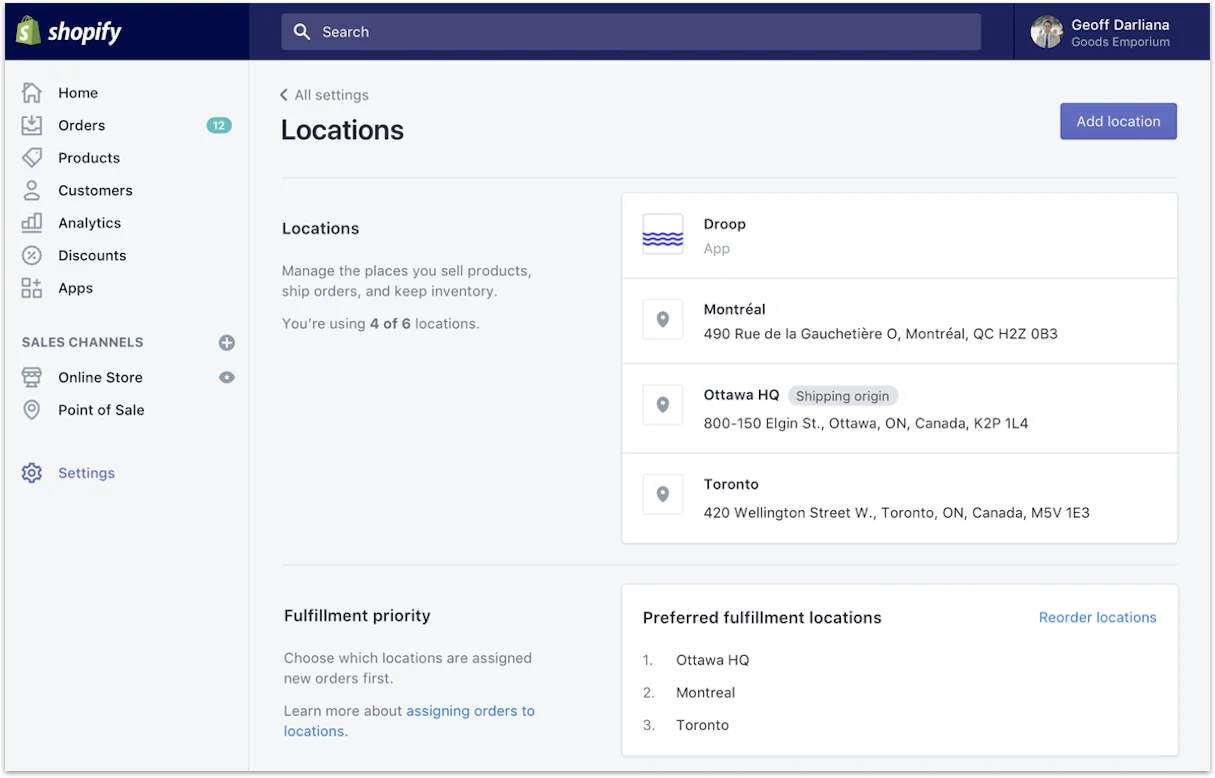
For businesses with multiple locations, properly configuring your locations in the Shopify Admin is critical. This ensures that inventory is pulled from the correct physical store when a sale is made.
- Go to your Shopify Admin dashboard.
- Navigate to Settings > Locations.
- Add your physical store addresses.
- Assign specific inventory quantities to these locations.
Step 6: Add Products and Manage Inventory
Your POS is useless without products to sell. You can add inventory via the Shopify Admin in two ways:
- Manual Entry: Best for a small number of items. Add titles, descriptions, pricing, and upload images.
- CSV Import: Ideal for large catalogs. Download Shopify’s CSV template, populate it with your SKUs, barcodes, and prices, and upload it in bulk.
Ensure every product has a scannable barcode assigned to it in the system. When a cashier scans the item in-store, the app uses this data to instantly pull up the correct product and price.
Step 7: Import Customer Data
If you are migrating from another system, bring your existing customer database with you.
Building customer relationships is much easier when you have their purchase history and contact info on hand.
- Go to Customers in the Shopify Admin.
- Click Import.
- Upload a CSV file containing your customer names, email addresses, phone numbers, and physical addresses.
Step 8: Set Up Staff Accounts and Permissions
Security and accountability require individual staff logins. Under Settings > Users and permissions, create accounts for your team members.
- Assign unique 4-digit PINs for each employee to log into the POS app.
- Restrict permissions based on roles. For example, you may allow a manager to process refunds or apply custom discounts, while restricting temporary cashiers from accessing detailed financial reports or altering tax settings.
Step 9: Configure Payments and Taxes

You must configure how you will get paid and how you will collect sales tax.
- Payments: Shopify Payments is the default gateway and integrates seamlessly. Go to Settings > Payments to activate it. You can also toggle cash tracking and custom payment methods (like external gift cards or checks) within the POS app settings.
- Taxes: Go to Settings > Taxes and duties. Set up your physical nexus locations so the POS automatically applies the correct local sales tax to in-store purchases based on the store’s address.
Step 10: Customize Checkout Experience
Retailers often optimize the checkout screen to speed up transaction times and improve workflow. Within the POS app, utilize the “Smart Grid.”
- Add customizable tiles to the home screen.
- Create quick-access buttons for your most popular products, frequent discounts, or daily operations like “Add Customer” or “Open Cash Drawer.”
- Tailor the receipt settings (email, SMS, or printed) to match customer preferences.
Best Practices for Using Shopify POS
Setting up the system is only the beginning. To maximize efficiency, implement these operational best practices:
- Rigorous Staff Training: Technology is only as effective as the people using it. Run mock transactions with your staff before opening day. Ensure they know how to process a split payment, handle a return, and apply a discount code.
- Smart Grid Optimization: Don’t leave the POS app interface cluttered. Regularly update the Smart Grid based on seasonality. Put holiday specific items or current promotional campaigns front and center so cashiers don’t have to search for them.
- Strategic Promotions & Discounts: Use the system to drive loyalty. Capture customer emails at checkout by offering a small immediate discount. The POS app allows you to apply percentage or fixed-amount discounts directly to the cart.
- Strict Inventory Alerts: Rely on the system’s inventory tracking. Set up low-stock alerts so you know exactly when to reorder your best-sellers before they run out on the physical shelves.
Shopify POS Setup Checklist
Use this quick checklist to ensure you haven’t missed any crucial steps before launching:
- [ ] Shopify admin account created and active.
- [ ] POS subscription plan (Lite or Pro) selected.
- [ ] Shopify POS app installed on designated retail devices.
- [ ] Card readers, scanners, and printers connected and tested.
- [ ] Store locations configured in the admin dashboard.
- [ ] All products uploaded with accurate prices, SKUs, and barcodes.
- [ ] Customer database imported.
- [ ] Staff PINs created and permissions assigned.
- [ ] Payment gateways activated and local tax rates verified.
- [ ] Smart Grid customized for fast checkout.
Common Mistakes to Avoid
Even with a detailed guide, retailers frequently stumble over a few easily avoidable hurdles:
Wrong Hardware Selection
Do not purchase generic hardware assuming it will work. Bluetooth protocols and driver compatibility vary wildly. Always buy hardware explicitly listed as compatible by Shopify, or you risk receipt printers failing during a busy rush.
Missing Tax Setup
Assuming the system will automatically know your local county tax rate without configuration is a major compliance risk. Always input your physical locations and verify that the local sales tax percentages are calculating correctly on a test order.
Poor Inventory Sync Practices
Failing to input accurate initial stock counts means your online store might sell an item that a customer just bought in-store. Take a rigorous physical inventory count right before going live with the system to ensure the digital numbers match reality perfectly.
FAQs About Shopify Point of Sale
Do I need hardware to use the Shopify POS system?
Strictly speaking, no. If you are a mobile seller, you can use the “Tap to Pay” feature on a compatible iPhone or Android device to accept contactless payments directly through the app without an external card reader. However, permanent retail stores will benefit greatly from dedicated hardware like barcode scanners and receipt printers.
Can I use Shopify POS without an online store?
Yes. While Shopify is primarily known for e-commerce, you can use the platform exclusively for physical retail. You simply use the backend dashboard for inventory and analytics, and disable the online storefront channel so customers cannot browse your products on the web.
What’s the difference between POS Lite and Pro?
POS Lite is included free with standard Shopify plans and handles basic retail transactions and inventory syncing. POS Pro requires an additional monthly fee per location and unlocks advanced features like unlimited store staff, detailed inventory reporting, purchase order generation, and omnichannel features like “buy online, pick up in store.”
Conclusion
Understanding how to set up the Shopify Point of Sale (POS) is a pivotal move for any modern retailer. By bringing your in-store and online sales under one unified roof, you eliminate operational friction, maintain pinpoint accuracy on your inventory, and unlock the ability to provide a seamless, modern shopping experience for your customers. From selecting the right hardware to customizing your checkout grid, each step in this guide builds the foundation for a scalable, efficient retail business.
Don’t wait until your current system causes a major inventory headache. Take the leap and start configuring your backend today.
Read more: 6+ Best Shopify AI Blog Generators to Boost Traffic
Contact US | ThimPress:
Website: https://thimpress.com/
Fanpage: https://www.facebook.com/ThimPress
YouTube: https://www.youtube.com/c/ThimPressDesign
Twitter (X): https://x.com/thimpress_com