A beautiful website only works if people can actually find what they are looking for. When visitors land on a new page, they expect a clear and obvious path to follow. If they get confused or cannot find basic information, they simply leave. That is why setting up a clear header is so important for any online project.
Knowing exactly how to add navigation menu Canva website designs turns a simple layout into a fully functional and professional site. Whether creating a business portfolio, a sales page, or an event layout, setting up clear Canva website navigation helps visitors move easily from one section to another. This guide explains how to use the built-in tools, how to build a custom header, and what design rules to follow for the best results.
Eduma – Education WordPress Theme
We provide an amazing WordPress theme with fast and responsive designs. Let’s find out!
Why a Clear Menu Matters
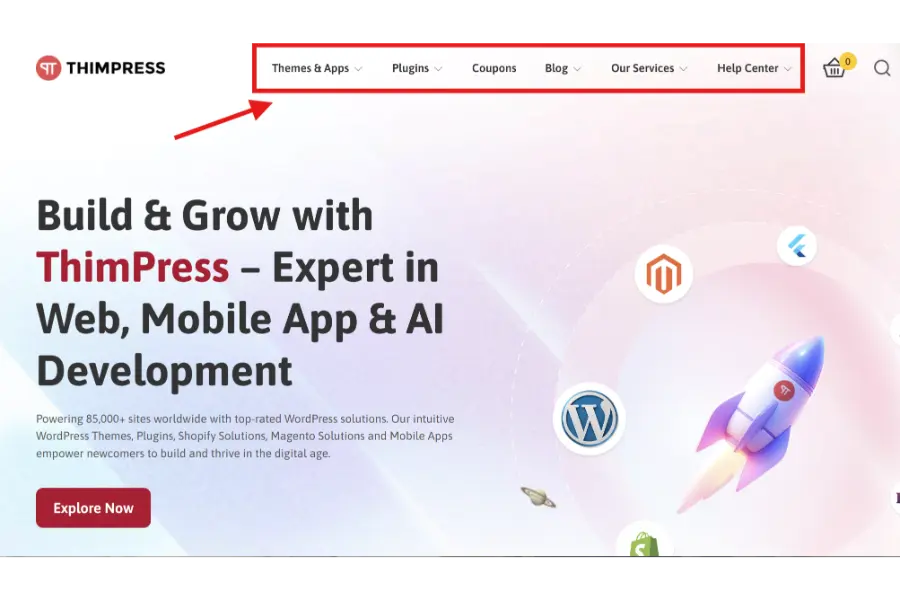
A good header works like a map for visitors. Without it, reading through different Canva website pages feels frustrating and unorganized. A visible top bar keeps people on the site longer and makes the whole user experience feel much more professional.
People naturally look to the very top of the screen when they need direction. If that menu is missing or hidden, they quickly lose interest. A well-placed Canva website menu tells users exactly where they are and what else they can view. By making the platform easy to use, visitors do not have to think too hard about how to get around. When the site feels simple and logical, people are much more likely to stay, read the content, and take the desired action, like filling out a contact form or making a purchase.
Plan Before You Build
Before opening the editor, it helps to plan the site structure on paper. Decide what information is truly necessary and group similar topics together. For example, placing team details, company history, and mission statements under a single “About” category keeps the header clean and easy to read.
Sketching out the visitor’s journey saves a lot of time later when you design a website in Canva. Think about what the visitor needs to do. If the main goal is to get people to reach out, the “Contact” or “Book Now” button needs to be the most visible item on the screen. It is usually best to place this important link on the far right side of the screen. Once this basic plan is ready, naming the sections in the editor becomes much easier. Consistent and clear names lead directly to a cleaner, more professional Canva navigation menu.
Method 1: Using the Built-In Menu
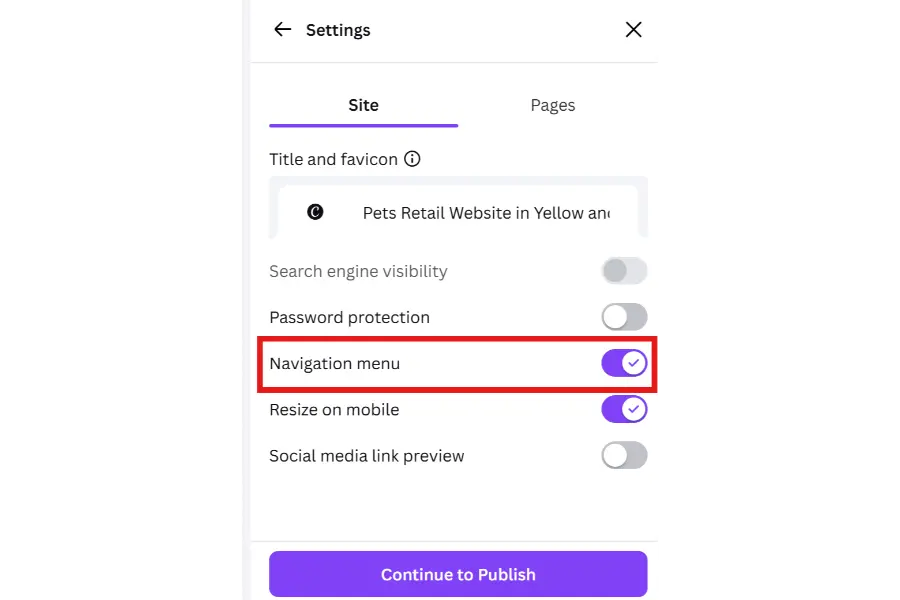
The fastest way to create a header is by using the Canva website builder native tools. This built-in feature automatically builds a menu using the specific titles of the different sections on the page. Here is how to turn it on:
- Open the project inside the main editor.
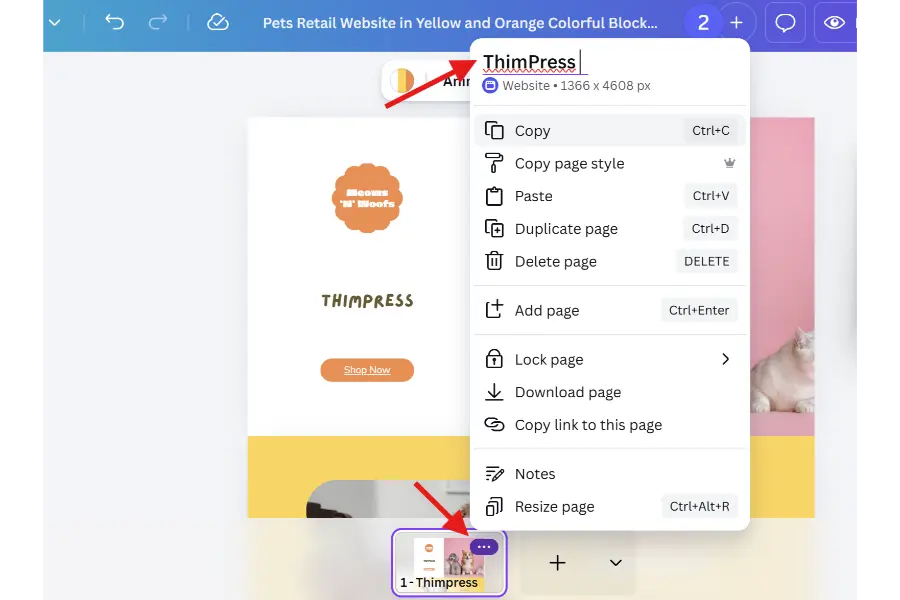
- Look at the different sections of the layout. Above every section on the workspace, there is a small text box where a title can be added. These titles will become the actual clickable links in the header.
- If a certain part of the page should not be in the menu, simply click the eye icon next to the section title. This will hide that section from the top bar.
- When all the correct sections have clear titles, click the “Preview” button located in the top right corner.
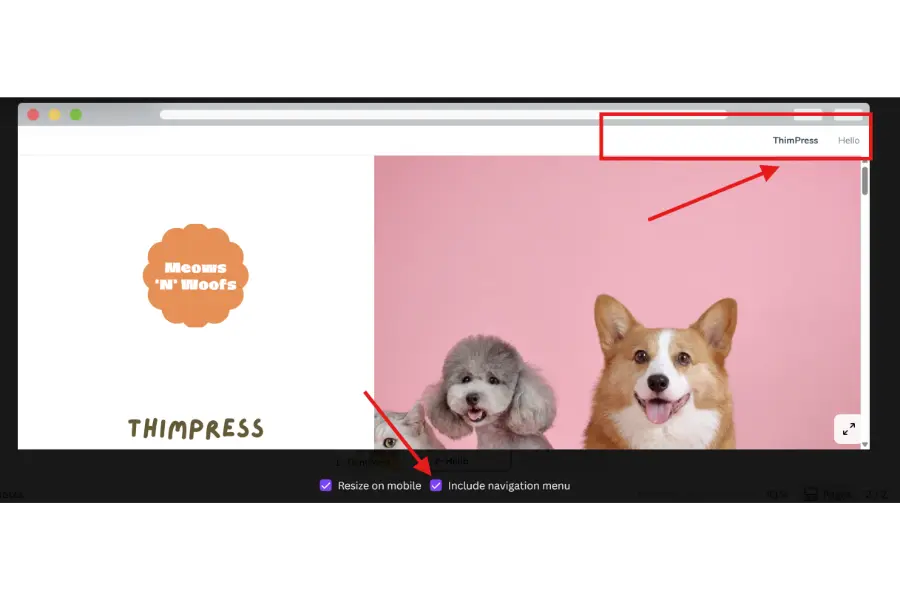
- In the preview area, find the dropdown settings and choose the “With navigation” option.
- Check the layout. If everything looks right and the links work, publish the site. The system will automatically place a fixed bar at the top with the chosen titles.
This method is very quick, but it has strict rules. The built-in automatic menu cannot be customized visually. The font type, colors, and text size are permanently locked to default settings. Also, these links only scroll down the current page; they cannot open new websites or different domains. Finally, this menu always stays fixed at the top of the screen, floating above the content as the user scrolls down.
Method 2: Building a Custom Header
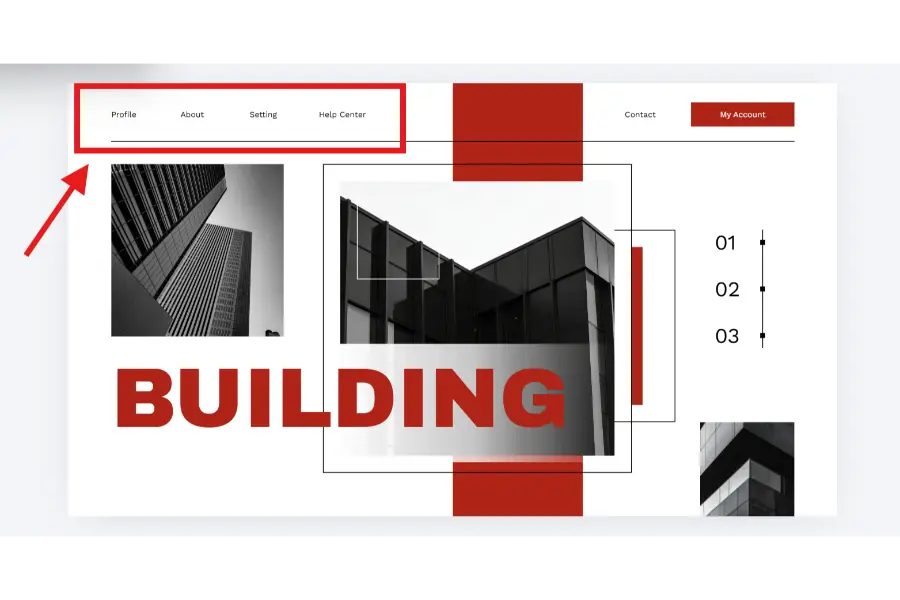
If the project requires specific brand colors, custom fonts, or external links, the best choice is to build a custom top bar from scratch. This method gives complete control over the design. When choosing to manually add navigation menu Canva website elements, always remember to turn off the built-in “With navigation” setting before publishing. Otherwise, the published site will display two separate menus, which looks very confusing.
To create a custom header manually:
- Click the “Add page” button to put a new, completely blank section at the very top of the design.
- Make this new section short in height, so it looks like a standard website header.
- Pick a solid background color that makes the text easy to read. High contrast is best.
- Add a company logo or a small icon to the left side of this new section.
- Add separate text boxes on the right side for the links. Use clear words like “About,” “Services,” or “Contact.”
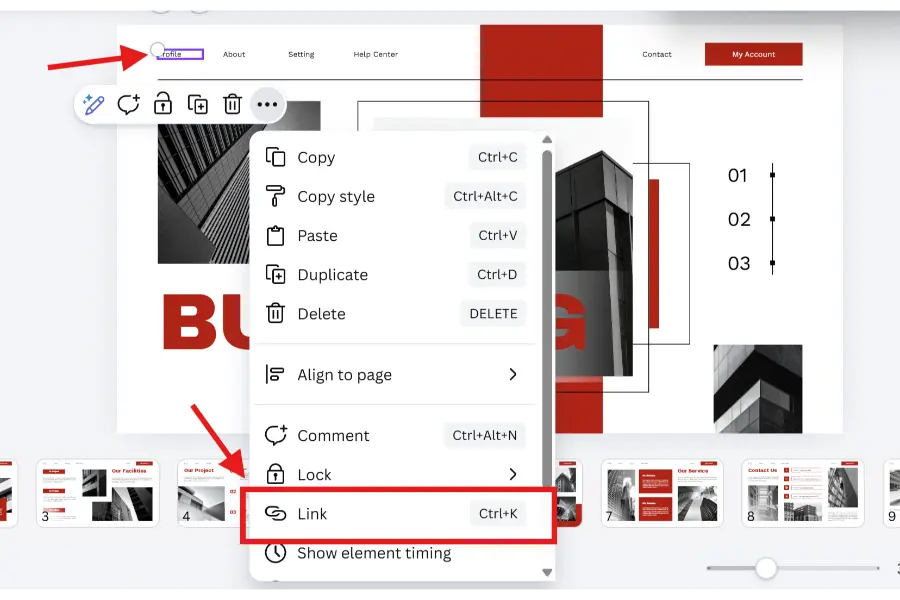
- To make these words clickable, highlight the text, click the link icon in the top toolbar, and type in the correct website address or destination.
- Space the items evenly so they look neat and organized.
Building it this way allows the layout to link to outside websites, downloadable files, or other separate Canva website pages. However, a custom header acts like regular text and images. It will scroll out of sight as the user moves down the page, instead of staying stuck to the top of the screen.
Desktop Versus Mobile Experience
A modern site needs to look good on phones as well as large computer screens. Because most people browse the internet on their phones, mobile design is very important. When using the automatic Canva website navigation setting, the platform handles the mobile design perfectly. On a large monitor, it shows a normal horizontal row of links. On a phone, it turns into a standard menu icon with three horizontal lines. Tapping this icon opens a neat list of links, keeping the small screen clean.
On the other hand, custom headers do not automatically fold up into a mobile menu icon. Often, the text boxes in a custom header will simply stack on top of each other on a phone screen. This can take up too much space and look messy. It is very important to check the mobile preview and carefully adjust the text sizes so the custom Canva website menu looks good on small devices.
Technical Limits to Keep in Mind
It is helpful to know what the platform cannot do yet, so time is not wasted trying to build impossible features. Right now, it is not possible to create dropdown menus or sub-categories within a custom Canva navigation menu. Everything must remain on one single level. Animations, like text changing color or growing larger when a mouse hovers over it, are also not available.
Furthermore, there is no setting to make a link open in a new browser tab. Every single link opens in the same active window. This can be slightly annoying if linking to an entirely different website, as it takes the user away from the original page. Advanced SEO link tags are also not supported at this time. If you require advanced features for business growth, you might eventually need to convert Canva to WordPress.
Best Practices for Design
A good menu must be clear above all else. Avoid using complicated industry words or long phrases. Visitors need to know exactly what they will see before they click a link. Keep the total number of links low; giving people too many choices can overwhelm them and cause them to leave. A simple, short menu always gets better results.
Also, keep accessibility in mind. Make sure the text color stands out strongly against the background color. Make the words large enough to read easily and tap accurately on a small phone screen.
Finally, test everything before making the site public. Click every link in the preview mode. Make sure the page scrolls to the exact right place and that any outside links work properly without errors. Checking the layout on phones, tablets, and computers ensures a truly professional result. Taking the time to properly add navigation menu Canva website features makes a big difference in the final product.
Conclusion
Building a clear and helpful website is easy with a little careful planning. By understanding the main differences between the automatic tool and a custom design, setting up the site becomes a smooth and simple process. Knowing the current technical limits, or when to look for Canva alternatives, helps in making smart, practical design choices. Keep the text simple, keep the layout clean, and always review the site from a regular visitor’s point of view to ensure the best possible experience.
Frequently Asked Questions: How to Add Navigation Menu Canva
1. Can multiple sub-menus be added to the layout?
Currently, the platform does not allow multi-level dropdown menus or sub-categories. The layout only supports one main horizontal row of links.
2. Can the colors of the built-in top bar be changed?
No, the automatic header cannot be changed visually. The background and fonts use default settings. For custom colors, a manual header must be built from scratch.
3. How are external links added to the site?
The automatic menu only scrolls down the same page. To link to outside sites, a custom header must be created with text boxes linked directly to the external web addresses.
4. Will the links open in a new browser tab?
There is no option to force links to open in a new tab right now. All links will redirect the user within the current active window.
5. Does a custom header stay at the top when scrolling?
No, a custom header scrolls away like normal page content. Only the automatic, built-in menu stays fixed at the top of the screen as the user scrolls.
Read more: How To Design a Website in Canva? (Ultimate Guide)
Contact US | ThimPress:
Website: https://thimpress.com/
Fanpage: https://www.facebook.com/ThimPress
YouTube: https://www.youtube.com/c/ThimPressDesign
Twitter (X): https://x.com/thimpress_com