You’ve invested time and money into creating a high-quality service page, published a detailed blog article, or launched a brand-new section of your website. The content is well-written, optimised for SEO, and designed to answer exactly what your customers are searching for.
But weeks later, it still isn’t ranking. In many cases, the problem isn’t the content itself—it’s that Google hasn’t indexed the page.
Indexation issues are one of the most common technical SEO problems affecting business websites. EcoSEO, an SEO Agency based in Cape Town, mentioned to us that if Google doesn’t add a page to its index, that page cannot appear in search results, no matter how valuable or well-optimised it is.
The challenge is that indexation problems aren’t always obvious. A page may exist on your website, be accessible to visitors, and even be crawled by Google, yet still never become eligible to rank.
Fortunately, most indexation issues can be identified and resolved with a structured approach.
In this guide, you’ll learn how Google’s indexing process works, why important pages sometimes fail to appear in search results, and the step-by-step framework SEO professionals use to diagnose and fix indexation problems.
Quick Summary
If an important page isn’t ranking, the first question shouldn’t be, “How do I improve the content?” It should be, “Has Google actually indexed the page?”
A complete indexation audit should include:
- Confirming whether the page is indexed.
- Checking for accidental no-index directives.
- Reviewing your robots.txt file.
- Inspecting canonical tags.
- Verifying XML sitemap coverage.
- Identifying crawl errors.
- Reviewing internal linking.
- Checking for duplicate or thin content.
- Analysing JavaScript rendering where applicable.
- Using Google Search Console to identify indexing issues.
Only after confirming that Google can crawl and index the page should you focus on improving rankings through content optimisation or link building.
Understanding Google’s Three-Step Process
One of the biggest misconceptions in SEO is that publishing a page automatically means it can rank.
In reality, Google follows three distinct stages before a page appears in search results:
- Crawling
- Indexing
- Ranking
Each stage depends on the previous one.
If a page fails at any stage, it will struggle—or completely fail—to appear in Google’s search results.
Understanding these stages makes troubleshooting much easier.
Crawling: How Google Discovers Your Pages
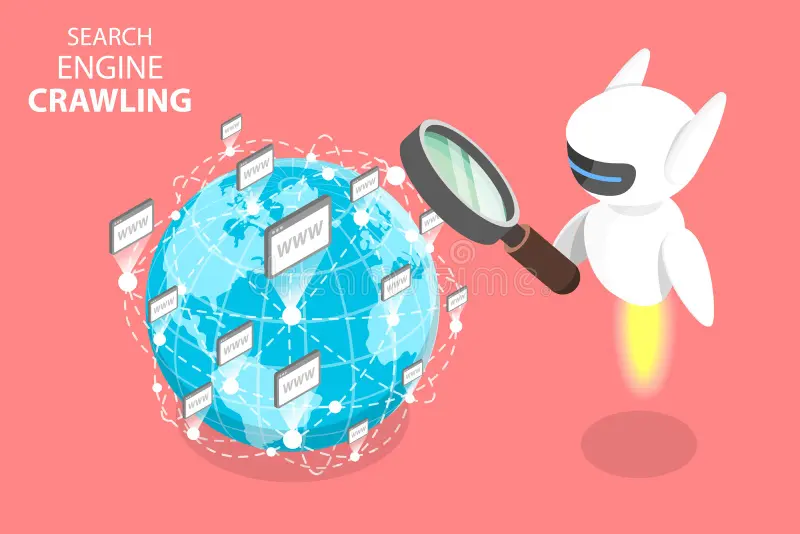
Crawling is the process of discovering pages on your website. Google uses automated software known as Googlebot to follow links, read XML sitemaps, and revisit websites looking for new or updated content.
Think of Googlebot as an explorer. Its job is to navigate your website and find every page that may be useful to searchers.
However, Google can’t crawl pages that it can’t find.
Common reasons pages aren’t crawled include:
- No internal links pointing to the page.
- The page is blocked by robots.txt.
- Broken navigation.
- Poor website architecture.
- Server errors.
- Redirect loops.
If Google never discovers a page, it obviously can’t index or rank it.
Indexing: Deciding Whether a Page Deserves to Be Stored
Finding a page doesn’t guarantee it will appear in Google Search.
Once Google crawls a page, it decides whether it should be added to its search index.
Google evaluates many factors during this stage, including:
- Content quality.
- Originality.
- Relevance.
- Duplicate content.
- Technical accessibility.
- User value.
If Google believes a page offers little value or encounters technical issues, it may choose not to index it.
This is where many websites experience problems. It is normal for up to 20% of a standard website’s pages to remain unindexed by Google, and SEO industry data indicates that more than half of web pages struggle with indexing delays due to content quality or low user value.
Business owners often assume that because Google has visited a page, it will automatically rank. In reality, Google may crawl a page several times before deciding whether to include it in its index—or it may choose not to index it at all.
Ranking: Competing Against Other Pages
Only after a page has been indexed can Google consider ranking it.
At this point, Google’s ranking systems compare your page against countless others to determine which best satisfies the user’s search intent.
Ranking depends on factors such as:
- Content quality.
- Search intent.
- Backlinks.
- Internal links.
- User experience.
- Page speed.
- Topical authority.
- E-E-A-T signals.
If your page hasn’t been indexed, none of these ranking factors matter because Google has effectively excluded the page from the competition.
Why Indexation Problems Are More Common Than Most Businesses Realise
Many business websites contain pages that Google has chosen not to index.
Sometimes this is intentional. Thank-you pages, login areas, duplicate pages, and internal search results generally shouldn’t appear in search engines.
The real problem occurs when important pages—such as service pages, product pages, blog articles, or location pages—remain excluded.
This often happens after:
- A website redesign.
- A migration to a new CMS.
- Plugin updates.
- Technical configuration changes.
- Publishing large amounts of similar content.
- Incorrect SEO settings.
Because these issues often occur behind the scenes, businesses may lose valuable rankings without immediately noticing.
Regular indexation audits help identify these problems before they have a significant impact on organic traffic.
The Most Common Reasons Pages Don’t Get Indexed
Google rarely ignores a page without reason.
In most cases, indexation issues fall into one or more of the following categories:
- Accidental no-index tags.
- Robots.txt restrictions.
- Duplicate content.
- Canonical tag errors.
- Poor internal linking.
- Thin or low-value content.
- Crawl errors.
- Server issues.
- JavaScript rendering problems.
- Orphan pages.
- Soft 404 errors.
The remainder of this guide explains how to investigate each of these systematically.
Step 1: Confirm Whether the Page Is Actually Indexed
Before attempting to fix anything, verify whether the page is genuinely missing from Google’s index.
Many businesses assume a page isn’t indexed simply because it doesn’t rank for a particular keyword.
These are two very different problems.
The easiest way to check is by searching:
site.co.za/page-url
If the page appears in Google’s search results, it has been indexed.
If it doesn’t appear, additional investigation is required.
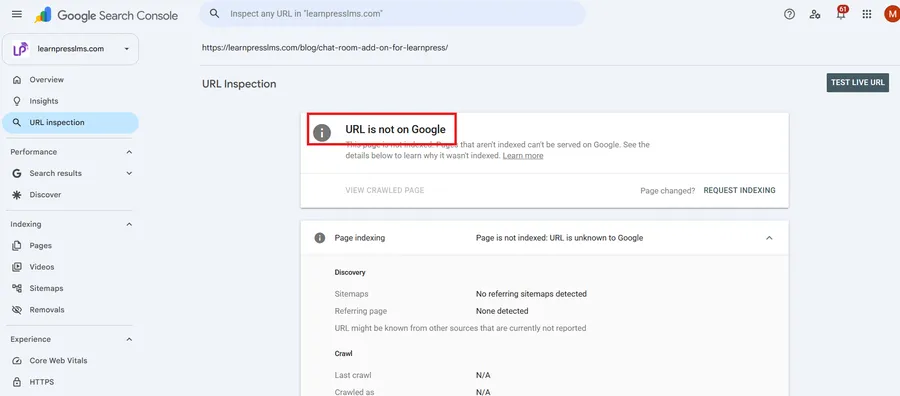
A more reliable method is using Google Search Console’s URL Inspection Tool.
This tool tells you:
- Whether the page is indexed.
- When it was last crawled.
- Whether indexing has been requested.
- Whether Google encountered problems.
- Whether the page is eligible for indexing.
Always begin your investigation here before making changes elsewhere.
Step 2: Check for Noindex Tags
One of the simplest—and most common—causes of indexation problems is the accidental use of a no-index directive.
A no-index tag tells search engines not to include a page in their search results.
This is useful for pages such as:
- Thank-you pages.
- Internal admin pages.
- Login screens.
- Duplicate content.
- Temporary landing pages.
However, it’s surprisingly common for important pages to inherit noindex settings during website development or after redesigns.
This frequently happens when developers temporarily block search engines while building a website and forget to remove the setting before launch.
During your audit, verify that important pages don’t contain unintended noindex directives.
Pay particular attention after:
- Website migrations.
- Theme changes.
- CMS updates.
- SEO plugin configuration changes.
One incorrect setting can remove dozens—or even hundreds—of pages from Google’s index.
Step 3: Review Your robots.txt File
The robots.txt file tells search engine crawlers which parts of your website they are allowed to access.
Although it doesn’t directly remove pages from Google’s index, it can prevent Google from crawling content that needs to be evaluated.
Common mistakes include:
- Blocking service page directories.
- Blocking JavaScript or CSS resources.
- Leaving development restrictions active.
- Accidentally blocking the entire website.
A simple line of incorrect code can significantly reduce your website’s visibility.
Review your robots.txt file carefully whenever pages unexpectedly disappear from search results.
Step 4: Inspect Canonical Tags
Canonical tags tell Google which version of a page should be treated as the preferred version.
They’re essential for managing duplicate content, but they can also create serious indexation problems when configured incorrectly.
For example, imagine your primary service page contains a canonical tag pointing to another page.
Google may decide that the other page is the version it should index, causing the intended page to disappear from search results.
During an audit, verify that:
- Every canonical tag points to the correct URL.
- Self-referencing canonicals are used where appropriate.
- Canonicals aren’t accidentally pointing to outdated pages.
- Canonical chains don’t exist.
Incorrect canonicalisation is one of the most overlooked causes of missing pages.
Step 5: Verify Your XML Sitemap
Your XML sitemap acts as a roadmap that helps search engines discover important pages.
Although Google can find many pages through internal links, an accurate sitemap improves efficiency and signals which pages you consider valuable.
Your sitemap should include:
- Important service pages.
- Blog articles.
- Product pages.
- Category pages.
- Other indexable content.
It should not include:
- Redirects.
- 404 pages.
- Noindex pages.
- Duplicate URLs.
Submitting an accurate XML sitemap through Google Search Console helps Google discover new content more quickly and identify indexing issues sooner.
Step 6: Investigate Crawl Errors
If Google encounters technical problems while attempting to access a page, indexing may be delayed or prevented entirely.
Some of the most common crawl issues include:
- Server errors.
- DNS problems.
- Timeout errors.
- Redirect loops.
- Broken internal links.
- Incorrect status codes.
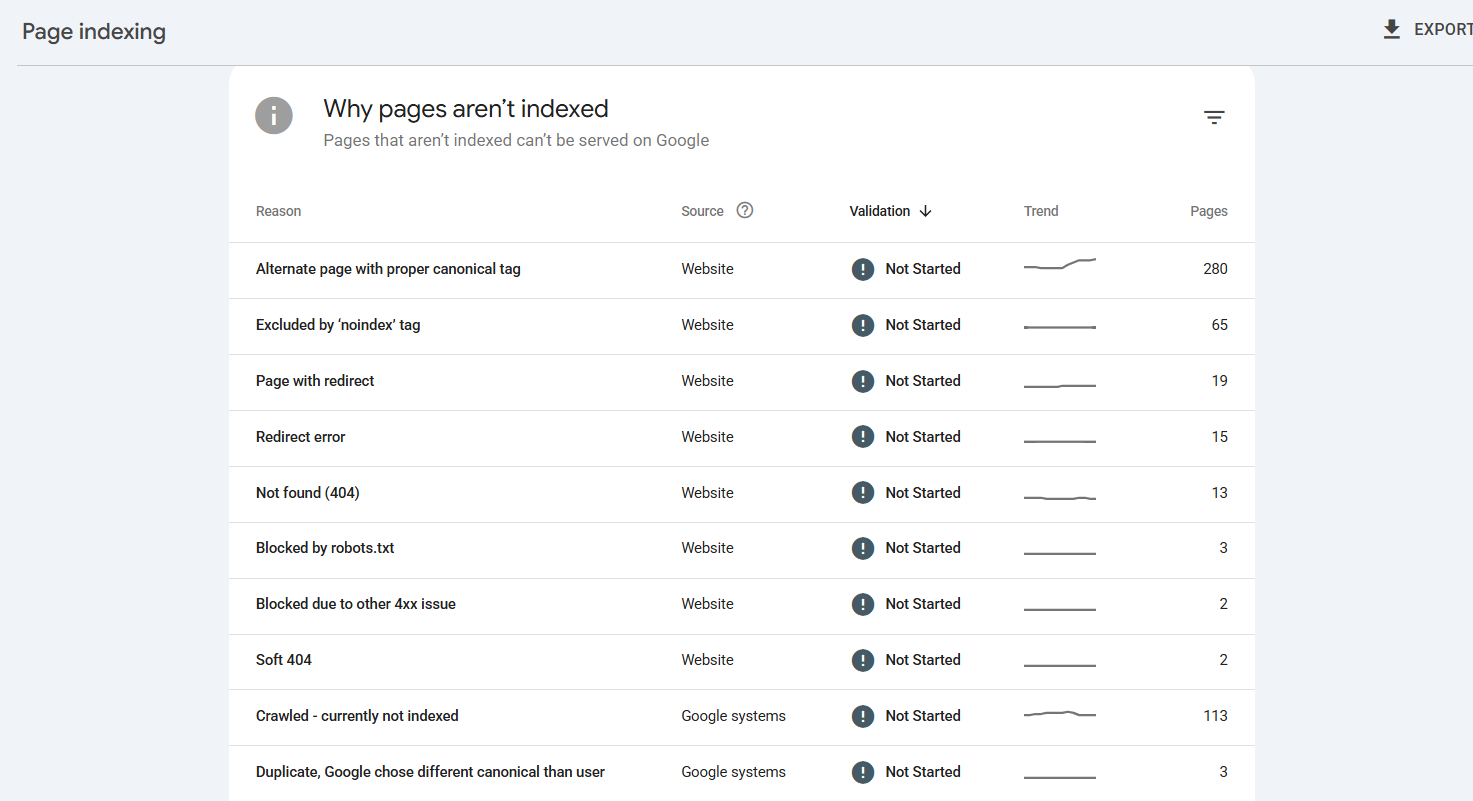
Google Search Console provides valuable reports showing pages that couldn’t be crawled successfully.
Addressing these issues promptly improves crawl efficiency and increases the likelihood that important pages will be indexed.
Remember that crawl errors often affect more than one page. A server configuration issue, for example, may impact an entire section of your website rather than a single URL.
Step 7: Eliminate Thin and Duplicate Content
One of the most overlooked reasons pages fail to get indexed is that Google doesn’t believe they provide enough unique value.
Google’s goal is not to index every page on the internet. Its goal is to index the pages that offer the best answers to users’ questions.
If multiple pages on your website cover the same topic or contain very similar content, Google may decide that only one of them deserves to be indexed.
This commonly happens on business websites that create dozens of near-identical location or service pages.
For example, a plumbing company might create separate pages for:
- Plumber in Cape Town
- Plumber in Bellville
- Plumber in Durbanville
- Plumber in Somerset West
If each page simply swaps out the suburb name while keeping the rest of the content identical, Google may treat these pages as duplicates and choose not to index some—or all—of them.
How to identify thin or duplicate content
Look for pages that:
- Contain very little original information.
- Closely resemble other pages on your website.
- Exist only to target additional keywords.
- Provide little value beyond what’s available elsewhere.
How to fix the issue
Rather than creating dozens of nearly identical pages, make each page genuinely useful by including:
- Unique local information.
- Area-specific services.
- Customer testimonials from that location.
- Relevant case studies.
- Frequently asked questions.
- Original images.
- Local pricing considerations where appropriate.
Every page should answer the question:
“Would this page still be valuable if someone removed the location name?”
If the answer is no, it probably needs additional work.
Step 8: Find and Fix Orphan Pages
An orphan page is a page that exists on your website but isn’t linked to from any other page.
Because Google primarily discovers content by following links, orphan pages are much harder to find and index.
They often occur when:
- New pages are published without being added to navigation.
- Old landing pages remain online after marketing campaigns.
- Website migrations break internal links.
- Content is created outside the normal website structure.
Even if an orphan page appears in your XML sitemap, it sends a weak signal because no other pages on your website indicate that it’s important.
How to identify orphan pages
Compare:
- Your XML sitemap.
- Your website crawl.
- Google Search Console.
- Your CMS page list.
Any page that exists but isn’t linked internally should be reviewed.
How to fix orphan pages
Every important page should receive contextual links from relevant pages, including:
- Service pages.
- Blog articles.
- Category pages.
- Resource hubs.
- Navigation menus where appropriate.
Strong internal linking helps Google discover pages faster while also distributing authority throughout your website.
Step 9: Strengthen Your Internal Linking Strategy
Internal links do far more than help visitors navigate your website.
They help Google understand:
- Which pages are most important.
- How topics relate to one another.
- Which content supports broader subject areas.
- How authority should flow across your website.
Imagine your website as a network rather than a collection of individual pages.
Every internal link acts like a road connecting different destinations.
Pages with very few internal links often receive less attention from Google.
Best practices for internal linking
Link naturally from:
- Blog articles to relevant service pages.
- Service pages to supporting resources.
- Related blog posts.
- Pillar pages to cluster content.
- Category pages to subcategories.
Use descriptive anchor text rather than vague phrases like:
- Click here
- Read more
- Learn more
Instead, describe the destination clearly.
For example:
- Technical SEO audit checklist
- Local SEO services
- Google Business Profile optimisation
This provides additional context for both users and search engines.
Step 10: Check for JavaScript Rendering Issues
Modern websites increasingly rely on JavaScript frameworks to display content dynamically.
Although Google has become much better at rendering JavaScript, problems still occur.
Some websites unintentionally hide important content behind scripts that Google struggles to process efficiently.
Examples include:
- Navigation generated entirely through JavaScript.
- Service descriptions loaded after page interaction.
- Content hidden behind expandable elements.
- Links that only appear after scripts execute.
If Google cannot access important content during rendering, it may decide not to index the page or may misunderstand what the page is about.
How to identify rendering problems
Compare:
- What visitors see.
- What Google’s rendered version displays.
If important content is missing in Google’s rendered view, further investigation is required.
Step 11: Identify Soft 404 Pages
A soft 404 occurs when a page technically exists but provides so little useful information that Google considers it effectively empty.
Unlike a standard 404 error, which clearly indicates that a page doesn’t exist, a soft 404 returns a successful status code while offering little or no value.
Examples include:
- Empty category pages.
- Product pages with no products.
- Location pages with almost no content.
- Pages displaying generic error messages.
Google may choose not to index these pages because they don’t satisfy user expectations.
How to fix soft 404s
Either:
- Improve the content substantially.
- Redirect the page to a more relevant alternative.
- Remove the page entirely if it no longer serves a purpose.
Step 12: Review Redirects Carefully
Redirects are essential when URLs change.
However, poorly implemented redirects often create indexation problems.
Watch for:
- Redirect chains.
- Redirect loops.
- Temporary redirects used permanently.
- Redirects pointing to irrelevant pages.
- Broken redirects.
Every redirect should lead directly to the most relevant replacement page.
Avoid redirecting every outdated page to your homepage.
Google generally treats this as a poor user experience.
Step 13: Understand Crawl Budget
For most small business websites, crawl budget isn’t a major concern.
However, as websites grow, inefficient crawling can delay indexing.
Google allocates a limited amount of crawling resources to each website.
Those resources can be wasted on:
- Duplicate pages.
- Parameter URLs.
- Broken pages.
- Infinite URL combinations.
- Low-value content.
Improving technical SEO allows Google to spend more time crawling the pages that actually matter.
Large websites with thousands of URLs benefit most from crawl budget optimisation, but every website benefits from reducing unnecessary crawl waste.
Step 14: Request Reindexing the Right Way
After fixing an indexation issue, many website owners expect immediate results.
Unfortunately, indexing doesn’t happen instantly.
The best approach is to:
- Fix the underlying issue.
- Confirm the page is accessible.
- Verify internal links point to it.
- Ensure it’s included in your XML sitemap.
- Use the URL Inspection Tool in Google Search Console.
- Request indexing.
Avoid repeatedly requesting indexing without making meaningful improvements.
Google’s systems will revisit important pages naturally over time, particularly when they receive internal links and demonstrate value.
Common Indexation Mistakes Businesses Make
Across hundreds of technical SEO audits, certain problems appear repeatedly.
The most common include:
- Publishing pages without internal links.
- Accidentally applying no-index tags.
- Blocking pages via robots.txt.
- Creating duplicate location pages.
- Ignoring canonical tag errors.
- Leaving broken redirects unresolved.
- Publishing thin content.
- Removing pages without implementing redirects.
- Failing to submit updated XML sitemaps.
- Assuming every published page will automatically rank.
Most of these issues are entirely preventable with regular technical SEO reviews.
Indexation Troubleshooting Checklist
If an important page isn’t appearing in Google, work through this checklist systematically.
Confirm that:
- The page is crawlable.
- The page is indexable.
- No no-index tag exists.
- Robots.txt isn’t blocking access.
- Canonical tags are correct.
- The page appears in your XML sitemap.
- Internal links point to the page.
- No significant crawl errors exist.
- The page provides substantial original content.
- The page isn’t considered a soft 404.
- JavaScript isn’t hiding important content.
- Redirects work correctly.
- Google Search Console reports no indexing issues.
Working through these checks methodically will identify the vast majority of indexation problems.
Frequently Asked Questions
How long does Google take to index a new page?
There is no fixed timeframe. Some pages are indexed within hours, while others can take several weeks. Factors such as website authority, internal linking, crawl frequency, and content quality all influence how quickly Google indexes new content.
Why is my page crawled but not indexed?
This usually means Google has discovered the page but doesn’t currently believe it provides enough value to include in its index. Common reasons include thin content, duplicate content, poor internal linking, or quality concerns.
Can a page rank without being indexed?
No. A page must first be included in Google’s index before it becomes eligible to rank in search results.
Should every page on my website be indexed?
No. Pages such as login screens, thank-you pages, internal search results, duplicate pages, and certain administrative pages generally shouldn’t be indexed. Focus on ensuring your valuable service pages, product pages, category pages, and informative articles are indexable.
Does submitting a sitemap guarantee indexing?
No. An XML sitemap helps Google discover your pages more efficiently, but Google ultimately decides whether each page deserves to be indexed based on its quality, uniqueness, and usefulness.
Conclusion
Indexation is the bridge between publishing content and earning organic traffic.
Without it, even the most comprehensive, well-written pages will never appear in Google’s search results.
Fortunately, most indexation issues follow predictable patterns. Whether the cause is an accidental no-index directive, poor internal linking, duplicate content, crawl errors, or incorrect canonical tags, a structured troubleshooting process makes it possible to identify and resolve the problem.
The key is to approach indexation methodically rather than making random changes. Start by confirming whether the page is actually indexed, then work through each potential technical issue one by one. In many cases, the solution is surprisingly straightforward once the underlying cause has been identified.
Finally, remember that successful indexation is not a one-time task. As your website grows, regular technical SEO audits and ongoing monitoring through Google Search Console will help ensure that your most valuable pages remain visible to both search engines and potential customers.
Businesses that consistently maintain a healthy index give themselves the best possible chance of ranking well, attracting qualified traffic, and maximising the return on every piece of content they publish.