Moving your entire business infrastructure can be a daunting task, especially when you have years of valuable content stored on a platform like WordPress. While WordPress is good for content management, Shopify has become the gold standard for e-commerce. As your store grows, you likely want to consolidate your sales and your stories in one place.
However, the challenge arises when you realise that Shopify does not offer a native, one-click button to migrate WordPress blog to Shopify. This often leaves store owners worried about losing their SEO rankings, breaking image links, or spending weeks manually copying and pasting articles.
In this comprehensive guide, we will show you how to migrate WordPress blog to Shopify efficiently. Whether you prefer a hands-on manual approach or a fully automated solution, we have broken down the process, similar to how you would create a Shopify store from scratch, to ensure your WordPress to Shopify blog migration is seamless and risk-free.
Why Businesses Migrate from WordPress to Shopify
Many entrepreneurs start their journey with a WordPress site because of its flexibility. However, as the focus shifts toward scaling an online store, the benefits of a move WordPress blog to Shopify become clear. Here are the primary reasons businesses make the switch:
1. Centralised Management
Managing two different platforms—one for your shop and one for your blog—is time-consuming. By choosing to import WordPress blog to Shopify, you can manage your inventory, orders, and content marketing from a single dashboard. This streamlines your workflow and reduces the technical overhead of jumping between different hosting providers and login credentials.
2. Enhanced Security and Hosting
Shopify is a hosted solution, meaning they handle the heavy work of security, SSL certificates, and server speed. When you migrate WordPress blog to Shopify, you gain peace of mind knowing your content is protected by Shopify’s infrastructure.
3. Better Conversion Flow
When your blog and store are on the same platform, the path from reader to customer is much shorter. You can easily embed products directly into your blog posts, use consistent branding across the entire site, and provide a faster loading experience for mobile users.
Steps to Migrate Your WordPress Blog to Shopify
Step 1: Pre-Migration Preparation and Backup
Step 2: Choosing Your Migration Method (App, Plugin, or Manual)
Step 3: Executing the Data Transfer
Step 4: Formatting and Image Optimisation
Step 5: Setting Up 301 Redirects to Preserve SEO
Step 6: Post-Migration Quality Check
Step 1: Pre-Migration Preparation and Backup
Before you actually migrate WordPress blog to Shopify, you must lay the groundwork. Think of this as packing your bags before moving to a new house. If you don’t organise your belongings now, the unpacking process will be a nightmare.
1.1 Perform a Complete Site Backup
Never start a move WordPress blog to Shopify without a safety net. Even though you aren’t deleting your WordPress site yet, errors during the export process can sometimes lead to data corruption.
- Database Backup: Use a plugin like UpdraftPlus or your hosting provider’s tools to save a copy of your SQL database. Before exporting, it is also wise to check for WordPress plugin conflicts to ensure your data is clean and export-ready.
- Media Library: Ensure you have a local copy of your “wp-content/uploads” folder. Shopify handles images differently, and having the original files is a lifesaver if a link breaks during the WordPress blog-to-Shopify import.
1.2 Audit and Clean Your Content
This is the perfect time to clean. Do you really need to migrate WordPress blog to Shopify with posts from 2015 that no longer get traffic?
- Delete redundant posts: If a post is outdated or irrelevant, delete it now to save time during the migration.
- Fix broken links: Use a Broken Link Checker plugin to ensure all internal links are working. It is much easier to fix these on WordPress than it is after you move WordPress blog to Shopify.
1.3 Map Your SEO Metadata
One of the biggest risks of a WordPress to Shopify blog migration is losing your search engine rankings. Create a spreadsheet listing your current WordPress URLs, Meta Titles, and Meta Descriptions. This will help when you verify your new Shopify blog later.
Step 2: Choosing Your Migration Method (App, Plugin, or Manual)
When you are deciding how to migrate WordPress blog to Shopify, you essentially have two primary paths to follow: the manual entry method or the automated import tool method.
The manual approach is often the preferred choice for those who have a very limited number of blog posts and want absolute control over the final look of every page.
In this scenario, you are essentially recreating each post by copying the HTML or plain text from your WordPress editor and pasting it into the Shopify blog interface. While this is a free way to move WordPress blog to Shopify, it is incredibly slow.
You will need to manually re-upload every image, re-assign authors, and recreate your categories and tags from scratch. For a site with only five or ten posts, this ensures that the formatting is perfect.
For the majority of users who have dozens or hundreds of articles, the most efficient way to import WordPress blog to Shopify is by using a CSV file or a dedicated import app. Shopify offers a native Store Importer tool that is designed to handle files exported directly from WordPress.
To use this method, you need to generate an XML file containing all your written content and metadata. When you upload this file into the Shopify importer, the system attempts to map your WordPress fields to the corresponding Shopify sections. This is a much faster way to migrate WordPress blog to Shopify, as it handles the bulk of the heavy lifting for you.
However, it is important to remember that Shopify and WordPress use different content structures, so even with an automated tool, you will likely need to perform some manual checks to ensure your images and formatting appear correctly on the front end.
Step 3: Exporting Your WordPress Blog Data
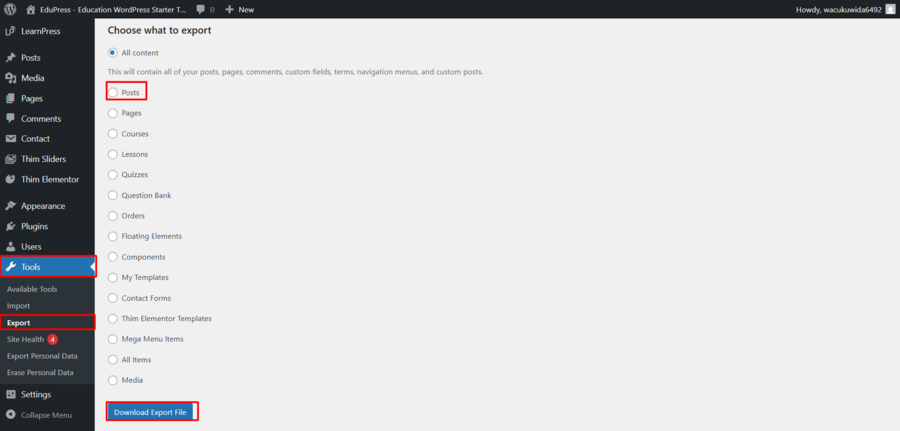
The execution phase of your WordPress to Shopify blog migration begins with extracting the raw data from your current site. To do this, you must log in to your WordPress admin dashboard and navigate to the “Tools” section, then click on “Export” in the left-hand menu.
An export screen will appear, presenting you with several options regarding which data you want to take with you. While the default selection is “All content” you can choose “Posts” specifically if your primary goal is to move WordPress blog to Shopify content without bringing over unnecessary system pages or custom post types that might not translate well.
Once you have filtered your selection, you click the “Download Export File” button. This action generates a file in XML format.
Step 4: Customising and Preparing the Import File
Simply having the XML file is not enough to successfully import WordPress blog to Shopify; the data needs to be changed into a language that Shopify’s database understands. Understanding this data structure is just as vital as knowing how to Shopify export products when managing your store’s inventory.
This is where you must review and modify the data manually, often converting it into a CSV format. To avoid errors during the upload process, it is recommended to access the dashboard of your chosen Shopify import app and download a sample CSV file.
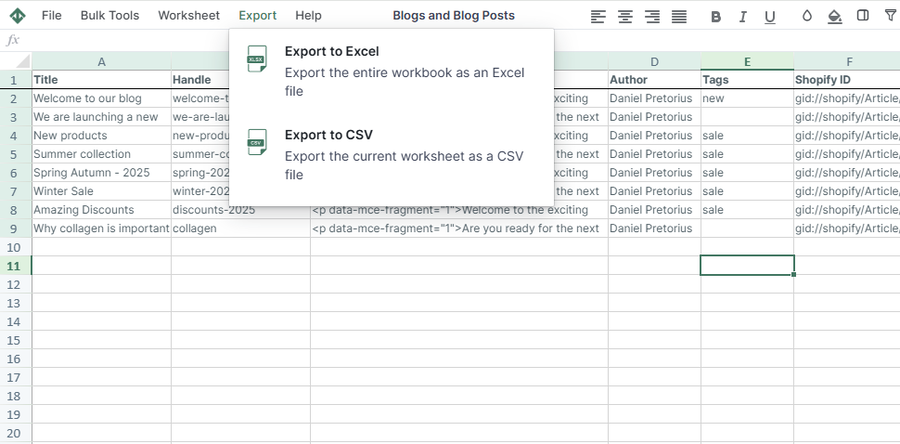
Most reliable tools provide these templates to show you exactly how your data columns should be named and organised. By using this sample as a reference, you can adjust your WordPress export data to match. You will need to ensure that critical fields, such as the unique ID, title, body content, and original publish date, are mapped to the correct columns.
This customisation step is the most vital part of the WordPress to Shopify blog migration because it allows you to retain your original permalinks and any custom fields you want to keep.
If you skip this manual alignment, you risk having your blog posts appear with missing dates or broken links. This meticulous approach to the import file is what separates a messy migration from a professional one, giving you full control over how your content is presented on your new Shopify store.
Step 5: Executing the Shopify Import
Once your data file is meticulously organised and mapped, you are ready to actually import WordPress blog to Shopify.
To begin the process, you must access your Shopify admin panel and navigate to the “Apps” section to open your chosen migration or import tool.
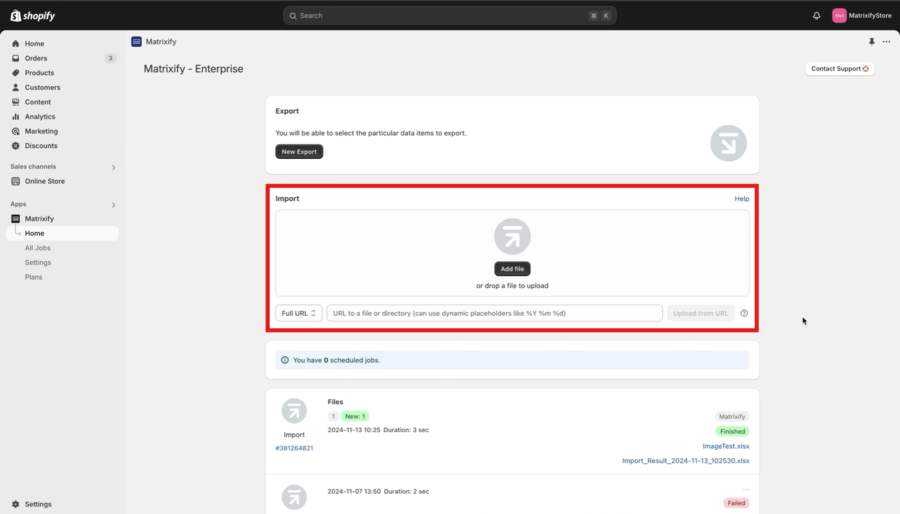
Within the app’s interface, you will typically find a “Start Import” or “Upload File” button where you will select the file you prepared in the previous steps. As the upload begins, the system will start processing each row of data, creating new blog post entries in your Shopify database.
It is important to remain patient during this phase, as a large-scale move WordPress blog to Shopify can take anywhere from a few minutes to an hour, depending on the amount of content and the number of images that need to be fetched and hosted on Shopify’s servers.
After the import tool indicates that the process is complete, your next task is to verify the results within the Online Store > Blog Posts section of your Shopify dashboard.
You should spot-check several articles to ensure that the formatting, headers, and especially the images have transitioned correctly. It is common to find that some WordPress shortcodes or custom plugin scripts do not translate perfectly into Shopify.
If you notice minor layout inconsistencies, this is the time to manually refine the HTML within the Shopify editor. Successfully learning how to migrate WordPress blog to Shopify requires this final polish to ensure that your readers enjoy a consistent and professional reading experience that matches your new brand’s aesthetic.
Step 6: Setting Up 301 Redirects to Preserve SEO
The final and most critical step of any WordPress to Shopify blog migration is the implementation of 301 redirects.
When you move WordPress blog to Shopify, the URL structure of your posts will almost certainly change. For example, WordPress might use a /year/month/post-name format while Shopify uses a /blogs/news/post-name structure.
If you do not tell Google and your visitors where the new pages are located, they will encounter a 404 Not Found error, which can devastate your SEO rankings and frustrate your customers.
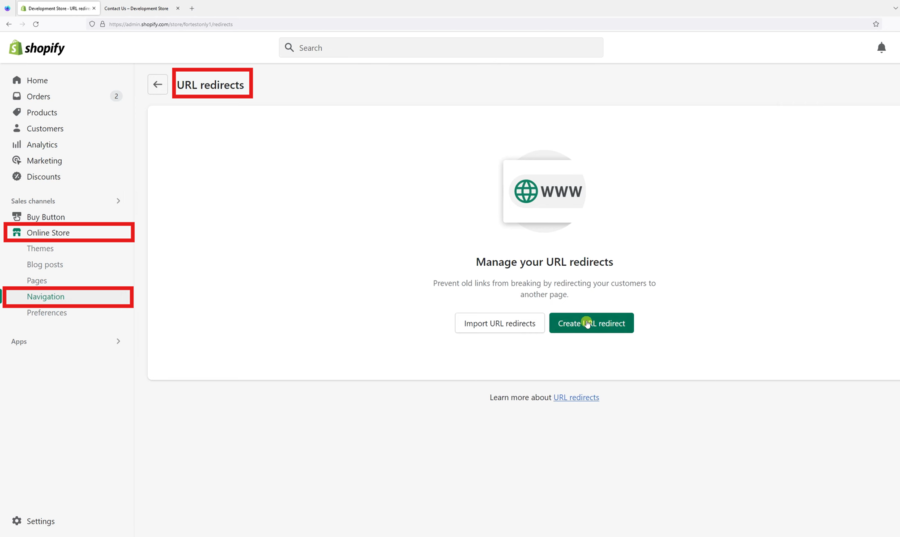
To prevent this, you must navigate to “Online Store > Navigation > URL Redirects” within your Shopify admin. Here, you will create a map that tells the browser to automatically forward anyone clicking an old WordPress link to the corresponding new page on your Shopify store.
Setting up these redirects can help preserve your content marketing efforts. By ensuring that every link is accounted for, you pass the link and authority from your old WordPress site directly to your new home.
This is the secret to a successful WordPress to Shopify blog migration that doesn’t result in a traffic dip. While it may seem tedious to map out dozens of URLs, Shopify does allow you to import redirects in bulk using a CSV file, which can save you hours of manual entry.
Once these redirects are live, you should test several old links to verify they land on the correct new blog posts. Completing this final technical hurdle ensures that your import WordPress blog to Shopify is a complete success, allowing you to focus entirely on growing your business on your new, unified platform.
FAQ: WordPress to Shopify Blog Migration
1. Will I lose my Google rankings if I move WordPress blog to Shopify?
Not if you handle the migration correctly. The most important factor is setting up 301 redirects. This tells search engines that your old WordPress URL has permanently moved to a new Shopify URL, passing the authority to your new site.
2. Can I import WordPress blog to Shopify for free?
Yes, there are manual methods and some basic plugins that allow for a free transfer. However, these often require more technical knowledge and manual formatting. For larger blogs with hundreds of posts, an automated service is usually recommended to ensure data integrity.
3. What happens to my images during the migration?
Images can be tricky. If you migrate WordPress blog to Shopify manually, you may need to re-upload images or ensure the file paths are correctly mapped. Automated tools typically handle image migration by taking the images from your old site and uploading them to Shopify’s files section.
4. Does Shopify have a limit on the number of blog posts?
No. Shopify allows you to host an unlimited number of blog posts, making it a perfectly viable home for even the most content-heavy WordPress sites.
Final Words
Learning how to migrate WordPress blog to Shopify is a vital step in professionalising your e-commerce brand. While the technical transition requires careful planning, it is a foundational skill for anyone looking to make a small business website that scales effectively.
By following a structured WordPress to Shopify blog migration process, you can protect your SEO, improve your site speed, and ultimately provide a better experience for your customers.