
Managing your website files is an important part of maintaining a clean and optimized WordPress site. Over time, the Media Library may become filled with unused images, videos, and documents. Learning how to delete media from Media Library helps reduce storage usage and keeps your site organized.
This guide explains the main steps to remove files from the WordPress Media Library safely and efficiently.
Why You May Need to Delete Media from Media Library
Before removing files, it is helpful to understand why this task is important.
Remove unused or duplicate images
Free up server storage
Improve media organization
Reduce clutter in the Media Library
Regularly managing media files ensures your website remains efficient and easy to maintain.
How to Delete Media from Media Library in WordPress
Follow these simple steps to delete files from the WordPress Media Library.
Step 1: Log in to the WordPress Dashboard
First, access your website’s WordPress admin dashboard.
Open your website login page.
Enter your username and password.
Click Log In to access the dashboard.
Step 2: Open the Media Library
Once you are inside the dashboard:
Navigate to Media in the left sidebar.
Click Library.
Here you will see all uploaded images, videos, PDFs, and other files stored on your website.
Step 3: Select the Media File You Want to Delete
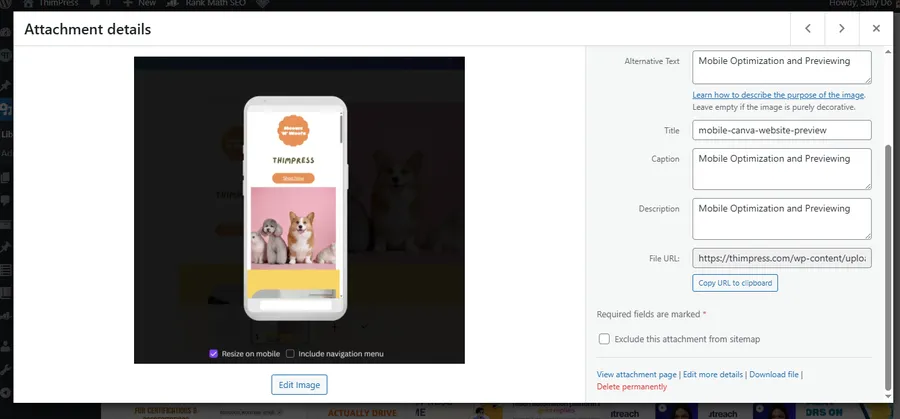
Locate the file you want to remove.
Click on the media item.
The Attachment Details panel will appear.
This panel shows information such as file name, upload date, and file URL.
Step 4: Delete the Media File
To delete media from Media Library:
In the Attachment Details panel, click Delete Permanently.
Confirm the deletion if prompted.
The file will now be removed from your WordPress Media Library.
Step 5: Delete Multiple Media Files (Optional)
If you want to remove several files at once:
Open Media → Library.
Click Bulk Select at the top.
Select multiple media files.
Click Delete Selected.
This method helps quickly delete media from Media Library when cleaning large amounts of files.
Important Notes Before Deleting Media
Before removing files, consider the following:
Deleted media files cannot be recovered from the Media Library.
If a file is used in posts or pages, removing it may break images on your website.
Always check where the file is used before deleting it.
If necessary, create a backup of your website before performing bulk deletions.
FAQs
1. What happens when I delete media from Media Library?
When you delete media from Media Library, the file is permanently removed from your WordPress uploads folder and will no longer appear on your website.
2. Can I restore deleted media files?
No. Once you delete media from Media Library using Delete Permanently, the file cannot be restored unless you have a website backup.
3. Why can’t I delete some media files?
Some files may still be attached to posts or pages. In this case, you need to remove the file from the content first before deleting it from the Media Library.
4. Is it safe to delete unused media files?
Yes. Removing unused files is a recommended practice because it helps organize your Media Library and saves storage space.
Conclusion
Knowing how to delete media from Media Library in WordPress is a simple but essential maintenance task. By removing unused images, videos, and files, you can keep your Media Library organized and improve overall website management.
Always check whether a file is being used before deleting it and consider creating a backup if you plan to remove multiple files. Regular media cleanup will help ensure your WordPress site remains efficient and easy to maintain.
Learn More from ThimPress Knowledge Base Articles:
- One-Click Resca Theme Installation Guide (Video)
- Step-by-Step Video Tutorial: Installing Resca Theme
- Create A Child Theme in Squareroot: Step-by-step Guide
- ADOT Theme Installation: A Step-by-Step Video Tutorial
- Install and Set up the FundPress plugin
- How To Submit A ThimPress Support Ticket
- How To Disable The Demo Slider Images
- Active Included Premium Plugins: What You Need to Know
- How to Back Up Your WordPress Site: 3+ Simple Methods
- How To Submit A ThimPress Support Ticket
Contact US | ThimPress:
Website: https://thimpress.com/
Fanpage: https://www.facebook.com/ThimPress
YouTube: https://www.youtube.com/c/ThimPressDesign
Twitter (X): https://twitter.com/thimpress
