A strong portfolio can help you show your skills, build trust, and attract new opportunities. The good news is that you do not need coding skills or a large budget to make one.
In this article, you will learn how to create a portfolio website for free using Canva, even if you are a beginner.
If you are new to the platform, you can read this step-by-step guide on how to use Canva before getting started, as Canva makes it easy to build a clean, professional portfolio with free templates, drag-and-drop editing, and simple publishing tools.
Let’s get started!
Eduma – Education WordPress Theme
We provide an amazing WordPress theme with fast and responsive designs. Let’s find out!
What Is a Portfolio Website?
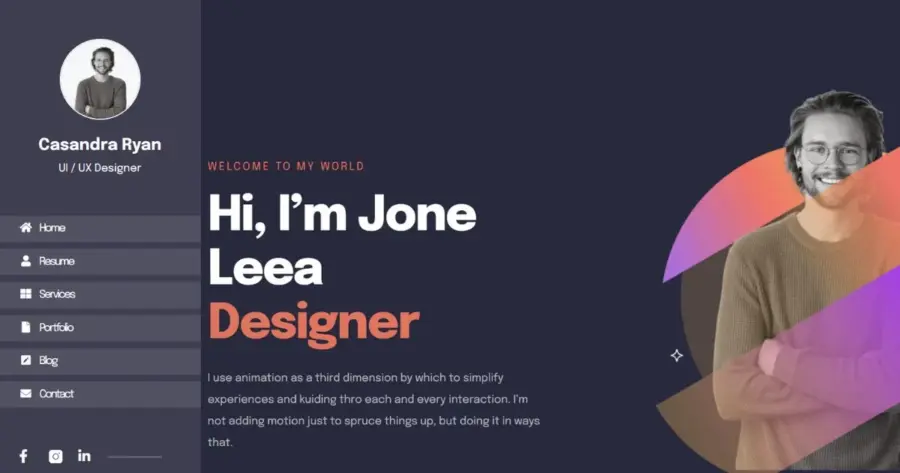
A portfolio website is a digital collection of your best work. It helps people understand what you can do, how you work, and why they should trust your skills. Unlike a CV, which summarizes your experience and qualifications, a portfolio shows real examples of your work in a visual and practical way.
This difference matters because a portfolio gives more context. A recruiter, client, or collaborator can see the quality of your output, your style, and your ability to solve problems. That is why a portfolio website is often more effective than a static document, especially for creative and technical roles.
Digital portfolios are also easier to update and share than printed ones. You can edit them whenever you complete a new project, and you can send them to anyone through a simple link. For modern professionals, this flexibility is a major advantage.
Why Use Canva to Create a Portfolio Website?
Canva is one of the easiest tools for beginners who want to create a portfolio website for free using Canva. It removes much of the technical work and helps you focus on design and content.
No Coding Required
You do not need to learn HTML, CSS, or web design basics to start. Canva’s interface is simple, visual, and beginner-friendly. You can choose a layout, drag in your content, and publish your site without touching code.
Free Templates and Assets
Canva offers many free templates, fonts, images, and graphics. This helps you design a polished website without paying for a designer or starting from scratch. For users with limited time, this is one of the biggest benefits of a free portfolio website Canva workflow.
Fast One-Page Website Setup
A one-page portfolio is ideal for many users because it is simple, focused, and easy to navigate. Canva supports this format well. You can create a clean portfolio homepage that includes your introduction, project samples, services, and contact details in one place.
Built-in SEO and Mobile Optimization
Canva also supports basic SEO settings and mobile-friendly layouts. That means your portfolio can be easier to find in search engines and easier to view on phones and tablets. For creators and freelancers, this is important because visitors often review portfolios on mobile devices first.
Who Needs a Portfolio Website?
A portfolio website is useful for more than just artists. Many professionals can benefit from a simple online showcase.
Designers and Developers
Graphic designers, web designers, UX designers, and developers can use a portfolio to show case studies, screenshots, UI examples, and project results. A strong portfolio website helps explain not only what they built, but also how they solved a problem.
Writers and Marketers
Writers, editors, SEO specialists, and marketing professionals can use a portfolio to display articles, campaigns, landing pages, or case studies. This is especially helpful for people whose work is not always visual but still needs proof.
Photographers and Creators
Photographers, filmmakers, illustrators, and content creators can present their best visual work in a clean and structured way. A portfolio website helps them control how their work is displayed, instead of relying only on social media.
Students and Freelancers
Students can use a portfolio to show assignments, projects, and achievements. Freelancers can use it to build trust with potential clients and demonstrate their abilities before a proposal call or interview.
What to Include in a Portfolio Website
A good portfolio should be clear, concise, and easy to scan. The best portfolios usually include a few essential sections.
About Section
Your About section should introduce who you are, what you do, and what kind of work you want to pursue. Keep it short, confident, and relevant. Mention your background, your focus area, and your style or strengths.
A professional photo can also help build trust. If the portfolio is for clients, a friendly but professional tone works best.
Work Samples or Case Studies
This is the most important part of your portfolio. Choose your strongest work and include only pieces that match the kind of work you want to get more of. For design and marketing roles, case studies can be especially effective because they show your process, not just your final result.
Try to include brief context for each project. What was the goal? What was your role? What was the result? These details improve credibility and help search engines understand your content better.
Services and Skills
If you offer services, list them clearly. If you are a student or employee, list your main skills instead. This section helps visitors quickly understand what you can do.
Testimonials
Testimonials add social proof. A short quote from a client, teacher, or collaborator can make your portfolio more persuasive. Even one or two good testimonials can strengthen trust.
Contact Information and CTA
Every portfolio should end with a clear call to action. Tell visitors how to contact you, hire you, or view more of your work. Add your email address, social links, and a simple CTA such as “Contact me” or “Let’s work together.”
How to Create a Portfolio Website for Free Using Canva
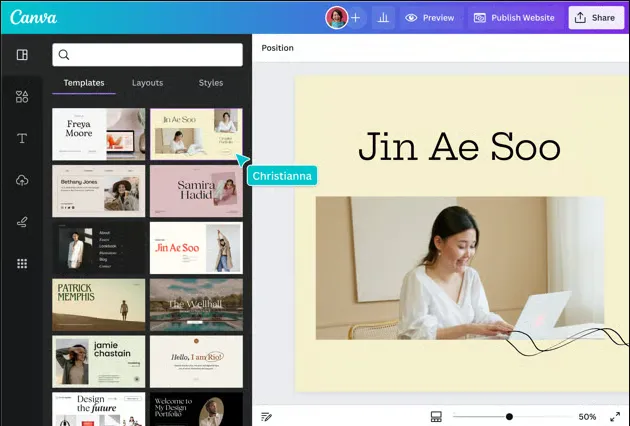
Below is a simple Canva portfolio website tutorial you can follow step by step.
Step 1: Define Your Goal
Before you build anything, decide why you are creating the portfolio. Do you want to get clients, apply for jobs, showcase class projects, or build your personal brand? Your goal will shape the content, design, and tone of your website.
A clear goal also makes it easier to choose which projects belong in the portfolio and which should be left out.
Step 2: Prepare Your Best Work
Collect your strongest projects first. Do not try to include everything you have ever made. A focused portfolio is stronger than a crowded one.
For most users, 10 to 20 strong samples are enough. If your work is visual, use high-quality images. If your work is written or strategic, prepare short descriptions, outcomes, and links where possible.
Step 3: Choose a Canva Template
Search for a portfolio website template inside Canva. You can choose a minimalist layout for a clean look or a more creative layout if your work is highly visual.
This is one of the most useful parts of how to build a portfolio website with Canva. You do not have to design every section from zero. Instead, you can start with a ready-made template and customize it to match your style.
A one-page format works well for most users because it is simple and mobile-friendly. However, if you have many different types of work, a multi-page layout may work better.
Step 4: Customize Your Design
Now add your logo, photos, text, colors, and fonts. Keep the design consistent so the whole site feels professional. Avoid using too many fonts or colors, as that can make the page feel cluttered.
Use short headings, clear descriptions, and enough white space. A good portfolio should feel easy to read and pleasant to browse. Canva’s drag-and-drop editor makes this part fast and easy, which is why many users prefer the Canva website builder portfolio approach.
Step 5: Optimize for SEO
Even a simple portfolio should include basic SEO elements. Use your main keyword naturally in the title, intro, and one or two headings. Add related terms where they fit naturally, such as free portfolio website Canva and Canva portfolio website tutorial.
Also write a clear meta description, use descriptive image file names, and add alt text where possible. These small details can help search engines understand your site.
Step 6: Publish Your Website
Once everything looks right, publish the site through Canva. You can use a free Canva domain or upgrade later for a custom domain. Before publishing, check the mobile view to make sure your portfolio looks good on smaller screens. If you need help, follow this guide on how to publish a Canva website or learn how to connect a domain to a Canva website for a more professional setup.
After publishing, share the link on social media, in job applications, or in your email signature.
Best Practices for a High-Converting Portfolio Website
A portfolio should do more than look attractive. It should also help convert visitors into clients, employers, or contacts.
Keep Design Clean and Simple
A simple layout works best for most portfolios. It helps visitors focus on your work instead of distracting design elements.
Focus on Your Best Work Only
A portfolio is not a folder for every project you have ever done. It is a highlight reel. Show your strongest and most relevant work first.
Use Clear Call-to-Actions
Tell visitors exactly what to do next. Contact you, request a quote, view your resume, or book a call. Do not leave them guessing.
Update Your Portfolio Regularly
Your portfolio should grow with your career. Remove old work, add new work, and refresh your About section when your experience changes.
Optimize for Speed and Mobile
A slow or messy mobile experience can hurt engagement. Choose a layout that loads quickly and works well on phones.
Canva Portfolio Website: Pros and Cons
A balanced review helps readers make a better decision.
Pros
Canva is free to start, easy to use, and fast to learn. It is a good choice for beginners who want to create a portfolio website for free using Canva without dealing with advanced tools. The templates are attractive, and the editing process is simple.
Cons
Canva is not as flexible as a full WordPress website. Advanced users may want more control over SEO, structure, and custom features. If you need a very complex site, Canva may feel limited.
Canva vs Other Portfolio Website Builders
Canva is best when you want speed, simplicity, and a polished look with minimal effort. WordPress is better if you need stronger customization, deeper SEO control, or more advanced content features. Wix can also be a good middle option, especially for users who want more design freedom without coding. For a detailed comparison, check out this guide on Canva vs WordPress: which is better for websites.
For many beginners, Canva is the fastest way to launch a professional online portfolio. For long-term growth, especially on a content-heavy site, WordPress may be the better choice.
Common Mistakes to Avoid
A strong portfolio is often defined by what it leaves out.
Adding Too Many Projects
Too many samples can confuse visitors. Choose only the pieces that best reflect your current direction.
Poor Image Quality
Low-resolution images can make even good work look weak. Always upload clear, sharp visuals.
No CTA or Contact Info
A portfolio without contact details can lose opportunities. Make it easy for people to reach you.
Ignoring SEO Basics
Even if your site is simple, SEO still matters. Use the main keyword naturally and include helpful descriptions throughout the page.
FAQs
Can I create a portfolio website for free using Canva?
Yes. Canva offers free templates and a free domain option, so you can start without paying upfront.
Do I need coding skills?
No. Canva uses a drag-and-drop editor, so you can build and publish your site without coding.
Is Canva good for SEO?
Canva supports basic SEO settings, but it is not as advanced as WordPress. It is still useful for a simple portfolio site.
How many projects should I include?
Most portfolios work well with 10 to 20 strong projects. Focus on quality rather than quantity.
Can I use a custom domain?
Yes. Canva supports custom domains, usually through paid plans.
Conclusion
If you need a simple, practical, and low-cost way to present your work, Canva is an excellent choice. It helps you create a portfolio website for free using Canva with no coding, no complicated setup, and no design experience required.
For beginners, freelancers, students, and creators, this is one of the easiest ways to build an online presence. Keep the design clean, focus on your best work, and update the site regularly.
Read more: How to Convert Canva to HTML?
Contact US | ThimPress:
Website: https://thimpress.com/
Fanpage: https://www.facebook.com/ThimPress
YouTube: https://www.youtube.com/c/ThimPressDesign
Twitter (X): https://x.com/thimpress_com