Most interfaces fail for the same small set of reasons: users can’t find what they need, the visual hierarchy points them in the wrong direction, or a single step in a multi-step flow is confusing enough to kill the session. These are not mysterious problems. They are predictable, and they are solvable if you know where to look.
This guide covers the UI and UX best practices that address those failure points directly. Whether you are auditing an existing product, designing a new one from scratch, or preparing for a UX role, treat this as a reference you can come back to at each stage of the design process.
Eduma – Education WordPress Theme
We provide an amazing WordPress theme with fast and responsive designs. Let’s find out!
What Is the Difference Between UX and UI?
Before going into the practices themselves, it helps to be precise about what UX and UI actually cover, because conflating them leads to projects where the right problem gets solved with the wrong tool.
UX: the Full Experience
UX (user experience) covers every aspect of how a person interacts with a product, including how easy it is to accomplish a goal, how the product makes them feel, and whether the overall flow maps logically to how they think. UX design starts with research, user interviews, behavioral observation, competitive analysis, and uses those findings to inform information architecture, task flows, and wireframes.
The goal of UX design is to identify what user problems exist and solve them. That means the UX designer is asking questions like:
- Where do users get confused?
- Where do they drop off?
- Does the navigation structure match how users mentally categorize the content?
UI: the Visual and Interactive Layer
UI (user interface) design covers the screens, components, and visual elements a person actually sees and interacts with: buttons, typography, color systems, icons, spacing, and the transitions between screens. A UI designer takes the wireframes and flows that UX produces and turns them into polished, accessible, visually consistent interfaces.
Think of the analogy used in architecture: UX is the structural blueprint, load-bearing walls, floor plans, entrances and exits. UI is the interior design, what materials are on the walls, how the furniture is arranged, what the lighting looks like. Both matter. A well-structured building that looks neglected drives people away. A beautifully styled building where the exits are impossible to find creates a safety problem.
The practical distinction in digital products: a checkout flow that is logically organized but visually cluttered is a UI problem layered on a solved UX problem. A checkout flow that looks clean but requires six steps to complete one action is a UX problem that no amount of visual polish will fix.
UX Best Practices Every Designer Should Follow
These practices apply whether you are designing a SaaS product, a mobile app, or an e-commerce site. They address the structural and research-driven layer of design.
Start with User Research Before Designing Anything
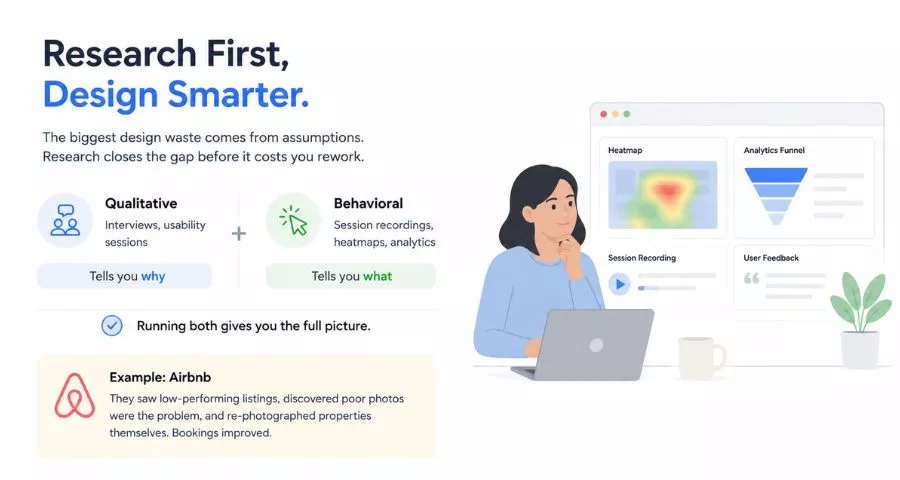
The single biggest source of wasted design effort is building based on assumptions about what users need. User research closes that gap before it costs you rework.
There are two types of research to combine.
- Qualitative methods, user interviews, moderated usability sessions, tell you why users behave the way they do.
- Behavioral methods, session recordings, heatmaps, analytics funnel analysis, tell you what they actually do, which often differs from what they say in interviews.
Running both gives you the full picture.
A well-known example from Airbnb: the founders noticed their New York listings were underperforming. They looked at the listings directly, saw the photos were low quality, rented a camera, flew to New York, and re-photographed the properties themselves.
Design the Information Architecture Before the Interface
Information architecture (IA) is how content and features are organized and labeled inside a product. Poor IA is why users say “I can’t find anything on this site” even when everything they need is technically present.
Start with card sorting: give users a set of cards (or a digital tool like Maze or Optimal Workshop) representing your main content categories and ask them to group and label them however makes sense to them. The groupings that emerge should drive your navigation structure. Once your IA is drafted, run a tree test, ask users to find specific things using only the navigation labels, with no visual design present. Where they get lost tells you exactly which labels are ambiguous.
Apply Hick’s Law to Reduce Decision Fatigue
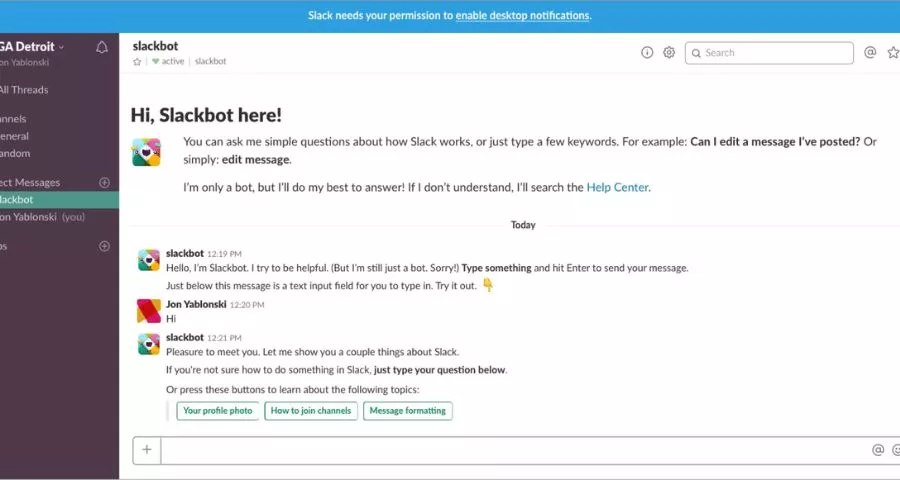
Hick’s Law states that the time it takes a user to make a decision increases with the number and complexity of available options. Every extra navigation item, every unnecessary field in a form, every additional step in a checkout adds cognitive load.
The practical application: strip every screen down to the decisions the user actually needs to make at that point. Progressive disclosure, revealing complexity only when the user signals they need it, is one of the most effective tools for managing this. If a page has 12 navigation options, ask which three a first-time user needs on day one. Surface those and deprioritize the rest.
Design for Mobile First
Over 60% of global web traffic comes from mobile devices (Source: Statista). Designing for desktop first and then shrinking it down consistently produces interfaces that are technically responsive but functionally broken on mobile.
Mobile-first design starts with the most constrained environment: a narrow viewport, touch-based input, variable network conditions, and limited user attention. What works within those constraints works everywhere. The specific areas where mobile UX breaks down most often: tap targets that are too small (the minimum is 44x44px per Apple’s Human Interface Guidelines), forms that require excessive typing, and navigation that needs precise tapping on small links.
Establish Clear Visual Hierarchy on Every Screen
Visual hierarchy tells users what to look at first, second, and third on any given screen. Without it, users scan randomly, miss critical information, and leave.
The hierarchy is established through size, contrast, color, and spacing. The most important element on a screen should be the largest, most contrastful thing in the composition. Secondary elements step down in emphasis. Call-to-action buttons should stand out from the surrounding content without being garish.
One reliable test: squint at your design until it blurs. Whatever survives the blur, whatever shapes and areas of contrast still read as distinct, is your visual hierarchy. If the primary CTA disappears into the background, the hierarchy is broken.
Reduce Friction at Every Step of the User Journey
Friction is anything that slows a user down on the way to completing their goal: unnecessary form fields, unclear labels, too many steps, or actions that require multiple clicks when one would do.
Map your key user journeys end to end, then look at each step and ask: does this step have to exist? If not, remove it. If it has to exist, is it as simple as it can be? Common friction removal moves: smart default values in form fields, remembered user preferences across sessions, guest checkout before account creation, and minimum required form fields. Amazon’s one-click purchasing was a UX decision. Removing the confirmation step from repeat purchases eliminated the most common abandonment point in their checkout flow.
UI Design Best Practices for Visual and Interactive Elements
Once the UX structure is sound, the UI layer is what makes it feel polished and trustworthy. These practices focus on the visual and interactive elements users directly touch.
Build and Follow a Design System
A design system is a documented library of components, patterns, and visual guidelines that every designer and developer on the team builds from: button styles, form field states, typography scale, spacing system, color palette with accessibility-compliant contrast ratios, icon set, and usage guidance for each component.
Without a design system, UI decisions get made independently on each new screen. The result is visual inconsistency that erodes user trust, slightly different button styles across pages, labels that use different vocabulary for the same action. Users notice inconsistency even when they cannot articulate what is wrong. If you are starting from scratch, Figma’s component system is the current standard for building and maintaining a design system.
Use Color and Contrast Intentionally
Color in UI design carries brand identity and communicates meaning. Keep those two functions separate, and make sure color is never the only signal.
A red error message that relies solely on color fails for the roughly 8% of men who have some form of color vision deficiency. Pair color with an icon and a text label. For contrast, the WCAG 2.1 standard requires a minimum 4.5:1 ratio for body text against its background and 3:1 for large text. Use Figma’s built-in accessibility checker or the Colour Contrast Analyser to audit before shipping.
Write UI Copy That Removes Ambiguity
UI copy, button labels, error messages, placeholder text, confirmation dialogs, is a design element, not a writing afterthought. Ambiguous copy is one of the most common sources of UX failure, and it is one of the cheapest to fix.
Specific conventions to follow: buttons should say what happens when you click them (“Save changes,” not “OK”). Error messages should tell users what went wrong and what to do next (“Your password must be at least 8 characters” is better than “Invalid password”). Placeholder text in form fields should describe the expected format (“DD/MM/YYYY”), not repeat the field label. Empty states should explain what is missing and how to add it, not just show a blank space.
Design Interactive States for Every Element
Every interactive element needs at minimum four states: default, hover, focused, and disabled. Many designers ship with only the default state designed, leaving keyboard users with no visual feedback and hover users with no indication an element is clickable.
The focused state is the most often neglected and the most consequential for accessibility. Browser-default focus rings frequently get removed with outline: none by developers chasing a cleaner visual aesthetic. This makes keyboard navigation impossible for users who cannot use a mouse. Design a visible, branded focus state for every interactive element so you can remove the browser default without breaking accessibility.
Keep Load Times Inside User Tolerance Thresholds
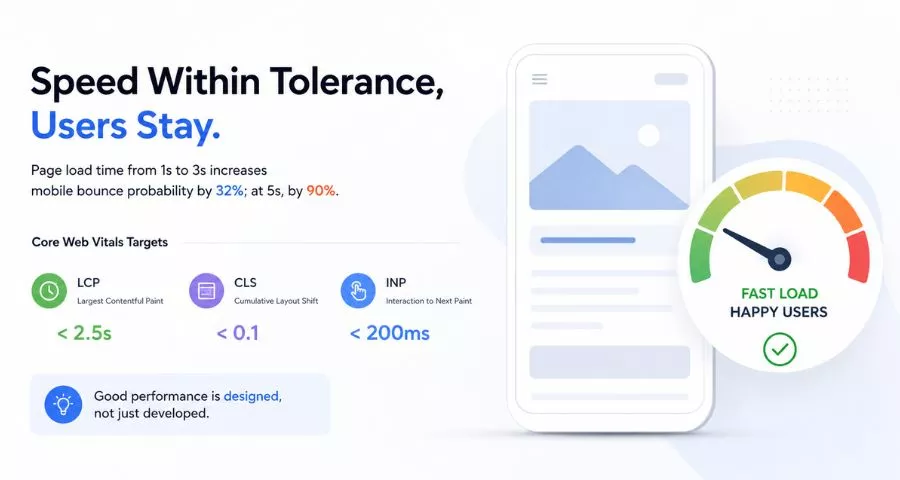
Page load time going from one second to three seconds increases the probability of a mobile bounce by 32%; at five seconds, by 90%. Performance is a UX problem, not just an engineering problem.
Core Web Vitals give you specific targets:
- Largest Contentful Paint (LCP) under 2.5 seconds
- Cumulative Layout Shift (CLS) under 0.1,
- Interaction to Next Paint (INP) under 200 milliseconds.
Both are measurable in Google Search Console and PageSpeed Insights. From a design perspective: heavy hero images, unoptimized font loading, and layout shifts from late-loading images are all addressable at the design stage before they become production problems.
Web UX Best Practices Specific to Websites
Website UX has some patterns that are specific to the medium. These are the conventions that web users have internalized over decades, and violating them costs you in clarity and trust.
Keep Navigation Predictable and Consistent
Web navigation follows conventions users have internalized over decades: the logo links to the homepage, the primary navigation sits at the top, the most important links are rightmost or highlighted, and secondary options live in the footer. The closer your navigation follows these conventions, the less cognitive load you impose on first-time visitors.
Specific web UX best practices for navigation: limit your primary nav to seven items or fewer, use descriptive link text (not “click here”), make the current page’s position in the navigation visually clear, and include breadcrumb trails on deep content pages so users always know where they are.
Structure Page Content for Scanning, Not Reading
Research from the Nielsen Norman Group shows that users read web pages in an F-pattern: they scan the first few lines of content horizontally, then drop down and scan a shorter horizontal line, then scan vertically down the left edge. The beginning of every line and the first few lines of every section carry the most attention.
Structure your content accordingly: put the most important information in the first sentence of each section. Use descriptive subheadings that convey meaning even when skimmed. Front-load paragraphs so the key point comes first. Break long content into chunks with white space between them so the page does not read as a wall of text.
Optimize Forms for Completion, Not Data Collection
Forms are where most conversion goals live, and where friction tends to accumulate because someone on the business side keeps adding fields.
Web UX best practices for forms: keep the field count to the minimum required for the task. Single-column layouts outperform multi-column layouts in usability tests because users read forms top-to-bottom. Inline validation, showing errors as users type, not after submission, reduces form abandonment. Auto-fill compatibility is required; any form that blocks browser autofill is adding friction unnecessarily.
Accessibility As a UX Requirement, Not an Afterthought
Accessibility is the practice of designing products that work for users across the full range of human ability: varying vision, motor control, hearing, and cognitive load. Products that meet accessibility standards consistently perform better for all users, not just users with disabilities.
The Web Content Accessibility Guidelines (WCAG 2.1) at Level AA compliance are the standard most legal frameworks reference. The four core principles: perceivable, operable, understandable, and robust. The most impactful practices to implement: use semantic HTML elements so screen readers can interpret your content structure correctly; ensure all images have meaningful alt text; confirm all interactive elements are keyboard-navigable; maintain WCAG-compliant color contrast (minimum 4.5:1 for body text); and test with a screen reader like NVDA (Windows) or VoiceOver (Mac/iOS) before shipping.
Designing for accessibility often surfaces UX problems that affect all users. A form that fails keyboard navigation is usually also confusing for mouse users. A page that fails contrast requirements is usually also hard to read in sunlight on a phone.
How to Validate Your Design Decisions
Usability testing means watching real users attempt to complete real tasks in your product and observing where they succeed, hesitate, and fail. It moves design from assumption to evidence.
Five participants is the widely cited minimum for moderated usability testing: five users will surface roughly 85% of the major usability problems in any given interface. Beyond five, returns diminish. Run five, fix what you find, then run another five to validate the fixes.
You do not need a finished product to test. Clickable prototypes in Figma are sufficient for identifying navigation and flow problems before any code is written. For unmoderated remote testing, tools like Maze and UserTesting let you recruit participants and run sessions asynchronously. Unmoderated tests are faster and cheaper; moderated sessions let you ask follow-up questions in real time. Use both: unmoderated for task completion data, moderated for the “why did you do that?” depth.
FAQs About UX Best Practices
Here are answers to the questions that come up most often when designers and teams start applying UX and UI best practices.
What Are the Most Important UX Best Practices for Beginners?
Start with user research before designing anything, build your information architecture before your visual design, and test with real users as early as possible. These three practices address the most common failure modes, designing for assumed needs, building confusing navigation structures, and shipping without validation, and they apply regardless of what you are designing.
What Is the Difference Between UX and UI Design?
UX (user experience) design covers the overall structure, flow, and research-driven logic of a product, how it is organized, how tasks flow, and whether it solves the user’s problem. UI (user interface) design covers the visual and interactive layer: buttons, typography, color, spacing, and the components users directly interact with. UX typically comes first and produces wireframes and flows; UI takes those and builds the polished, visually consistent interface.
How Do UX Best Practices Affect SEO and Conversion Rates?
UX directly affects both. Pages with clear hierarchy, fast load times, and low friction perform better on Core Web Vitals metrics (LCP, CLS, INP), which Google uses as ranking signals. From a conversion standpoint, removing a single step from a checkout flow or reducing form field count consistently produces measurable improvements in completion rates. Strong UX also reduces bounce rate, which correlates with longer session duration and more pages per session, both positive signals for search performance.
Conclusion
UX best practices come down to a single discipline applied consistently: understanding what users actually need, removing everything that gets in their way, and testing your assumptions before they become expensive mistakes. Start with research, build structure before aesthetics, and treat accessibility and performance as baseline requirements rather than optional refinements. The practices in this guide are not a one-time checklist, they are habits that compound across every product you ship.
Read More: How to Write a Basic Privacy Policy
Contact US | ThimPress:
Website: https://thimpress.com/
Fanpage: https://www.facebook.com/ThimPress
YouTube: https://www.youtube.com/c/ThimPressDesign
Twitter (X): https://x.com/thimpress_com