Forget complicated coding languages and expensive web developers. Creating a stunning online presence is now entirely possible using familiar graphic layout tools. Countless individuals rely on various platforms for generating social media graphics, advertising creatives, or professional presentations. However, a highly powerful yet lesser-known feature is the ability to build functional, beautiful web pages by learning how to design a website in Canva. Whether the goal is to establish a professional creative portfolio, launch a landing page for a small enterprise, or showcase a specific campaign, choosing to design websites in Canva offers a remarkably straightforward and accessible solution.
This comprehensive guide explores the entire architecture of the process, detailing everything from selecting the perfect initial layout to confidently hitting the publish button. By following these clear, structured steps, crafting a polished and responsive digital space becomes a reality for anyone, regardless of prior technical background.
Eduma – Education WordPress Theme
We provide an amazing WordPress theme with fast and responsive designs. Let’s find out!
Understanding the Platform: Advantages and Limitations
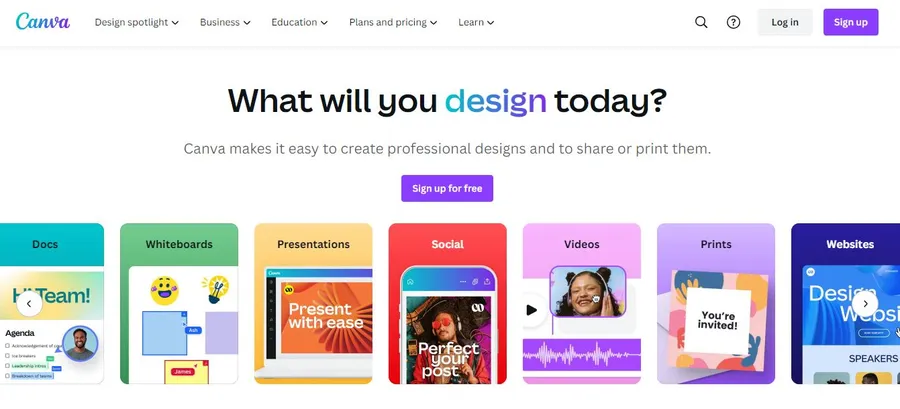
Before exploring the exact mechanics of how to design a website in Canva, it is essential to establish a clear understanding of the platform’s capabilities and its inherent boundaries. This tool is vastly different from traditional, heavy-duty content management systems.
Platform Capabilities Overview
| Feature Category | Platform Advantages | Platform Limitations |
| Usability | The intuitive drag-and-drop interface removes all technical barriers. Users can assemble an entire page in a matter of hours. | Users cannot inject custom HTML, CSS, or JavaScript. The visual layout relies strictly on the provided graphical elements. |
| Cost | The system is a hosted platform. It provides a free subdomain, meaning users can publish without purchasing separate hosting plans. | The core architecture primarily supports single-page, scrollable formats rather than complex, multi-layered databases. |
| Collaboration | Sharing a simple link allows multiple team members to view, edit, and comment on the project simultaneously in real time. | Advanced search engine optimization (SEO) tools are limited. Users can add basic descriptions, but deep technical SEO is not possible. |
Identifying the Ideal User
Given the specific constraints outlined above, people frequently ask: can we design websites in Canva for a massive, multi-category e-commerce storefront? The realistic answer is no. Complex inventories and secure checkout systems require dedicated commerce platforms. However, the system is exceptionally suited for specific, streamlined use cases.
- Service-Based Businesses: Independent consultants, beauty salons, event planners, and local services benefit immensely from single-page layouts that clearly display service menus, pricing, and contact information.
- Portfolios and Resumes: Creative professionals can beautifully display visual work, embed videos, share client testimonials, and detail their professional history in a highly visual format.
- Targeted Landing Pages: Collecting email addresses, promoting a single digital product, or building a streamlined event registration page works perfectly within this visual ecosystem.
Step 1: Selecting the Right Foundation
The first major milestone is figuring out exactly how to design a website in Canva from a blank slate versus utilizing a pre-made template. While starting entirely from scratch offers absolute freedom, utilizing a professionally designed template saves significant time and ensures a mathematically balanced layout.
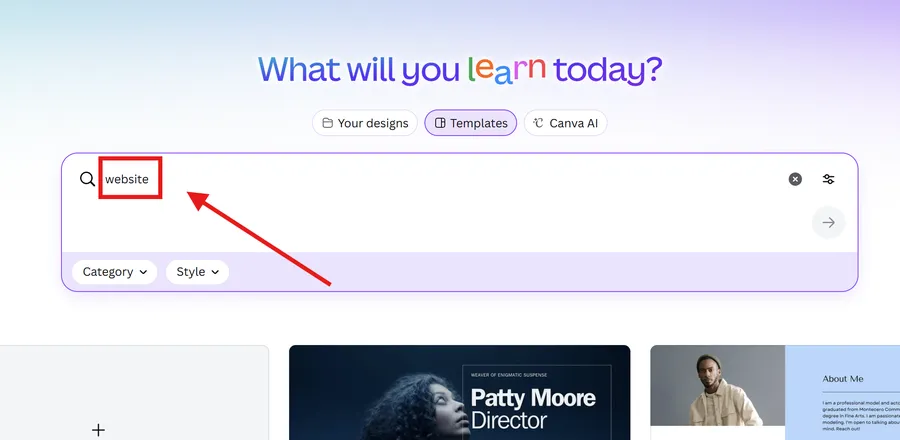
- Navigate to the main user dashboard and locate the prominent search bar.
- Enter the specific term “website” to reveal thousands of categorized templates. These range from corporate real estate layouts to minimalist personal blogs.
- Browse the available options and select a layout that closely matches the desired brand aesthetic.
- Click the chosen template to open it directly within the main editor, making it completely ready for structural modification.
Step 2: Customizing the Visual Elements
Once the chosen template is open on the screen, the true creative process to design a website in Canva begins. Every single element visible on the screen is fully editable and modular.
- Updating Media Assets: Navigate to the side control panel to upload personal brand photos, corporate logos, or promotional videos. Dragging these new uploads directly over the existing template images automatically snaps them into place.
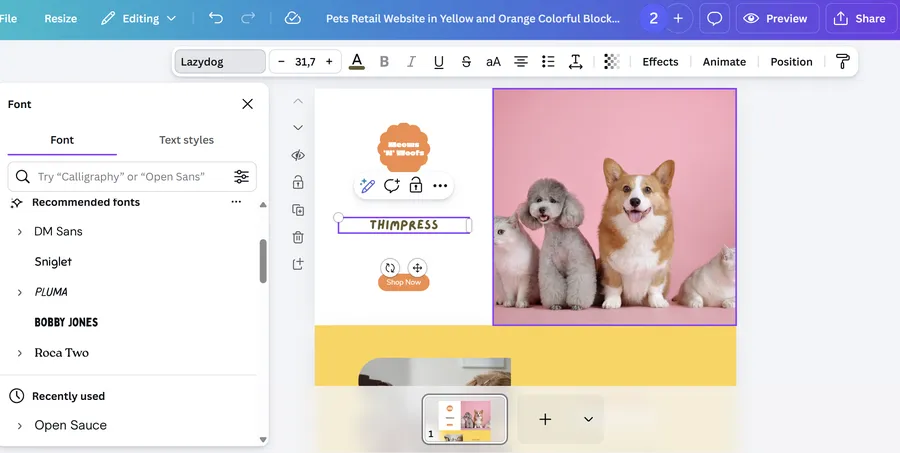
- Modifying Typography: Double-click any text box to alter the phrasing. The top toolbar provides extensive options to change font families, sizes, colors, and line spacing. It is crucial to ensure the text remains highly legible against the chosen background colors.
- Adding Interactive Buttons: A successful digital presence requires clear calls to action. Search the visual elements library for button graphics, place them strategically across the page, and overlay direct text such as “Contact Now” or “Book an Appointment”.
- Structuring the Sections: The overall layout operates via stacked horizontal sections. Users can easily reorder these distinct sections by clicking and dragging them vertically. Adding a brand new blank section is easily accomplished by clicking the interface prompt at the bottom of the current block.
Learning how to design websites in Canva effectively means understanding visual hierarchy. Keep the most important information near the top of the page and guide the visitor visually downward.
Step 3: Implementing Navigation and Links
A frequent point of confusion when discussing whether can we design a website in Canva is how to handle visitor navigation without traditional, separate sub-pages. The elegant solution lies in the use of internal anchor links.
- Open the notes feature in the editor for each specific section.
- Assign a clear, logical name to every section (for example, “Home”, “About Us”, “Our Services”, “Contact”).
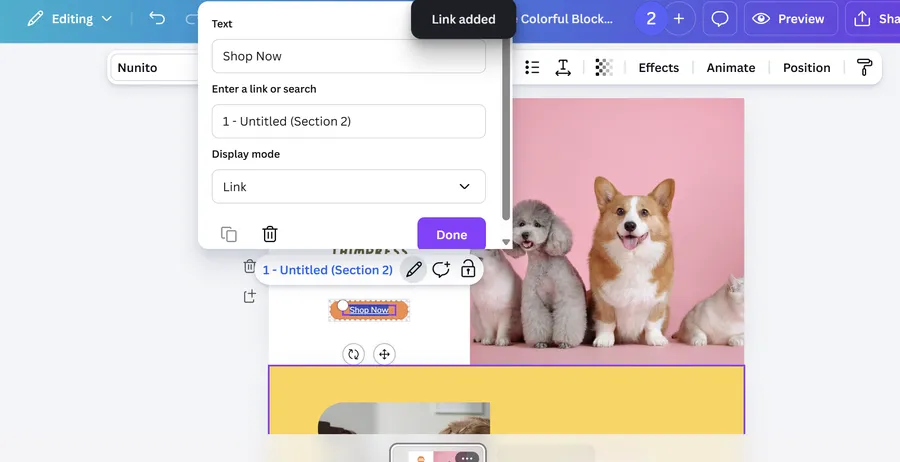
- Highlight the specific text or select the button graphic that should act as the clickable link.
- Click the link icon located in the formatting toolbar.
- Choose the exact section within the document to link towards.
When the site is eventually published, enabling the navigation menu option automatically generates a fixed header at the very top of the site. This allows visitors to click a menu item and smoothly scroll directly to that specific section.
Step 4: Mobile Optimization and Previewing
Modern internet traffic is predominantly mobile. Therefore, ensuring the layout adapts flawlessly to smaller smartphone screens is a non-negotiable step to design a website in Canva successfully.
- Locate the preview command positioned at the top right of the editing interface.
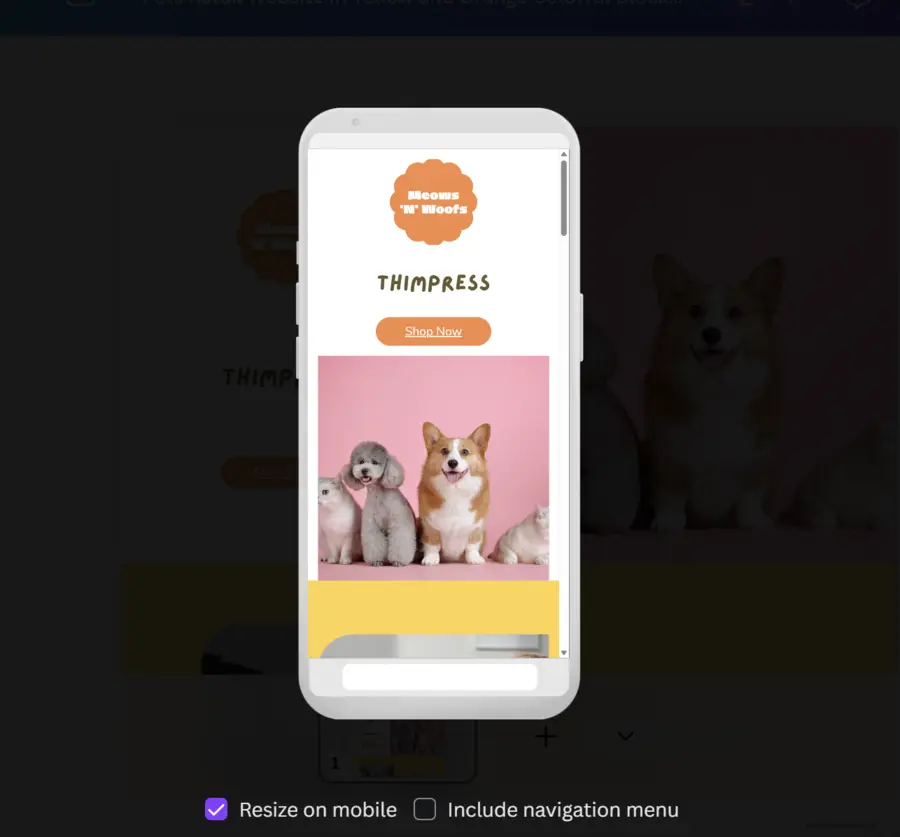
- Toggle between the standard desktop icon and the mobile phone icon to observe how the visual elements stack, scale, and reposition.
- Verify that the automatic mobile resize feature is active. This vital function prevents paragraphs from becoming microscopically small or large background images from breaking the horizontal screen width.
- Test every single button to ensure they remain easily clickable on touch-based devices.
Step 5: Configuring Settings and Publishing
The final phase transforms the private draft into a public asset. Understanding how to design a website in Canva completely requires mastering the final publication settings.
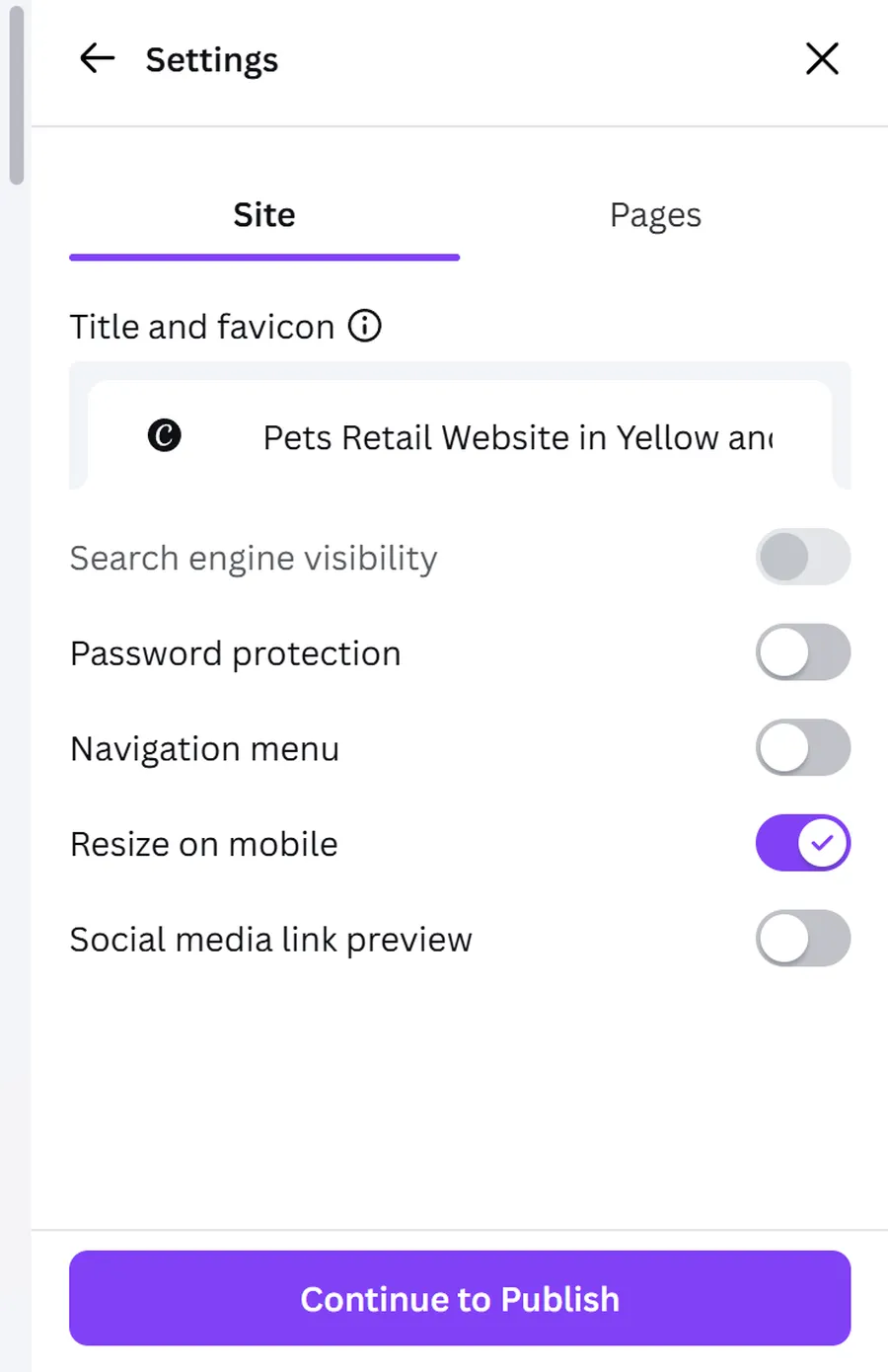
- Domain Registration Options: Users can opt for a completely free, platform-branded subdomain. Alternatively, it is possible to connect a domain already owned through a third-party registrar, or even purchase a brand new custom domain directly through the platform’s interface.
- Browser Tab Details: It is highly recommended to configure site-wide aesthetic settings. Upload a custom favicon, which is the small identifying icon appearing in browser tabs. A square image measuring 512 by 512 pixels works best.
- Search Engine Metadata: Enter a clear, descriptive site title and a concise page description outlining the core purpose of the site. This metadata directly informs search engines about the page content.
- Visibility Controls: If the digital project is still actively under construction or meant strictly for a private audience, users can easily enable password protection or command search engines to ignore the page entirely.
Once all settings are carefully verified and the layout is flawless, clicking the final publish button makes the site globally accessible to anyone on the internet.
Conclusion
Mastering how to design a website in Canva opens up excellent opportunities for establishing a digital presence quickly and cost-effectively. While the platform may not replace complex web development systems for large-scale e-commerce, it remains an exceptional choice for portfolios, service businesses, and targeted landing pages. By utilizing the intuitive templates and the straightforward drag-and-drop interface, anyone can confidently design website in Canva without writing a single line of code. Following the strategic steps outlined in this guide ensures a smooth journey from selecting the initial layout to publishing a fully functional, mobile-responsive site.
Frequently Asked Questions: Design a Website in Canva
Is it entirely free to design a website in Canva?
Yes, creating the layout and publishing it using the provided free subdomain costs nothing. However, accessing premium graphic templates, utilizing specialized elements, or linking a custom web domain requires an active paid subscription plan.
How to design a website in Canva if I need a traditional multi-page structure?
The current architecture strictly utilizes a single-page, vertical scrolling format. While you can add numerous horizontal sections and use top navigation links to mimic the feel of separate pages, it does not support generating independent, traditional HTML sub-pages.
Can we design a website in Canva and then export the raw HTML code?
No, the platform operates entirely within its own closed ecosystem. It does not allow users to export the raw HTML code for external use. The finished product must remain hosted on their specific servers or properly connected to a custom domain through their interface.
How to design a website in Canva that is fully optimized for search engines?
While essential components like page titles, meta descriptions, and custom URL paths for specific sections are available, the platform lacks the robust, advanced SEO plugins found in dedicated web builders. It performs best for sites that rely on direct link sharing rather than heavily competing for organic search engine traffic.
Can existing presentation files be converted into a functional site?
Absolutely. Any previously created presentation design can be repurposed. When attempting to publish a standard presentation, the interface will automatically prompt a resizing process to ensure the dimensions perfectly fit a standard, responsive web layout.
Read more: How to Upload Fonts to Canva: The Ultimate Guide
Contact US | ThimPress:
Website: https://thimpress.com/
Fanpage: https://www.facebook.com/ThimPress
YouTube: https://www.youtube.com/c/ThimPressDesign
Twitter (X): https://x.com/thimpress_com