Canva makes graphic design accessible to everyone, but knowing how to use Canva relying solely on its default library can limit your creative potential. To truly stand out and maintain a unique brand identity, learning how to upload fonts to Canva is a game-changer. Custom typography allows you to express your brand’s voice precisely, going beyond what standard templates offer.
In this guide, we will cover everything you need to know to import fonts to Canva. From understanding file prerequisites to a step-by-step walkthrough for both desktop and mobile, this article ensures you can add custom fonts to Canva without any hassle.
Eduma – Education WordPress Theme
We provide an amazing WordPress theme with fast and responsive designs. Let’s find out!
Why Custom Fonts Are Essential for Your Design
Before we jump into the technical steps, it is important to understand why you should take the time to customize your typography. According to design experts, font choice can make or break a visual composition, much like choosing between Canva vs Photoshop for your workflow.

1. Brand Consistency and Identity
A unique design relies heavily on typography. By uploading your proprietary fonts, you ensure that every social media post, presentation, or banner aligns perfectly with your brand identity. For instance, if you are planning to create a professional resume, using a distinct, clean font helps your application stand out from the crowd. Consistency builds trust, and learning to import fonts to Canva is the bridge to that consistency.
2. Emotional Connection and Creativity
Fonts convey emotions. A bold, blocky font might scream “strength” and “modernity,” while a handwritten script suggests “elegance” and a “personal touch.” Custom fonts allow you to tailor the emotional message of your design to match your specific values, offering full creative freedom that standard libraries cannot always provide.
Prerequisites: What You Need Before You Start
To know how to upload a font to Canva, you must meet specific conditions. Understanding these requirements beforehand will save you time and frustration.
1. The Canva Pro Requirement
The most critical factor to note is that uploading custom fonts is a premium feature. You must possess a Canva Pro, Canva for Education, or Canva for Teams account. Before upgrading, you might want to review the current Canva Pro pricing plans to see which package suits your needs. Many users search for how to upload fonts to Canva for free, but currently, the platform restricts this capability to paid tiers to manage licensing and storage.

2. Supported File Formats
Canva is versatile but strict about file types to ensure performance. Ensure your font files are in one of the following formats:
- TTF (TrueType Font): The standard for most digital typefaces.
- OTF (OpenType Font): Offers advanced typesetting features and is widely supported.
- WOFF (Web Open Font Format): As highlighted in recent updates, Canva also supports WOFF files, which are often used in web design.
Note: If your font is inside a ZIP file, you must unzip/extract the file before attempting to upload it.
Step-by-Step Guide: How to Upload Fonts to Canva (Desktop)
The process to add custom fonts to Canva is straightforward once you have your files ready. Follow these detailed steps to integrate your typography into the Brand Kit.
Step 1: Download and Prepare Your Font
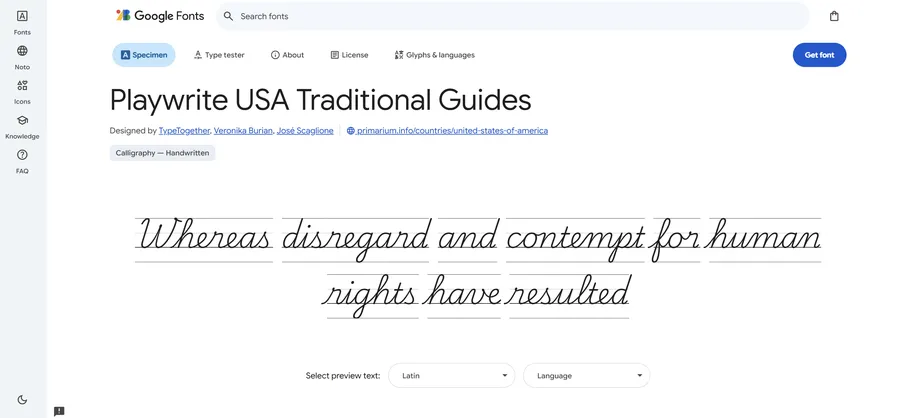
Start by downloading your desired font. You can find excellent free options on Google Fonts or purchase premium licenses from reputable marketplaces like Creative Market. Save the file to a location you can easily access on your computer. Remember to check that the file extension is .ttf, .otf, or .woff.
Step 2: Access the Brand Kit
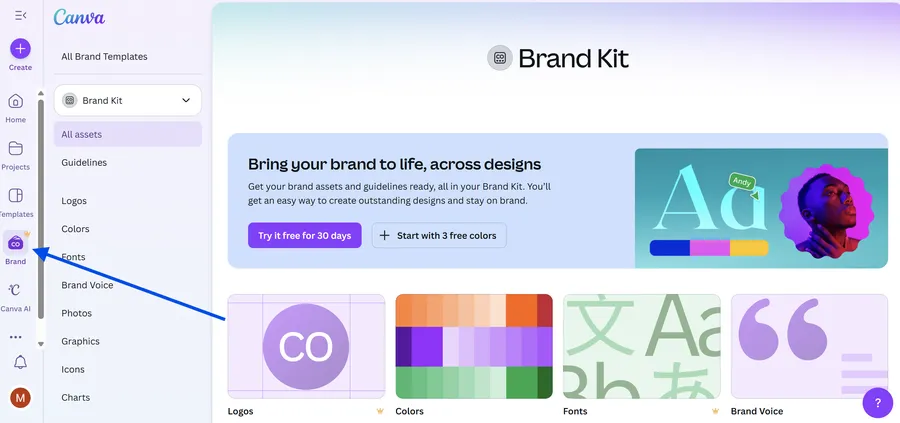
Log in to your Canva account. From the homepage sidebar, navigate to “Brand” or “Brand Kit.”
This section is the command center for your visual identity, where you usually go to create a logo on Canva, manage color palettes, and organize typography. This is also where you would manage other assets if you were creating a transparent background for your brand elements.
Step 3: Upload the Font File
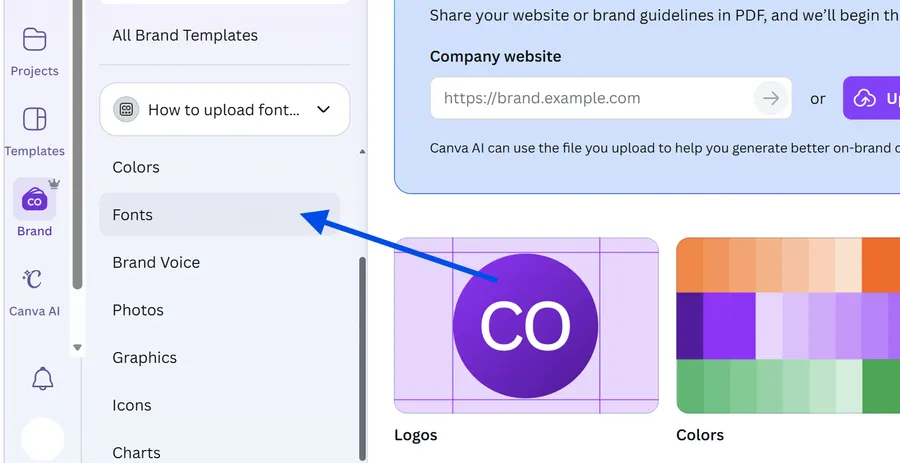
Within the Brand Kit, scroll down to the “Fonts” or “Brand Fonts” section. You will see a button labeled “Upload a font.” Click this to open your file explorer. Select the font file you prepared earlier.
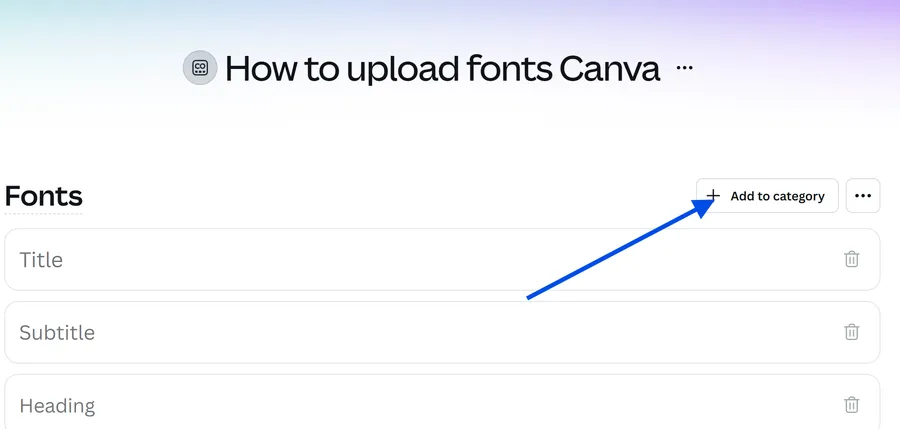
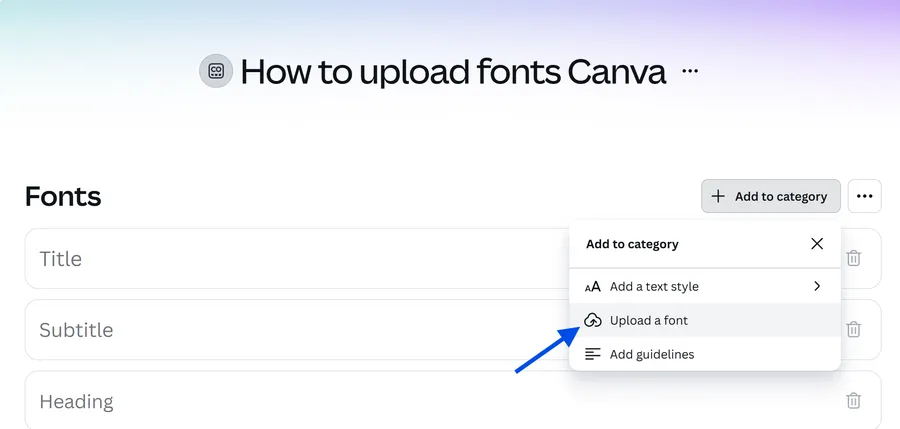
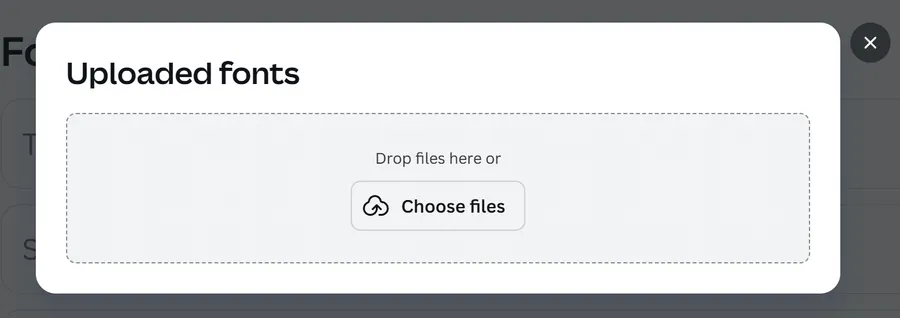
Step 4: Confirm Licensing Rights
After selecting the file, Canva will display a pop-up window asking you to confirm that you have the legal right to use this font. This is a crucial step for copyright protection. If you have purchased the font or it is free for commercial use, click “Yes, upload away!“
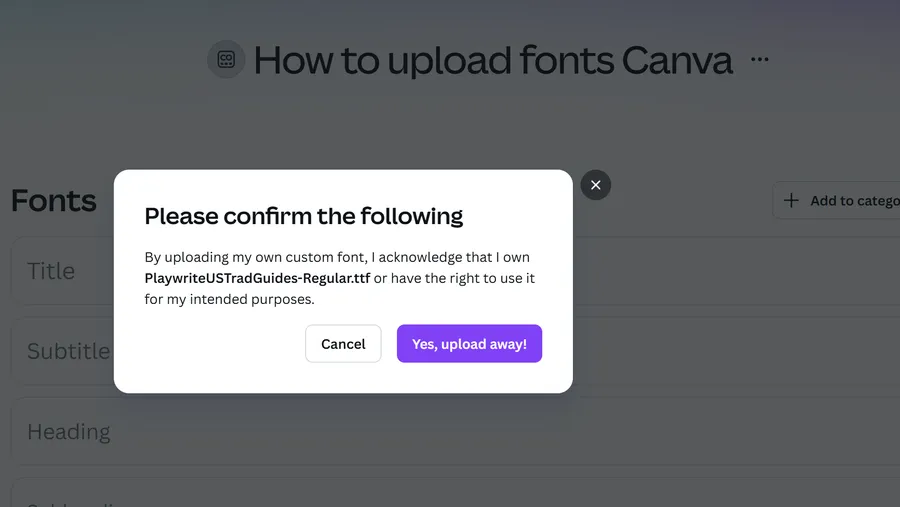
Step 5: Verification and Usage
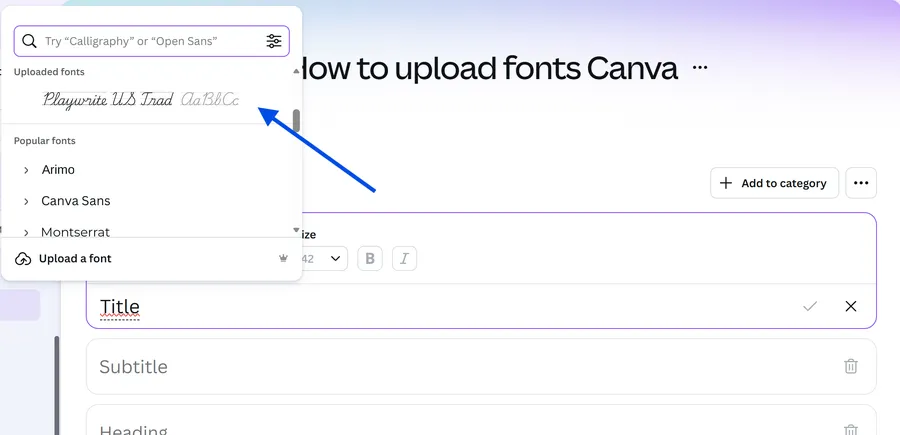
Once the upload bar finishes, your new font will appear in the list. To verify it works, open any design, create a text box, and scroll through the font dropdown menu. Your custom font should appear under a section titled “Uploaded Fonts.” Now you can start experimenting with advanced typography techniques, such as curving text in Canva using your new font.
How to Upload a Font to Canva on Mobile
In today’s fast-paced world, many designers work from their phones or tablets. Fortunately, the Canva mobile app fully supports this feature.
- Open the Canva app and tap the Menu icon (three horizontal lines).
- Select “Brand” or “Brand Kit” from the options.
- Scroll down to the “Fonts” section and tap the “Add a font” button.
- Navigate through your phone’s file manager to find the font file.
- Confirm the licensing agreement just as you would on a desktop.
Once uploaded via mobile, the font syncs to the cloud, meaning it will be available on your desktop account immediately, and vice versa.
How to Add Google Fonts to Canva
A very common query is how to use Google Fonts that aren’t native to Canva. Since Google Fonts are free and open-source, they are an excellent resource for designers. Here is how to bridge the gap:
- Visit the Library: Go to the official Google Fonts website and browse their extensive collection.
- Download: Select the font family you like and click “Download Family.”
- Unzip: The download will be a ZIP file. Extract it to get the TTF or OTF files.
- Upload: Follow the standard how to upload fonts to Canva steps listed above to import these files into your Brand Kit.
This method allows you to virtually import fonts to Canva from any open-source library effectively.
Troubleshooting Common Issues
Even with a simple process, technical glitches can occur. Here are the most common problems and how to solve them.
1. “Upload Failed” or Error Messages
If you receive an error stating the upload failed, first check the file format. As mentioned, proprietary formats or bitmap fonts are not supported. Only upload TTF, OTF, or WOFF. Additionally, ensure the file is not corrupted by trying to install it on your computer’s system first.
2. Font Not Displaying Correctly
Sometimes, a font uploads but looks “broken” or displays missing characters in the editor. This is often a compatibility issue. Try downloading a different version of the font (e.g., switch from OTF to TTF) or clear your browser cache. If the problem persists, delete the font from the Brand Kit and upload it again.
3. Licensing and Copyright Warnings
Canva takes intellectual property seriously. Always ensure you have the correct license. If you are using a font for a commercial project, a “Personal Use Only” license is insufficient. Always read the documentation that comes with your font download to avoid legal issues later.
Best Practices for Managing Your Fonts
Once you know how to upload a font to Canva, it is tempting to upload dozens of styles. However, a cluttered Brand Kit can hinder your workflow.
- Organize Your Brand Kit: If you manage multiple brands (available in Canva for Teams), create separate Brand Kits for each client or project. This keeps your font lists clean and relevant.
- Limit the Number: Only upload fonts you actually intend to use. Scrolling through hundreds of unused custom fonts wastes time.
- Pairing: Stick to a maximum of 2-3 custom fonts per brand (e.g., one for headers, one for body text) to maintain a professional look.
Conclusion
Mastering how to upload fonts to Canva significantly elevates the quality of your designs. It transitions your work from looking like a standard template to a professional, branded piece of art. Whether you are using a unique corporate typeface or integrating a trendy Google Font, the process is simple, provided you have the right account type and file formats.
By following the steps outlined in this guide—from securing a Canva Pro account to verifying file compatibility and respecting copyright laws—you can seamlessly import fonts to Canva. Don’t let default options limit your creativity. Start building your custom Brand Kit today and give your designs the distinct voice they deserve.
If you are new to this, remember to start with a clear plan of which fonts represent your brand best, and always double-check your licensing. Happy designing!
Frequently Asked Questions (FAQs)
1. Can I upload fonts to Canva if I have a free account?
No, the ability to upload custom fonts is exclusive to Canva Pro, Canva for Education, and Canva for Teams users. If you are searching for how to upload fonts to Canva for free, the only legitimate way is to sign up for a 30-day free trial of Canva Pro to access the Brand Kit features temporarily.
2. How do I delete a font I previously uploaded?
To remove a font, go to your Brand Kit, locate the "Uploaded Fonts" section, and find the font you wish to remove. Hover over the font name, and you will see a trash can icon. Click it to delete the font. Be aware that this will affect any existing designs that use this font.
3. Why does my font file say it is incompatible?
This usually happens if the file is not in TTF, OTF, or WOFF format, or if the file is still inside a ZIP folder. Please unzip your file first. If it is the correct format but still fails, the file might be corrupted; try re-downloading it from the source.
4. Can I use my uploaded fonts on the Canva mobile app?
Yes, absolutely. Any font you upload via the desktop version will automatically sync to your Canva mobile app, provided you are logged into the same account. You can also upload fonts directly from your mobile device using the Brand Kit settings in the app.
5. What happens if I cancel my subscription?
If you decide to stop using Canva Pro, you will lose the ability to upload new fonts. Furthermore, while you may still see your custom fonts in old designs, you will not be able to apply them to new projects, and editing existing text blocks might cause the font to revert to a default style.
Read more: Convert Canva to WordPress: 3+ Simple Methods
Contact US | ThimPress:
Website: https://thimpress.com/
Fanpage: https://www.facebook.com/ThimPress
YouTube: https://www.youtube.com/c/ThimPressDesign
Twitter (X): https://x.com/thimpress_com