Are you looking for a seamless way to accept automatic bank transfers from Vietnamese students on your education website?
Managing manual bank checks can be time-consuming and prone to errors. Integrating SePay in Eduma solves this issue by automating transaction verification directly within your LearnPress courses.
This guide provides a straightforward, step-by-step walkthrough to install and configure this powerful tool.
Eduma – Education WordPress Theme
We provide an amazing WordPress theme with fast and responsive designs. Let’s find out!
Step 1: Download and Install the Plugin
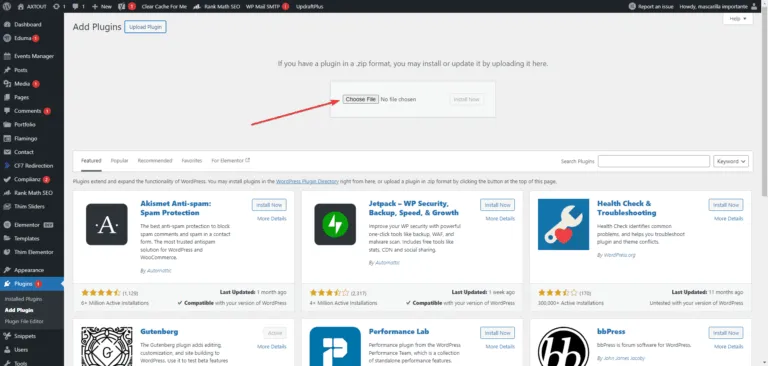
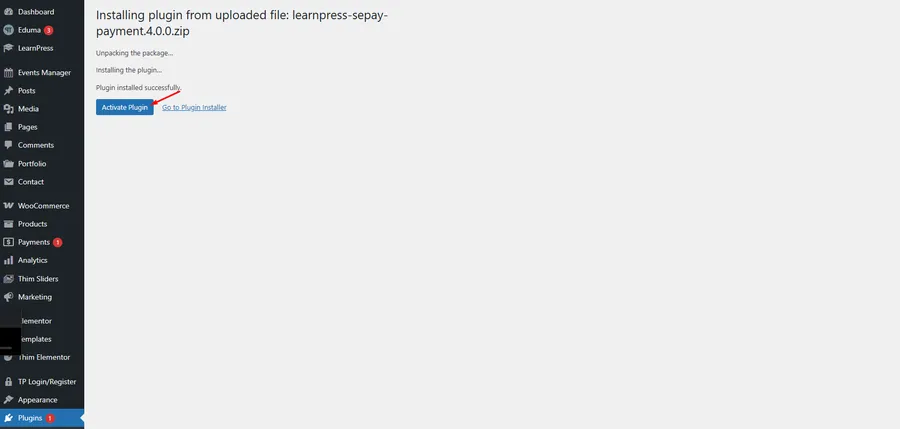
To begin the integration, you must first acquire the add-on. The development team offers the SePay add-on for free via the WordPress repository.
- Download the file: Visit the official plugin page to download the necessary file: LearnPress SePay Payment.
- Verify the file: Once downloaded, ensure you have the file named learnpress-sepay.zip (or similar depending on the version).
- Upload to WordPress:
- Navigate to your WordPress Dashboard.
- Go to Plugins > Add New.
- Click on the Upload Plugin button at the top of the screen.
- Activate: Choose the .zip file you just downloaded, click Install Now, and finally, select Activate to enable the WordPress plugin installation.
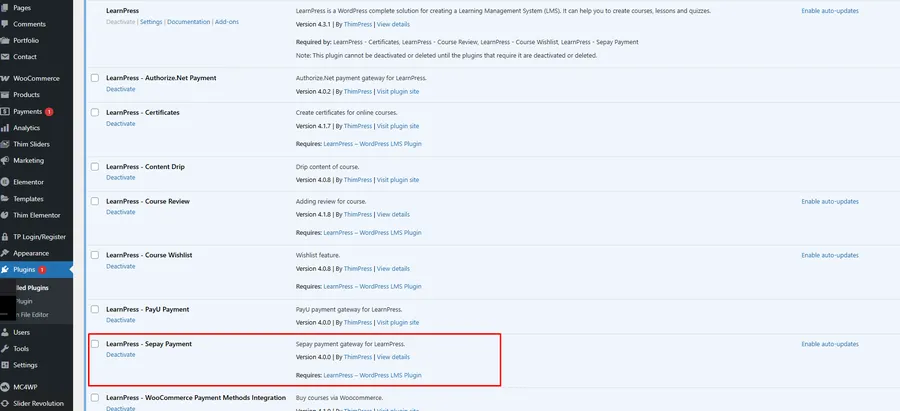
Step 2: Configure SePay Settings in LearnPress
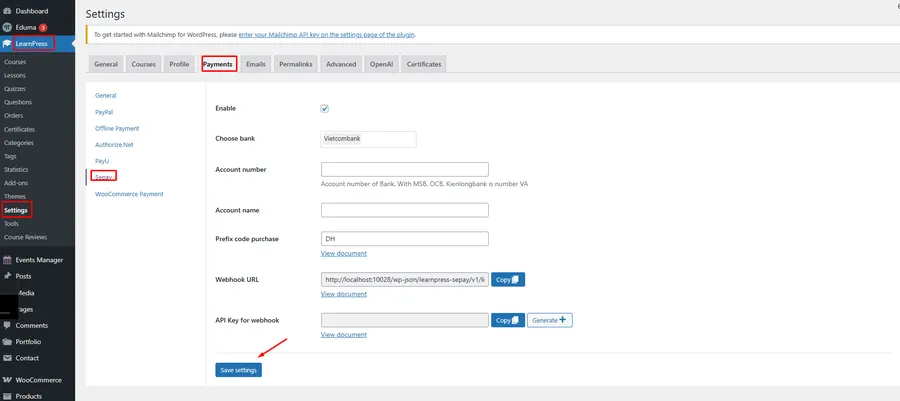
Once the plugin is active, you need to connect it to your bank account details. This is the core of setting up SePay in Eduma.
Navigate to LearnPress > Settings > Payments. In the list of available payment gateways, locate “SePay” and click on it to open the configuration panel.
Required Information Fields
Fill in the following details to ensure the LearnPress payment gateway functions correctly:
- Enable/Disable: Check this box to activate SePay as a payment method for your users.
- Choose Bank: Click the box to select your specific bank from the dropdown list (e.g., Vietcombank, MBBank).
- Account Number: Enter the specific bank account number where you want to receive tuition fees.
- Account Name: Enter the account holder’s name exactly as it appears at your bank. This ensures the automated bank transfer system verifies the recipient correctly.
- Prefix code purchase: This creates a unique syntax for transaction content (e.g., DH123). It usually defaults to a prefix like “DH”. You can view the specific syntax logic by clicking “View document” next to this field.
- Webhook URL: This URL is automatically generated based on your website structure (e.g., http://localhost…/wp-json/learnpress-sepay…). It is crucial for webhook configuration, allowing SePay to notify your site when a payment is successful.
- API Key: You can generate this directly here or copy it from your SePay account settings. This key secures the connection between your website and the SePay system.
Once all information is entered, click Save Settings to finalize the process.
Step 3: Set Currency to VND
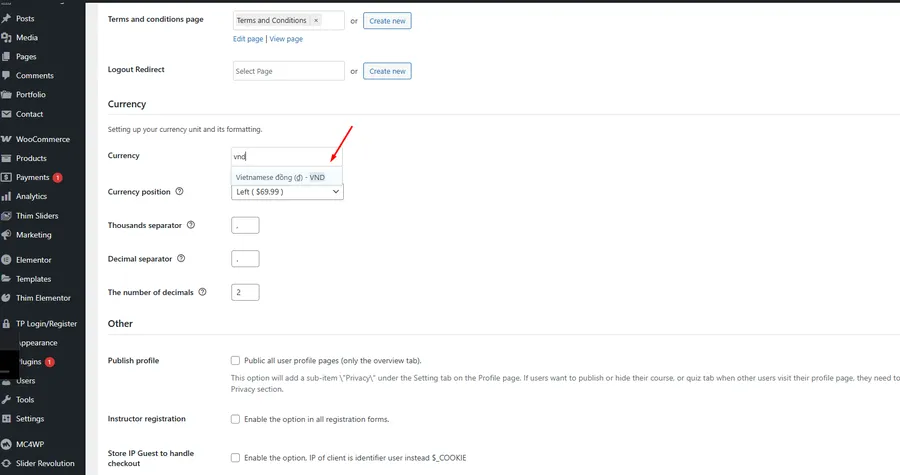
This is a critical step often overlooked. Since SePay operates with Vietnamese banks, your store currency must match. If you skip this, the QR code scanning and payment verification may fail.
- Go to LearnPress > Settings.
- Select the General tab.
- Locate the Currency section.
- Change the currency unit to VND (Vietnamese đồng).
- Save your changes.
FAQs How To Use SePay in Eduma
Is the SePay plugin for Eduma free?
Yes, you can download the integration plugin for free from the WordPress repository. However, you may need a SePay account for full financial transactions functionality.
Why aren’t my orders completing automatically?
Check your webhook configuration and API Key. Also, ensure your LearnPress currency is set strictly to VND, as SePay relies on this specifically for Vietnam banking standards.
Can I use SePay with themes other than Eduma?
Yes, as long as the theme uses LearnPress. However, this guide focuses on Eduma theme integration because it is the most popular theme for LearnPress.
Conclusion
Setting up SePay in Eduma is a highly effective way to modernize your eLearning payment process. By following these steps—downloading the plugin, configuring your bank details, and ensuring your currency is set to VND—you provide a smoother experience for your students. This automation allows you to focus less on administrative tasks and more on delivering quality education.
Read more: How to Set Up PayU in Eduma: A Complete Guide
Contact US | ThimPress:
Website: https://thimpress.com/
Fanpage: https://www.facebook.com/ThimPress
YouTube: https://www.youtube.com/c/ThimPressDesign
Twitter (X): https://x.com/thimpress_com