If you run appointments, rentals, or classes, you already know that email and phone bookings eat your day. A booking calendar WordPress plugin puts a live schedule on your site so people can pick a slot, pay if needed, and get a confirmation without you touching a spreadsheet.
This guide walks through the plugins we tested, what each one does well, and how to pick the right WP booking system for your site without paying for features you will never use.
Eduma – Education WordPress Theme
We provide an amazing WordPress theme with fast and responsive designs. Let’s find out!
What a WordPress booking system actually does
A WordPress booking system connects a calendar on your site to your real availability, then blocks off time once someone reserves it. Instead of a static contact form, visitors see open slots, choose one, and the plugin updates the calendar in real time so nobody double books the same hour.
Core features to look for
Most booking plugins share a common feature set, but the details matter once you start setting one up.
- Live availability sync: The calendar should update the moment a slot is taken, without a page refresh delay that causes double bookings.
- Staff or resource management: If more than one person or room takes bookings, the plugin needs to track each resource separately.
- Payment integration: Look for native Stripe or PayPal support if you take deposits or full payment at booking time.
- Automated reminders: Email or SMS reminders cut no-shows more than almost any other single feature.
- Time zone handling: For service businesses with clients outside their own region, automatic time zone conversion prevents missed appointments.
- Custom form fields: The ability to add intake questions (party size, service type, notes) before checkout.
Buffer time and cancellation rules
Buffer time, the gap you set between bookings, stops back to back appointments from running into cleanup, prep, or travel time. Cancellation and rescheduling rules matter just as much. A plugin that lets clients reschedule themselves within a set window saves a support email every time, while one that requires manual edits from the admin dashboard adds friction for both sides.
How we tested these plugins
We installed each plugin on a staging site running WordPress 7.0 and a default Twenty Twenty-Four theme, then walked through setup as a first-time user would, from activation to a live test booking. We timed setup, checked how the front-end calendar rendered on mobile, and confirmed whether email reminders actually fired after a test appointment. Pricing reflects each developer’s published rates at the time of testing and can change, so confirm current numbers on the plugin’s own site before you buy.
WordPress Booking Calendar Plugins Comparison
| Plugin | Best For | Key Features | Customization | Performance | Pricing Model |
|---|---|---|---|---|---|
| Amelia | Salons, clinics, tutoring centers, fitness studios | Staff calendars, package bookings, group events, payments, multiple locations | ⭐⭐⭐⭐⭐ Extensive styling options | ⭐⭐⭐⭐⭐ Fast and lightweight front-end widget | Free version + paid plans |
| Bookly | Solo practitioners and small teams | Appointment booking, Stripe & PayPal, recurring appointments, waitlists, Zoom | ⭐⭐⭐⭐ Highly extensible through add-ons | ⭐⭐⭐⭐ Good mobile performance; admin can slow with many add-ons | Free core + paid add-ons |
| Simply Schedule Appointments | Coaches, consultants, freelancers | Google Calendar sync, Zoom, Google Meet, online payments | ⭐⭐⭐ Clean but fewer styling options | ⭐⭐⭐⭐⭐ Fast availability updates through Google Calendar | Free version + paid plans |
| MotoPress Appointment Booking | Rental businesses and WooCommerce stores | Staff & resource bookings, WooCommerce integration, time-based rentals | ⭐⭐⭐⭐ Flexible with deep WooCommerce integration | ⭐⭐⭐⭐ Good performance after setup | One-time license per site |
| Best Pick | Businesses needing a complete scheduling system | Staff, services, payments, packages, and locations | Amelia | Amelia / Simply Schedule Appointments | Depends on required features |
The best WordPress booking calendar plugins
Below are the plugins that came out ahead in setup speed, front-end polish, and reliability during testing. Each one fits a slightly different kind of business, so the right pick depends on how complex your scheduling needs actually are.
Amelia
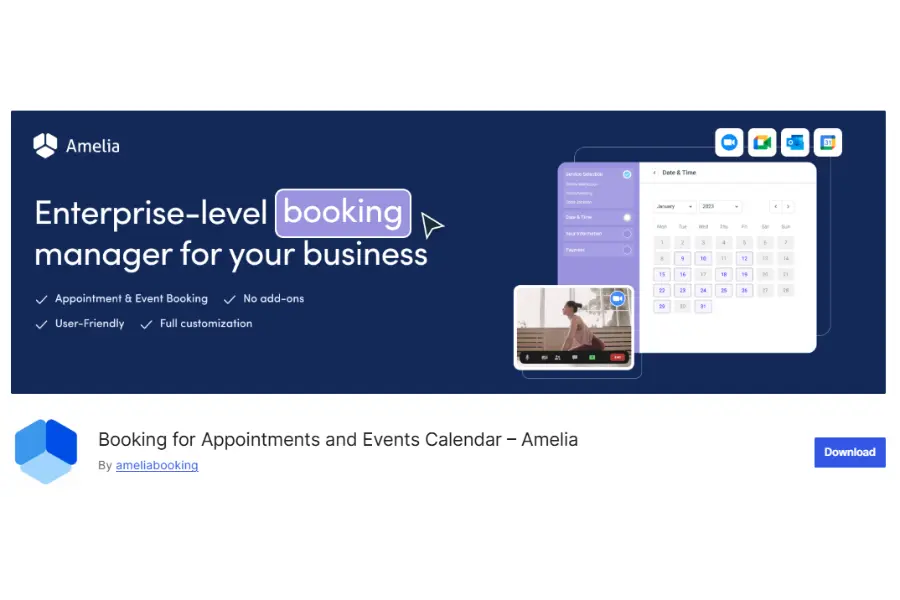
Amelia is built for service businesses with multiple staff members and locations, like salons, clinics, and fitness studios.
Key features
Amelia handles staff calendars, package bookings, and group events from one dashboard. The step-by-step booking wizard on the front end walks customers through service, staff member, date, and payment without leaving the page, which kept our test bookings under a minute from start to finish.
Performance
On a mid-size test site, the booking widget loaded in under a second and did not noticeably affect Largest Contentful Paint (LCP) scores measured in PageSpeed Insights, since the calendar loads its assets only on the page where the shortcode sits.
Customization options
The appearance settings let you match the calendar to your site’s color scheme without touching CSS, though deeper layout changes need the paid version’s custom CSS field.
Pricing
Amelia offers a free version with core scheduling, plus paid tiers that add SMS reminders, package deals, and multiple locations. Check the developer’s pricing page for current rates, since these change with feature updates.
Who it’s best for
Salons, clinics, tutoring centers, and any business with several staff members who each keep their own calendar.
Bookly
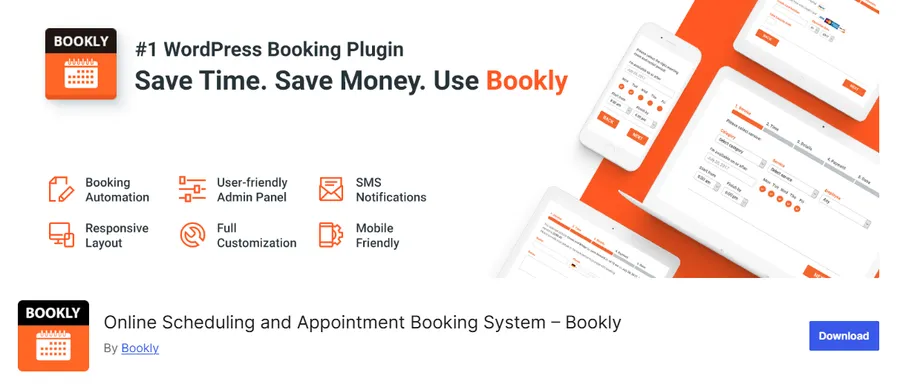
Bookly is one of the longest-running booking plugins for WordPress, with a large add-on marketplace for extending core functionality.
Key features
The base plugin covers single-staff appointment booking with Stripe and PayPal checkout. Add-ons unlock features like recurring appointments, waitlists, and Zoom integration for virtual consultations, so you build the tool up only as far as your business needs.
Performance
Bookly’s front-end calendar rendered cleanly on mobile during testing, though the admin dashboard felt slower to navigate than Amelia’s once we had more than a handful of add-ons active.
Customization options
Each add-on has its own settings panel, which keeps configuration organized but means the settings area grows large fast if you install several extensions at once.
Pricing
The core Bookly plugin is free, and each add-on is sold separately, so total cost depends on which features you actually need. This à la carte model works well if you only want one or two extras, but it can add up for businesses that need the full feature set.
Who it’s best for
Solo practitioners and small teams who want to start free and add paid features only as the business grows.
Simply Schedule Appointments
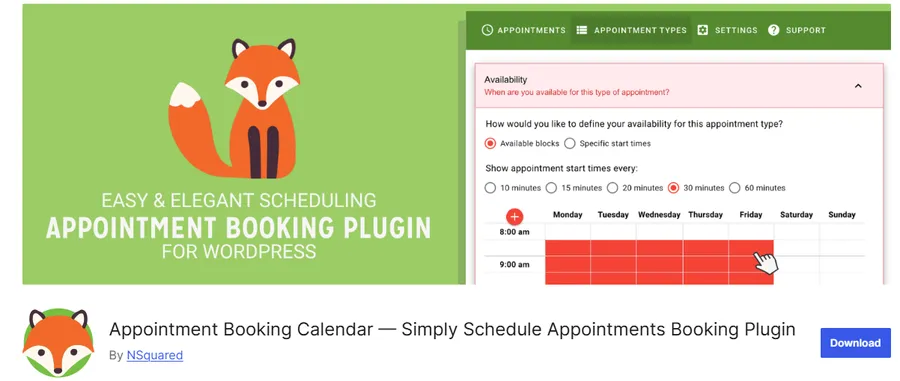
Simply Schedule Appointments focuses on one to one consultations rather than group classes or resource rentals.
Key features
The plugin syncs directly with Google Calendar, so your existing calendar stays the source of truth and clients never see a slot that conflicts with something already on your schedule. Zoom and Google Meet links generate automatically for virtual meetings.
Performance
Because it reads live from Google Calendar rather than maintaining a separate booking database, availability updates were instant in our tests, with no sync delay between an external calendar change and what showed on the front end.
Customization options
Branding options are more limited than Amelia’s, with fewer color and layout controls, but the booking flow itself is clean and requires little setup to look professional out of the box.
Pricing
A free version covers a single calendar connection, while paid plans add multiple team members, custom questions, and payment collection through Stripe.
Who it’s best for
Coaches, consultants, freelancers, and anyone who already lives in Google Calendar and wants bookings to sync there automatically.
MotoPress Appointment Booking
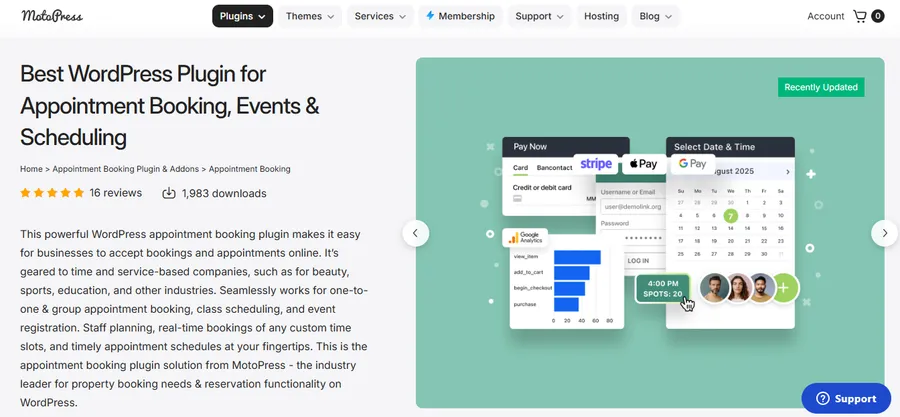
MotoPress Appointment Booking is aimed at businesses that rent time-based resources, such as equipment, rooms, or vehicles, rather than staff time.
Key features
The plugin supports both service-based bookings (a staff member’s time) and resource-based bookings (a physical item or space), which makes it flexible for rental businesses that don’t fit the typical appointment model.
Performance
Setup took longer than Amelia or Bookly during testing because resource-based booking requires more upfront configuration, but the front-end calendar itself performed well once configured, with no noticeable slowdown on a WooCommerce-integrated test site.
Customization options
Deep WooCommerce integration means you can sell bookings alongside physical products in the same cart, which few other booking plugins support natively.
Pricing
MotoPress sells the plugin as a one-time license per site rather than a recurring subscription, which can work out cheaper over several years compared to subscription-based competitors.
Who it’s best for
Equipment rental businesses, coworking spaces, and any site that already runs on WooCommerce and needs bookings in the same checkout flow.
Simple calendar plugins vs. full booking suites
Not every site needs a full WP booking system with staff management and payment processing. In many cases a WordPress simple booking calendar plugin covers the need on its own. If you just need to show availability for a single rental property or one meeting room, a lighter plugin like Booking Calendar by wpdevart or Simple Calendar covers that without the overhead of a full scheduling suite.
When a simple calendar is enough
A basic calendar display works well for vacation rentals, single-room bookings, or any case where you mainly need to communicate availability rather than process complex multi-staff scheduling. These plugins are lighter, install faster, and rarely need more than 15 minutes of setup. Most just place a shortcode on a page and show blocked-out dates in a grid, with no payment step attached.
When you need a full booking suite
Once you have more than one staff member, multiple services, or need automated payment collection, a full WordPress reservation calendar system like Amelia or Bookly pays for itself in saved admin time. The line usually gets crossed once you are manually confirming more than a handful of bookings a week by email. At that point, the hours spent replying to booking requests by hand cost more than a monthly plugin subscription.
Setting up your first booking calendar
Once you have picked a plugin, the setup process looks similar across most of them, even though menu names differ.
Step by step
- Install and activate the plugin from Plugins > Add New, then look for its setup wizard, which most modern booking plugins now include.
- Add your services or resources first, since staff, time slots, and pricing all attach to these records.
- Set your working hours and any buffer time between bookings, so back-to-back appointments don’t run into each other.
- Connect a payment gateway if you plan to collect deposits or full payment at booking time.
- Place the booking shortcode or block on the page where customers should book, then run a test booking yourself before going live.
Common setup mistakes to avoid
A few mistakes show up again and again when businesses set up their first calendar. Forgetting to set a time zone leaves international clients booking the wrong hour entirely. Skipping the test booking step means the first real customer finds a broken payment form instead of you. And leaving default reminder emails unedited, with placeholder text still in the subject line, makes the whole booking flow look unfinished even when the backend works fine.
How to choose the right WP booking plugin for your site
Match the plugin to your actual booking volume and staff structure rather than picking based on feature count alone. A single consultant does not need multi-location staff management, and a rental business does not need appointment reminders built around service categories.
Questions to ask before installing
- Does the plugin support the payment gateway you already use?
- Do you need SMS reminders, or is email enough for your customers?
- Will bookings come from clients in different time zones?
- Does your hosting plan handle the extra database queries a booking plugin adds, especially on shared hosting?
A note on performance
Any scheduling plugin adds JavaScript and database calls to the pages where it runs. Keep the plugin active only on the pages that need it, and test your Core Web Vitals scores in PageSpeed Insights after installation. On shared hosting, a heavier plugin like Amelia with several add-ons active can add measurable load time, so a caching plugin alongside it is worth setting up from day one.
Conclusion
The right WordPress booking calendar plugin depends less on which one has the most features and more on matching the tool to how your business actually takes bookings. Service businesses with several staff members get the most out of Amelia or Bookly, consultants living in Google Calendar do well with Simply Schedule Appointments, and rental businesses on WooCommerce should look at MotoPress. If your needs are simple, a lightweight calendar plugin will do the job without adding weight to your site. Test on a staging site first, confirm the payment gateway and time zone handling work the way your customers expect, and check current pricing on each developer’s site before you commit.
FAQs about the best booking calendar WordPress plugins
Is there a free WordPress booking plugin that actually works?
Yes. Amelia, Bookly, and Simply Schedule Appointments all offer free versions that cover single-staff scheduling, live availability, and basic email confirmations. The free tiers work well for testing before you decide whether a paid upgrade is worth it for your booking volume.
Can I add a booking calendar without WooCommerce?
Most booking plugins, including Amelia, Bookly, and Simply Schedule Appointments, run independently of WooCommerce and handle their own payment processing through Stripe or PayPal. WooCommerce integration matters mainly if you already sell physical products and want bookings in the same cart, which is where MotoPress stands out.
Do WordPress booking plugins slow down my site?
They can, since most load JavaScript and make database calls on the pages where the calendar appears. Limiting the plugin to only the pages that need it, and pairing it with a caching plugin, keeps the performance impact small on most hosting plans.
How do I stop double bookings on my WordPress calendar?
Double bookings usually happen when a plugin’s availability data does not sync in real time, so check that any plugin you choose updates the calendar immediately after a booking rather than on a delay. Setting buffer time between appointments also helps prevent overlapping bookings caused by late arrivals or overruns.
Read more: Top Learning Management Systems: 12+ Best LMS Platforms compared