Building a webshop used to mean hiring a developer and waiting weeks for a working checkout page. Today you can pick a platform, add your products, and start selling in an afternoon, but only if you make the right decisions at each step. This guide walks through exactly how to create a webshop, in the order the decisions actually need to happen.
Eduma – Education WordPress Theme
We provide an amazing WordPress theme with fast and responsive designs. Let’s find out!
What you need to plan before you build a webshop
Before you touch a website builder, three decisions will shape everything else you do. Get these wrong and you will end up rebuilding your store within a year, which is a project we see constantly on the migration side of our work.
Define what you’re selling and who buys it
A store selling five custom products to a local market needs a very different setup than a store selling five thousand SKUs internationally. Write down your product count, your average order value, and whether you plan to sell in more than one country. These numbers determine which platform tier you actually need, not the one with the flashiest homepage.
Order value varies far more by category than most first-time store owners expect, which is why copying a competitor’s platform choice without checking their numbers rarely works. Global average order value sits around $92, ranging from roughly $45 for fashion to $260 for consumer electronics (Source: Search Lab).
If you’re selling jewelry or furniture, budget for a platform and checkout flow built around fewer, higher value transactions. If you’re selling apparel or consumables, you need a setup that handles high order volume smoothly instead.
Set a realistic budget
Your budget covers more than the monthly platform fee. You are paying for the subscription, a theme, any apps you add, payment processing fees, and possibly a developer for custom work.
Most new store owners underestimate the app costs specifically: on Shopify, most merchants spend $50 to $150 per month (Source: Xsquareseo) on apps once they add the tools they actually need, such as reviews, upsells, and email marketing. Add that on top of your plan fee and a small store’s realistic monthly total lands closer to $150 to $300 once apps, a domain, and transaction fees are all counted, not just the advertised subscription price.
If you’re commissioning custom design or development work rather than using a theme out of the box, budget separately for that too. A full custom build for a small store typically runs a few thousand dollars, and treating it as a one-time project cost rather than folding it into your monthly budget will keep your numbers honest.
Decide between hosted and self-hosted platforms
A hosted platform like Shopify manages your servers, security, and updates for you. A self-hosted platform like WordPress with WooCommerce gives you full control over the code, but you own the hosting, backups, and security patching. Neither is objectively better, and the market data reflects that split rather than a clear winner:
WooCommerce leads by raw store count, while Shopify leads among higher traffic sites, with a 28.8% share (Source: MobiLoud) of the top 1 million ecommerce sites compared to WooCommerce’s 18.2%.
In practice, that means WooCommerce wins on sheer number of small and mid-sized stores willing to trade hands-on maintenance for lower fees and full control, while Shopify pulls ahead among stores that have outgrown that tradeoff and would rather pay for someone else to manage the infrastructure.
Step 1: Choose the right ecommerce platform for your business
This is the decision that everything else depends on, and it’s the one we get asked about most often since a large part of our work involves moving stores between these exact platforms. Here’s how the main options actually compare once you get past the marketing pages.
Shopify

Shopify is a fully hosted platform built specifically for selling online, which means checkout, hosting, and security updates are handled for you. About the Shopify pricing, the Basic plan runs $39 a month billed monthly or $29 a month billed annually, the Grow plan is $105 a month or $79 annually, and Advanced runs $399 a month or $299 annually.
The setup flow walks you through adding your first product, connecting Shopify Payments, and setting a shipping zone in under an hour. The one step new store owners consistently skip is switching on Shopify Payments before adding a third-party gateway, which avoids an extra transaction fee on every sale.
WordPress with WooCommerce
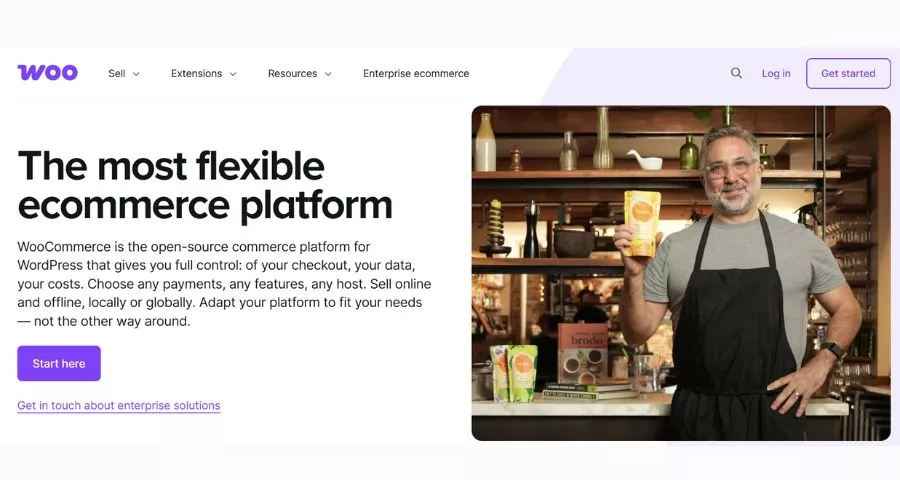
WooCommerce is a free plugin that turns a WordPress site into a store, so your only recurring cost is hosting, a theme, and any premium extensions you add. WordPress itself powers close to 42% of all websites, and its closest competitor among content management platforms is Shopify, which tells you how much of the open web still runs on it.
WooCommerce gives you complete access to the product database, checkout templates, and theme files, which is why it’s the platform of choice for stores that need custom logic a hosted platform can’t accommodate. The tradeoff is that you are responsible for choosing a host, keeping plugins updated, and troubleshooting conflicts when two extensions touch the same checkout hook.
Wix and Squarespace

Wix and Squarespace are drag-and-drop site builders with ecommerce features layered on top. They’re the fastest route to a working webshop if your catalog is small and your design needs are simple, since you’re working inside a visual editor rather than a theme’s code files. The ceiling is lower than Shopify or WooCommerce: once you need advanced inventory rules, multi-currency pricing, or deep app integrations, you’ll likely outgrow either platform.
Which platform fits your business?
- Pick Shopify if you want a working store fast and would rather pay a monthly fee than manage a server.
- Pick WooCommerce if you need full control over checkout behavior, already use WordPress for content, or want to avoid a recurring platform fee.
- Pick Wix or Squarespace if you’re selling a small number of products and design flexibility matters more than deep ecommerce features.
Step 2: Register your domain name and set up hosting

Your domain name should match your brand name exactly, or come close enough that customers find you on the first try. Keep it short, skip hyphens and numbers, and check that the matching social handles are available before you commit.
If you chose Shopify, Wix, or Squarespace, hosting is included in your subscription and there’s nothing further to configure. If you chose WooCommerce, you’ll need a hosting plan built for WordPress, since generic shared hosting struggles once your product catalog and order volume grow. Look for a host that offers a staging environment, since you’ll want to test theme and plugin updates before they touch your live store.
Step 3: Design your storefront and choose a theme
Start from a theme built for your platform rather than a blank template, since a purpose-built ecommerce theme already handles product grids, cart drawers, and mobile checkout correctly. On Shopify, browse the built-in theme store first: Dawn and its variants are free, well-maintained, and fast out of the box.
On WooCommerce, look for a theme that specifically lists WooCommerce compatibility rather than a generic multipurpose theme, since checkout page styling breaks more often than any other template on the site.
Whatever platform you use, keep the homepage focused on three things: what you sell, why someone should buy from you instead of a competitor, and a clear path to your product pages. Every extra homepage section is one more thing a mobile visitor has to scroll past before they can shop.
Step 4: Add products and organize your catalog
Each product listing needs a clear title, a description that answers the questions a buyer would actually ask, accurate pricing, and at least three photos from different angles. Group related products into collections or categories so customers can browse instead of relying only on search.
Set up your product variants (size, color, material) using your platform’s native variant system rather than creating a separate product for every combination. This keeps your inventory counts accurate and your product page from turning into a duplicate mess.
If you’re migrating an existing catalog from another platform rather than starting from scratch, map your category structure before you move a single product, since rebuilding navigation after a bulk import takes far longer than planning it upfront.
Step 5: Set up payments, shipping, and taxes
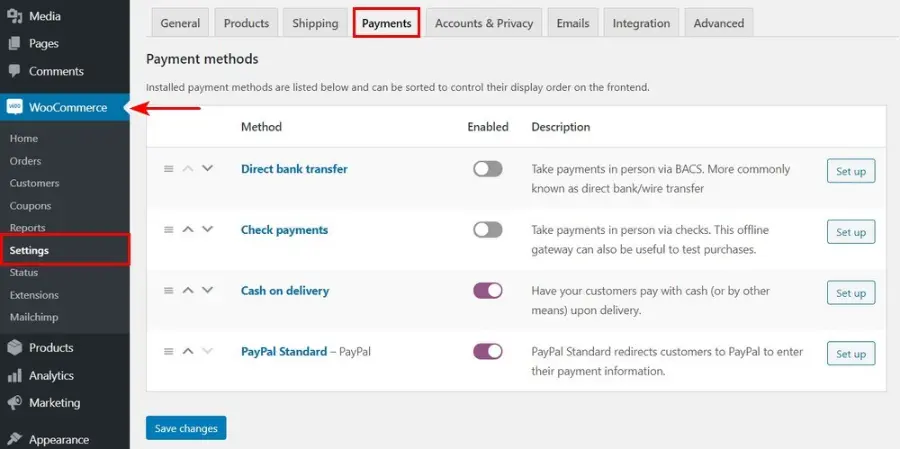
Connect a payment processor before you do anything else in this step, since every other setting depends on it. Shopify Payments, WooCommerce Payments, or a processor like Stripe or PayPal each take a few minutes to connect and typically go live after a short verification check.
For shipping, decide whether you’ll charge flat rates, calculated carrier rates, or offer free shipping baked into your pricing. Flat rates are simplest to set up and understand, but calculated rates protect your margin on heavier or oversized items. For taxes, most platforms can calculate rates automatically based on your business location and your customer’s shipping address, but you’re still responsible for registering with the right tax authorities and remitting what you collect. This is one area where a quick call with an accountant familiar with ecommerce pays for itself.
Step 6: Test everything before you launch
Place a real test order using an actual credit card, not just your platform’s test mode, and confirm the order lands correctly in your admin panel, your inventory count drops, and your confirmation email arrives. Test on a phone as well as a desktop, since most storefront traffic today comes from mobile and a broken mobile checkout will quietly kill your conversion rate before you notice.
Check that your legal pages (privacy policy, refund policy, terms of service) are in place, your contact information is easy to find, and your site loads in under three seconds on a mobile connection. Once all of that checks out, you’re ready to flip your store from password-protected to public.
Common mistakes to avoid when you create a webshop
The most common issue we see, whether we’re auditing a fresh build or migrating a store that’s a few years old, is a platform chosen for its price rather than its fit. A store that outgrows its platform within a year ends up paying for the migration anyway, just later and with live customer data at stake.
The second most common mistake is skipping mobile testing entirely. A checkout that works perfectly on a laptop can break on a phone if a theme wasn’t built with a mobile-first cart drawer. The third is leaving default placeholder text in policy pages and product descriptions, which undermines trust the moment a careful shopper notices it.
How to Create a Webshop: FAQs
Here are the questions we hear most often from people planning their first webshop.
Do I need coding skills to create a webshop?
No. Platforms like Shopify, Wix, and Squarespace are built for store owners with no coding background, and even WooCommerce can be set up using a pre-built theme without touching a single line of code. Coding knowledge only becomes useful once you want custom features a theme or app doesn’t already offer.
How long does it take to build and launch a webshop?
A simple store with a small catalog can go live in a day or two on a hosted platform like Shopify. A store with a larger catalog, custom design work, or a self-hosted setup like WooCommerce typically takes two to six weeks, depending on how much custom work is involved.
Can I switch ecommerce platforms after I launch?
Yes, and it’s more common than most first-time store owners expect once a business outgrows its original platform. A migration moves your products, customers, and order history to the new platform, though the amount of manual cleanup afterward depends heavily on how well your original catalog was structured.
Is it cheaper to build a webshop on WordPress or Shopify?
WooCommerce on WordPress has a lower starting cost since the plugin itself is free and you only pay for hosting, but the total cost climbs as you add premium extensions and developer time for custom work. Shopify has a predictable monthly fee that includes hosting and security, which often works out cheaper once you account for the hidden costs of self-managing a WooCommerce store.
Conclusion
How to create a webshop comes down to a handful of decisions made in the right order: know what you’re selling before you pick a platform, choose one that fits your catalog rather than your budget alone, and test every step of checkout before you open the doors. Get those right and the rest, themes, apps, payment settings, and store customization, is just execution.
Contact US | ThimPress:
Website: https://thimpress.com/
Fanpage: https://www.facebook.com/ThimPress
YouTube: https://www.youtube.com/c/ThimPressDesign
Twitter (X): https://x.com/thimpress_com