Most people put off starting a site because they think it needs a developer, a designer, and a few thousand dollars. That is not true anymore. If you want to build your own website today, you can do it in an afternoon with a laptop, a domain name, and a page builder plugin.
This guide walks through the exact steps, the tools worth paying for, and the ones you can skip.
Eduma – Education WordPress Theme
We provide an amazing WordPress theme with fast and responsive designs. Let’s find out!
Why building your own site is easier than it used to be
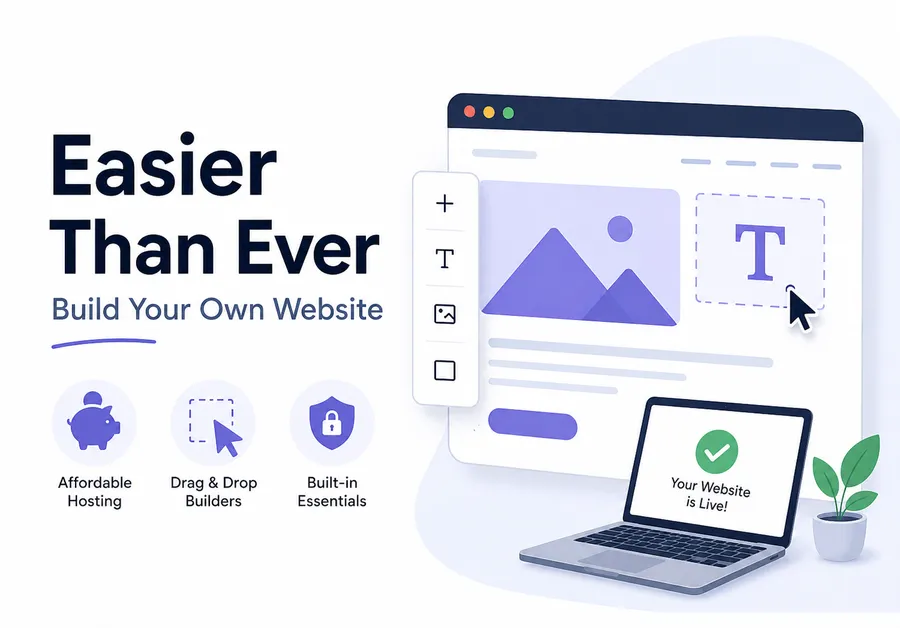
Ten years ago, launching a site meant hiring someone to write HTML by hand. Now the work happens through drag-and-drop panels, and most of the heavy lifting is already built into the platform you choose.
The shift came from two directions at once: hosting got cheaper, and page builders got good enough to replace custom code for the vast majority of small business and personal sites. A local bakery owner or a freelance photographer can now launch a working site the same day they buy a domain, without touching a line of PHP.
That does not mean every option is equally good. Some tools bill themselves as an affordable web builder and then charge extra for basic features like a contact form or SSL certificate once you are already locked in. Knowing what to check before you commit saves both money and rework later.
Choosing the right platform before you start
Before picking a tool, decide what the site actually needs to do. A five-page portfolio has different requirements than a store selling fifty products, and the wrong choice here is the single biggest cause of rebuilding a site from scratch six months in.
What to prepare before you start
Before you build anything, decide what the website needs to do. A simple personal site, a business brochure site, and an online store all need different setups, so it helps to prepare a basic plan first.
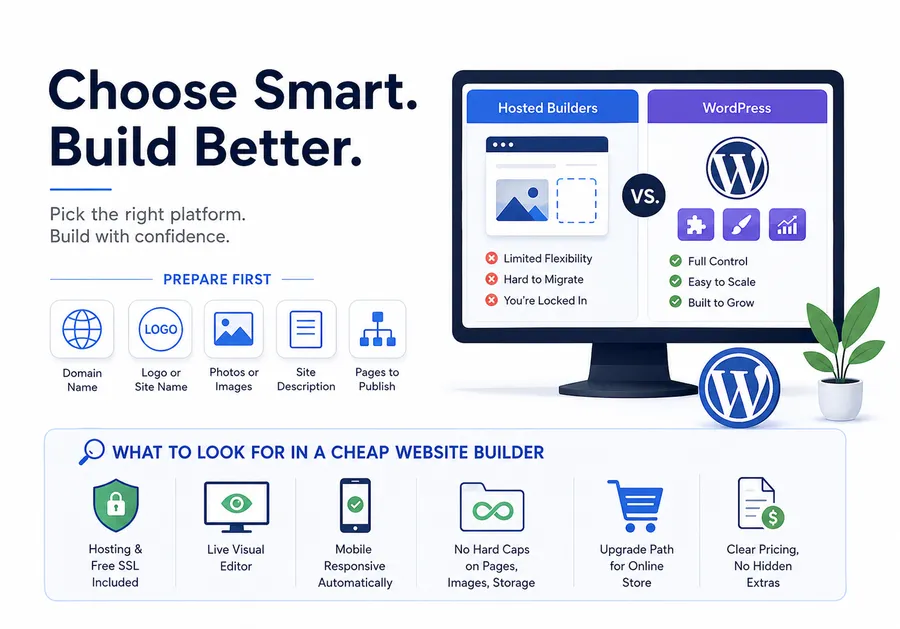
At minimum, gather these items before you start:
- A domain name
- A logo or site name
- A few photos or brand images
- A short description of what the site offers
- A list of the pages you want to publish first
Doing this early saves time and keeps the build process from feeling scattered.
WordPress vs. hosted website builders
Hosted builders like the all-in-one drag-and-drop tools bundle hosting, design, and editing into one dashboard. They are fast to start with but limit you to templates the company controls, and moving your content off the platform later is often difficult or impossible. If the company changes its pricing or shuts down a feature, your site changes with it, and there is little you can do about it.
WordPress works differently. You control the hosting, the theme, and every plugin running on the site. It takes a bit more setup on day one, but nothing is locked behind a proprietary system. Once WordPress powers your site, switching themes, adding a store, or scaling up traffic does not mean starting over. According to W3Techs, WordPress runs on well over 40% of all websites, which is part of why the plugin and theme ecosystem around it is so deep. That scale also means far more free tutorials, forum answers, and plugin choices than any closed platform can match.
The trade-off is time. A hosted builder can get a single page live in under an hour, while a WordPress site usually takes an afternoon the first time through, since you are choosing a host, a theme, and a page builder plugin separately instead of getting them pre-bundled. For a site meant to last years and grow past a handful of pages, that extra afternoon is a small price for not being boxed in later.
What to look for in a cheap website builder
Whichever route you take, run through this checklist before signing up:
- Hosting and a free SSL certificate included, not sold as an add-on
- A visual editor that shows changes live, without a separate “preview” step
- Mobile responsiveness handled automatically, not manually per page
- No hard cap on pages, images, or storage on the entry-level plan
- A clear upgrade path if the site grows into an online store later
A tool that looks like the cheapest web builder on the pricing page can end up costing more once you add the features most sites actually need, so read the fine print on what is included versus what is billed separately.
Step-by-step: how to build your own website
This is the process to build your own website from an empty domain to a live, working site. It assumes you are using WordPress, since it gives the most flexibility for the lowest recurring cost.
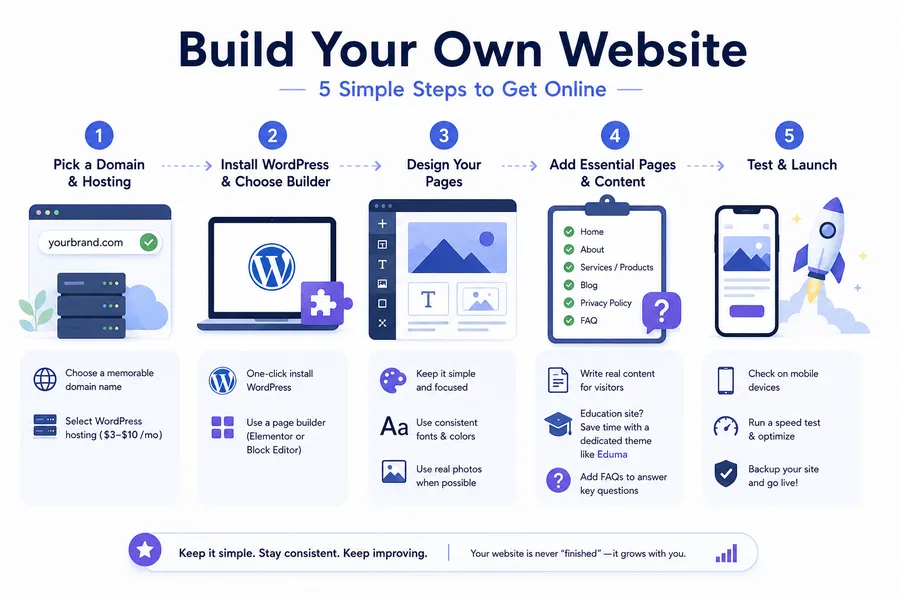
Step 1: Pick a domain and hosting plan
Register a domain name that matches your business or personal brand, and choose a hosting plan built for WordPress. Shared hosting plans for a new site typically run $3 to $10 a month, which is enough for most sites under a few thousand monthly visitors. Avoid the temptation to over-buy a large server plan before you have any traffic to justify it.
Step 2: Install WordPress and choose a page builder
Most hosts offer one-click WordPress installation from the control panel. Once it is running, install a WordPress page builder plugin such as Elementor, or use the native block editor that ships with WordPress. A page builder plugin lets you drag sections, adjust spacing, and swap images without touching code, which is the entire point of doing this yourself instead of hiring a developer.
Step 3: Design your pages
Start with a homepage, an about page, and a contact page. Keep the layout simple: one clear headline, a short explanation of what you offer, and one obvious action for the visitor to take, whether that is booking a call or browsing products. Resist the urge to add every feature the page builder offers on the first pass; a clean three-page site converts better than a cluttered ten-page one.
Pick two or three fonts at most, and reuse the same color palette across every page. Most page builder plugins ship with a global style panel where you set these once and have them apply site-wide, which saves you from manually matching colors on every new page you add later. Stock photography works fine for a first version, but swap in real photos of your product, team, or workspace as soon as you can. Visitors notice the difference, even if they cannot say exactly why.
Step 4: Add essential pages and content
Beyond the homepage, most sites need a privacy policy, a services or products page, and a blog if you plan to publish regularly for search traffic. Write real content here, not placeholder text. Search engines and readers can both tell the difference between a page written for a visitor and one written to fill space.
If you are running any kind of course, membership, or coaching business, this is also where a dedicated theme saves real time. Instead of building instructor bios, lesson layouts, and student progress pages from a generic template, a theme built for that purpose already includes them. This is exactly the gap Eduma from ThimPress fills for education sites, pairing pre-built course and instructor layouts with the same page builder flexibility described in Step 2.
Add an FAQ section to your key pages while you are at it. It answers the questions visitors have before they leave to search elsewhere, and it gives search engines extra structured content to pull from when someone searches a related question.
Step 5: Test and launch
Check the site on a phone screen, not just a laptop, since more than half of web traffic now comes from mobile devices. Run a speed test through a free tool like Google PageSpeed Insights, fix any obvious image size issues, and then point your domain live. Keep a backup plugin active from day one so a bad update never takes the whole site down.
How to start an online store on the same site
If the plan includes selling products, you do not need a second platform. WordPress handles this through WooCommerce, a free plugin that turns any WordPress site into a store.
Setting up WooCommerce
Install WooCommerce from the plugin directory and run through its setup wizard, which walks you through store location, currency, and shipping zones. This is the same core process whether you are trying to create an online store selling five items or five hundred. The setup wizard also prompts you to connect a payment gateway before you add your first product, so nothing is left half-configured.
Picking products and payment gateways
Add product listings with clear photos, honest descriptions, and accurate stock counts. Vague descriptions are one of the fastest ways to lose a sale, since shoppers cannot pick up or examine the item in person. Connect a payment gateway such as Stripe or PayPal so customers can check out without leaving the site. For anyone still deciding whether to create your website on WordPress or a hosted store platform, the deciding factor is usually control: WooCommerce lets you change payment providers, shipping rules, and themes without renegotiating a contract with a platform owner.
Once the store is live, keep an eye on cart abandonment. A short, two-step checkout with guest checkout enabled tends to convert better than a long form that forces account creation before purchase. Small friction points like a mandatory account signup can quietly cost more sales than a slow page load does.
Comparing the cheapest options on the market
Here is how the most common entry points compare on cost and flexibility for someone starting from zero.
| Option | Starting cost | Best for | Limitation |
| WordPress + shared hosting | $3–10/month | Full control, blogs, stores, portfolios | Requires initial setup time |
| Hosted drag-and-drop builder | $0–16/month | Quick single-page sites | Hard to migrate later |
| WooCommerce on WordPress | Free plugin + hosting | Selling physical or digital products | Needs a payment gateway setup |
| Page builder plugin (Elementor, etc.) | Free–$59/year | Custom layouts without code | Learning curve for advanced design |
For most small businesses and creators, WordPress paired with a page builder plugin and shared hosting comes out as the cheapest web builder path once you account for the features a hosted platform charges extra for down the line.
Common mistakes beginners make
- Skipping mobile testing. A layout that looks great on a desktop monitor can break completely on a phone screen if you never check it there.
- Choosing a page builder based on looks alone. Some builders add heavy JavaScript that slows the site down; check performance reviews, not just the demo gallery.
- Publishing without a backup plugin. One failed update can wipe hours of work if there is no restore point.
- Overloading the homepage. Trying to explain everything on one page usually explains nothing clearly. Split content into dedicated pages instead.
- Ignoring the “About” page. Visitors deciding whether to trust a new site check this page more than owners expect.
- Stacking too many plugins. Each plugin adds its own scripts and database calls, and a site running twenty plugins for features you barely use will load slower than one running five well-chosen ones.
Before you publish, do one final check
Do a final review before launching the site. Read every page on mobile, check that your contact form works, confirm that your menus link to the right pages, and make sure your site loads quickly on both desktop and phone. If you are using WordPress, also test your backup and confirm that your SSL certificate is active.
A simple launch checklist like this helps you avoid the most common beginner mistakes and gives visitors a better first impression from day one.
Conclusion
You do not need a developer, a big budget, or months of planning to build your own website in 2026. Pick a platform that keeps you in control, install a page builder plugin, and launch with a small, clean set of pages before expanding. Whether the goal is a portfolio, a blog, or a full online store, the tools to do it affordably are already available; the only real requirement is starting.
FAQs
How much does it cost to build your own website from scratch?
A basic WordPress site with shared hosting and a free page builder plugin typically costs $3 to $10 a month, plus around $10 to $15 a year for a domain name. Premium themes or advanced page builder features can add a one-time cost, but they are optional for most beginner sites.
Is WordPress really free, or are there hidden costs?
The WordPress software itself is free and open source, but you still pay for hosting, a domain name, and any premium themes or plugins you choose to add. Most beginner sites can run on the free core software plus a low-cost hosting plan without extra fees.
Can I create an online store without knowing how to code?
Yes. WooCommerce, the WordPress store plugin, includes a guided setup wizard that handles product listings, shipping, and payment gateways through a visual dashboard, with no coding required for a standard store setup.
What is the difference between a website builder and a page builder plugin?
A website builder is typically an all-in-one hosted platform with its own editor and hosting bundled together, while a page builder plugin like Elementor installs on top of WordPress and only handles the design layer. Page builder plugins generally offer more flexibility since the underlying platform is not locked to one company.
Read more: How To Have Your Website Show Up On Google
Contact US | ThimPress:
Website: https://thimpress.com/
Fanpage: https://www.facebook.com/ThimPress
YouTube: https://www.youtube.com/c/ThimPressDesign
Twitter (X): https://x.com/thimpress_com