If you have ever moved a page, renamed a file, or merged two websites into one, you have probably needed to send visitors from an old URL to a new one automatically. One of the simplest ways to do this is to redirect via HTML, without touching a server configuration file or writing a single line of backend code.
This guide walks through every practical method to redirect via HTML, including the meta refresh tag, JavaScript-based redirects, and the differences between client-side and server-side redirection. You will also see real code you can copy, common mistakes that hurt your SEO, and answers to the questions people search most often about this topic.
Eduma – Education WordPress Theme
We provide an amazing WordPress theme with fast and responsive designs. Let’s find out!
What does it mean to redirect via HTML?
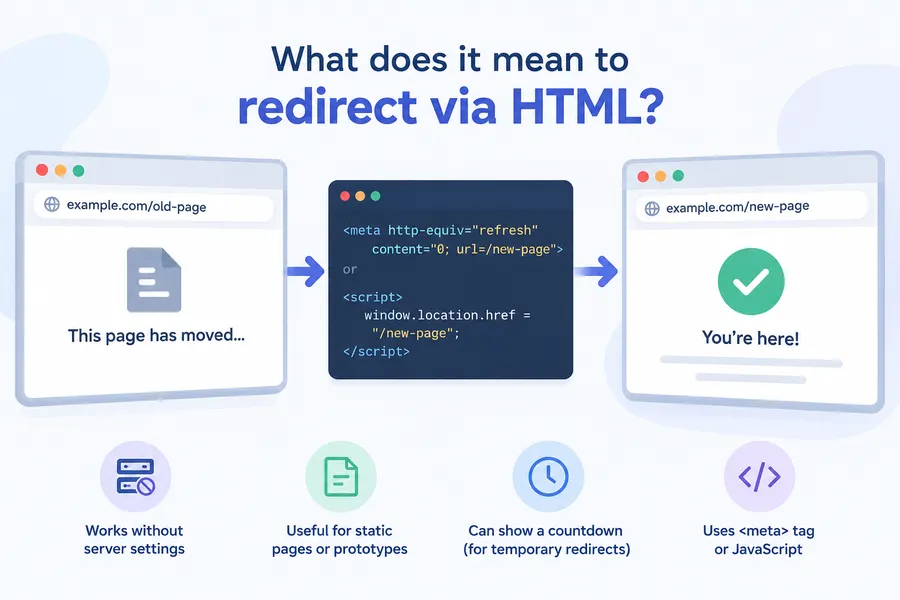
A redirect via HTML is a page-level instruction that tells a browser to load a different URL, either immediately or after a short delay. Whether you choose meta refresh or a script, the goal of any HTML redirect is the same: get the visitor to the right page with as little friction as possible. Unlike server-side redirects (like a 301 or 302 sent through .htaccess or a server config), an HTML redirect runs entirely in the browser, using either the <meta> tag or a small JavaScript snippet.
This matters because HTML redirects are useful when you don’t have access to server settings, such as on shared hosting with limited configuration options, inside a static site, or when you’re testing something quickly without deployment access.
Why developers still use HTML redirects
Even though search engines generally prefer server-side 301 redirects for permanent moves, there are real situations where an HTML-based approach makes sense:
- You’re working on a static HTML page with no backend or
.htaccessaccess. - You need a temporary “this page has moved” notice with a visible countdown.
- You’re building a prototype or landing page that needs to bounce visitors to a different domain.
- You want a lightweight redirect using window location for single-page apps or embedded widgets.
Redirect using HTML with the meta refresh tag
The most common way to redirect using HTML is the meta refresh tag. It goes inside the <head> section of your page and tells the browser to reload a different URL after a set number of seconds.
<!DOCTYPE html>
<html lang="en">
<head>
  <meta charset="UTF-8">
  <title>Redirecting...</title>
  <meta http-equiv="refresh" content="5; url=https://example.com/new-page">
</head>
<body>
  <p>This page has moved. You will be redirected in 5 seconds.
  If nothing happens, <a href="https://example.com/new-page">click here</a>.</p>
</body>
</html>
Here’s what each part of that redirect URL HTML code does:
http-equiv="refresh"tells the browser this meta tag controls page refresh behavior.content="5; url=..."sets the delay in seconds, followed by the destination URL.- The fallback link inside the
<body>matters. Some browsers block automatic redirects, and screen readers may not announce the refresh at all, so a visible link keeps the page usable.
Instant redirect with meta refresh
Setting the delay to zero fires the redirect as soon as the page loads:
<meta http-equiv="refresh" content="0; url=https://example.com/new-page">
This behaves similarly to a JavaScript redirect in terms of speed, but it still runs through the browser’s rendering engine rather than a script, so it works even if JavaScript is disabled.
Redirection code HTML using JavaScript
The second common approach is a small script placed in the page’s <head> or <body>. This gives you more control than a meta tag, including the ability to add conditions, delays, or logic before the redirect fires.
Basic redirect using window location
<!DOCTYPE html>
<html lang="en">
<head>
  <meta charset="UTF-8">
  <title>Redirecting...</title>
  <script>
    window.location.href = "https://example.com/new-page";
  </script>
</head>
<body>
  <p>Redirecting, please wait...</p>
</body>
</html>
window.location.href is the property browsers use to read and set the current page address. Assigning a new value to it triggers an immediate navigation, and it adds a new entry to the browser’s history, so the visitor can still use the back button to return to the original page.
Delayed redirect with setTimeout
If you want to show a message before sending someone away, wrap the redirect in a timer:
<script>
  setTimeout(function () {
    window.location.href = "https://example.com/new-page";
  }, 3000);
</script>
<p>You'll be redirected in 3 seconds...</p>
The number 3000 is in milliseconds, so this waits three full seconds before firing.
Replace instead of href
There’s a second method worth knowing, especially if you don’t want the old page sitting in the visitor’s browser history:
<script>
  window.location.replace("https://example.com/new-page");
</script>
location.replace() swaps the current history entry instead of adding a new one. This means the back button skips over the redirect page entirely, which is useful for login gates, expired links, or pages you never want someone to accidentally return to.
Building a redirect page step by step
If you’ve never built one before, here’s the full process for putting together a working redirect page from scratch.
Step 1: Create the HTML file
Start with a bare-bones HTML document. Name the file after the old URL you’re replacing, for example old-page.html.
<!DOCTYPE html>
<html lang="en">
<head>
  <meta charset="UTF-8">
  <title>Page Moved</title>
</head>
<body>
</body>
</html>
Step 2: Add the redirect method
Drop in either the meta refresh tag or the JavaScript snippet from earlier, depending on how much control you need. For most simple page moves, meta refresh alone is enough. For anything conditional, such as redirecting based on the visitor’s language or device, JavaScript gives you that flexibility.
<script>
  const isMobile = /Mobi|Android/i.test(navigator.userAgent);
  window.location.href = isMobile
    ? "https://example.com/mobile-landing"
    : "https://example.com/new-page";
</script>
Step 3: Add a visible message and fallback link
Never leave the <body> empty. A short message and a manual link protect you against blocked redirects and improve the experience for anyone using assistive technology.
<body>
  <p>This page has moved to a new address.
  <a href="https://example.com/new-page">Continue to the new page</a>.</p>
</body>
Step 4: Upload and test
Upload the file to the same location as the old page (or wherever the old URL needs to point), then test it directly in a browser and with JavaScript disabled to confirm both paths work. Once both checks pass, your redirection code HTML setup is ready to go live.
Using an HTML redirect on static hosting platforms
Static site hosts like GitHub Pages, Netlify’s free tier without redirect rules, or a plain shared hosting account often don’t give you access to server-level redirect configuration. This is exactly where the redirect via HTML approach earns its keep.
For a project hosted on GitHub Pages, for example, you might keep the old file in place but strip out its original content and replace it with just the redirect markup shown above. Visitors who bookmarked the old link, or search engines that still have it indexed, land on a page that immediately sends them to the current URL instead of hitting a broken link or a 404 error.
The same approach works for email campaigns. If a confirmation link in an old email points to a page you’ve since restructured, a lightweight redirect page keeps that link functional without needing to resend anything.
Accessibility considerations
An automatic redirect can be disorienting for people using screen readers or those who navigate slowly, since the page content changes without warning. A few adjustments make HTML redirects more accessible:
- Keep the message on the page in plain, readable text, not just inside the
<meta>tag where assistive technology may not detect it. - Avoid delays shorter than a few seconds when there’s text to read, so screen reader users have time to hear the message before the page changes.
- Always include a manual link as the primary way forward, not just a backup, since some accessibility tools disable automatic page changes by default for user safety.
Browser support for HTML redirects
Both meta refresh and JavaScript-based redirects are supported across all modern browsers, including Chrome, Firefox, Safari, and Edge, as well as most mobile browsers. The meta refresh tag has been part of HTML for decades and works even in very old browsers, which makes it a dependable fallback. JavaScript redirects depend on scripts being enabled, so they should not be the only method on a page that absolutely must redirect, such as a critical account or billing link.
HTML redirect vs. server-side redirect
It helps to know when a browser-based redirect is the right tool and when it isn’t.
| Method | Runs on | SEO signal sent | Best used for |
|---|---|---|---|
| Meta refresh | Browser | Weak, search engines may treat it as a soft signal | Static pages without server access |
| JavaScript redirect | Browser | Weak, and invisible to crawlers that don’t execute JS | Conditional or app-based redirects |
| Server-side 301 | Server | Strong, tells search engines the move is permanent | Permanent URL changes, domain migrations |
| Server-side 302 | Server | Strong, tells search engines the move is temporary | Short-term redirects, A/B tests |
Search engines can follow HTML and JavaScript redirects, but they don’t carry the same weight as an HTTP status code sent directly from the server. If you’re permanently moving a page that has search traffic, a server-side 301 is still the safer choice for preserving rankings. An HTML redirect is best treated as a backup or a quick fix, not a long-term SEO strategy.
Common mistakes to avoid
A few small errors show up again and again when developers redirect via HTML:
- Forgetting the fallback link. If the redirect fails for any reason, visitors are stuck on a blank page with no way forward.
- Using a long delay for a permanent move. A ten-second wait feels broken to most visitors. Keep it under five seconds, or make it instant if there’s no message to show.
- Mixing meta refresh and JavaScript on the same page. Having both can cause a double redirect, which sometimes triggers browser warnings or loops.
- Redirecting to a relative path incorrectly.
window.location.href = "new-page"will resolve relative to the current folder, which can send visitors somewhere unexpected if the file structure changes later. - Not testing with JavaScript disabled. If you’re relying only on a script-based redirect, visitors with JavaScript turned off, or bots that don’t execute it, will never leave the page.
Testing your redirect
Before publishing any redirect URL HTML code, or any redirect using window location, check it in a few different conditions:
- Load the page in a normal browser tab and confirm the destination is correct.
- Disable JavaScript and reload to see if the meta refresh (if present) still works as a fallback.
- Check the browser’s back button behavior to confirm whether you want a new history entry or a replaced one.
- Test on mobile, since some mobile browsers throttle or delay automatic refreshes differently than desktop browsers.
Conclusion
Learning to redirect via HTML gives you a fast, dependency-free way to send visitors from one URL to another, whether you’re working with a meta refresh tag, a JavaScript snippet, or a mix of both with a visible fallback link. For quick fixes, static pages, or situations without server access, these methods do the job well. For permanent moves that matter to your search rankings, pair what you’ve learned here with a proper server-side 301 redirect whenever you have the option. Test every redirect in real browser conditions, keep delays short, and always leave a manual link behind in case the automatic redirect doesn’t fire.
FAQs about redirect via HTML
Does an HTML redirect hurt SEO?
It can, if used for permanent moves that should instead use a server-side 301 redirect. Search engines follow meta refresh and JavaScript redirects, but they treat them as weaker signals than an HTTP status code, so ranking signals from the old URL may not fully transfer.
What is the difference between window.location.href and window.location.replace?
window.location.href adds a new entry to browser history, so visitors can click back to the original page, while window.location.replace() swaps out the current entry entirely, skipping the redirect page on the back button. Use replace() for pages you never want revisited, like expired sessions or login redirects.
Can a meta refresh redirect be blocked?
Yes, some browsers and browser extensions block or warn about automatic meta refresh redirects, especially with longer delays, since they’ve historically been misused for spam or phishing pages. This is why a visible fallback link inside the page body is considered essential.
How do I redirect to a different domain using HTML?
Use the full destination URL, including https://, in either the meta refresh content attribute or the JavaScript window.location.href assignment. Leaving off the protocol can cause the browser to treat the address as a relative path on the current domain instead of an external site.
Read more: 9+ best AI for educators free tools
Contact US | ThimPress:
Website: https://thimpress.com/
Fanpage: https://www.facebook.com/ThimPress
YouTube: https://www.youtube.com/c/ThimPressDesign
Twitter (X): https://x.com/thimpress_com