
Adding an animated video to WordPress helps improve user engagement and makes your website more interactive. This guide explains the main methods in simple steps, suitable for beginners and developers.
Methods to Add Animated Video to WordPress
There are several ways to add an animated video to WordPress. Choose the method that fits your needs and website performance.
1. Upload an Animated Video Directly
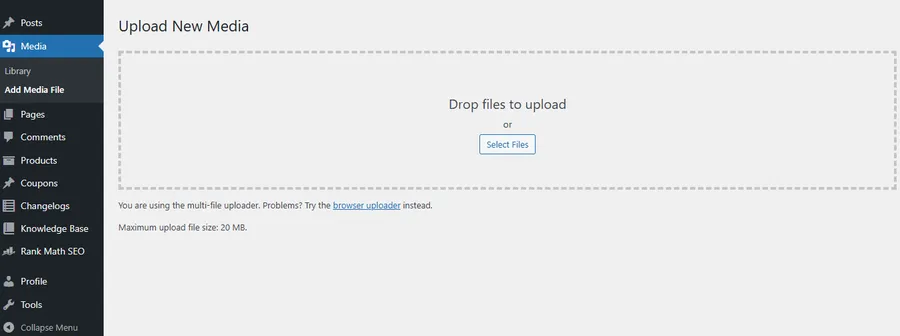
This method is best when you have a video file stored locally.
Steps
- Log in to your WordPress dashboard
- Go to Media → Add Media File
- Upload your video file (MP4 recommended)
- Copy the video URL
- Open your page or post
- Add a Video block
- Select the uploaded video from Media Library
Notes
- Supported formats: MP4, WebM, OGV
- MP4 is recommended for compatibility
2. Embed an Animated Video from YouTube or Vimeo
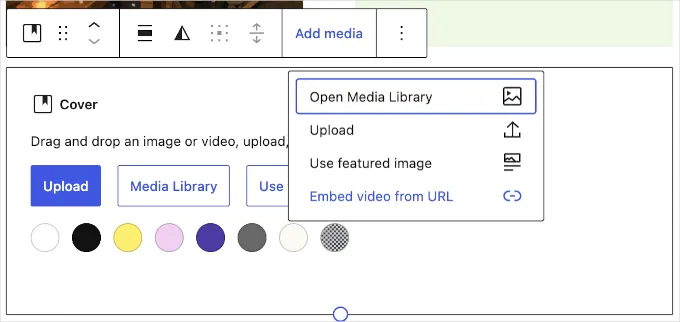
Embedding is the most efficient way to add an animated video to WordPress without using server storage.
Steps
- Copy the video URL
- Open your page or post
- Add a YouTube or Embed block
- Paste the URL
- Click Embed
Benefits
- Saves hosting space
- Improves page loading speed
3. Add Animated Video Using a Page Builder
Page builders like Elementor allow more control over your WordPress video embed.
Steps
- Open the page in your page builder
- Drag and drop a Video widget
- Choose video source (YouTube, Vimeo, or self-hosted)
- Customize settings (autoplay, loop, mute)
- Save changes
Key Features
- Control playback behavior
- Customize appearance
4. Add Lottie Animations
Lottie is a lightweight option for adding high-quality animations.
Steps
- Install a Lottie plugin
- Upload your JSON animation file
- Copy the file URL
- Open your page or post
- Add a Custom HTML block
- Paste the Lottie embed code
Benefits
- Fast loading
- Scalable and high-quality animations
5. Use GIFs for Simple Animations
GIFs are useful for short and looping animations. You can refer to our GIF guide to add it to WordPress.
Steps
- Upload the GIF via Media → Add New
- Copy the file URL
- Open your page or post
- Add an Image block
- Insert the GIF
Notes
- GIFs autoplay automatically
- Optimize file size to avoid slow loading
6. Use a WordPress Video Plugin
Plugins provide advanced features for adding an animated video to WordPress.
Steps
- Go to Plugins → Add New
- Install a video plugin
- Activate the plugin
- Follow plugin instructions to add or embed videos
Benefits
- Playback controls
- Subtitles and captions
- Advanced customization
7. Creative Use Cases for Animated Videos
Video Background
- Prepare video using editing tools
- Upload to Media Library
- Set as section background in your builder
Video Inside Device Mockups
- Create layout using design tools
- Export as video
- Embed using HTML or video block
Mix Video and Graphics
- Combine animation and design elements
- Export and upload to WordPress
FAQs
1. What is the best format for animated video in WordPress?
MP4 is the most compatible format across devices and browsers.
2. Should I upload or embed videos?
Embedding is recommended for better performance and lower server usage.
3. Are Lottie animations better than GIFs?
Yes. Lottie files are smaller, faster, and offer better quality.
4. Can animated videos slow down my website?
Yes, if files are large. Use optimized formats or external hosting.
5. Do I need coding skills to add animated videos?
No. Most methods use built-in blocks or plugins.
Conclusion
Adding an animated video to WordPress is simple and effective. You can upload videos, embed them from external platforms, use GIFs, or implement Lottie animations for better performance.
Choose the method based on your website goals:
- Use embeds for speed
- Use Lottie for lightweight animations
- Use page builders for customization
By applying these steps, you can enhance your website without technical complexity while maintaining strong performance and user experience.
Learn More from ThimPress Knowledge Base Articles:
- Install and Set up the FundPress plugin
- How To Submit A ThimPress Support Ticket
- How To Disable The Demo Slider Images
- Active Included Premium Plugins: What You Need to Know
- How to Back Up Your WordPress Site: 3+ Simple Methods
- How To Submit A ThimPress Support Ticket
- How to Create a ThimPress Account and Access Support?
- How to Deregister and Reactivate Your ThimPress License?
- How To Enable Register Button In WordPress
- How To Get My Envato Purchase Code?
Contact US | ThimPress:
Website: https://thimpress.com/
Fanpage: https://www.facebook.com/ThimPress
YouTube: https://www.youtube.com/c/ThimPressDesign
Twitter (X): https://twitter.com/thimpress
