
When building a website, many users look for inspiration from existing designs. Knowing how to find what WordPress theme a site is using helps you quickly identify the design and apply it to your own project.
This guide explains two simple methods to check a WordPress theme using tools or manual inspection.
Method 1: Use a WordPress Theme Detector Tool
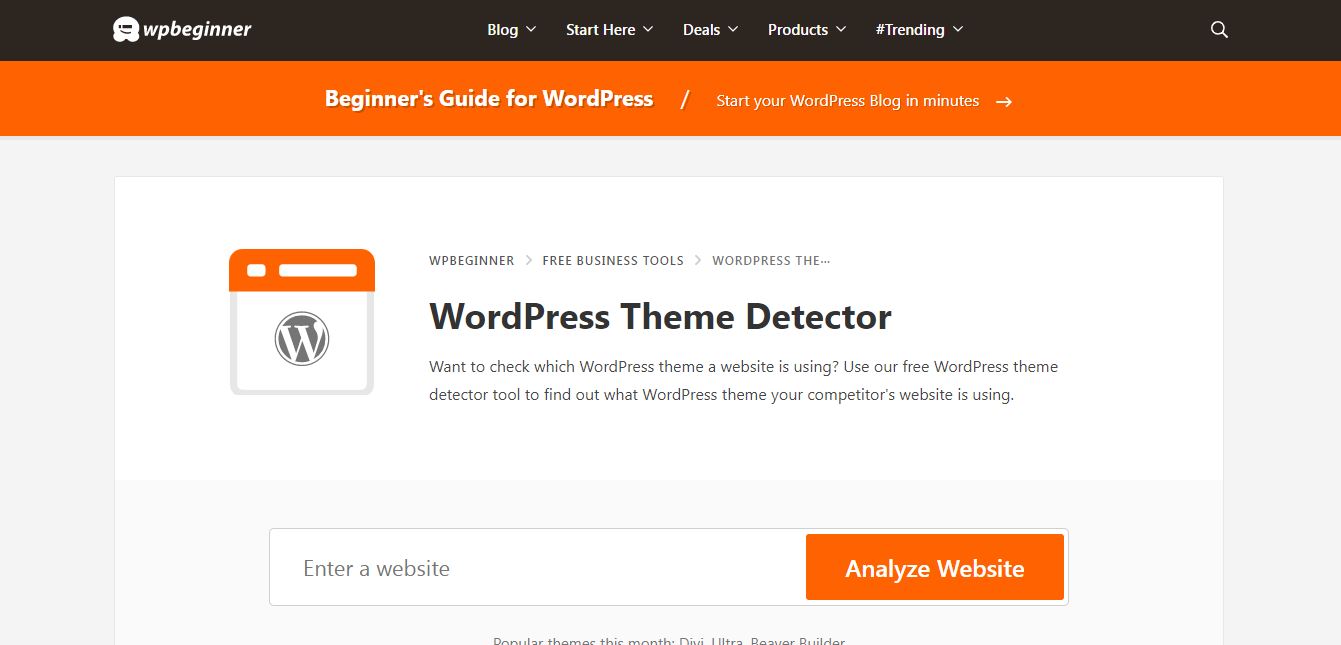
Using a WordPress theme detector is the fastest way to find WordPress theme details without technical knowledge.
Main Steps
- Copy the URL of the website you want to check
- Open a WordPress theme detector tool
- Paste the URL into the input field
- Click the scan or detect button
- View the theme name, author, and details
These tools can also show installed plugins and additional metadata.
Notes
- Some tools may not detect custom themes
- Renamed themes can limit accuracy
Method 2: Check the Theme Manually
If a detector tool does not work, you can manually find WordPress theme information from the website’s source code.
Option 1: View Page Source
Steps
- Open the website
- Right-click and select View Page Source
- Press Ctrl + F and search for
style.css - Locate the file inside
/wp-content/themes/ - Open the file and read the theme header
The header usually includes:
- Theme name
- Author
- Version
- Theme URL
Option 2: Use Inspect Element
Steps
- Right-click on the page and select Inspect
- Open the Elements tab
- Press Ctrl + F and search for
style.css - Open the file link
- Check the theme details in the header
Extra Tip
If you see a Template field in the header, it indicates a parent theme.
Important Considerations
- Some websites use custom WordPress themes
- Theme names can be modified or hidden
- Always download themes from official or trusted sources
- Avoid nulled themes due to security risks
FAQs
What is the easiest way to find WordPress theme information?
Using a WordPress theme detector tool is the easiest method because it requires no technical steps.
Can all themes be detected?
No. Custom themes or renamed themes may not be detected by tools.
Why should I find WordPress theme details?
It helps you replicate design styles, improve development speed, and understand site structure.
Can I identify plugins as well?
Yes. Many theme detector tools also display installed plugins.
Conclusion
Learning how to find what WordPress theme a site is using can save time and simplify your website design process.
There are two main methods:
- Use a WordPress theme detector tool for quick results
- Check the source code manually for accurate details
Both approaches are effective. Start with a tool, then switch to manual inspection if needed.
Learn More from ThimPress Knowledge Base Articles:
- Install and Set up the FundPress plugin
- How To Submit A ThimPress Support Ticket
- How To Disable The Demo Slider Images
- Active Included Premium Plugins: What You Need to Know
- How to Back Up Your WordPress Site: 3+ Simple Methods
- How To Submit A ThimPress Support Ticket
- How to Create a ThimPress Account and Access Support?
- How to Deregister and Reactivate Your ThimPress License?
- How To Enable Register Button In WordPress
- How To Get My Envato Purchase Code?
Contact US | ThimPress:
Website: https://thimpress.com/
Fanpage: https://www.facebook.com/ThimPress
YouTube: https://www.youtube.com/c/ThimPressDesign
Twitter (X): https://twitter.com/thimpress
