WordPress powers over 40% of all websites on the internet, which makes it incredibly popular—and, at the same time, prone to occasional errors. If you’ve ever opened your site only to see a blank white screen, a database connection error, or a confusing warning message, you’re not alone.
The good news is that the most common WordPress errors are not as scary as they look. In fact, many of them follow predictable patterns and can be fixed in just a few steps, even if you don’t have technical or coding experience.
In this guide, we’ll walk you through the 10 most common WordPress errors, explain why they happen, and show you clear, practical solutions to fix them.
Whether you’re a beginner running your first blog or a business owner managing a WordPress site, this troubleshooting guide will help you restore your website quickly and confidently.
Important: Before making any changes, always back up your WordPress site. This ensures you can restore your website if something goes wrong during troubleshooting.
Eduma – Education WordPress Theme
We provide an amazing WordPress theme with fast and responsive designs. Let’s find out!
Before You Start: Back Up Your WordPress Website
Before fixing any WordPress error, a complete backup is essential. Errors often require editing files, disabling plugins, or changing settings—any of which can break your site further if done incorrectly.
A proper backup should include:
- Your WordPress database
- All files (themes, plugins, uploads)
- Configuration files like wp-config.php
If you’re unsure where to begin, this guide on how to back up your WordPress site walks you through the process step by step.
Most hosting providers also offer built-in backups, and using a dedicated plugin can automate everything. To choose the right tool, check out this comparison of the best WordPress backup plugins to find the option that fits your needs.
Once your backup is secure, you can proceed with confidence.
1. Internal Server Error (500 Error)
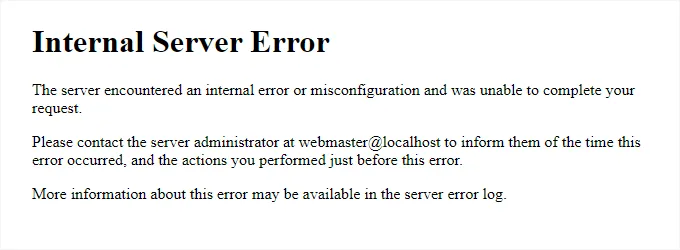
The Internal Server Error, commonly referred to as the 500 error, is one of the most frustrating WordPress issues because it provides almost no useful information. Instead of explaining what went wrong, WordPress simply displays a generic error message, leaving site owners confused and unsure where to start. This error usually indicates that something on the server failed while processing a request, but the server itself cannot identify the exact cause.
For beginners, this can feel overwhelming because the site may suddenly become inaccessible to visitors, harming user experience and SEO. However, the 500 error is rarely permanent. In most cases, it’s triggered by configuration issues, plugin conflicts, or memory limitations—problems that can be fixed without touching complex server code once you know where to look.
Why This Error Happens
- Corrupted .htaccess file
- Plugin or theme conflicts
- Insufficient PHP memory
- Server misconfiguration
How to Fix It
- Check the .htaccess file
Rename it temporarily and refresh your site. If the site loads, regenerate the file by saving permalinks again. - Disable all plugins
Deactivate plugins one by one to find the faulty one. - Increase PHP memory limit
Edit wp-config.php and increase the memory allocation. - Contact hosting support
If nothing works, your hosting provider can check server logs.
2. Error Establishing a Database Connection

When WordPress displays the “Error Establishing a Database Connection” message, it means your website cannot communicate with its database. Since WordPress relies on the database to load content, user information, and settings, this error effectively takes your entire site offline.
This issue often occurs after a site migration, hosting change, or manual configuration update. While it sounds technical, the root cause is usually simple—incorrect login credentials, a corrupted database, or a temporary server outage. Because databases are central to WordPress functionality, resolving this error quickly is critical to restoring your website and preventing prolonged downtime.
Common Causes
- Incorrect database name, username, or password
- Corrupted database
- Database server downtime
- Hosting-related issues
How to Fix It
- Verify database credentials in wp-config.php
- Repair the database using WordPress’s built-in repair tool
- Check with your hosting provider to ensure the database server is running
3. White Screen of Death (WSOD)
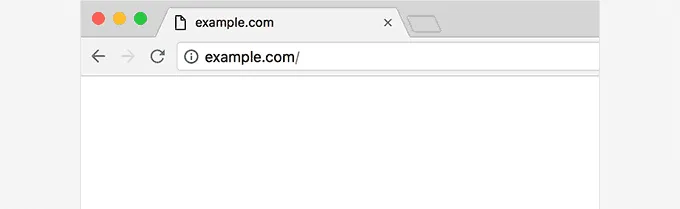
The White Screen of Death (WSOD) is one of the most alarming WordPress errors because it leaves you with nothing but a blank white page. There are no warnings, error codes, or explanations—just an empty screen. This makes diagnosing the issue especially difficult, particularly for beginners who don’t know where to start troubleshooting.
In many cases, the WSOD is caused by a fatal PHP error, memory exhaustion, or a conflict between plugins or themes. Sometimes the error only affects certain parts of the site, such as the admin dashboard, while the front end appears normal. Despite how serious it looks, the White Screen of Death is almost always fixable once the underlying cause is identified.
What Triggers It
- PHP memory exhaustion
- Plugin or theme errors
- Fatal PHP errors
How to Fix It
- Enable WordPress debugging to reveal the error
- Increase PHP memory limit
- Disable plugins and switch to a default theme
- Clear browser and site cache
4. This Site Is Experiencing Technical Difficulties

The message “This site is experiencing technical difficulties” is WordPress’s more user-friendly replacement for older fatal error screens. Introduced in WordPress 5.2, this feature is designed to protect your site by stopping it from loading when a critical error is detected.
Instead of completely locking you out, WordPress attempts to help by sending a recovery email to the site administrator. This email often contains a special login link that allows you to disable the faulty plugin or theme. While the message may seem vague, it’s actually a helpful signal that WordPress has identified a serious issue and is guiding you toward a safe recovery process.
What It Means
WordPress has detected a fatal error and temporarily stopped the site to protect it.
How to Fix It
- Check your admin email for a recovery link
- Use recovery mode to disable the problematic plugin or theme
- Review error logs to identify the cause
5. WordPress Syntax Error
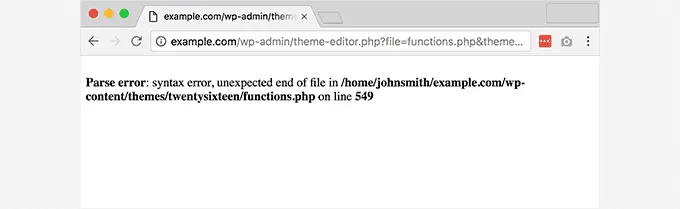
A syntax error in WordPress usually appears immediately after adding or editing custom code. Unlike some errors that happen randomly, syntax errors are almost always human-made and occur due to small mistakes like missing semicolons, brackets, or quotation marks.
Even a single incorrect character can prevent WordPress from loading properly, resulting in an error message that references a specific file and line number. While this error can look intimidating, it’s actually one of the easiest WordPress issues to fix. Once you locate the problematic code and correct it, your site will typically return to normal instantly.
Why It Happens
- Missing semicolons or brackets
- Incorrect PHP syntax
- Copy-pasting incomplete code
How to Fix It
- Undo recent code changes
- Access your site via FTP or file manager
- Correct or remove the faulty code
- Save the file and reload your website
6. 404 Error on WordPress Posts
A 404 error on WordPress posts occurs when individual posts or pages return a “Page Not Found” message, even though the homepage and other sections of the site work perfectly. This inconsistency often confuses site owners because it appears as though content has disappeared, when in reality it still exists in the database.
The most common cause of this issue is broken permalink settings. WordPress uses rewrite rules to generate SEO-friendly URLs, and when those rules fail or are misconfigured, the server can no longer locate individual posts. Fortunately, this error is usually resolved quickly by resetting permalink settings.
Root Cause
- Broken permalink settings
- Missing rewrite rules
Solution
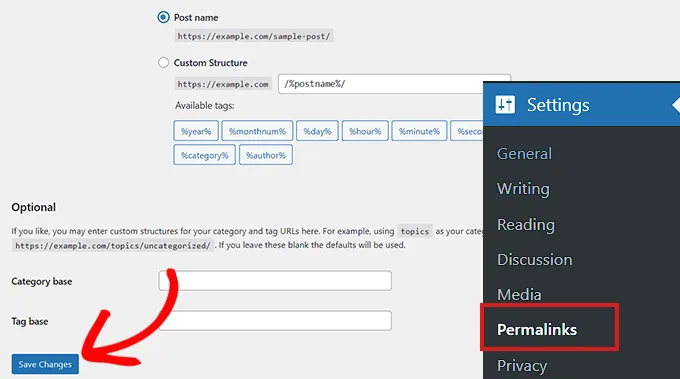
- Go to Settings → Permalinks
- Click Save Changes without editing anything
- WordPress will regenerate rewrite rules automatically
7. Locked Out of WordPress Admin (wp-admin)
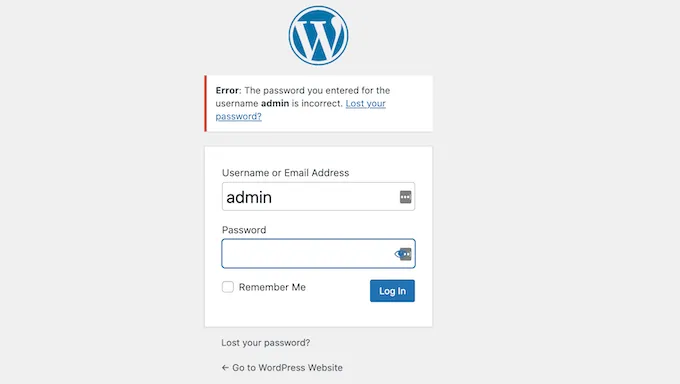
Being locked out of the WordPress admin dashboard can be one of the most stressful experiences for site owners. Without access to wp-admin, you’re unable to update content, manage plugins, or fix errors through the dashboard.
This problem can occur for many reasons, including plugin conflicts, failed login attempts, incorrect security settings, or even hacking attempts. While it may feel like you’ve lost control of your site, access can usually be restored through alternative methods such as database access, FTP, or restoring a backup. The key is identifying what caused the lockout in the first place.
Common Reasons
- Plugin conflicts
- Incorrect login credentials
- Security plugin restrictions
- Hacked website
How to Regain Access
- Reset your password via database
- Disable plugins through FTP
- Restore a recent backup
- Contact hosting support if the site is compromised
8. WordPress Memory Exhausted Error
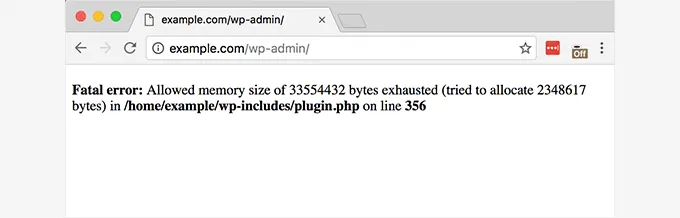
The WordPress memory exhausted error appears when your site attempts to use more PHP memory than the server allows. WordPress scripts, themes, and plugins all consume memory, and when that limit is reached, WordPress stops executing code to protect the server from overload.
This error is common on shared hosting environments or sites that rely heavily on resource-intensive plugins. While it may sound like a hosting problem, it can often be resolved by optimizing plugins, increasing the memory limit, or upgrading server resources. Ignoring this issue can lead to repeated crashes and poor site performance.
Why It Occurs
- Resource-heavy plugins
- Poorly coded themes
- Large database queries
How to Fix It
- Increase memory limit in wp-config.php
- Remove unnecessary plugins
- Optimize your WordPress database
- Upgrade your hosting plan if needed
9. Image Upload Issues in WordPress
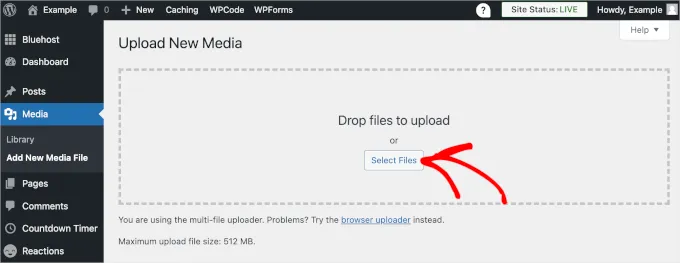
Image upload problems in WordPress usually surface when media files fail to upload, appear broken, or disappear from the media library. Since images are essential for content quality, branding, and user engagement, this issue can significantly impact your website’s appearance.
In most cases, the problem is related to file and folder permissions on the server. WordPress needs proper access rights to store and retrieve images, and even small permission changes can disrupt this process. Server storage limits and temporary hosting issues can also contribute, making this a surprisingly common error for WordPress users.
What Goes Wrong
- Incorrect folder permissions
- Server storage limits
- Temporary server issues
Fix Steps
- Set correct permissions for uploads folder
- Ensure sufficient disk space
- Check hosting restrictions
- Try uploading images via FTP
10. Too Many Redirects Error
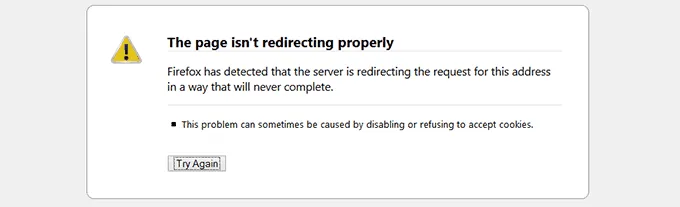
The “Too Many Redirects” error occurs when a browser is trapped in an endless loop between two or more URLs. Instead of loading the page, the browser eventually gives up and displays an error message.
This issue is often caused by misconfigured redirects, incorrect site URL settings, or conflicts between plugins that handle redirects and HTTPS. From an SEO perspective, redirect loops are especially harmful because they prevent search engines and users from accessing your site. Fixing this error quickly is crucial to restoring both traffic and search visibility.
Causes
- Incorrect site URL settings
- Conflicting redirect rules
- HTTPS/SSL misconfiguration
- Plugin conflicts
How to Fix It
- Clear browser and site cache
- Verify WordPress Address and Site Address
- Disable redirect plugins temporarily
- Fix HTTPS settings properly
FAQs About The Most Common WordPress Errors
What is the most common WordPress error?
Internal server errors and white screen of death are among the most frequently reported WordPress issues.
Can WordPress errors be fixed without coding?
Yes. Many WordPress errors can be resolved by adjusting settings, disabling plugins, or restoring backups.
Why does WordPress break after updates?
Updates can cause plugin or theme compatibility issues, especially if outdated extensions are installed.
Should beginners contact hosting support?
If the error is server-related or unclear, hosting support can help diagnose and resolve it faster.
How can I prevent WordPress errors?
Regular backups, timely updates, security measures, and performance optimization reduce the risk of errors.
Final Thoughts
WordPress errors are frustrating, but they’re also a normal part of running a website. The key is knowing how to identify the problem and take calm, methodical steps to fix it.
By understanding these 10 most common WordPress errors, you’ll be better prepared to troubleshoot issues quickly, minimize downtime, and keep your site running smoothly. Bookmark this guide so you can return to it whenever something goes wrong.
With regular maintenance, reliable backups, and careful updates, most WordPress problems can be prevented—or fixed in minutes.
Read more: LearnPress Payment Add-ons Review: Master Your LMS Profits
Contact US | ThimPress:
Website: https://thimpress.com/
Fanpage: https://www.facebook.com/ThimPress
YouTube: https://www.youtube.com/c/ThimPressDesign
Twitter (X): https://x.com/thimpress_com