Creating a visually appealing layout is a great achievement, but the primary goal is sharing that digital creation online. To successfully publish a Canva website pages, following a clear and structured administrative process is absolutely essential. A well-prepared digital setup ensures that the technical foundation perfectly matches the high quality of the visual elements. Whether the specific project requires a simple complimentary address or a formal business URL, there are multiple reliable pathways available for creators. Whether the primary goal is to showcase your projects using a website or share corporate information, reviewing how to use Canva publishing tools guarantees a successful and fully optimized public launch.
This comprehensive guide outlines the exact, step-by-step actions required to launch a digital presence smoothly and professionally without writing complex code.
Eduma – Education WordPress Theme
We provide an amazing WordPress theme with fast and responsive designs. Let’s find out!
Phase 1: Preparing for the Launch
Before exploring the available hosting options, the digital canvas requires a thorough final review. A well-prepared project guarantees a positive experience for future visitors and search engines alike.
- Review visual elements: Ensure that all images, graphical vectors, and background colors load correctly on the screen. Double-check that the visual contrast between the written text and background elements meets standard digital readability guidelines.
- Test embedded hyperlinks: Click through every navigation button and internal link to confirm they direct users to the correct and active destinations.
- Verify mobile responsiveness: Utilize the standard mobile preview feature to ensure the layout automatically adapts to smaller smartphone screens without cutting off important text.
- Complete a final proofread: Carefully check all main headings, body text paragraphs, and footer notes for any spelling or grammatical errors.
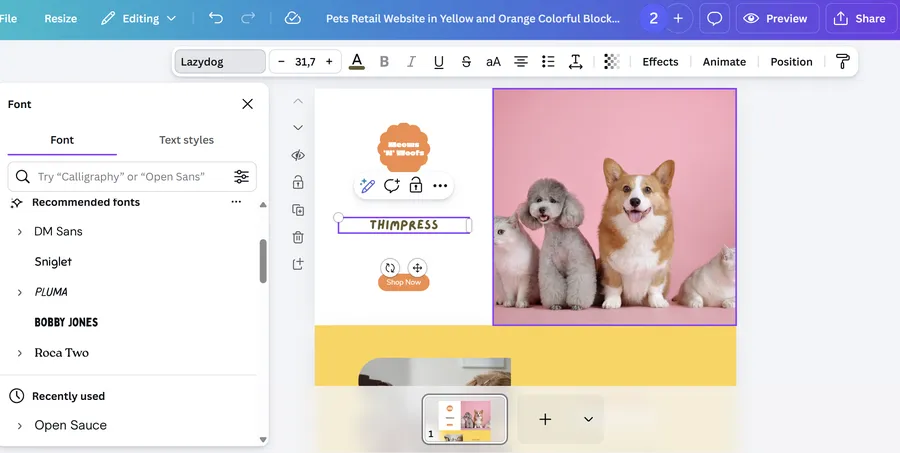
Phase 2: Utilizing the Complimentary Hosting Option
For a budget-friendly, fast, and secure launch, the digital platform provides an excellent complimentary solution. This specific method is highly recommended for personal portfolios, student academic assignments, or temporary event pages.
Follow these exact steps to establish a Canva website free domain:
- Open the project interface: Navigate to the completed layout within the main design workspace.
- Locate the launch button: Click the designated button to Canva publish website designs, typically found in the upper right corner of the editing screen.
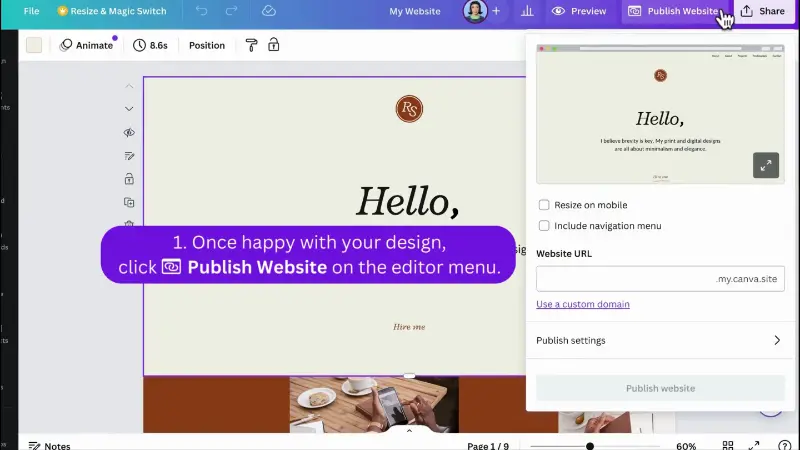
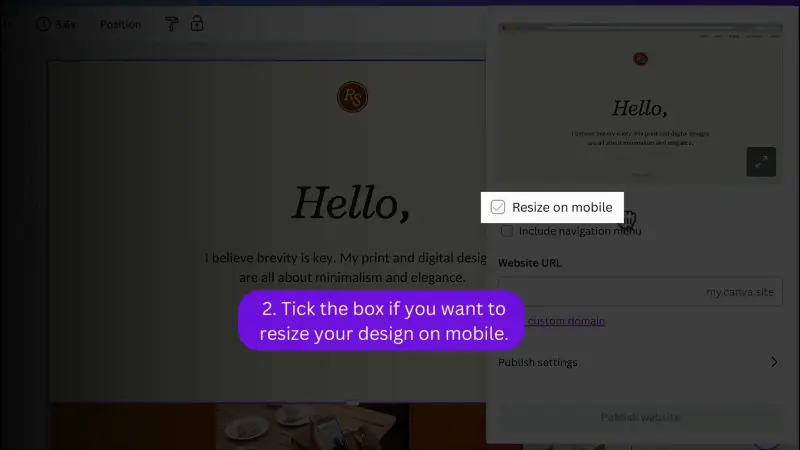
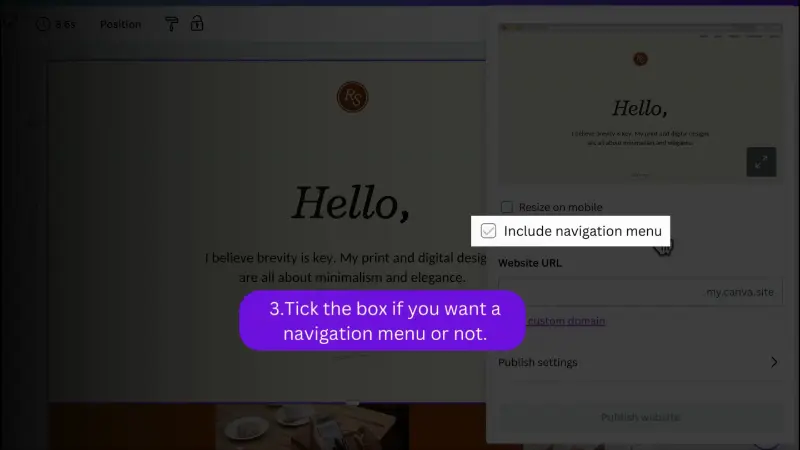
- Select the complimentary path: Choose the specific option to use a free address, which hosts the page securely directly on the platform’s internal servers.
- Create the base identifier: Type a unique word or short phrase for the main account URL. This could be a personal name or a specific brand title.
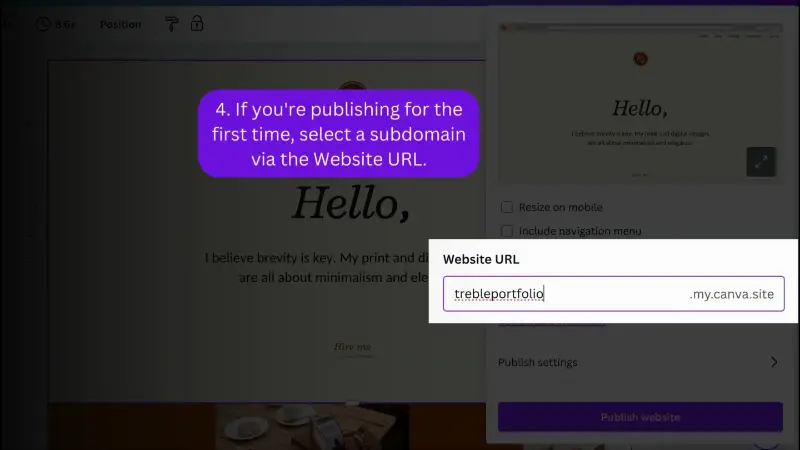
- Assign a page path: Add a descriptive word at the end of the address for the current layout, such as a portfolio or a contact page.
- Confirm the permanent base name: Understand that the main account identifier cannot be altered later. It acts as the rigid foundation for all subsequent pages created under the specific account.
- Approve and launch: Review the final security settings and click publish to push the project live to the global internet.
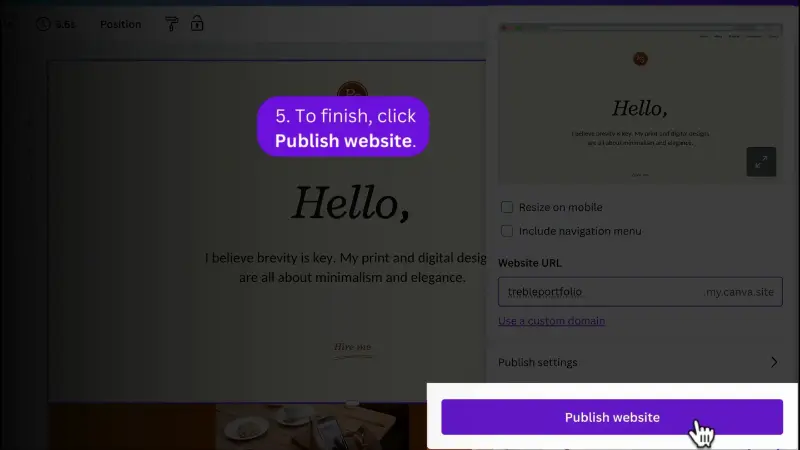
Video Tutorial to Establish a Canva Website Free Domain
Phase 3: Acquiring a New Custom Web Address
Corporate entities and established modern brands often require a dedicated, unique URL to build long-term digital authority. The system allows users to purchase a brand-new Canva website domain directly, keeping all administrative tools centralized.
Follow these clear steps to acquire and register a new address:
- Initiate the purchase flow: Within the main publishing menu, select the option clearly labeled for purchasing a new domain.
- Search for availability: Type the desired brand name into the provided search bar to check global internet registry availability.
- Select the optimal name: If the exact desired match is currently taken, review the intelligently generated list of available alternatives and select the best fit.
- Enter registration details: Provide the necessary secure payment information and standard legal registration details required by international internet authorities.
- Verify official ownership: Immediately check the associated email inbox for a mandatory verification link. This critical step must be completed within 15 days to prevent the new address from being immediately suspended.
- Allow for technical activation: Wait patiently for the global internet servers to process the new registration. This technical activation generally takes between 15 minutes and 72 hours.
Video Tutorial to Purchase a Canva Website Domain
Phase 4: Linking an Existing Custom Web Address
Premium subscribers have the advanced capability to use a URL they already legally own. This specific option is ideal for maintaining brand consistency when migrating from older hosting platforms.
Follow these strict instructions to connect domain to Canva website servers:
- Choose the integration path: Select the option to use an existing domain during the initial launch workflow.
- Input the specific URL: Enter the exact web address carefully, ensuring the standard prefix is excluded from the text box.
- Retrieve the security records: Highlight and copy the specific cryptographic DNS values that appear clearly on the screen.
- Access the external host: Open a new browser tab, log into the dashboard of the external hosting provider, and navigate directly to the DNS settings panel.
- Update the DNS panel: Paste the copied cryptographic records into the appropriate external fields and safely save the changes.
- Confirm within the workspace: Return to the design interface and click the button to confirm that the external settings have been fully updated.
- Wait for global propagation: Allow up to 72 hours for the technical connection to fully verify and propagate across global internet networks.
Video Tutorial to Connect an Existing Canva Website Domain Name
Phase 5: Adjusting Essential Site Settings
Before executing the final command to publish a Canva website content, several crucial background details require careful attention to ensure a highly polished and professional result.
- Customize the browser tab: Input a clear, professional title that will appear prominently in the top tab of the viewer’s web browser.
- Upload a favicon graphic: Add a small graphical icon to sit neatly next to the title. This action greatly improves overall brand recognition.
- Draft the site description: Write a concise meta description summarizing the page’s exact purpose. Global search engines frequently display this summary text.
- Implement password protection: If the digital document is strictly private, restrict viewing access to authorized individuals only by setting a highly secure password.
- Manage search engine indexing: Decide whether automated search crawlers should be allowed to index the digital page by adjusting the background visibility toggle.
Final Thought
Taking the necessary steps to publish a Canva website projects allows creators to establish a highly professional online presence rapidly. The platform provides flexible hosting options to fit various digital needs, from acquiring a brand-new address to configuring a complimentary URL. By carefully adjusting the background settings, administrators ensure a secure layout for all future visitors. Understanding how to design a website in Canva and utilizing the built-in Canva website builder simplifies the entire technical process.
Frequently Asked Questions: How to Publish a Canva Website
1. Is it possible to launch pages without paying for annual hosting fees?
Yes, individuals can easily share their digital projects using a complimentary hosting option. A Canva website free domain allows users to establish an online presence without incurring technical or hosting charges.
2. How much time is required to connect a domain to Canva website servers?
When linking an externally registered web address, the technical propagation process requires patience. Updating the global DNS records can take anywhere from a few minutes up to a maximum of 72 hours to finalize.
3. What happens if updates are needed for Canva publish website content later?
Updating live content is incredibly simple. Administrators open the original visual file, make the necessary text or layout adjustments, and press the launch button again. The live webpage automatically updates to reflect the new changes.
4. Are there integrated options to acquire a Canva website domain directly?
Absolutely. Users can search for and acquire a brand-new custom web address directly within the primary interface. This keeps both the visual tools and technical registration details in one secure and convenient location.
5. Can a free account identifier be altered after it is officially registered?
Currently, the base name chosen for the complimentary subdomain remains permanently fixed. All future designs will use this established base to cleanly differentiate the distinct layout pages.
Read more: How to Add Navigation Menu Canva Website Like a Pro
Contact US | ThimPress:
Website: https://thimpress.com/
Fanpage: https://www.facebook.com/ThimPress
YouTube: https://www.youtube.com/c/ThimPressDesign
Twitter (X): https://x.com/thimpress_com