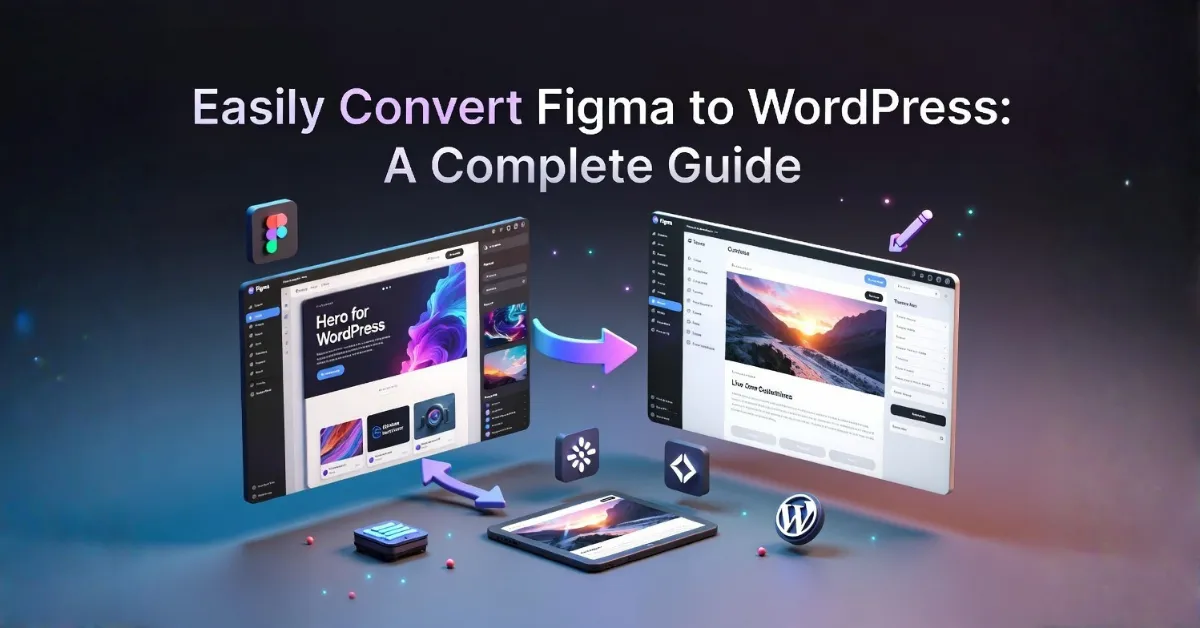
Crafting a stunning visual interface is merely the first phase of launching a successful website. The real challenge lies in translating that precise vision into a working, dynamic platform without losing quality. To successfully convert Figma to WordPress, a reliable technical strategy is essential. Preserving the integrity of the layout while ensuring the website remains exceptionally fast, secure, and easy to navigate requires careful decision-making.
Whether the chosen path involves writing custom code from scratch, leveraging a dedicated Figma to WordPress plugin, or utilizing drag-and-drop builders, each method carries distinct benefits and challenges. This guide breaks down the entire process, offering a clear roadmap for bringing visual prototypes to life flawlessly.
Eduma – Education WordPress Theme
We provide an amazing WordPress theme with fast and responsive designs. Let’s find out!
Content Summary and Quick Navigation: Easily Convert Figma to WordPress
Before exploring the detailed steps, review this quick comparison of the primary strategies available for turning a static layout into a functional platform.
| Methods to integrate Figma with WordPress | Best Suited For | Key Advantages | Main Drawbacks |
| Custom Theme Coding | Maximum accuracy, high-speed performance, and absolute security. | Complete control over the site, highly scalable, perfectly matches the original layout. | Demands advanced programming skills and a longer timeline. |
| Automated Software Tools | Fast prototyping, beginner users, and tight budget constraints. | Quick setup, requires no coding, allows you to integrate Figma with WordPress rapidly. | Can generate heavy background code and limits future scalability. |
| Visual Page Builders | Users preferring visual drag-and-drop editing without touching code. | Highly accessible interface, easy to make future text or image updates. | Extremely difficult to achieve an exact visual match, relies heavily on structural workarounds. |
| Hiring Specialized Experts | Businesses that need a professional, reliable, and future-proof platform. | Flawless technical execution, fully optimized assets, and highly responsive mobile layouts. | Requires a financial budget to hire vetted programming professionals. |
Preparing the Canvas: Organizing and Exporting Assets
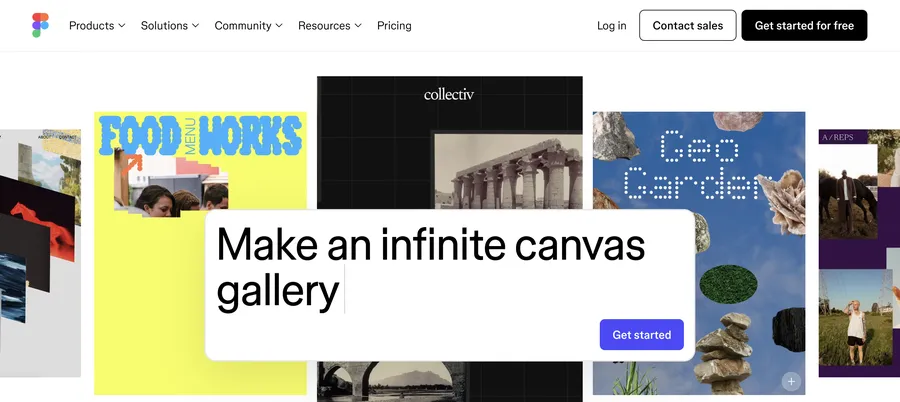
Because UI design relies fundamentally on visual elements, proper asset management is the most important preparatory step. The precision applied during the file export phase directly influences the quality and performance of the final website.
File Organization and Layer Management
Start by structuring the raw design file logically. Rename layers clearly, group related elements together—such as headers, footers, and main content blocks—and delete any unused draft components. This rigorous organization prevents confusion and ensures all pieces are instantly identifiable during development. A clean file naturally translates to a much smoother workflow, regardless of the development method applied later.
Selecting the Correct File Formats to integrate Figma with WordPress
Exporting graphics in the right formats is crucial for maintaining web performance and visual sharpness. Applying the wrong format often leads to blurry images or sluggish loading times, which harms the user experience.
- SVG (Scalable Vector Graphics): The perfect choice for logos, interface icons, and flat illustrations. SVGs are extremely lightweight and scale perfectly on any screen size without ever losing clarity.
- WebP: The current modern standard for complex photographs. WebP provides significantly smaller file sizes compared to older formats, keeping the site fast without sacrificing visual depth.
- JPEG: A solid, traditional alternative for high-color photographs where a steady balance between image quality and file size is required.
- PNG: Best reserved strictly for images that require a transparent background. Because PNGs carry larger file sizes, they should be used sparingly to avoid slowing down the page.
Graphic Optimization and Sizing
Large media files remain the leading cause of slow website loading speeds. A successful Figma design to WordPress transition always involves strict image optimization. Run every exported file through compression tools to reduce the overall weight without noticeable quality loss.
Furthermore, always export elements at the exact dimensions dictated by the layout. If the site will be viewed on high-resolution displays (like Retina screens), export crucial assets at 2x or 3x resolutions for ultimate sharpness. Uploading massive images and relying on the website’s CSS to shrink them is a poor practice that wastes bandwidth and severely damages site performance.
Manual Method: Coding a Custom Theme
For those seeking unparalleled technical control, rapid loading speeds, and absolute visual accuracy, manually translating the layout via custom theme development is the premier choice. This traditional approach prevents unnecessary code bloat and guarantees the final product perfectly mirrors the original prototype.
Step 1: Translating Visuals to Structural HTML
The process starts by mentally deconstructing the visual layout into semantic HTML.Translating visuals to structural HTML requires identifying the core structural sections and wrapping them in the correct tags (such as <header>, <nav>, <main>, and <footer>). Following this, apply CSS to carefully replicate the typography, spacing, brand colors, and grid configurations. Utilize responsive design techniques—specifically CSS media queries—to guarantee the website adapts effortlessly to mobile phones, tablets, and large desktop monitors.
Step 2: Adding Interactive Elements with JavaScript
Static mockups frequently feature interactive components like sliding image galleries, expanding accordion menus, or pop-up modal windows. These specific functionalities are brought to life using JavaScript. Whether applying plain vanilla JavaScript for lightweight interactions or integrating robust modern frameworks for complex animations, this step bridges the gap between static visuals and active user engagement.
Step 3: Establishing the CMS Theme Structure
The platform requires a very specific directory and file architecture to recognize and run a newly created theme. Inside the server’s wp-content/themes directory, a new folder must be established. Within this folder, several core files dictate how the site operates:
- style.css: This file holds the theme’s official metadata (such as the Theme Name, Author, and Version) alongside the primary styling rules.
- functions.php: Functioning as the central nervous system of the theme, this file is used to load necessary scripts and styles properly, preventing clashes with other software.
- index.php: The primary fallback template responsible for displaying the main content.
- header.php & footer.php: Modular files that separate the top and bottom sections of the site, guaranteeing consistency across every single page.
Step 4: Integrating PHP for Dynamic Management
Static HTML text must be replaced with dynamic PHP functions to allow future edits. Instead of hardcoding a paragraph or a title, specific functions are inserted to pull text directly from the platform’s database. This ensures that any future content updates made via the administrative dashboard are automatically reflected on the live interface.
Automation: Utilizing Software Solutions in Figma to WordPress conversion
Not every digital project requires a rigorous, ground-up coding approach. For rapid prototyping or highly straightforward websites, automated software provides a practical alternative. Utilizing a specialized Figma to WordPress plugin allows users to bypass the intensive manual coding phase completely.
How Automated Software Generators Work
These tools operate directly within the design software’s ecosystem, utilizing artificial intelligence to analyze the layout and instantly generate functional code. The standard workflow typically involves:
- Adding the specific extension directly into the design software.
- Highlighting the exact visual frames intended to become individual web pages.
- Allowing the AI engine to analyze the geometry and generate the corresponding HTML, PHP, and CSS files.
- Downloading the packaged zip file and installing it directly into the hosting environment. Tools like Yotako even offer the ability to preview the generated site on a temporary subdomain instantly.
Evaluating the Automated Approach
These applications are incredibly fast, enabling designers to push a website live for client review in a matter of minutes. They usually demand zero coding knowledge, automatically generate native CMS elements, and apply basic mobile responsiveness.
However, automated generators frequently struggle with complex, highly customized projects. The resulting code is often heavy, featuring repetitive containers and generic styling rules that can slow down browser rendering. Furthermore, automated tools lack the nuance to perfectly interpret complex layering, meaning the Figma to WordPress conversion might look slightly misaligned compared to the original, pixel-perfect vision.
The Middle Ground: Using Visual Page Builders to integrate Figma with WordPress
Another common strategy involves utilizing visual page builders alongside flexible, prebuilt templates. Tools like Elementor or Divi attempt to replicate the visual design experience directly inside the web browser.
The Appeal of the Visual Approach
Visual builders provide intuitive drag-and-drop interfaces that feel familiar to designers. They are highly accessible, empowering everyday users to construct and update pages independently without ever opening a code editor.
The Inherent Limitations
Despite their user-friendly nature, attempting a flawless 1:1 replication of a Figma design to WordPress using a page builder is exceptionally challenging. Builders rely entirely on rigid, pre-programmed grid systems. When a custom design strays from these standard grids—featuring overlapping elements or unique spacing—achieving the exact intended look requires messy structural workarounds. Users frequently spend hours fighting the builder’s default margin settings, resulting in compromised aesthetics and bulky background code that negatively impacts the site’s overall speed.
Conclusion: The Value of Professional Developer Expertise
Transforming complex digital prototypes into high-performing websites is a strict technical discipline. Relying on automated shortcuts or inflexible page builders often leads to compromises in loading speed, mobile usability, and visual fidelity. To guarantee an absolutely flawless transition, enlisting specialized developers is the safest route.
A generalist programmer might manage to force a design into a generic template, but specialized experts deeply understand the core architecture of the platform. By choosing to integrate Figma with WordPress through a vetted professional, the project benefits immensely:
- Pixel-Perfect Accuracy: Experts ensure the live environment perfectly mirrors the prototype, maintaining brand consistency down to the last pixel.
- Optimized Performance: Professionals write exceptionally lean, custom code and optimize all media assets, guaranteeing lightning-fast load times and vastly improved search engine visibility.
- Robust Security: Custom-built themes eliminate the vulnerabilities frequently introduced by relying on too many third-party automated tools.
- Future Scalability: A well-structured custom theme allows for seamless future expansions, ensuring the digital platform can comfortably grow alongside the business without breaking.
Platforms like Codeable connect projects directly with vetted specialists, removing the guesswork from the hiring process. By engaging professionals who focus entirely on this specific ecosystem, the final product is guaranteed to be stable, fast, and visually stunning.
Frequently Asked Questions: Convert Figma to WordPress
1. Is it possible to launch the final site without knowing how to write code?
Yes. Using an automated generator or a visual drag-and-drop builder allows users to publish websites entirely without coding. However, for a high-performance result that exactly matches a complex layout, professional coding remains the best option.
2. Does a Figma to WordPress plugin provide a perfect visual match?
Automated tools provide a very close approximation, but they often struggle with non-standard layouts, intricate overlapping graphics, or complex animations. Manual development is necessary for absolute, unquestionable accuracy.
3. Why is exporting images in the correct format so strictly emphasized?
Using improper formats drastically increases the weight of the webpage. Heavy pages take much longer to load, which frustrates visitors, increases bounce rates, and negatively impacts search engine rankings.
4. Can visual page builders easily replicate highly unique layouts?
Visual builders are heavily constrained by their predefined modules. Replicating a highly unique, custom layout using these tools usually requires fighting against their default settings, leading to visual compromises and inefficient code.
5. Why should a business invest in professional developers for this specific process?
Specialized developers ensure the final website is not only visually accurate but perfectly secure, scalable, and optimized for maximum speed. They build a sturdy, reliable foundation that automated tools and generic templates simply cannot provide.
Read more: Google Stitch vs Figma: Top Reasons Designers Are Finally Switching
Contact US | ThimPress:
Website: https://thimpress.com/
Fanpage: https://www.facebook.com/ThimPress
YouTube: https://www.youtube.com/c/ThimPressDesign
Twitter (X): https://x.com/thimpress_com