If a link on your site sends visitors somewhere they did not expect, or if a page you moved months ago still shows up under its old address in Google, the fastest way to find out what is happening is to check URL redirect behavior directly.
This guide walks through the exact methods I use on client sites, from a two-second browser trick to command line tools that expose the full redirect chain, so you can confirm what a link actually does before it costs you traffic or rankings.
Eduma – Education WordPress Theme
We provide an amazing WordPress theme with fast and responsive designs. Let’s find out!
Why you need to check URL redirect before it costs you traffic
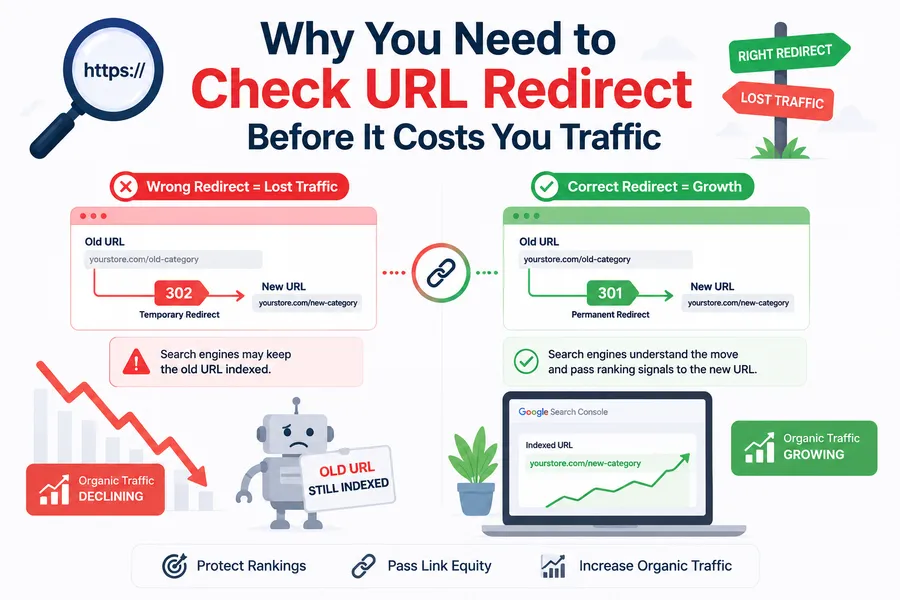
A redirect that looks fine to a visitor can still be wrong under the hood. The page loads, the visitor never notices anything, but the HTTP status code behind it tells search engines something completely different from what you intended.
The distinction that matters most is between a 301 and a 302. A 301 tells search engines that a page has moved permanently and is a strong signal that the new URL should become canonical. A 302 indicates a temporary move, so Google does not use the redirect itself as a signal that the destination should replace the original URL in search results. If a move is permanent but the server still returns a 302, Google may continue treating the original URL as the primary URL instead of using the redirect as a strong signal to consolidate the URLs.
This is not a small risk. Misconfigured redirects during a site migration can cause significant organic traffic and indexing problems, especially when old URLs point to irrelevant destinations, return the wrong status codes, or create redirect chains. On a WooCommerce store I worked on after a category restructure, three product URLs were still resolving through an old plugin’s temporary redirect months after the “permanent” move. Search Console kept showing the old URLs as the indexed version, and organic sessions to that category sat flat until we swapped every 302 in that path to a 301.
The good news is that you do not need paid software to catch this early. A handful of free methods will show you, in seconds, exactly what code a URL is returning and where it ultimately lands.
How to check URL redirect in your browser
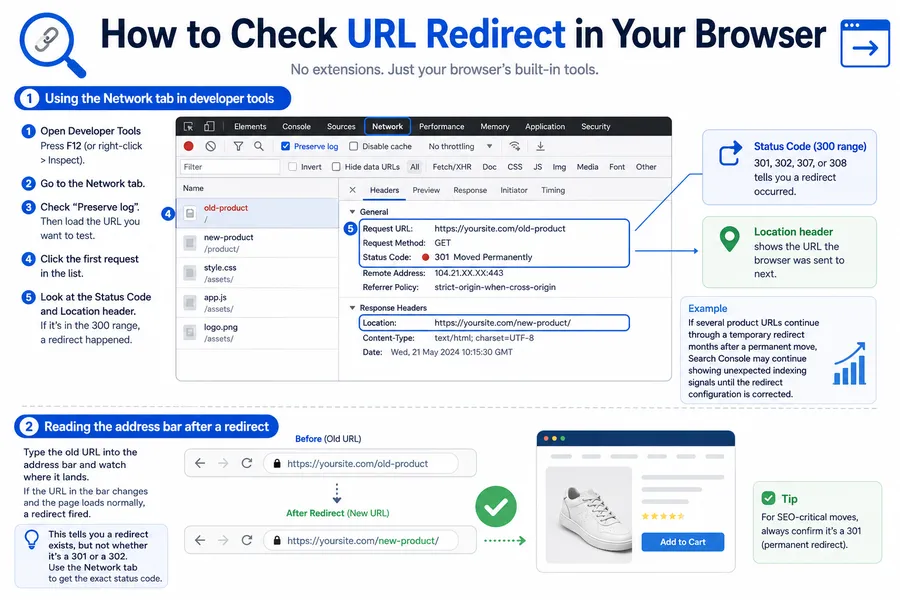
Your browser already has everything needed to check URL redirect chains, no extension required.
Using the Network tab in developer tools
Open developer tools (F12 on most browsers, or right-click and choose Inspect), switch to the Network tab, and load the URL you want to test. Click the first request in the list. If a redirect happened, you will see a status code in the 300 range (301, 302, 307, or 308) along with a Location header showing where the browser was sent next. Refresh with “Preserve log” checked if the page redirects too fast to catch on the first pass.
For example, if several product URLs continue through a temporary redirect months after a permanent move, Search Console may continue showing unexpected indexing signals until the redirect configuration is corrected.
Reading the address bar after a redirect
The simplest gut check: type the old URL into the address bar and watch where it lands. If the URL in the bar changes and the page loads normally, a redirect fired. This tells you a redirect exists, but it will not tell you whether it is a 301 or a 302, which is why the Network tab is still worth the extra step for anything you plan to keep long term.
The best redirect tool options for checking a website redirect
When you need to check website redirect behavior across dozens of URLs at once, a dedicated redirect tool saves real time. Here is how the ones I use most often compare.
| Redirect tool | Best for | Shows full chain | Free tier |
|---|---|---|---|
| Redirect Path (browser extension) | Quick one-off checks while browsing | Yes | Yes |
| httpstatus.io | Bulk checking a list of URLs at once | Yes | Yes, up to a limit |
| Screaming Frog SEO Spider | Crawling an entire site for redirect issues | Yes | Yes, first 500 URLs |
| curl (command line) | Developers who want raw header output | Yes | Free, built into most systems |
| Google Search Console URL Inspection | Confirming how Googlebot itself sees a URL | Partial | Yes |
For a single link, a browser extension or a site like httpstatus.io gets you an answer in under ten seconds. For a full migration audit, I run Screaming Frog against a list of the old URLs and export every response code so nothing slips through. Google Search Console’s URL Inspection tool is worth checking too, since it shows the version of the page Google actually crawled, which sometimes differs from what your browser sees if caching or a CDN is involved.
How to check website redirect on WordPress
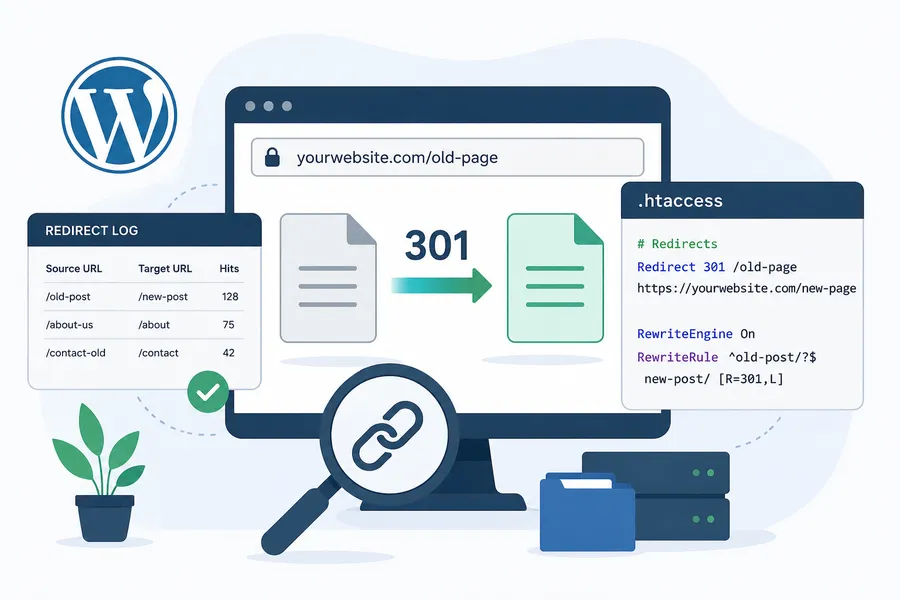
WordPress sites usually handle redirects one of two ways: through a WordPress plugin, or through rules written directly into the .htaccess file. Knowing which one your site uses changes where you look first.
Checking redirects set through a WordPress SEO plugin
If you are running the Redirection plugin or the redirect manager built into Yoast SEO or Rank Math, open the plugin’s redirect log. Each one keeps a list of active rules along with a hit count, so you can see immediately whether a URL is being redirected, to where, and how often visitors are actually landing on it. I check this log after every content migration, since it catches duplicate or conflicting rules that silently override each other, usually the newest rule wins and older ones stop firing without any error message.
Checking redirects in .htaccess
On Apache servers, most 301 and 302 rules live in the .htaccess file in the site’s root directory, and this is the most common place developers add redirects manually. Open the file through your hosting file manager or FTP client and look for lines starting with Redirect or RewriteRule. If the file is missing entirely, the site is likely running on Nginx instead, where redirects are configured in the server block rather than in a per-directory file, so you would need to check with your host or developer directly.
How to check website redirect on Shopify
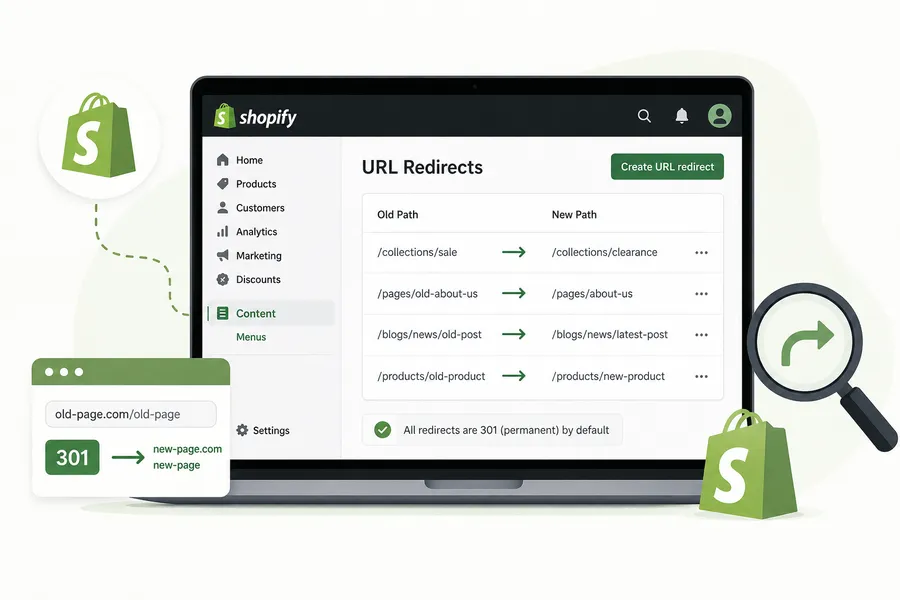
Shopify handles redirects through its own settings panel rather than a server file, which makes checking them more predictable but also more limited.
Go to Shopify admin → Content → Menus → View URL Redirects → Create URL redirect. Every redirect created through the Shopify admin appears here with its old path and new path listed side by side. Shopify redirects are always 301s by default; there is no option to set a temporary 302 from within the native tool, which is worth knowing if a migration plan calls for a temporary redirect during a short promotion.
If a redirect is not showing up in that list but the URL still forwards somewhere, an installed app or a theme’s Liquid template is likely handling it instead. I ran into this on a client’s Dawn theme build where a discontinued collection page was being redirected by a bundled app rather than through Shopify’s native tool, and it only showed up once we disabled the app to isolate the source.
How to search redirect chains with command line tools
For developers comfortable with a terminal, curl gives the most direct answer with no third-party tool in between. Running curl -I -L https://example.com/old-page returns the raw HTTP headers for every hop in the chain, including the exact status code and Location header at each step. Drop the -L flag if you only want to see the first response without following the chain further.
This method is worth learning even if you rely on a redirect tool day to day, because it is the fastest way to confirm what a server is actually sending when a browser-based tool disagrees with what a client or teammate is reporting. I keep a short list of curl commands saved for exactly this reason, since browser caching can sometimes mask what the server is really doing on a fresh, uncached request.
What it means when a redirect checked shows an error
Sometimes a redirect checked through any of the tools above comes back with an unexpected result. Here is what the most common ones mean.
- A redirect loop happens when URL A points to URL B, which points back to URL A. Browsers will show an error like “too many redirects” instead of loading the page. This is almost always caused by two conflicting rules, one in a plugin and one in .htaccess, or an old rule that was never removed after a URL structure changed again.
- A 404 after a redirect means the destination URL itself does not exist. The redirect fired correctly, but whatever it was pointing to is gone, was mistyped, or was deleted after the redirect was set up.
- A redirect to an irrelevant or missing page can create indexing problems. If the destination returns a 404, the redirect itself worked but the target is unavailable. If the destination is a thin or irrelevant page, Google may choose not to index it or may treat the page differently from what you intended. If you suspect this, checking the destination through Search Console’s URL Inspection tool will usually confirm whether Google sees the pages as connected.
How to fix broken or looping redirects
Once you know what is broken, fixing it usually comes down to a short checklist:
- Pick the right status code for the situation. Use a 301 for anything permanent and a 302 only for genuinely temporary changes, such as a maintenance page or a short sale.
- Remove duplicate rules. If a plugin and a .htaccess rule are both targeting the same URL, delete one. Keeping both is the most common cause of loops.
- Update internal links to point directly at the final destination, rather than leaving them pointing at an old URL that then redirects again. Every extra hop adds latency and makes the redirect path harder to crawl and maintain.
- Consolidate any chain to a single hop before a major migration, since long redirect chains add latency and can make crawling and processing less efficient.
- Leave old redirects in place for at least a year after a permanent move, since older links pointing to the retired URL will break the moment the redirect is removed.
FAQs
How do I check if a URL is redirected without opening developer tools?
A free online redirect tool, such as httpstatus.io, will show you the full chain and status codes just by pasting in the URL. This is the fastest option if you do not want to dig into browser settings or install anything.
Does checking a redirect affect my site’s SEO?
No. Checking a redirect, whether through a browser, a tool, or a curl command, is a read-only request and has no effect on rankings or indexing. It is only the redirect configuration itself, not the act of checking it, that influences SEO.
Why does my redirect work in the browser but show an error in a tool?
A browser or intermediary cache may store redirect responses, and the exact behavior depends on HTTP caching rules and response headers. This can make a redirect appear different in a browser than in a fresh request from a testing tool.
How long should I keep an old redirect active?
Most SEOs recommend keeping a 301 redirect in place for at least a year after the change, and longer if the old URL still gets meaningful traffic or backlinks. Removing a redirect too early turns any remaining links into broken pages instead of working ones.
Conclusion
Checking a redirect only takes a few seconds once you know where to look, whether that is the Network tab in your browser, a dedicated redirect tool, your WordPress plugin’s log, or Shopify’s URL Redirects panel. The habit that actually protects your rankings is doing this check every time a URL changes, not just when something visibly breaks. Build it into your migration checklist, confirm the status code matches your intent, and revisit old redirects periodically so a temporary fix from two years ago is not quietly working against you today.
Read more: 6 best SERP tracking tools for WordPress and Shopify sites
Contact US | ThimPress:
Website: https://thimpress.com/
Fanpage: https://www.facebook.com/ThimPress
YouTube: https://www.youtube.com/c/ThimPressDesign
Twitter (X): https://x.com/thimpress_com