Search engines cannot rank well-written pages if they fail to understand the underlying context. Implementing WordPress schema markup solves this communication gap by feeding structured data directly to search crawlers, unlocking rich snippets, knowledge panels, and stronger search visibility.
While structured data looks like complex programming code, website owners do not need technical skills to use it. Modern SEO tools generate the required scripts automatically, and specialized tools simplify the configuration process even further.
Learning how to add schema markup in WordPress gives any website a clear advantage in crowded search results. Whether a site administrator prefers automated plugins or wants to know how to add schema markup to WordPress without plugin assistance, this guide covers every method step by step.
Eduma – Education WordPress Theme
We provide an amazing WordPress theme with fast and responsive designs. Let’s find out!
Understanding Structured Data in WordPress
Structured data is a standardized format placed inside a website’s HTML to explain the exact meaning of page elements to search engines.
Without WordPress schema markup, search engine crawlers must guess what a page represents by analyzing plain text, headings, and document titles. Adding structured data removes the guesswork. It explicitly tells top search engines whether a specific page displays an editorial article, an eCommerce product, a food recipe, a local business profile, a customer review, or an upcoming event.
The vocabulary behind this system comes from Schema.org, a joint initiative supported by Google, Microsoft, Yahoo, and Yandex. Because the major search networks rely on the exact same vocabulary, setting up schema WordPress definitions once ensures clear communication across all major search platforms simultaneously.
Structured data exists in three distinct technical formats:
- JSON-LD (JavaScript Object Notation for Linked Data): A self-contained script block inserted into the page header or body, kept completely separate from the visible page text.
- Microdata: A set of tags woven directly into the existing HTML elements on the page.
- RDFa (Resource Description Framework in Attributes): An extension that adds structured attributes to HTML5 tags.
Google officially recommends JSON-LD as the standard format. Site administrators do not need to memorize the technical differences between these three formats. Every modern WordPress schema markup tool produces clean JSON-LD output automatically, keeping the visible HTML tidy and easy to maintain.
Key Reasons to Add Structured Data to a Site
Structured data is not a direct ranking signal on its own. Google Search Advocate John Mueller has confirmed this point repeatedly, reiterating the policy again in early 2026. Simply knowing how to add schema in WordPress will not automatically push a web page from page two to the top position of Google.
Instead, structured data makes web pages eligible for rich results and prominent SERP features. Rich results are the visually enhanced search listings that display star ratings, product pricing, cooking times, event dates, and stock status right on the search engine results page. These enhanced listings stand out against standard blue links and capture significantly more user attention, especially as search platforms roll out Google AI Overviews.
The primary advantages of implementing WordPress schema markup include:
- Stronger eCommerce Product Visibility: Product markup displays live pricing, customer review averages, and inventory availability directly inside search results.
- Higher Click-Through Rates (CTR): Rich snippets occupy more vertical screen space on mobile and desktop results, naturally drawing the reader’s eye and generating more clicks.
- Reliable Context for Search Engines and LLMs: Search algorithms and Large Language Models (LLMs) extract exact data points—such as item prices, specifications, and stock status—much more reliably from structured scripts than from unstructured paragraphs, making it a core part of AEO vs SEO optimization.
- Knowledge Panel Eligibility: Adding Organization or Person markup helps search engines verify brand facts and generate authoritative Knowledge Panels on the right side of search screens.
- Improved Local SEO Performance: LocalBusiness markup feeds physical addresses, phone numbers, and operating hours to location-based search queries.
- Clear Brand Entity Connections: Linking official social media profiles within structured data helps search engines connect a website to its broader online brand entity.
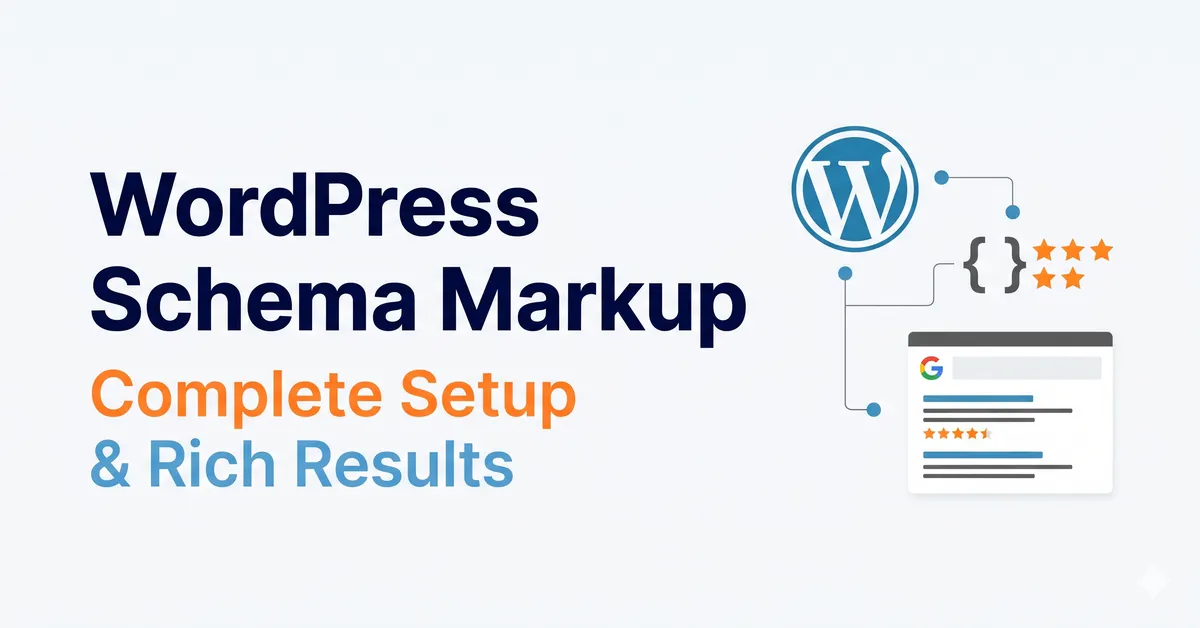
Most Useful Schema Types for Websites
The official Schema.org library contains over 800 distinct data definitions, yet most websites only need a small fraction of them. Selecting the right categories ensures search engines display the most relevant visual enhancements for your pages.
The most common definitions used in WordPress schema markup include:
- Article: Designed for blog posts, journalism, and editorial writing. It defines the headline, author name, publication date, and featured image.
- Product: Built for eCommerce storefronts. It powers the price tags, stock status labels, and star rating snippets seen in shopping searches.
- LocalBusiness: Crucial for physical establishments like medical clinics, law firms, restaurants, and retail shops. It communicates street addresses, phone numbers, business categories, and opening hours.
- Recipe: Tailored for food blogs and culinary sites. It highlights preparation time, cooking duration, ingredient lists, nutritional facts, and tester ratings.
- Event: Used for concerts, webinars, workshops, and conferences to display ticket details, venues, and scheduled dates.
- Review: Applied when evaluating books, movies, software, or physical goods. It displays the reviewer’s name and the numerical score assigned to the item.
- Organization and Person: Defines the core entity operating the website. Companies use Organization markup to establish corporate details, while independent creators and authors use Person markup.
- Specialized Definitions: Depending on the niche, websites also benefit from Course markup when you create an online course in WordPress, JobPosting markup for employment boards, Book markup for literary reviews, and VideoObject markup for embedded video pages.
How to Add Schema Markup in WordPress Using a Plugin
For the vast majority of website owners, installing one of the best WordPress SEO plugins is the fastest and safest way to manage structured data. Learning how to add schema markup in WordPress through a plugin requires zero coding knowledge, and reputable plugins update their code automatically whenever Google revises its structured data guidelines.
Below are the top five plugins for managing WordPress schema markup effectively.
1. Rank Math
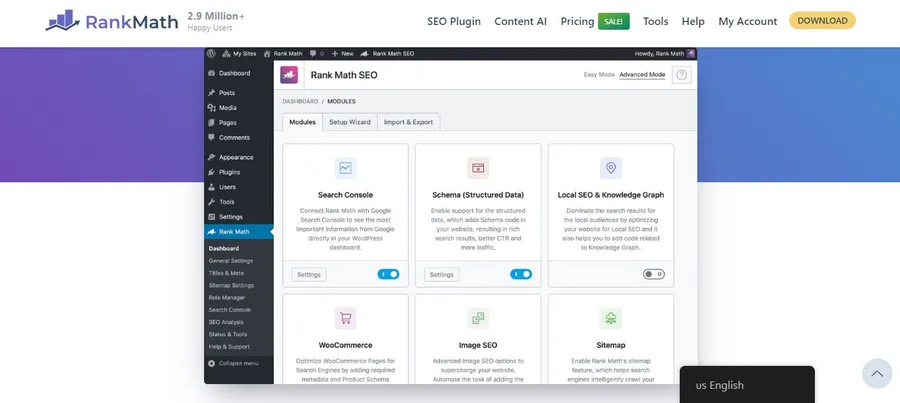
Rank Math is a comprehensive SEO plugin that provides generous structured data features in its free version. It supports over 15 core data types out of the box, including Article, Product, Recipe, Event, and LocalBusiness.
To configure the setup in Rank Math:
- Install and activate the Rank Math plugin from the dashboard.
- Navigate to the Rank Math dashboard and enable the Schema (Structured Data) module.
- Go to Titles & Meta to assign default definitions for posts, pages, and custom post types across the site.
- Open any individual post or page in the editor and click the Schema tab inside the Rank Math panel to customize the markup for that specific URL.
Rank Math automatically pulls the post headline, author profile, publication date, and featured image into the script, meaning administrators only need to adjust a few optional fields by hand. For advanced needs, Rank Math Pro costs around $95 to $110 per year and unlocks multiple schema types per page, custom schema builders, and markup importing from external URLs.
2. All in One SEO (AIOSEO)

All in One SEO is a widely used SEO suite featuring an intuitive schema generator built for beginners. It supports roughly 20 structured data types and focuses on clean, guided configuration.
The free Lite version manages the foundational Knowledge Graph setup. During onboarding, site owners specify whether the website represents an individual Person or an Organization, then input the brand name, business logo, customer service contact details, and founding year.
Granular control over individual posts and content types requires a paid plan, starting at $49.60 per year for the Basic tier. Upgrading allows administrators to assign default rules for specific post types and override those defaults on individual articles or landing pages.
3. Yoast SEO

Yoast SEO is one of the longest-running plugins in the ecosystem. It takes an automated, hands-off approach to WordPress schema markup, requiring very little manual input from the user. If you are deciding between the top two contenders, reviewing a detailed Rank Math vs Yoast SEO comparison can help you choose the right workflow.
During initial configuration, Yoast gathers company or personal details, logos, and social profile URLs. Where Yoast stands out from competing tools is its ability to construct a unified, connected schema graph.
Instead of placing isolated blocks of code onto a page, Yoast links every piece of data together—connecting the author to the article, the article to the web page, and the web page to the parent organization.
This interconnected structure matches Google’s preferred technical guidelines closely. For online stores using WooCommerce, Yoast sells a separate premium extension to activate full product markup.
4. Schema Pro

Developed by Brainstorm Force—the creators of the popular Astra theme—Schema Pro is a premium, standalone plugin built strictly for structured data. Unlike Rank Math or Yoast, Schema Pro does not include title tag editors, XML sitemaps, or content analysis tools. It works alongside whatever primary SEO plugin a site already runs.
Schema Pro excels at rule-based automation. Administrators create a template once, map the fields to existing custom fields or post data, and apply the rule across hundreds of posts automatically. It supports over 20 data types, making it ideal for agencies and large publishing sites. Schema Pro is a premium-only tool priced at around $69 per year.
5. Schema & Structured Data for WP & AMP
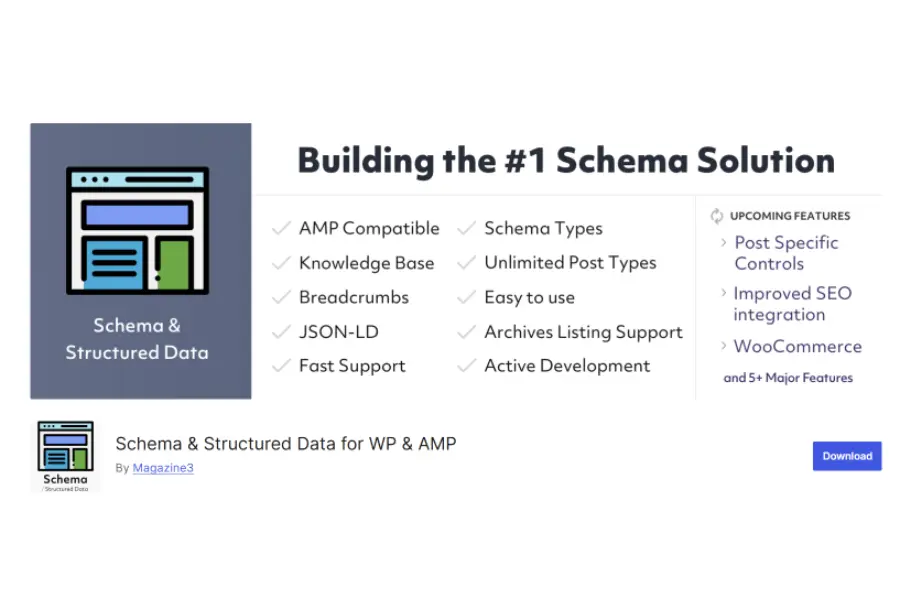
Website owners looking for a free, standalone tool with deep customization often choose Schema & Structured Data for WP & AMP. Available directly in the official repository, this plugin supports more than 35 distinct schema types and includes full compatibility for Accelerated Mobile Pages (AMP).
While the initial configuration takes more manual effort than Rank Math or Yoast, it gives users extensive control over conditional display rules without charging a subscription fee. It pairs well with lightweight SEO plugins that lack built-in structured data generators.
Comparison of Structured Data Plugins
| Plugin Name | Free Schema Types | Automatic Output | Custom Schema Builder | Best Suited For |
| Rank Math | 15+ Types | Yes | Pro Version Only | Most general WordPress users |
| All in One SEO | Limited (Lite) / 20+ (Pro) | Yes | Pro Version Only | Beginners wanting an all-in-one suite |
| Yoast SEO | Basic Graph & Blocks | Yes | Limited | Simple sites needing set-and-forget setup |
| Schema Pro | None (20+ in Paid) | Yes | Yes | Agencies & large custom websites |
| Schema & Structured Data | 35+ Types | Yes | Limited | Users needing 35+ free types & AMP |
How to Add Schema Markup to WordPress Without Plugin Bloat
Some site administrators prefer not to install another heavy SEO suite, or they need exact control over a unique landing page that standard plugins cannot handle. Understanding how to add schema markup to WordPress without plugin automation is ideal for one-off custom pages, such as when you add an FAQ section in WordPress or build specialized data definitions.
Because Google recommends JSON-LD, the manual process involves generating a clean JSON-LD script block and placing it into the header or body of the target page.
Step 1: Generating the JSON-LD Code
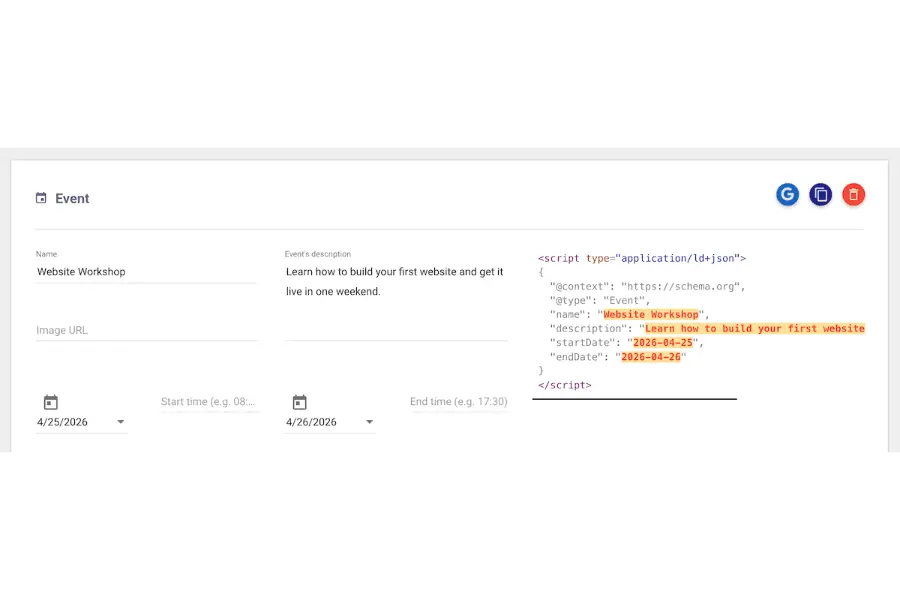
Writing raw JSON-LD from scratch requires memorizing exact Schema.org syntax and punctuation rules. To avoid syntax errors, most developers rely on an online schema markup generator or one of the best WordPress AI code generators.
Open a reliable JSON-LD schema generator tool.
Select the desired content category from the dropdown menu (such as Article, LocalBusiness, or FAQ).
Fill in the text fields with the page details, URLs, and dates.
Copy the generated JSON-LD script block provided by the tool.
Google also offers its own Structured Data Markup Helper, though Google has noted that the tool is older and does not include every modern schema property available today.
Step 2: How to Add Schema Code in WordPress Safely
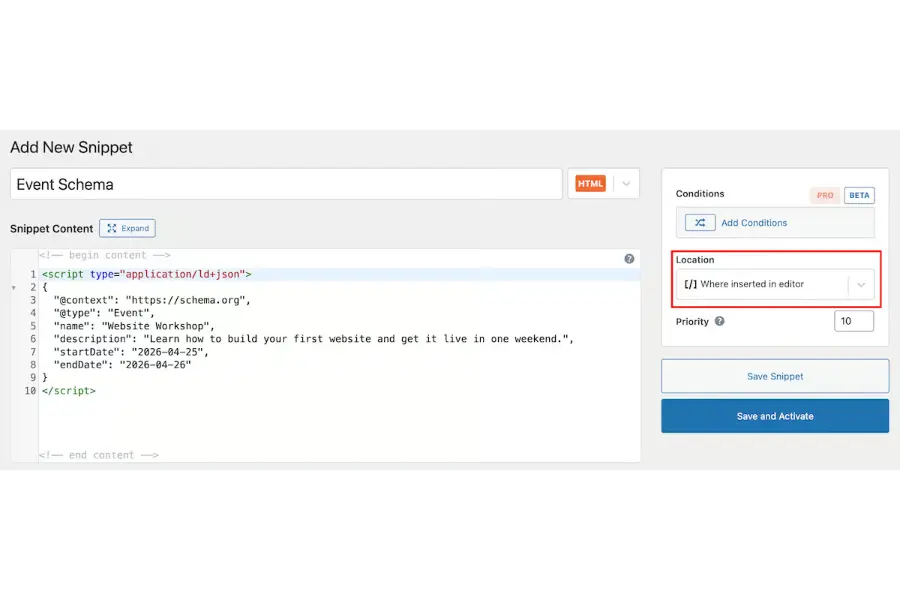
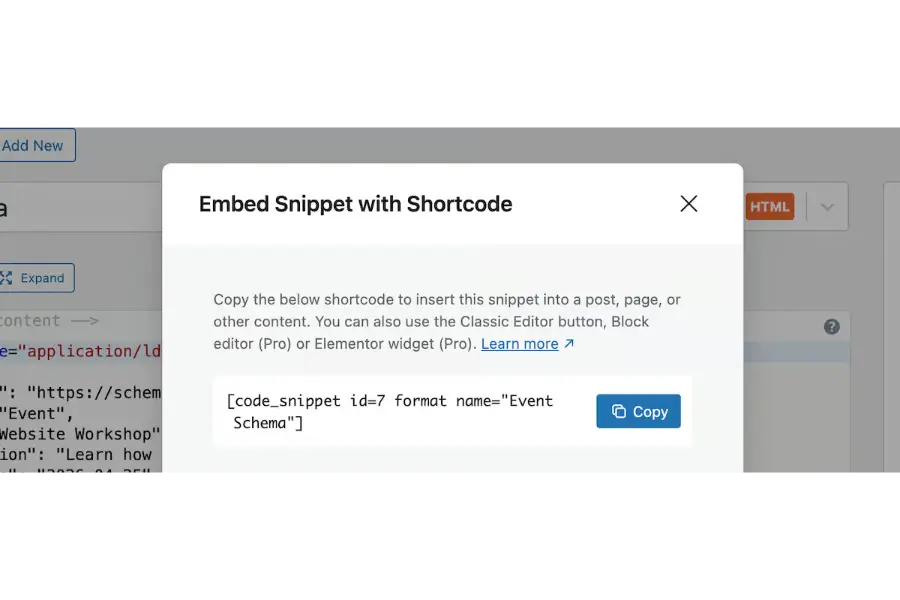
Once the JSON-LD script is copied, the next step is knowing how to add schema code in WordPress without risking data loss during theme updates.
While advanced users sometimes open their theme’s header.php file and paste the script right before the closing </head> tag, editing parent theme files directly is not recommended. Every time you update a WordPress theme, it overwrites header.php and erases the custom code. Furthermore, placing code in header.php loads that exact markup across every page on the site unless wrapped in complex PHP conditional statements.
A cleaner way to manage manual code is using the free Code Snippets utility plugin, which acts as a safe code manager rather than an automated SEO plugin:
Navigate to Plugins > Add Plugin in the WordPress dashboard, search for Code Snippets, and activate it.
Go to Snippets > Add New in the left sidebar.
Enter a clear title for the snippet, select the HTML option, and paste the generated JSON-LD code into the editor box.
Save and activate the snippet, then click the Location shortcode option to copy the generated shortcode in WordPress.
Open the specific page or post where the markup belongs and paste that shortcode directly into a Shortcode block.
For users who want to know how to add schema in WordPress with zero third-party plugins installed at all, the generated <script type=”application/ld+json”> block can be pasted directly into a native Custom HTML Gutenberg block on the individual post or page, or hooked into wp_head inside a child theme’s functions.php file.
Testing and Validating Structured Data
After completing the steps for how to add schema code in WordPress, administrators must test their pages. A single missing comma in manual code or an empty required field in a plugin will stop search engines from displaying rich snippets. Two free validation tools handle this verification alongside your regular SEO audit tools.
1. Google Rich Results Test
The Rich Results Test is Google’s official inspection tool and should always be the first stop after adding WordPress schema markup.
Open the Google Rich Results Test website.
Paste the live URL of the page into the search bar (or switch to the Code tab to test raw JSON-LD before publishing).
Click Test URL and wait a few seconds for Google to render the page.
The inspection report lists every rich result category the page qualifies for and highlights two types of issues:
Errors (Red): Critical missing fields or broken code that completely block the page from earning a rich snippet. Errors must be fixed immediately.
Warnings (Yellow): Optional properties that are missing. Warnings will not block a rich snippet from appearing, but filling in those fields makes the listing more detailed.
Keep in mind that the Rich Results Test only evaluates the ~30 schema types that Google actively uses for visual search enhancements, ignoring the other 770+ definitions in the Schema.org library.
2. Schema Markup Validator
Operated directly by the Schema.org team, the Schema Markup Validator inspects web pages against the entire Schema.org dictionary. While it does not confirm eligibility for Google’s visual search features, it verifies whether the syntax is clean and all property names are spelled and nested properly.
Using both tools together provides complete peace of mind: run the Rich Results Test first to verify Google eligibility, then check the Schema Markup Validator if the page uses specialized industry markup.
Final Summary on Structured Data Implementation
Setting up WordPress schema markup is one of the most practical, high-return improvements available to website administrators.
Whether you prefer learning how to add schema markup in WordPress through an automated plugin or how to add schema code in WordPress manually for custom landing pages, the setup process takes only a few minutes and requires no advanced programming background.
For new websites seeking a free, all-in-one toolkit, Rank Math provides the most generous selection of built-in schema features at zero cost, while All in One SEO and Yoast SEO offer dependable alternatives depending on your workflow preference.
Regardless of the method chosen, always inspect new or updated templates using Google’s Rich Results Test to verify that your structured data remains error-free and ready to earn rich search snippets.
Frequently Asked Questions (FAQs)
1. Does adding WordPress schema markup directly improve search rankings?
No, structured data is not a direct ranking factor in Google’s search algorithm. However, implementing it makes pages eligible for rich snippets—such as star ratings, prices, and cooking times. These visual enhancements increase organic click-through rates (CTR) and help search engines understand page context, which supports stronger search performance over time when combined with proven top SEO tips.
2. Is it necessary to install both an SEO plugin and a dedicated schema plugin?
In most cases, no. Comprehensive SEO plugins like Rank Math and All in One SEO include built-in structured data generators that cover the needs of standard blogs, corporate websites, and online stores. A standalone tool like Schema Pro is only necessary if a website requires complex custom field mapping or specialized schema types not supported by its primary SEO plugin.
3. How long does Google take to display rich snippets after setup?
The timeline depends on how frequently search crawlers index the website, typically ranging from a few days to several weeks. Website administrators can speed up discovery when they index a website on Google by submitting the updated page URL inside Google Search Console. Keep in mind that valid markup only guarantees eligibility; Google’s algorithm ultimately decides whether to display a rich snippet for a given search query.
4. Can improper structured data hurt a website’s SEO performance?
Yes, if the markup violates search engine quality guidelines. Marking up text that is hidden from human visitors, fabricating review ratings, or applying misleading schema categories can trigger a manual action penalty in Google Search Console, stripping the site of all rich results until the errors are fixed.
5. Why is JSON-LD preferred over Microdata and RDFa?
JSON-LD places all structured data inside a single, clean script block separated from the visible HTML elements. Microdata and RDFa require wrapping individual lines of body text in extra HTML attributes, which is harder to maintain and prone to breaking when editors update page layouts. Google recommends JSON-LD because it is cleaner to generate, read, and debug.
Read more: What Is Guest Blogging? Complete SEO Guide for Businesses
Contact US | ThimPress:
Website: https://thimpress.com/
Fanpage: https://www.facebook.com/ThimPress
YouTube: https://www.youtube.com/c/ThimPressDesign
Twitter (X): https://x.com/thimpress_com