Finding a decent HTML editor is harder than it sounds. Some are bloated with features you will never use. Others are so minimal that you cannot preview your code without switching to a browser tab. And plenty of the “free” options hide the features you actually need behind a paywall.
This guide covers 8+ best HTML editors that are genuinely free, actively maintained, and useful for real work in 2026. Whether you need a quick online HTML viewer to test a snippet or a full desktop environment to build pages, there is an option on this list that fits.
Eduma – Education WordPress Theme
We provide an amazing WordPress theme with fast and responsive designs. Let’s find out!
What to look for in a free HTML editor
Not every HTML editor is built for the same job. Before comparing tools, it helps to know which features matter for your specific use case.
Syntax highlighting and autocomplete
A plain text editor technically works for HTML, but syntax highlighting that color-codes tags, attributes, and values makes errors visible instantly. Autocomplete goes one step further: type <div and the editor closes the tag for you, which saves time and reduces unclosed-tag bugs.
If you are writing HTML every day, the absence of these two features becomes genuinely painful within an hour.
Live preview
Live preview means your browser rendering updates as you type, without a manual save-and-refresh loop. This matters most when you are adjusting CSS inside HTML or checking how a layout responds to different viewport widths.
Desktop editors like VS Code offer this via a Live Preview extension. Online HTML editors like CodePen and Playcode build it in by default.
Multi-language support (CSS and JavaScript panels)
HTML rarely ships without CSS and JavaScript. An editor that gives you separate panels for all three languages, and lets you view the combined output, is faster to work in than one that forces you to manage everything in a single file. T
his is one area where browser-based online HTML editors consistently outperform basic desktop text editors out of the box.
Offline access and file management
Online HTML editors are fast to open but require an internet connection. If you are working on a client project with many files, dependencies, or a build process, a desktop editor like VS Code or Notepad++ will be more practical. Most developers end up using both: a browser-based tool for quick tests and a desktop editor for full projects.
Export and sharing
If you need to share a snippet with a colleague or embed a demo in a tutorial, a tool that generates a public link (CodePen, JSFiddle, StackBlitz) is far faster than exporting a file and sending it over email.
How we tested these HTML editors
Each editor on this list was tested using the same set of tasks: writing a two-column CSS Grid layout, running a small JavaScript function, checking how the live preview handled a missing closing tag, and verifying whether the free plan covers the features described.
Testing was done on Chrome 124 and Firefox 126 on Windows 11 and macOS Sonoma. Desktop editors were installed fresh on both operating systems and opened with a 500-line HTML file to assess load time and scrolling performance.
8+ best free HTML editors in 2026
The tools below cover desktop editors, browser-based HTML code runners, and dedicated online HTML viewers. Each section focuses on what the tool actually does well and where it falls short.
VS Code
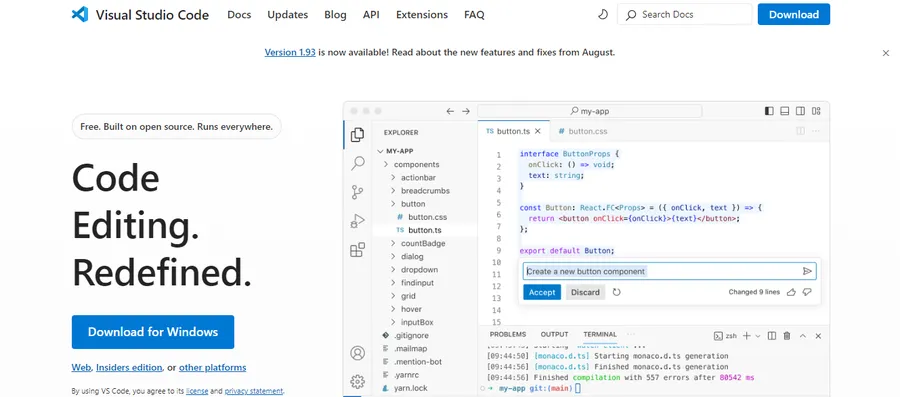
VS Code (Visual Studio Code) is the most widely used free code editor for HTML development as of 2026. It runs on Windows, macOS, and Linux, and it is free with no feature limits. Microsoft maintains it with monthly releases, and the extension library covers almost any workflow you can think of.
Key features
Out of the box, VS Code gives you Emmet abbreviation support, which lets you type ul>li*5 and expand it into a full unordered list in one keystroke. Syntax highlighting covers HTML, CSS, JavaScript, and dozens of other languages without any setup. The built-in terminal lets you run a local server without leaving the editor.
For live preview, you need the Live Preview extension from Microsoft (free, around 7 million downloads). Once installed, it opens a preview panel inside VS Code and refreshes automatically when you save. It is not instant-on-keystroke like CodePen, but it covers most use cases for local file editing.
What it is best for
VS Code is the right choice if you are working on full projects with multiple HTML files, using a framework, or need Git integration built in. It is overkill for quickly testing a single snippet, but for anything that involves more than one file, it is hard to beat.
Free plan includes: Everything. VS Code is fully open source under the MIT License.
CodePen
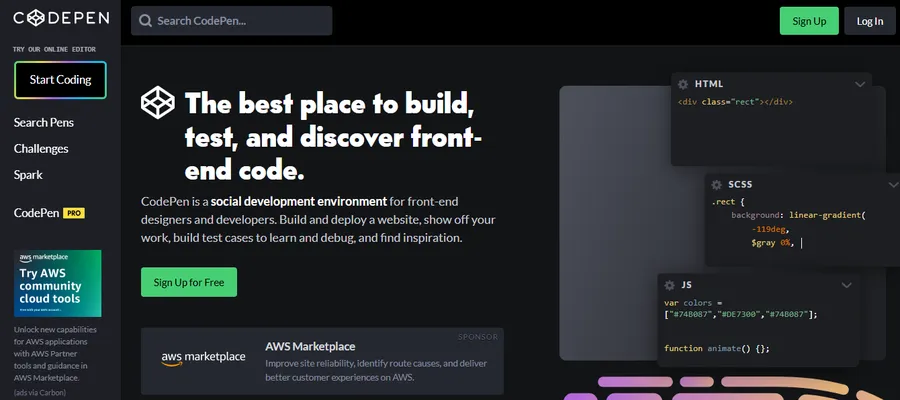
CodePen is a browser-based HTML code runner with a live preview that updates as you type. You do not need to create an account to use it: open the editor, start writing HTML in the HTML panel, add CSS and JavaScript in their respective panels, and the output appears in real time on the right side.
Key features
The split-panel layout (HTML, CSS, JS, and Output in one view) is purpose-built for frontend experiments. CodePen preprocessors let you write Sass instead of CSS, Babel for modern JavaScript, or Pug for templated HTML without any build step. The free plan supports all of these.
One detail worth knowing: on the free plan, all Pens (your saved projects) are public by default. If you are working on something you do not want indexed or shared, you need a paid PRO account to create private Pens. For most learners and tutorial writers, public Pens are fine.
What it is best for
CodePen is the fastest tool for sharing a working HTML snippet with someone else. Paste a URL and they see the output without installing anything. This makes it popular for Stack Overflow answers, tutorial demos, and design experiments.
Free plan includes: Unlimited public Pens, live preview, preprocessor support, embedded demos.
JSFiddle
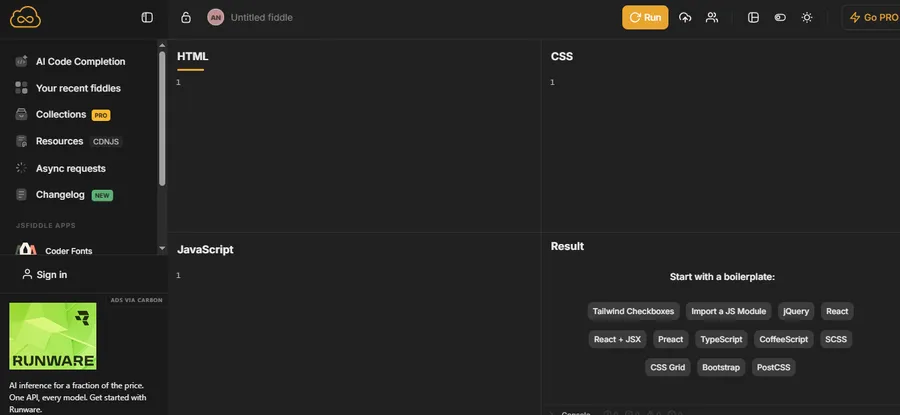
JSFiddle is one of the original browser-based HTML editors, launched in 2010 and still actively maintained. The interface looks familiar if you have used CodePen: four panels for HTML, CSS, JavaScript, and the rendered output. Clicking “Run” or pressing Ctrl+Enter refreshes the output.
Key features
JSFiddle does not auto-refresh on every keystroke by default, which some developers actually prefer. If you are running JavaScript that fires events, auto-refresh can cause unexpected behavior during editing. JSFiddle gives you control over when the output updates, which makes it easier to debug JavaScript-heavy snippets.
External library support is straightforward: there is a dropdown to add popular libraries like jQuery, React, and Vue without copying a CDN link. The collaboration feature lets you share a fiddle with a specific version URL, so a linked snippet stays frozen at the state you shared it in rather than pointing to edits you make later.
What it is best for
JSFiddle works well for debugging JavaScript behavior inside HTML. The manual-run model makes step-by-step debugging more predictable than tools that refresh on every keystroke.
Free plan includes: Unlimited public fiddles, external library integration, versioned sharing links.
StackBlitz
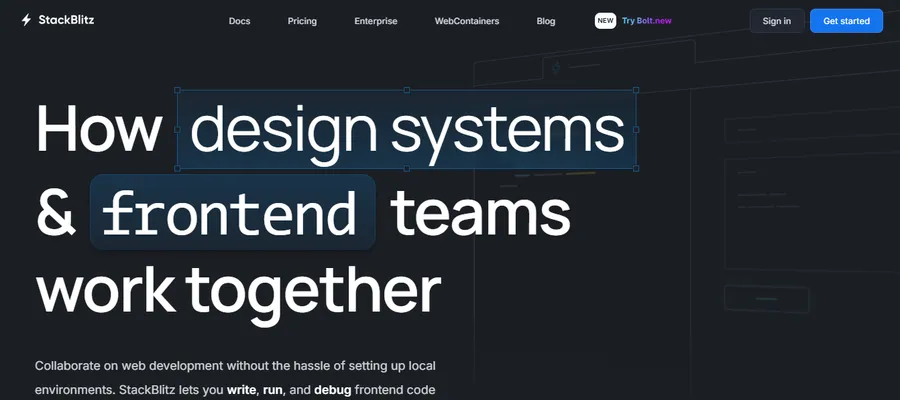
StackBlitz is a browser-based editor that goes further than a basic HTML code runner. It runs a full Node.js environment inside the browser using WebContainers technology, which means you can run npm packages and build tools without installing anything locally.
Key features
For plain HTML projects, StackBlitz gives you a file tree (so you can manage multiple HTML, CSS, and JS files), an integrated terminal, and a live preview. The editing experience is built on a stripped-down version of VS Code, so keyboard shortcuts and the command palette work the way VS Code users expect.
The free tier includes public projects. Private projects require a paid plan. The main limitation of the free plan is that you cannot share projects privately, and compute resources for server-side processes are capped.
What it is best for
StackBlitz is the strongest option if you need to run an HTML project that depends on npm packages or a framework (like a Vite or Astro site) but you do not want to set up a local environment. It is also widely used in open-source documentation as an embedded live demo that readers can fork.
Free plan includes: Unlimited public projects, Node.js environment in the browser, VS Code keybindings.
CodeSandbox
CodeSandbox is similar to StackBlitz in that it runs full project environments in the browser. For plain HTML work, you can use the “Static” template, which gives you an HTML file with a linked CSS file and a live preview. For framework projects, there are templates for React, Vue, Angular, Astro, and more.
Key features
CodeSandbox introduced “Devboxes” in 2024, which are cloud development environments that persist between sessions. Unlike a basic HTML code runner that resets when you close the tab, a Devbox saves your work and lets you return to it from any device. The free plan includes up to five Devboxes.
One distinction from StackBlitz: CodeSandbox Devboxes spin up a virtual machine rather than running in the browser directly, which makes them more capable for heavier projects but occasionally slower to start.
What it is best for
CodeSandbox is a good option for teaching or collaborative code review: you can share an environment, leave comments inline, and fork someone else’s project to experiment without affecting their original. Teams using it for code review during technical interviews or take-home assignments will find the collaboration features more developed than JSFiddle or CodePen.
Free plan includes: Unlimited public sandboxes, five Devboxes, real-time collaboration.
Notepad++
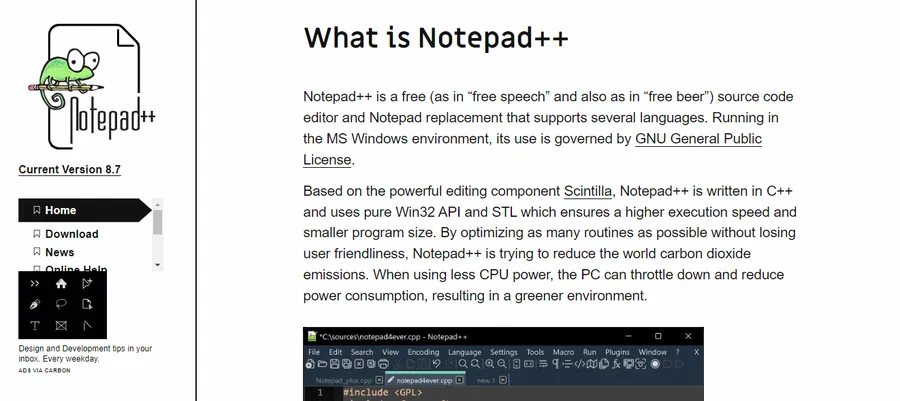
Notepad++ is a free, open-source desktop text editor for Windows. It has been maintained since 2003 and remains one of the most downloaded editors on Windows despite having no live preview feature. For developers who want a fast, lightweight HTML editor without browser-based features, it is a reliable default.
Key features
Notepad++ opens instantly even on older hardware and handles large HTML files (5,000 lines or more) without slowdown. Syntax highlighting covers HTML, CSS, and JavaScript. The column editing mode lets you edit multiple lines simultaneously, which is useful for updating attribute values across a block of HTML tags.
There is no built-in live preview. You save the file, switch to your browser, and refresh. If that workflow is acceptable for your projects, Notepad++ is fast and distraction-free. If you need live preview, use it alongside a browser with auto-refresh (browser-sync or a VS Code Live Preview setup).
What it is best for
Notepad++ is the right choice for quick HTML edits on Windows when you do not need a full IDE. It also handles encoding and line-ending issues reliably, which matters when editing HTML files that were originally created on a different operating system.
Free plan includes: Everything. Notepad++ is fully free and open source under the GPL.
Brackets
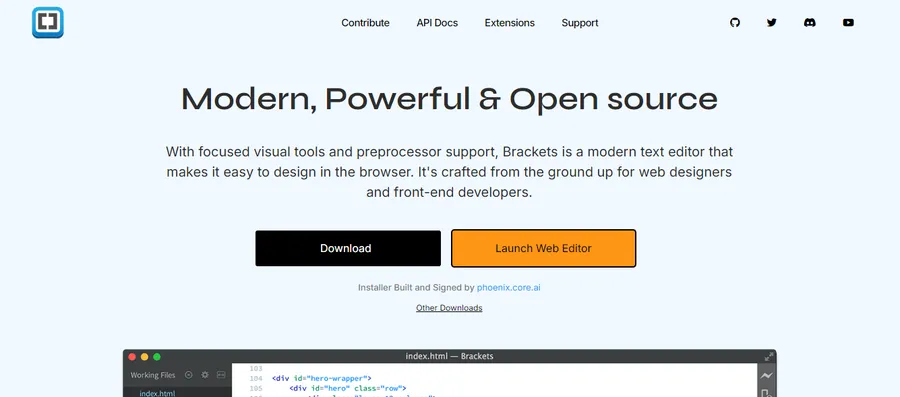
Brackets was originally developed by Adobe and open-sourced. After Adobe ended official support in 2021, the community forked it and continues development as an open-source project. It runs on Windows, macOS, and Linux.
Key features
Brackets includes a built-in Live Preview feature that connects to Chrome directly. When you edit an HTML or CSS file in Brackets, Chrome refreshes automatically without a browser extension. This is different from VS Code’s Live Preview, which renders inside the editor: Brackets sends the update to your actual browser, which can be useful for testing in a real environment.
The Quick Edit feature is a notable time-saver. Position your cursor on an HTML element and press Ctrl+E (or Cmd+E on macOS), and an inline editor opens showing only the CSS rules that apply to that element. You edit the CSS without leaving the HTML file.
What it is best for
Brackets is a strong option if you want a desktop editor with true browser live preview without setting up extensions or a local server. The Quick Edit feature makes it particularly efficient for working on HTML and CSS together.
Free plan includes: Everything. Brackets is fully open source under the MIT License.
W3Schools Tryit Editor
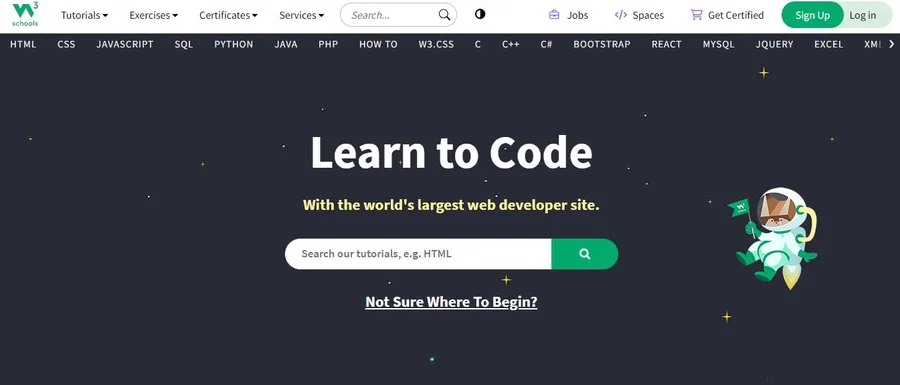
The W3Schools Tryit Editor is the simplest online HTML viewer on this list. It is a two-panel page: paste or type HTML on the left, click “Run” or “Try it,” and see the rendered output on the right. There is no account required and no setup.
Key features
The Tryit Editor is not designed for large projects or complex code. It does not have syntax highlighting, multiple language panels, or live preview. What it does have is zero friction: it loads instantly, accepts HTML immediately, and shows the result. For checking whether a specific HTML tag or attribute works the way you expect, it is the fastest tool on this list.
W3Schools also pre-loads hundreds of example snippets from their tutorials. If you are learning HTML from the W3Schools documentation, the Tryit Editor is already embedded in every lesson, so you can edit examples inline without opening a separate tab.
What it is best for
The Tryit Editor is best for learners and for anyone who needs to quickly verify how a browser renders a specific piece of HTML. It is not a replacement for a real editor, but as a quick online HTML viewer, it serves that purpose better than any other tool here.
Free plan includes: Everything. No account required.
Playcode
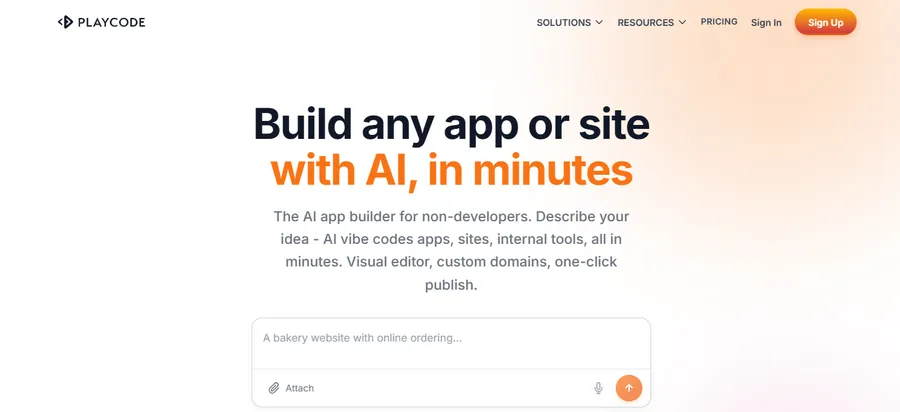
Playcode is a browser-based HTML code runner that emphasizes speed. The live preview updates as you type, without a “Run” button. It supports HTML, CSS, and JavaScript in separate panels, with an output panel that reflects changes in near-real time.
Key features
Playcode’s free plan is more generous than CodePen’s in one specific way: free projects can be kept private. For anyone who wants to quickly test HTML code without making it publicly visible, this removes the friction that CodePen’s free plan introduces.
The editor also supports npm packages on the free plan, letting you import libraries directly in JavaScript without a build step. Type import confetti from ‘canvas-confetti’ and Playcode resolves the package automatically in the browser.
What it is best for
Playcode is a good everyday tool for frontend developers who want an online HTML editor with live preview, npm support, and private projects on the free tier. It sits between JSFiddle (basic) and StackBlitz (full IDE) in terms of complexity.
Free plan includes: Private projects, live preview, npm package support, unlimited projects.
How to choose the right HTML editor for your workflow
The clearest way to narrow down your options is to answer three questions before you download or bookmark anything.
- Are you working on a single file or a full project? For single snippets, testing, or learning, CodePen, JSFiddle, Playcode, or the W3Schools Tryit Editor are faster to open than any desktop application. For multi-file projects with assets, CSS files, and JavaScript modules, VS Code, StackBlitz, or CodeSandbox give you the file management and tooling you need.
- Do you need to share your work? If you are writing tutorials, answering code questions, or collaborating with a team, tools that generate shareable links (CodePen, JSFiddle, StackBlitz, CodeSandbox) are the practical choice. A desktop editor requires you to share files separately, which adds steps.
- Are you working offline? Browser-based editors require an internet connection. VS Code, Notepad++, and Brackets all run fully offline after installation. If your work environment has unreliable connectivity, a desktop editor is the safer choice.
One workflow that many frontend developers settle on: VS Code for real projects, and CodePen or Playcode open in a pinned browser tab for quick experiments. The tools are not mutually exclusive, and the free tiers of all of them make using multiple tools at once cost-free.
FAQs
What is the best free HTML editor for beginners?
CodePen is the most beginner-friendly HTML editor because it shows the rendered output as you type, with no setup, no local server, and no file management. Beginners can open it from any browser and start writing HTML immediately. For learners following a structured course, the W3Schools Tryit Editor is also a strong starting point because it integrates directly into HTML tutorials.
Can I run HTML code in a browser without an editor?
Yes. You can save any text file with a .html extension and open it directly in Chrome, Firefox, or Safari by dragging it into the browser window. The browser renders the HTML as a webpage. This approach works for basic testing but does not give you syntax highlighting, autocomplete, or live preview. Using an online HTML code runner like CodePen or Playcode is faster for most cases.
Is VS Code good for HTML-only projects?
VS Code works well for HTML-only projects. Install the Live Preview extension for in-editor rendering, and use Emmet shortcuts to speed up writing tags and attributes. The editor is more powerful than most HTML-only workflows require, but there is no performance penalty for using it on small projects, and switching to more complex work later requires no tool change.
What is the difference between an online HTML editor and a local HTML editor?
An online HTML editor runs in your browser and requires an internet connection. It stores your code on a remote server (or in your browser session) and typically provides instant sharing via URL. A local HTML editor like VS Code or Notepad++ runs as a desktop application, works offline, and stores files on your own machine. Online editors are faster to start; local editors are more appropriate for larger projects, privacy-sensitive work, and situations where you need full control over your file system.
Read more: How to Edit HTML in WordPress: 2026 Guide
Contact US | ThimPress:
Website: https://thimpress.com/
Fanpage: https://www.facebook.com/ThimPress
YouTube: https://www.youtube.com/c/ThimPressDesign
Twitter (X): https://x.com/thimpress_com