Picking a WordPress shopping cart plugin is one of the most consequential technical decisions you’ll make for a WordPress store. Get it wrong and you’re rebuilding checkout flows six months later. Get it right and the cart, payments, and order management run quietly in the background while you focus on selling.
This guide covers the plugins worth serious consideration, how to add a shopping cart to WordPress, and what to know before customizing your WooCommerce checkout.
Eduma – Education WordPress Theme
We provide an amazing WordPress theme with fast and responsive designs. Let’s find out!
What a WordPress shopping cart plugin actually does
WordPress does not include e-commerce functionality out of the box. A shopping cart plugin adds the product catalog, add-to-cart buttons, cart page, checkout, payment processing, and order management layer that turns a standard WordPress site into a store.
These plugins also handle adjacent tasks most store owners only discover mid-build: tax calculation by region, shipping rate logic, inventory tracking, guest vs. logged-in checkout flows, and email receipts. Most connect to external services you already rely on: Stripe, PayPal, Mailchimp, and shipping carriers like UPS and FedEx.
The best WordPress shopping cart plugins compared
The four plugins below cover the majority of real use cases: full-featured stores selling physical products, stores focused on digital goods, and sites that want a lightweight hosted cart without touching server-side code.
| Plugin | Best for | Free version | Paid plans from |
|---|---|---|---|
| WooCommerce | Full-featured stores, physical and digital | Yes | Free (extensions cost extra) |
| Easy Digital Downloads | Digital products only | Yes | $99.50/year |
| Ecwid | Multi-channel selling, hosted simplicity | Yes (up to 5 products) | $19/month |
| WP EasyCart | All-in-one without heavy extensions | Yes | Paid tiers available |
WooCommerce
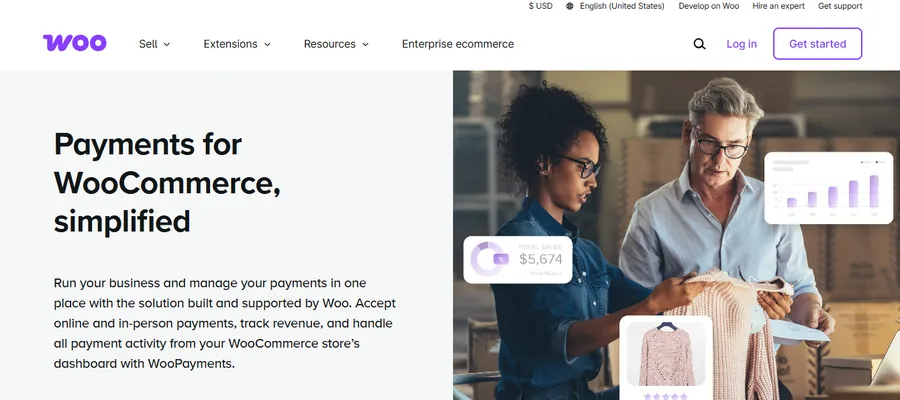
WooCommerce is the dominant WordPress e-commerce plugin by a significant margin. According to wordpress.org, it has over 7 million active installs, and roughly 93.7% of WordPress e-commerce sites run it (DataProt). That install base exists for practical reasons: WooCommerce is free, open source, and can handle almost any product type or store configuration you can describe.
After activating WooCommerce and running through the setup wizard, you’ll find yourself in a structured onboarding flow that asks for your store’s country, currency, and product types. The wizard completes in under ten minutes for a basic store. What takes longer is configuring the details: tax settings under WooCommerce > Settings > Tax, shipping zones under WooCommerce > Settings > Shipping, and payment gateways in WooCommerce > Settings > Payments.
Key features
- Sells physical products, digital downloads, subscriptions (via extension), and bookings
- Supports Stripe, PayPal, WooPayments, and hundreds of payment gateways via extensions
- WooPayments: a first-party gateway with no setup fees and built-in dispute management
- Cart and Checkout Blocks: the modern Gutenberg-native checkout system, introduced as default in WooCommerce 8.3
- More than 800 official extensions and 10,000+ third-party plugins on WordPress.org tagged WooCommerce
Performance note: WooCommerce’s Core Web Vitals pass rate sits notably lower than Shopify (around 33-40% vs. 75-78%) largely because of varied hosting quality and plugin bloat. On managed WordPress hosting – WP Engine, Kinsta, or Cloudways – that gap narrows to 55-65%, which is competitive for most stores.
Pricing: The core plugin is free. Extensions like WooCommerce Subscriptions and WooCommerce Product Add-Ons add annual costs. Budget $200-$600/year for a store using 3-5 premium extensions.
Best for: Store owners selling a mix of physical and digital products who want maximum customization and full ownership of their data.
Easy Digital Downloads
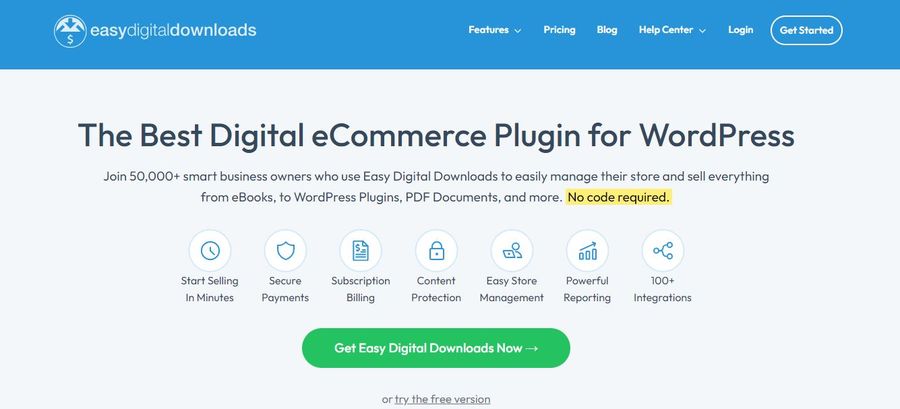
Easy Digital Downloads (EDD) does one thing and does it well: selling digital products. If you’re selling software, PDFs, plugins, ebooks, or audio files, EDD is purpose-built for that workflow in a way WooCommerce isn’t.
The plugin adds an add-to-cart button shortcode, a sidebar cart widget, and a checkout form that feels considerably simpler than WooCommerce’s full setup because it strips out physical product concerns – shipping zones, inventory weight, package dimensions – that don’t apply. Built-in payment gateways cover PayPal Standard, Stripe, and Amazon Pay on the free version. Additional gateways are available in the EDD Store.
EDD also includes detailed reporting out of the box: earnings by date range, refund tracking, sales by product, and average order value. On WooCommerce, equivalent reporting typically requires an extension.
The one real trade-off is scope. If you ever need to add physical product sales to your store, you’ll be migrating platforms rather than adding a settings toggle.
Pricing: Free. Premium plans start at $99.50/year and unlock recurring payments, software licensing, and priority support.
Best for: Developers selling plugins or themes, course creators selling downloadable materials, and anyone whose entire catalog is digital.
Ecwid Ecommerce Shopping Cart
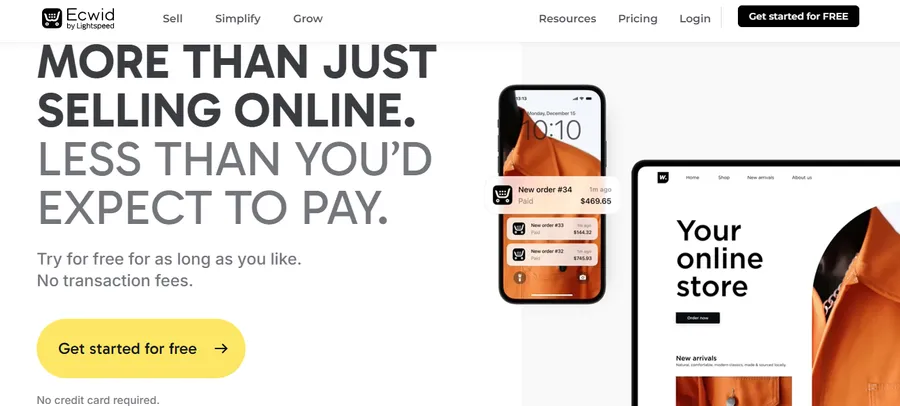
Ecwid takes a different architectural approach from WooCommerce and EDD. Rather than running on your WordPress server, Ecwid is a hosted SaaS platform that embeds into your site via a plugin. Your store data lives on Ecwid’s infrastructure, which means they handle software updates, security patches, and PCI compliance at the checkout layer.
The trade-off is portability. Because your store isn’t locked to WordPress, Ecwid can sync the same product catalog across your WordPress site, Facebook, Instagram, and Amazon from a single dashboard. For small businesses selling across multiple channels, that multi-channel management capability is genuinely useful rather than theoretical.
The free plan is limited to 5 products, which rules it out as a serious long-term option for most stores. But the hosted checkout – which handles payment processing off your server – is a real advantage on shared hosting where checkout security is a legitimate concern.
Pricing: Free (up to 5 products). Premium plans start at $19/month.
Best for: Stores that want a managed, hosted cart with multi-channel selling and minimal server configuration.
WP EasyCart
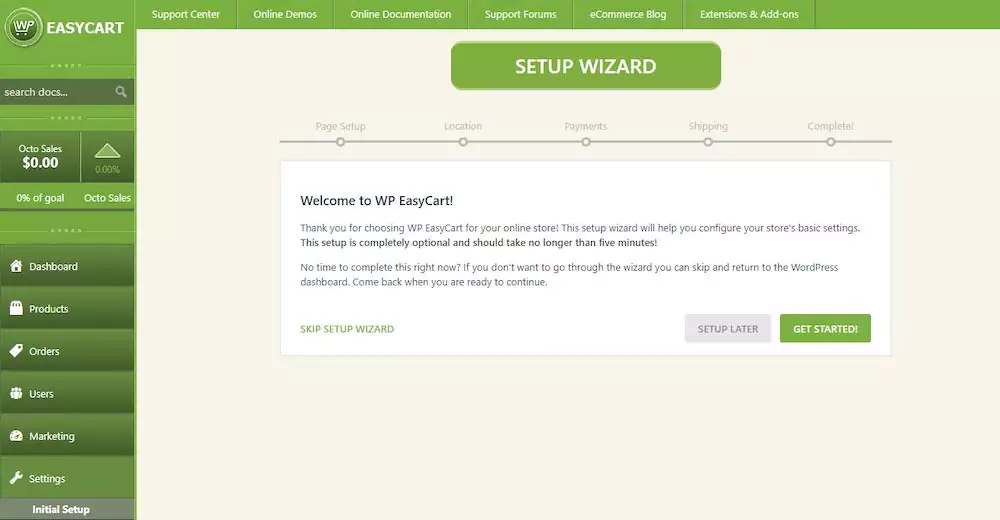
WP EasyCart is less well-known than WooCommerce or EDD, but it packs more functionality into the core plugin than either of them. Features that require extensions in WooCommerce – gift cards, subscription billing, abandoned cart recovery, coupon systems, and product SEO tools – ship standard with WP EasyCart.
The setup wizard walks you through store configuration in a single flow. Payment gateways available out of the box include Stripe (with Apple Pay, Google Pay, and Microsoft Pay support), PayPal, and Square. The admin area covers product management, order tracking, shipping configuration, and customer management without requiring additional plugins.
The steeper initial learning curve compared to WooCommerce is the honest trade-off. The settings panel has a lot of options surfaced at once, and first-time store owners may find WooCommerce’s more gradual complexity easier to navigate.
Pricing: Free core plugin with paid tier upgrades for enterprise features.
Best for: Store owners who want most features without installing a stack of extensions and are comfortable with a denser setup interface.
How to add a shopping cart to WordPress
The process is the same regardless of which plugin you choose. Here is how it works for WooCommerce, the most common path.
Step 1: Install WooCommerce
Go to Plugins > Add New in your WordPress dashboard, search for “WooCommerce,” and click Install Now, then Activate. The setup wizard launches automatically.
Step 2: Run the setup wizard
The wizard asks for your store location, currency, what you plan to sell (physical, digital, or both), and which payment methods to enable. Connect Stripe or WooPayments during this step – you can test with a sandbox account before going live.
Step 3: Add your products
Go to Products > Add New. For a physical product, enter the product name, price, and description, then fill in the Product Data meta box below the editor: set the product type (simple, variable, grouped), add weight and dimensions if shipping is calculated automatically, and set the inventory quantity.
Step 4: Configure cart and checkout pages
WooCommerce creates a Cart page and a Checkout page automatically during installation, each containing a WooCommerce block. Verify these pages exist under Pages in the dashboard, and check that the correct pages are assigned under WooCommerce > Settings > Advanced > Page Setup.
Step 5: Set up shipping zones and tax
Under WooCommerce > Settings > Shipping, add a shipping zone for each region you ship to and assign at least one shipping method to each zone. Under WooCommerce > Settings > Tax, enable tax calculation and choose whether prices are entered with or without tax.
Step 6: Run a test transaction
Before going live, place a test order using Stripe’s test card numbers. Confirm the order appears under WooCommerce > Orders and that the confirmation email arrives correctly.
WooCommerce checkout: blocks vs. classic
WooCommerce has two checkout architectures, and confusing them is the most common source of plugin conflicts and missing custom fields.
- The classic checkout runs through PHP templates and activates when a page contains the woocommerce_checkout shortcode. Most third-party WooCommerce tutorials and checkout field plugins were written for this system. PHP hooks like woocommerce_checkout_fields work here.
- The Checkout block is the modern replacement built on React and introduced as the default in WooCommerce 8.3. It renders in the Gutenberg editor as a block labeled “Checkout.” The block system offers a cleaner mobile layout and lets you rearrange billing address, shipping address, order summary, and payment method sections by dragging them in the Site Editor under Template > Page: Checkout. The limitation: most PHP hooks that work in Classic Checkout do nothing in the block checkout. Plugins built for the classic system often don’t apply their changes without a block-compatible update.
How to check which one you’re running
Open the Checkout page in the WordPress editor. If you see a block labeled “Checkout” in the block outline, you’re on the block system. If the page just shows a shortcode placeholder, you’re on classic.
Switching between them
To revert from blocks to classic: in the Site Editor, open the Checkout template, select the Checkout block, click “Transform” in the block toolbar, and choose “Classic Shortcode.” WooCommerce recommends reverting both the Cart and Checkout pages at the same time, since they work as a pair.
If you’re building a new WooCommerce store, the Checkout block is the better starting point. It handles mobile layout cleanly and aligns with where WooCommerce development is heading. If you’re maintaining an existing store with custom checkout PHP or legacy plugins, stay on classic until those dependencies are updated.
How to choose the right shopping cart for WordPress
Three questions narrow this decision faster than comparing feature lists.
- What are you selling? Physical products with shipping and inventory management point to WooCommerce. Digital-only products point to Easy Digital Downloads. A small product catalog with multi-channel distribution points to Ecwid.
- How much control do you need over your data and code? WooCommerce and EDD are self-hosted, meaning all store data lives in your WordPress database. Ecwid hosts your store data on their servers. If data portability or custom development matters, stay self-hosted.
- What’s your hosting situation? WooCommerce performs best on managed WordPress hosting (Kinsta, WP Engine, Cloudways). On shared hosting, Ecwid’s hosted checkout actually provides better security and reliability at the payment layer. WP EasyCart sits in between, offering more out-of-the-box features than WooCommerce on equivalent hosting.
Frequently asked questions
Is WooCommerce free to use?
The WooCommerce plugin itself is free and open source. You pay for premium extensions, certain payment gateways, and hosting. A basic WooCommerce store can run entirely on free tools, but most serious stores add 3-5 paid extensions – subscriptions, advanced shipping rules, product add-ons – which typically adds $200-$600/year in extension costs on top of hosting.
Can I use a shopping cart plugin without WooCommerce?
Yes. Easy Digital Downloads, Ecwid, and WP EasyCart all operate independently of WooCommerce. For digital products, EDD is a better-fit choice than WooCommerce. For a lightweight hosted solution, Ecwid avoids WooCommerce’s setup complexity entirely. The right answer depends on what you’re selling and how much control you want over the cart experience.
How do I add a shopping cart icon to my WordPress menu?
WooCommerce includes a Cart block you can add to any widget area or the header via Appearance > Widgets (in classic themes) or the Site Editor under Template Parts > Header (in block themes). In the header template, add the “Mini Cart” block, which displays a cart icon with a live product count. Most WooCommerce-compatible themes also surface this in theme options under the header settings without requiring manual block insertion.
What is the best WooCommerce checkout plugin?
For adding and customizing checkout fields, Checkout Field Editor by ThemeHigh and Fluid Checkout by Fluid Checkout are the two most commonly recommended options. Fluid Checkout restructures the WooCommerce checkout into a multi-step flow and is particularly effective at reducing form abandonment on mobile. CartFlows is the go-to option if you want to build custom checkout funnels with upsells and order bumps on top of WooCommerce.
Conclusion
For most WordPress stores, WooCommerce is the right starting point. It’s free, it handles physical and digital products equally well, and its extension ecosystem means you can add almost any feature without switching platforms. The right WordPress shopping cart plugin shapes every customer interaction on your store. Pick the one that fits what you’re selling now, on hosting you can actually rely on, with a checkout flow your customers won’t abandon halfway through.
Read More: 15 Top Email and Text Marketing Platform Picks
Contact US | ThimPress:
Website: https://thimpress.com/
Fanpage: https://www.facebook.com/ThimPress
YouTube: https://www.youtube.com/c/ThimPressDesign
Twitter (X): https://x.com/thimpress_com