At ThimPress, we have spent years developing high-quality WordPress themes and plugins for thousands of businesses and educators. We know that the thought of building a website from scratch can seem technically overwhelming and expensive.
However, the landscape has changed. You no longer need a dedicated development team or a massive budget to launch a professional site.
If you want to know how to make a small business website that is secure, scalable, and visually stunning, you have found the right guide. We have distilled our industry experience into a streamlined process that will get you online in just a few hours.
Eduma – Education WordPress Theme
We provide an amazing WordPress theme with fast and responsive designs. Let’s find out!
Eduma – Education WordPress Theme
We provide an amazing WordPress theme with fast and responsive designs. Let’s find out!
Why We Recommend WordPress for Your Business
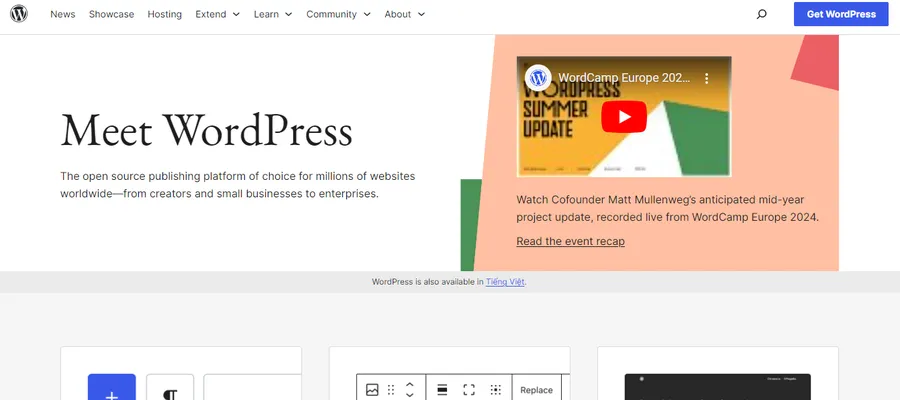
When choosing a platform, we always advocate for WordPress.org (self-hosted WordPress).
While proprietary website builders exist, they often lock you into their ecosystem. WordPress.org is open-source software, meaning it is free to use and gives you complete ownership of your data. It powers over 43% of the web for a reason: flexibility.
With WordPress, you gain access to a massive library of plugins and themes (including the ones we build here at ThimPress) to customize your site exactly how you envision it. It creates a professional foundation that grows alongside your business revenue.
Prerequisites for Your Website
To get started, you do not need coding skills. You simply need three elements:
- A Domain Name: This is your identity (e.g., yourcompany.com).
- Web Hosting: The server infrastructure where your website files are stored.
- Focus: About 60 minutes of your time to follow this tutorial.
Step 1: Secure Your Domain and Hosting
There is often confusion between WordPress.com (a limited hosting service) and WordPress.org (the famous software). We are using WordPress.org because it gives you full control and flexibility.
To use it, you need a hosting provider.
For beginners, we highly recommend Bluehost. They are one of the largest hosting companies globally and are officially recommended by WordPress.org.
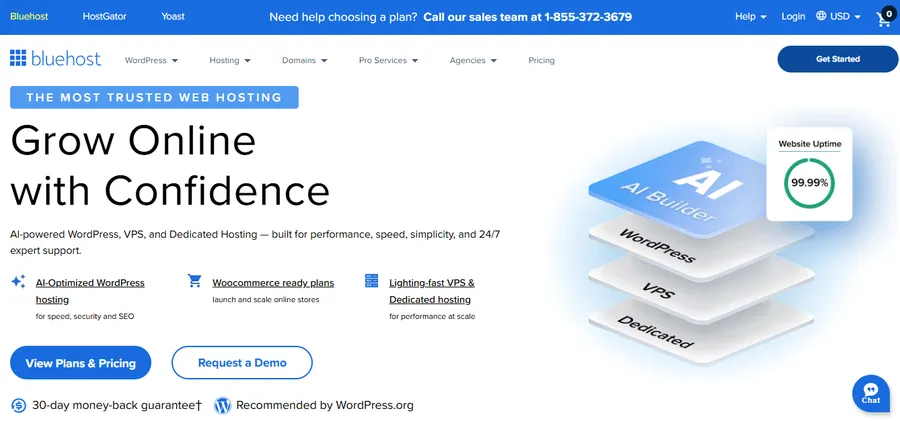
Why we recommend them for starters:
- They offer a Free Domain Name for the first year.
- They include a Free SSL Certificate (the padlock icon that makes your site secure).
- Their pricing is incredibly competitive for new businesses (starting around $2.99/mo).
Read our full comparison of the Best WordPress Hosting Providers here.
Action Steps:
- Go to the Bluehost website and click Get Started.
- Select a plan (The “Basic” or “Choice Plus” plans are usually best for new businesses).
- Choose your domain.
- Pro Tip: Stick to
.com. It’s what customers trust. If your exact name is taken, try adding your city or a verb
- Pro Tip: Stick to
- Complete the registration. We suggest unchecking “optional extras” to save money, though Domain Privacy is worth the cost to keep your personal info off public lists.
Step 2: Install WordPress
Years ago, this step involved downloading files and uploading them to a server. Today, it is automated.
When you sign up with Bluehost, they typically install WordPress for you automatically. You will receive an email with your login details.
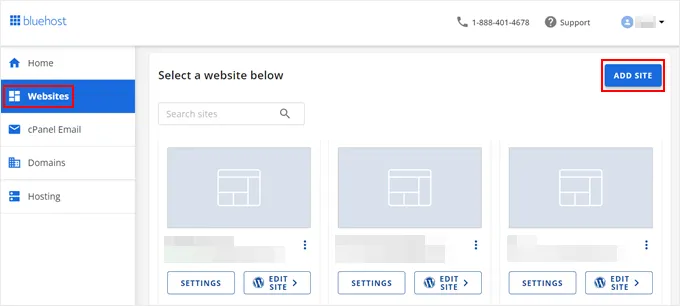
If you missed the auto-setup:
- Log in to your hosting dashboard.
- Navigate to the Websites tab.
- Click Add Site and select “Install WordPress.”
- Follow the setup wizard to name your site (don’t worry, you can change the title later).
Once finished, you can log into your dashboard by visiting yoursite.com/wp-admin. This is your mission control center.
Step 3: Plan Your Pages (The Digital Layout)
Before worrying about colors and fonts, you need to structure your content. A standard small business website requires a few core pages to establish trust.
Go to Pages » Add New in your dashboard to create these standard pages:
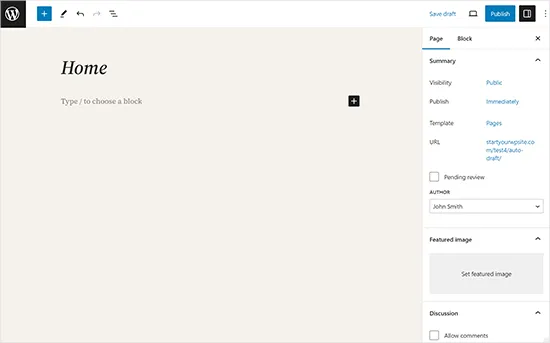
- Homepage: The “lobby” of your business. It needs a clear value proposition and a Call to Action (CTA).
- About Us: People buy from people. Share your story, your team, and why you started.
- Services / Products: detailed descriptions of what you offer.
- Contact Us: Essential for local SEO. Include a contact form, your physical address, and a phone number.
Note: You don’t need to write the final text right now. Just create the empty pages to set up your site structure.
Step 4: Choose a Professional Design (Theme)
Your “Theme” controls the visual appearance of your site.
By default, WordPress installs a basic theme. To look more professional, go to Appearance » Themes and click Add New. You can browse thousands of free options.
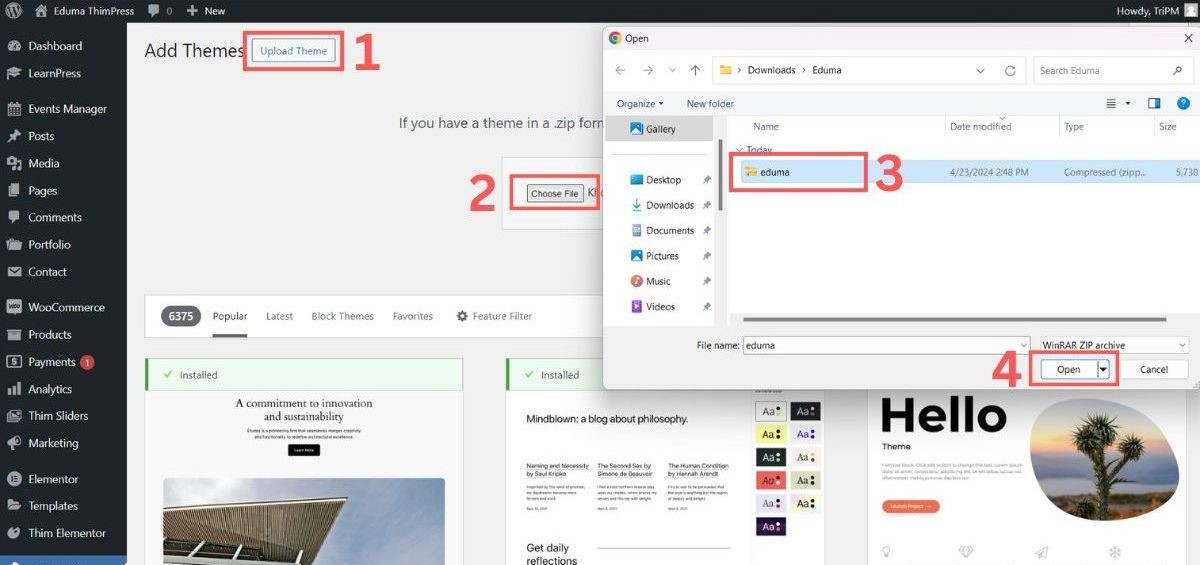
What to look for in a business theme:
- Simplicity: Avoid cluttered designs. White space is professional.
- Responsiveness: It must look good on mobile devices.
- Speed: Lightweight themes rank better on Google.
Customization Options: Modern WordPress offers a few ways to edit your design:
- Site Editor (Block Themes): The modern standard. You edit the whole site using blocks, similar to building with LEGOs.
- Customizer (Classic Themes): The traditional method using a sidebar menu to tweak colors and logos.
- Page Builders: Tools like SeedProd or Divi. These are plugins that offer a drag-and-drop visual interface, allowing you to build completely custom layouts without touching code.
Step 5: Extend Functionality with Plugins
The power of WordPress lies in plugins. These are add-ons that introduce new features to your site. Here is the essential “stack” we recommend for business websites:
- LearnPress: A powerful LMS (Learning Management System) plugin for creating and selling online courses. It allows you to build lessons, quizzes, and course structures directly in WordPress—perfect for training platforms, membership sites, or educational businesses.
- WPForms Lite: The industry standard for contact forms. It allows you to build drag-and-drop forms so customers can reach you easily.
- All in One SEO (AIOSEO): Traffic is the lifeline of any business. This plugin guides you through optimizing your pages so Google can rank you higher.
- MonsterInsights: Connects your site to Google Analytics. It provides a dashboard inside WordPress showing you traffic stats and user behavior.
- Duplicator: Security is paramount. This plugin handles backups and site migration, ensuring you never lose your hard work.
- WP Super Cache: Speed matters. This caching plugin improves your site’s load time, which is vital for user retention and SEO.
- Sucuri: A security scanner to keep your site free from malware and vulnerabilities.
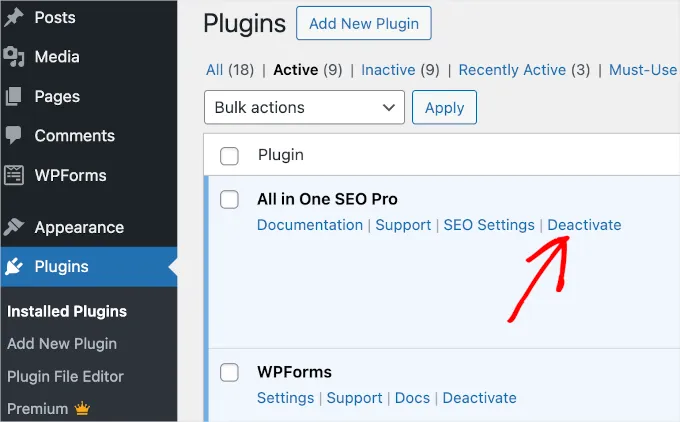
To install these, go to Plugins » Add New, search for the plugin name, and click Install Now followed by Activate.
FAQs About How to Make a Small Business Website
1. Is WordPress really free for businesses?
Yes, the WordPress.org software is open-source and 100% free. You only pay for the infrastructure (domain and hosting), which keeps overhead costs very low compared to closed platforms.
2. Can I add an online store later?
Absolutely. WordPress is incredibly scalable. You can install the WooCommerce plugin at any time to transform your business site into a fully functional eCommerce store.
3. Do I need to hire a developer to manage the site?
Not necessarily. For a standard small business site, the modern WordPress interface is intuitive enough for beginners to manage content and updates.
4. How do I make my website show up on Google?
Building the site is step one. Step two is using an SEO plugin (like AIOSEO mentioned above) to configure your sitemaps and meta tags. We also recommend creating a “Google Business Profile” to capture local search traffic.
Conclusion
Creating a website is a significant milestone for your small business. It serves as your 24/7 sales representative and the central hub of your marketing efforts.
By choosing WordPress and following this structured approach, you are building on a foundation that is used by the most successful companies in the world.
Ready to start? Head over to Bluehost to grab your domain, or explore our ThimPress theme collection if you are looking for specialized designs for education, hotels, or charities.
Do you have more questions about WordPress? Check out the ThimPress blog for deep dives into plugins, themes, and optimization tips.
Read more: How to Create an eLearning Website?
Contact US | ThimPress:
Website: https://thimpress.com/
Fanpage: https://www.facebook.com/ThimPress
YouTube: https://www.youtube.com/c/ThimPressDesign
Twitter (X): https://x.com/thimpress_com