Manual website management consistently drains valuable time and administrative resources. Administrators frequently find themselves trapped in repetitive backend tasks, from publishing daily articles to filtering endless streams of spam comments. An innovative solution has emerged to streamline these operational bottlenecks. Implementing OpenClaw for WordPress transforms routine website administration into a highly efficient, conversational workflow.
Rather than clicking through countless menus within a traditional content management system, administrators can simply type natural language commands to execute complex site modifications autonomously.
This comprehensive guide details the precise methodology required to deploy this artificial intelligence framework. By following these structured instructions, website owners can establish a secure, always-on administrative assistant capable of handling everything from content generation to user role management.
Eduma – Education WordPress Theme
We provide an amazing WordPress theme with fast and responsive designs. Let’s find out!
OpenClaw for WordPress Setup Process Summary
Before proceeding with the detailed technical instructions, review the fundamental phases required to successfully deploy the integration. The table below outlines the core progression of the setup process.
| Phase | Technical Requirement | Expected Outcome |
| 1. Server Deployment | Virtual Private Server (VPS) | A stable, uninterrupted hosting environment for the AI framework. |
| 2. Skill Installation | GitHub Repository Integration | The framework acquires the specific coding knowledge to understand site commands. |
| 3. Authentication | Application Passwords & REST API | Secure, revocable communication is established between the server and the site. |
| 4. Task Execution | Natural Language Prompts | Administrators can control the website via a centralized chat interface. |
An Introduction to OpenClaw: Assistance vs. Autonomy
Before exploring the technical requirements to set up OpenClaw for WordPress, it is essential to understand what makes this platform fundamentally different from standard conversational AI tools.
While popular platforms like ChatGPT serve as excellent, frictionless conversational partners for brainstorming or writing, they are inherently reactive. They require a human-in-the-loop, waiting for a prompt before taking any action.

Chat GPT Logo
OpenClaw, by contrast, is engineered for true, proactive delegation. It is an autonomous agent framework designed to run continuously in the background, executing scheduled tasks, monitoring data, and orchestrating complex workflows without constant human supervision.
The true power of an OpenClaw WordPress AI agent lies in its unique personalization layer, which is built entirely on simple markdown files. Instead of configuring complex code integrations, administrators build the agent’s persistent identity and operational logic through four core text files:
- soul.md (Personality and Operations): This file defines the agent’s decision-making framework. It establishes whether the AI should default to immediate action or ask for permission, dictating its professional tone and level of autonomy.
- memory.md (Contextual Knowledge): This serves as the agent’s persistent context layer. It stores critical details about website architecture, key personnel, administrative preferences, and past instructions, ensuring the agent understands relationships and priorities without requiring repetitive prompting.
- goals.md (Current Priorities): This file keeps the agent aligned with immediate objectives. Whether the focus is updating outdated SEO content or migrating user data, the agent filters its daily autonomous actions through the lens of these documented goals.
- knowledge.md (Standard Operating Procedures): This acts as the reference library. Administrators can document strict SOPs here, such as how to format a blog post, which competitor sites to monitor, or specific criteria for flagging spam comments.
By investing time in configuring these markdown files, the system stops acting like a simple chatbot and begins functioning like a trained digital employee. It anticipates needs, applies documented rules, and executes OpenClaw WordPress automation routines flawlessly.
Step 1: Deploy a Virtual Private Server (VPS)
To successfully set up OpenClaw for WordPress, the framework requires a dedicated operational environment.
While a local installation on a personal computer is technically feasible, deploying the system on a Virtual Private Server (VPS) remains the industry standard. A VPS ensures that the AI assistant remains online continuously, allowing it to process scheduled automation tasks, handle background jobs, and execute commands regardless of the local computer’s power status.
- Select a Hosting Provider: Evaluate different hosting providers to find a reliable VPS that offers robust performance metrics and scalable resources. Providers offering one-click deployment templates specifically designed for AI frameworks will significantly reduce the initial configuration time.
- Initialize the Server: Complete the hosting provider’s onboarding sequence. This process typically involves selecting an operating system, configuring initial server resources, and registering an administrator account.
- Secure the Gateway Token: During the initial installation phase, the system generates a unique Gateway Token. This alphanumeric string acts as the master key to access the main administrative dashboard. Store this token in a highly secure password manager, as it is strictly required for all subsequent logins.
- Access the Command Center: Once the server deployment concludes, navigate to the assigned IP address or custom domain. Enter the Gateway Token to unlock the interface and proceed to the next configuration stage.
Step 2: Install the AI Framework Instructions
Out of the box, the server possesses general artificial intelligence capabilities but lacks the specific technical syntax required to interact with external website databases. To bridge this communication gap, specific instruction sets—known as agent skills—must be installed.
These skills are hosted in dedicated code repositories and provide the OpenClaw WordPress AI agent with the exact parameters needed to format REST API requests, interpret site data structures, and execute backend changes seamlessly.
- Navigate to the primary Chat interface within the newly deployed main dashboard.
- Input the following command to initiate the repository cloning process:
- Prompt: Install the WordPress AI agent skills from https://github.com/WordPress/agent-skills
- Allow the system a few moments to process the request. The framework will autonomously contact the specified repository, download the necessary instructional files, and integrate the new capabilities into its active memory. A confirmation message will appear once the skill integration successfully finalizes.
Step 3: Establish Secure Authentication
Maintaining strict data protection is paramount when allowing any external application to manage backend infrastructure. Therefore, it is strongly advised against sharing primary administrator login credentials.
Instead, administrators must connect OpenClaw to WordPress utilizing an Application Password. This method grants the framework secure, revocable access strictly through the REST API, ensuring optimal WordPress security.
Generating the Application Password:
- Log in to the standard site backend dashboard.
- Navigate to the Users menu and select the Profile option.
- Scroll down to locate the exact spelling of the administrator Username and copy it.
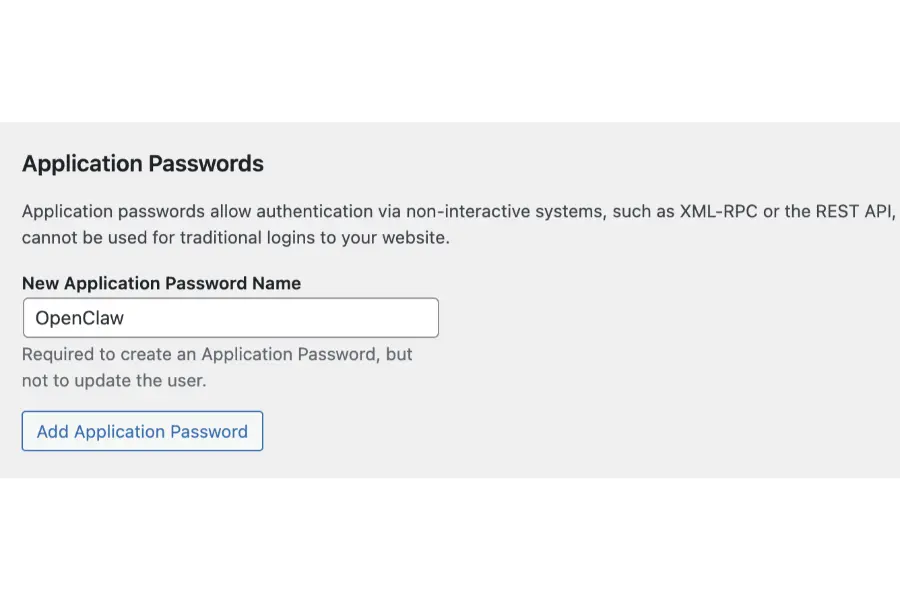
- Continue scrolling to the section labeled Application Passwords.
- In the designated text field, enter an identifiable name for the connection (e.g., “AI-Framework-Integration”) and click the Add Application Password button.
- The dashboard will generate a unique, one-time string of characters. Copy this string immediately and store it securely; the interface hides this password permanently upon page refresh.
Finalizing the Connection Protocol:
- Return to the framework’s Chat interface on the VPS.
- Initiate the connection sequence with the following precise command:
- Prompt: Connect to my WordPress site [Insert Website URL Here]
- The system will acknowledge the request and inquire about the preferred authentication method. Respond with:
- Prompt: Let’s authenticate via REST API and application passwords
- When prompted by the interface, provide the exact Username and the newly generated Application Password. The system will verify the credentials and confirm that secure administrative access has been successfully established.
Step 4: Execute Autonomous Commands
With the framework fully authenticated and operational, administrators can execute comprehensive site management tasks directly from the chat interface.
The integration translates natural language requests into precise API calls, driving powerful OpenClaw WordPress automation routines.
To verify the connection, initiate a simple content generation command:
- Prompt: Write a comprehensive post for my website detailing the history of website development. Ensure the tone is highly professional, format it with appropriate headers, and publish it directly.
The interface will display the internal processing steps. The framework drafts the content, structures the HTML formatting, and pushes the final text live via a POST request to the server. Upon completion, checking the live website front-end will reveal the freshly published article, fully formatted and accessible to global visitors.
Advanced Automation Workflows
Understanding the complete scope of OpenClaw for WordPress involves exploring its advanced administrative functions. The integration covers nearly all core operations accessible via the REST API, eliminating the need to manually navigate the backend dashboard for daily maintenance.
Content Updating and Optimization
Keeping existing articles highly relevant is crucial for maintaining digital authority. Instead of manually searching for outdated posts and editing them section by section, the system can fetch, analyze, and rewrite content autonomously.
- Prompt Example: Retrieve the article titled “Best Hardware for 2025”. Update all date references to 2026. Review the introductory paragraph for better engagement and present a preview of the changes before pushing the update live.
The system executes a GET request to retrieve the data, processes the text using its language models, and awaits final human approval before executing the PUT request to save the revisions. This workflow maintains strict editorial oversight while drastically reducing manual labor.
Intelligent Comment Moderation
High-traffic domains inevitably attract significant amounts of spam and low-quality user interactions. Managing these discussions manually drains administrative resources. By leveraging the /wp-json/wp/v2/comments endpoint, administrators can deploy commands to prevent spam comments efficiently.
Administrators can issue sweeping commands to clean up the discussion sections instantly:
- Prompt Example: Review all pending comments across the site. Approve any comments that ask relevant questions about the article content. Flag any comments containing external promotional links as spam. Delete all spam comments older than 30 days.
The system systematically evaluates each pending entry against the defined criteria, applying the necessary status updates without requiring manual oversight.
User Role Management
For digital properties with multiple authors, contributors, or editors, managing user access levels requires careful attention. The framework seamlessly interfaces with the core user endpoints, allowing for rapid account provisioning and role modifications. Familiarity with WordPress user roles ensures commands are executed safely.
- Prompt Example: Create a new user profile. Set the Username to ‘editor_smith’, the Email to ‘[email protected]’, and assign the ‘Editor’ role. Generate a secure password and output a confirmation summary.
Furthermore, administrators can request detailed access audits, asking the system to list all accounts currently holding administrative privileges to ensure continuous security compliance.
Broadening the Automation Horizon
The capabilities of OpenClaw WordPress automation extend far beyond standard content publication. Because the system resides on a dedicated server, it easily integrates with various other digital monitoring tasks.
Administrators can configure daily automated briefings delivered via secure messaging platforms. The system can be instructed to summarize daily site traffic, list recently published comments, and report on server health metrics. If unexpected traffic spikes threaten to impact website speed, the framework can issue immediate alerts, ensuring optimal performance is maintained. The flexibility of such AI automation tools ensures that operations scale smoothly alongside business growth.
Final Configuration Thoughts
To properly set up OpenClaw for WordPress, strict adherence to security protocols—specifically the use of Application Passwords—must remain a priority.
Once the initial VPS deployment and repository installations are complete, the OpenClaw WordPress AI agent provides unparalleled efficiency. Administrators who successfully connect OpenClaw to WordPress gain the ability to manage complex databases, moderate extensive communities, and generate formatted content through simple conversation.
Mastering OpenClaw for WordPress ultimately allows website owners to step away from the backend dashboard and focus on high-level strategic growth.
Frequently Asked Questions (FAQs): Set up OpenClaw for WordPress
1. Does operating the AI framework require advanced programming knowledge?
No advanced coding skills are necessary to operate the system daily. The primary interaction occurs through a natural language chat interface. Provided the initial deployment steps (which involve copying specific setup commands) are followed accurately, daily operation feels identical to sending a text message to a colleague.
2. Is it completely safe to allow an AI system to access a website’s backend database?
Security is strictly maintained by utilizing Application Passwords rather than sharing primary administrator login credentials. Application Passwords restrict external access purely to the REST API and can be instantly revoked at any time from the backend, immediately severing the framework’s access without compromising the main account.
3. Can the OpenClaw for WordPress manage multiple websites simultaneously from one dashboard?
Yes, the system is fully capable of storing authentication credentials and routing commands for multiple domains. By specifying which specific domain a command applies to within the text prompt, administrators can manage an entire portfolio of websites from a single centralized server instance.
4. What happens if a command is misunderstood and the system attempts an incorrect action?
It is considered an administrative best practice to instruct the system to display a preview of its intended actions before executing permanent modifications—especially concerning content deletion or major publishing updates. If a misunderstanding occurs, the prompt can simply be corrected before the final API execution command receives approval.
5. Does the server require highly expensive, powerful hardware to run this framework?
The required server specifications depend heavily on the specific language models utilized by the framework. While basic automated posting tasks require minimal resources, processing highly complex language requests or running multiple simultaneous background jobs benefits from a VPS with higher RAM allocations. Starting with a mid-tier plan and scaling up as operational needs increase is the most practical approach.
Read more: 7 Best AI Productivity Tools to Transform Your Work
Contact US | ThimPress:
Website: https://thimpress.com/
Fanpage: https://www.facebook.com/ThimPress
YouTube: https://www.youtube.com/c/ThimPressDesign
Twitter (X): https://x.com/thimpress_com