
Finding the right plugin is an important part of building and managing a WordPress website. If you know how to search plugins in WordPress, you can quickly add new features, improve performance, and save time.
This knowledge base explains the main steps and common methods in a simple and clear way.
What Is a WordPress Plugin?
A plugin is a software add-on that extends the features of WordPress. You can use plugins to add contact forms, SEO tools, LMS systems, security functions, and more.
Knowing how to search plugins in WordPress helps you find the most suitable solution for your website.
Ways to Search Plugins in WordPress
There are several methods you can use depending on your needs.
Search from the WordPress Dashboard
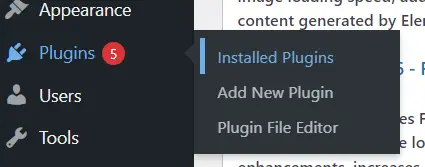
This is the most common method.
- Go to Plugins → Add New
- Use the search bar to enter a keyword or plugin name
- Browse the results directly inside your dashboard
This method is fast and convenient for most users.
Search by Feature or Keyword
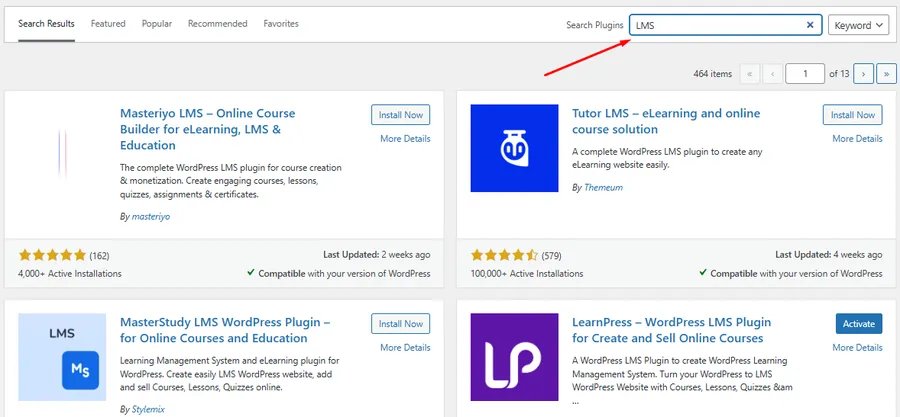
Instead of typing a plugin name, you can search by function.
Examples:
- “SEO”
- “contact form”
- “LMS”
- “security”
This approach is helpful if you don’t know a specific plugin but understand your goal.
Search from the WordPress Plugin Directory
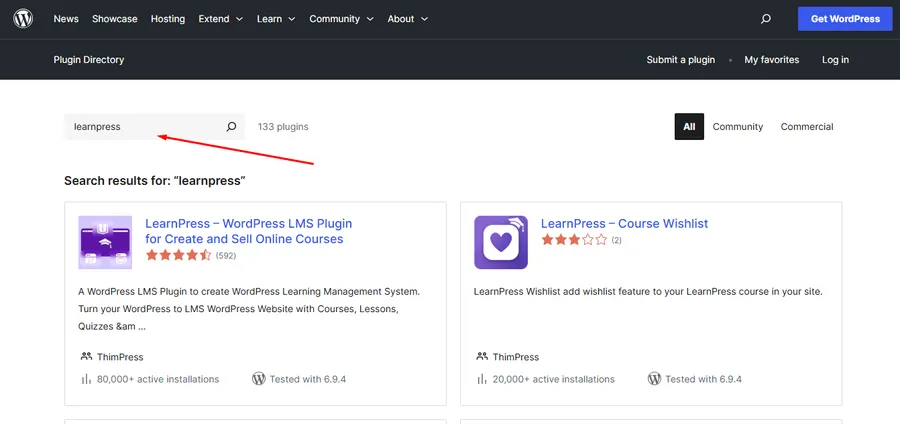
You can also search plugins on the official WordPress website.
- Visit the plugin directory
- Enter your keyword
- Review plugins with detailed descriptions
This method gives you more information and comparison options before installing.
Search by Recommended or Popular Plugins
WordPress also shows:
- Featured plugins
- Popular plugins
- Recommended plugins
These categories can help you discover trusted tools quickly.
How to Search Plugins in WordPress (Step-by-Step)
Step 1: Open the Plugins Section
From your dashboard, go to Plugins and click Add New.
Step 2: Enter Your Keyword
Type a keyword or plugin name into the search bar.
This is the core step to search plugins in WordPress effectively.
Step 3: Review Plugin Information
Before installing, check:
- ratings
- number of active installs
- last update
- compatibility
Step 4: Install the Plugin
Click Install Now to add the plugin to your website.
Step 5: Activate the Plugin
Click Activate after installation to start using it.
Example: Searching for an LMS Plugin
If you want to create an online course website, you may need an LMS plugin.
For example, you can search for LearnPress – LMS WordPress Plugin.
Steps:
- Go to Plugins → Add New
- Type LearnPress in the search box
- Find LearnPress – LMS WordPress Plugin
- Click Install Now and then Activate
LearnPress allows you to create courses, manage students, and build an eLearning system directly in WordPress.
This example shows how understanding your goal helps you search plugins in WordPress more efficiently.
Tips for Choosing the Right Plugin
Check Plugin Quality
Always review ratings, updates, and compatibility before installing.
Read Reviews
User feedback can reveal real-world performance and issues.
Install Only What You Need
Too many plugins can slow down your website and affect performance.
Why It Is Important to Search Plugins Carefully
When you search plugins in WordPress carefully, you avoid low-quality tools and reduce security risks.
A good plugin improves your website, while a poor one can cause errors or slow loading speed.
FAQs
How do I search plugins in WordPress?
Go to Plugins → Add New and use the search bar to find plugins by name or keyword.
Can I search plugins by function?
Yes. You can search using keywords like SEO, LMS, or security to find relevant plugins.
Is LearnPress free?
Yes. LearnPress has a free core plugin, with optional premium add-ons.
Can I install plugins without searching?
Yes. You can upload a plugin manually, but searching is the easiest method.
How many plugins should I install?
Only install the plugins you truly need to keep your site fast and stable.
Conclusion
Understanding how to search plugins in WordPress helps you build a better and more efficient website. By using different search methods and reviewing plugin details carefully, you can find the right tools for your needs.
The LearnPress example also shows how a clear goal makes plugin searching faster and more effective.
Learn More from ThimPress Knowledge Base Articles:
- Install and Set up the FundPress plugin
- How To Submit A ThimPress Support Ticket
- How To Disable The Demo Slider Images
- Active Included Premium Plugins: What You Need to Know
- How to Back Up Your WordPress Site: 3+ Simple Methods
- How To Submit A ThimPress Support Ticket
- How to Create a ThimPress Account and Access Support?
- How to Deregister and Reactivate Your ThimPress License?
- How To Enable Register Button In WordPress
- How To Get My Envato Purchase Code?
Contact US | ThimPress:
Website: https://thimpress.com/
Fanpage: https://www.facebook.com/ThimPress
YouTube: https://www.youtube.com/c/ThimPressDesign
Twitter (X): https://twitter.com/thimpress
