Managing a website often requires you to disable WordPress plugins at some point. While plugins add incredible functionality to your site, they can also be the source of unexpected technical issues.
Whether you are performing routine maintenance or trying to rescue a broken website, knowing how to turn off these extensions is an essential skill for any webmaster.
There are many common scenarios that force website owners to take action. You might experience a sudden site crash, a terrifying “white screen of death,” or a frustrating loop that locks you out of your own login screen.
In these stressful moments, finding a quick solution is critical.
This guide will walk you through both the easy and advanced methods to regain control of your WordPress site.
We will cover the standard process for those who can still access their dashboard, as well as highly effective techniques to disable WordPress plugins without admin access.
By the end of this article, you will have the exact steps needed to troubleshoot and resolve plugin-related issues safely.
Let’s get started!
Eduma – Education WordPress Theme
We provide an amazing WordPress theme with fast and responsive designs. Let’s find out!
Why You May Need to Disable WordPress Plugins
Before diving into the technical steps, it helps to understand why disabling plugins is a standard troubleshooting procedure. Most website issues stem from a handful of common triggers.
Plugin conflicts and errors
WordPress operates as an ecosystem where WordPress themes, core files, and WordPress plugins must work together harmoniously. However, code clashes happen.
Website crashes or white screen
The infamous WordPress White Screen of Death (WSoD) is usually caused by a fatal PHP error or a memory limit exhaustion. Often, a single faulty plugin update is the culprit. When your site goes completely blank, you cannot use the normal interface to fix it, which makes knowing alternative deactivation methods essential.
Security and performance issues
Outdated or poorly coded plugins can create vulnerabilities that expose your site to malware. Additionally, running too many heavy extensions—especially robust systems—can drain your server resources and slow down page load times. Temporarily deactivating them helps you identify which specific tool is causing the bottleneck.
To better understand performance issues, you can follow this detailed guide on how to improve website speed and fix a slow WordPress site.
How to Disable WordPress Plugins from Dashboard
If your website is functioning normally and you can log in, the simplest way to manage your extensions is right from the main administrative area.
Disable a single plugin
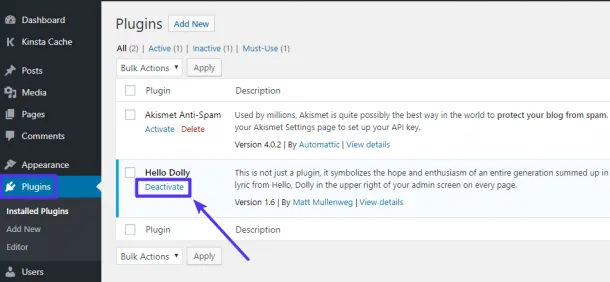
Turning off one specific tool takes only a few clicks.
- Log in to your WordPress admin area.
- Navigate to Plugins in the left-hand sidebar menu.
- Locate the specific extension you want to turn off.
- Click the Deactivate link located directly below the plugin’s name.
The page will refresh, and the tool will no longer be active on your site. Its settings and data remain safely stored in your database.
Bulk deactivate plugins
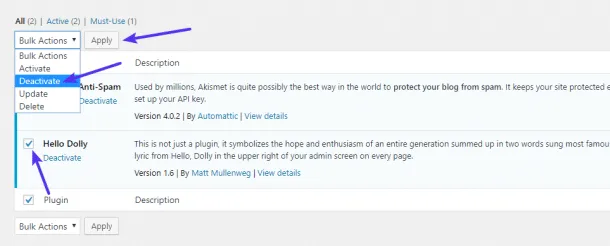
If you are undergoing massive changes or need to test a blank slate, doing this one by one is tedious.
- Go to the Plugins screen.
- Check the box at the very top of the list (next to the “Plugin” column header) to select all plugins, or check the individual boxes next to the ones you want to turn off.
- Click on the Bulk Actions drop-down menu.
- Select Deactivate.
- Click the Apply button.
All selected items will instantly stop running.
How to Disable WordPress Plugins Without Admin Access
When a fatal error occurs, WordPress often blocks you from reaching the wp-admin login page entirely. This is the most common scenario where website owners panic. Fortunately, learning how to disable WordPress plugins without admin access is straightforward once you know where the files live.
Disable plugins via FTP/SFTP
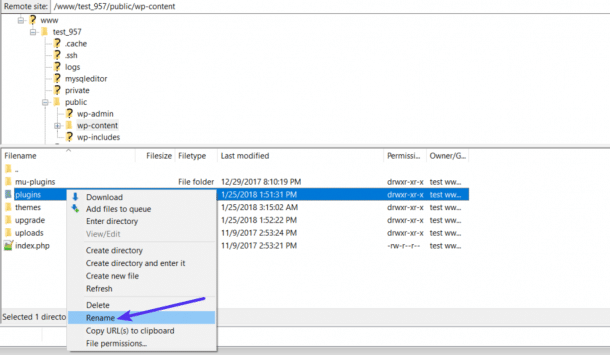
File Transfer Protocol (FTP) allows you to browse your website’s files exactly like folders on your computer. Here is how to disable plugins via FTP safely.
- Connect using FileZilla: Download a free FTP client like FileZilla. Enter your host, username, password, and port (your hosting provider supplies these credentials) to connect to your server.
- Navigate to /wp-content/: Once connected, look at the right-side panel (your remote site). Open the public_html folder (or root directory), and then open the wp-content folder.
- Rename plugins folder: Find the folder simply named plugins. Right-click on it and select Rename. Change the name to something like plugins_old or plugins_disabled.
By changing this folder’s name, WordPress can no longer find your plugins. It automatically deactivates all of them, which usually restores your access to the admin dashboard. Once you log back in, you can rename the folder back to plugins via FTP and reactivate them one by one.
Disable a single plugin via FTP
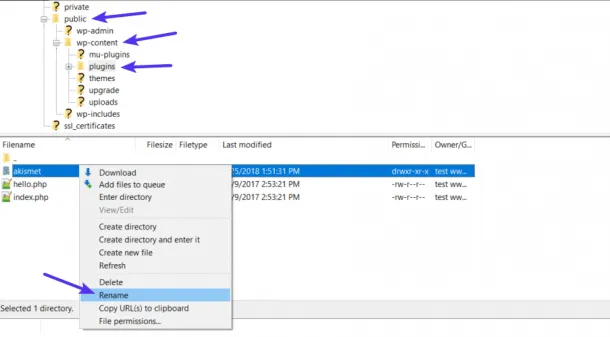
If you already suspect which specific tool caused the crash—perhaps you just updated LearnDash or WP Courseware right before the site broke—you do not need to disable everything.
- Connect via FTP and navigate to wp-content/plugins/.
- Open the plugins folder to view all your individual plugin folders.
- Find the specific folder for the suspected plugin.
- Right-click and rename just that single folder.
This isolates the problematic tool while keeping the rest of your site fully functional.
Disable WordPress Plugins Using File Manager
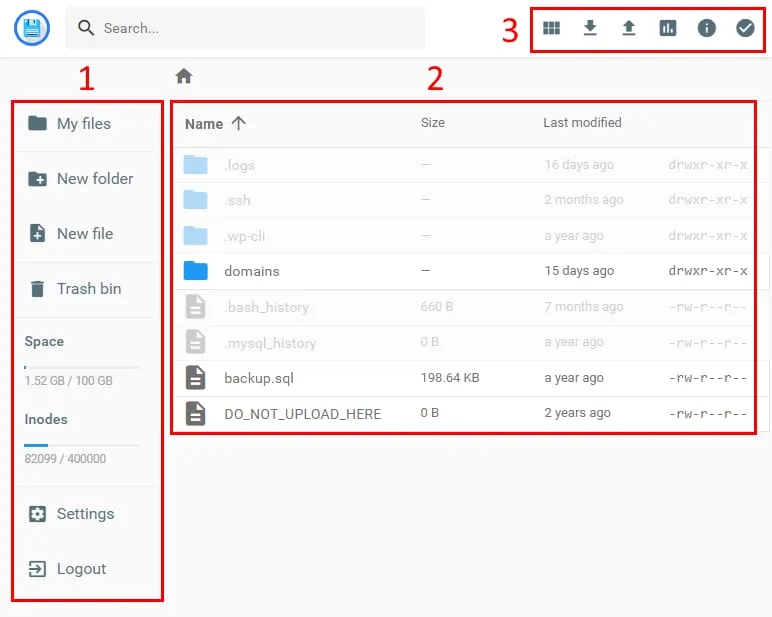
If you do not want to use an FTP client, you can achieve the exact same result using your web hosting control panel.
- Access hosting file manager: Log in to your hosting dashboard (like cPanel, hPanel, or a custom host dashboard). Look for the File Manager icon and open it.
- Rename plugins folder: Navigate to public_html -> wp-content. Locate the plugins folder. Right-click it, select rename, and change it to plugins_deactivated.
Important Warning Regarding Elementor: If your website relies heavily on the Elementor page builder, renaming the primary plugins folder can sometimes cause a severe site crash due to how Elementor structures its files. In this case, open the plugins folder and manually rename every other folder except Elementor.
Disable WordPress Plugins via phpMyAdmin
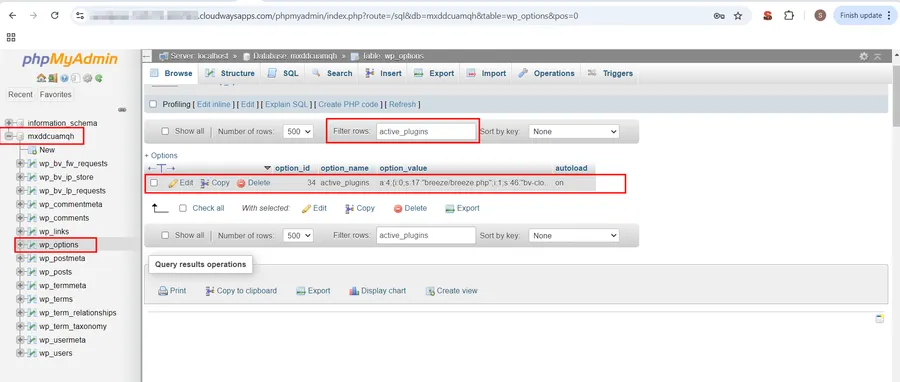
For those comfortable with databases, modifying your site’s data directly is a fast, highly effective method.
Edit active_plugins field
Your database stores a specific list of which plugins are currently turned on. You can erase this list to deactivate them all simultaneously.
- Open database: Log in to your hosting dashboard and open phpMyAdmin.
- Find wp_options: Select your WordPress database from the left sidebar. Look for the table named wp_options (your prefix might differ, such as custom_options, but it will always end in _options). Click to open it.
- Set value: Look under the option_name column for a row called active_plugins. You may need to click to the second page of rows to find it. Once found, click Edit on that row.
- In the option_value box, delete the current text and replace it exactly with: a:0:{}
- Click Go to save.
This command tells WordPress that zero plugins are active, instantly clearing any lockouts.
Disable Plugins Using WP-CLI
If you are a developer or have SSH access to your server, the WordPress Command Line Interface (WP-CLI) is the fastest method available.
Disable a single plugin
Open your terminal, connect to your server, and navigate to your WordPress root directory. To turn off a single extension, you just need its exact directory name.
Disable all plugins
If you are performing sweeping maintenance and need everything off instantly, use a bulk command.
Bulk command: wp plugin deactivate –all
This executes in milliseconds, making it a favorite for advanced users.
How to Troubleshoot Plugin Issues
Simply turning things off is only half the battle. Proper WordPress plugin troubleshooting ensures the issue does not return once you turn things back on.
Identify faulty plugins
The most reliable troubleshooting method is the process of elimination.
- Disable all plugins using one of the methods above to ensure the site loads properly.
- Re-enable them one by one. Go to your dashboard and activate the first plugin.
- Check your site. Navigate to the front end of your website to see if the error returns.
- Repeat the process. Activate the next plugin, check the site, and continue until the website breaks again.
The last plugin you activated right before the crash is your culprit. You can then reach out to that developer’s support team for a permanent fix.
Best practices
- Use incognito testing: Always check your website in an incognito or private browsing window during troubleshooting. This ensures you are seeing the live, uncached version of your site, bypassing any saved browser data that might trick you into thinking it is still broken.
- Backup before changes: Before updating or troubleshooting complex setups—especially systems handling user data like LifterLMS or LearnPress—ensure you have a complete backup of your files and database.
Best Practices Before Disabling Plugins
Handling site architecture requires care. Follow these guidelines to prevent data loss.
- Backup your website: Whether you use a backup plugin, your host’s automated tools, or a manual manual export, always save a copy of your site before making bulk changes.
- Use a staging environment: A staging site is a private clone of your live website. If you suspect an issue, push your site to staging, replicate the error, and do your troubleshooting there. This keeps your live visitors from experiencing a broken interface.
- Avoid deleting immediately: When you deactivate WordPress plugins, their settings and data remain intact in the database. If you click “Delete,” you risk wiping out that saved configuration permanently. Always deactivate first, confirm the issue is resolved, and only delete if you are absolutely sure you no longer need the tool.
FAQs
Can I disable WordPress plugins without logging in?
Yes, absolutely. If you are locked out of the dashboard, you can disable WordPress plugins without admin access using a File Transfer Protocol (FTP) client, your hosting account’s File Manager, or by editing the database directly via phpMyAdmin.
Will disabling plugins break my website?
It depends entirely on the plugin’s function. Deactivating a simple SEO tool won’t break the layout. However, if you deactivate a critical visual tool, a page builder, or an advanced membership barrier, your site’s appearance may temporarily change or hide content. Crucially, deactivating does not delete your data; turning the plugin back on will restore its functionality.
What happens when I deactivate a plugin?
When deactivated, the plugin’s code stops executing on your server. It will no longer load its scripts, stylesheets, or database queries. However, the files remain safely on your server, and any data it created (like course progress, saved forms, or custom settings) remains securely in your database.
How do I know which plugin is causing issues?
The best way to identify the culprit is through process of elimination. Disable all plugins to ensure the error disappears. Then, reactivate them one by one, checking your live site in an incognito window after each activation. When the site breaks again, you have found the faulty extension.
Conclusion
Every website owner will eventually need to troubleshoot a technical glitch, and knowing how to disable WordPress plugins is your first line of defense. If your dashboard is functioning, a simple click in the WP-admin area is all you need.
However, if a fatal error locks you out, you are not out of luck. By learning how to disable plugins via FTP, utilizing your host’s File Manager, editing via phpMyAdmin, or running WP-CLI commands, you can confidently regain control of your site.
Read more: How To Create Real Estate Websites with WordPress?
Contact US | ThimPress:
Website: https://thimpress.com/
Fanpage: https://www.facebook.com/ThimPress
YouTube: https://www.youtube.com/c/ThimPressDesign
Twitter (X): https://x.com/thimpress_com