Are you ready to launch a profitable eCommerce business without paying expensive monthly subscription fees?
Learning how to set up WooCommerce is the smartest decision for any entrepreneur wanting total control over their digital storefront. If the technical details of building a website feel overwhelming, you are in the exact right place. For those building an academic platform, exploring a dedicated WooCommerce for education setup guide can provide specialized insights into configuring school-specific features.
Follow along to set up WooCommerce store step by step, avoid common technical mistakes, and confidently launch a fully optimized website today.
Quick Content Summary: How to Set Up WooCommerce for Your Website
Before diving into the detailed configuration process of this WooCommerce setup guide, please review this summary table. It outlines the core phases required to launch a fully functional digital storefront successfully.
| WooCommerce setup guide | Core Action Items | Primary Purpose |
| 1. Preparation & Installation | Secure hosting, install WordPress, download the plugin, and run the wizard. | Establishes the foundational eCommerce framework and system architecture. |
| 2. Visual Design & Structure | Select a responsive theme, customize layouts, and add brand assets. | Ensures the website is visually appealing, professional, and aligns with brand identity. |
| 3. Catalog Management | Add physical or digital products, configure pricing, and manage inventory. | Populates the digital shelves so customers have items to browse and purchase. |
| 4. Financial & Logistical Operations | Configure payment gateways, shipping zones, and tax compliance rules. | Facilitates secure transactions, accurate delivery costs, and adherence to legal regulations. |
| 5. Testing & Optimization | Install performance extensions, verify default pages, and test the checkout. | Enhances site functionality and ensures a seamless user experience prior to the official launch. |
Phase 1: Preparation and Installation
Transforming a standard website into a retail operation requires a systematic approach. Because this platform operates as an extension rather than standalone software, a stable WordPress installation is a mandatory prerequisite to create an online store with WooCommerce
Securing the Infrastructure
Before adding any eCommerce functionality to create an online store with WooCommerce, a reliable foundation is necessary. This requires purchasing a domain name (the web address) and securing web hosting (the server where website files live).
It is highly recommended to select from the best WooCommerce hosting providers that offer automatic WordPress installation and include an SSL (Secure Sockets Layer) certificate. An SSL certificate encrypts data, which is legally and practically mandatory for processing credit card information safely.
Installing and Activating the Plugin
Once the WordPress dashboard is accessible, the next task is acquiring the software.
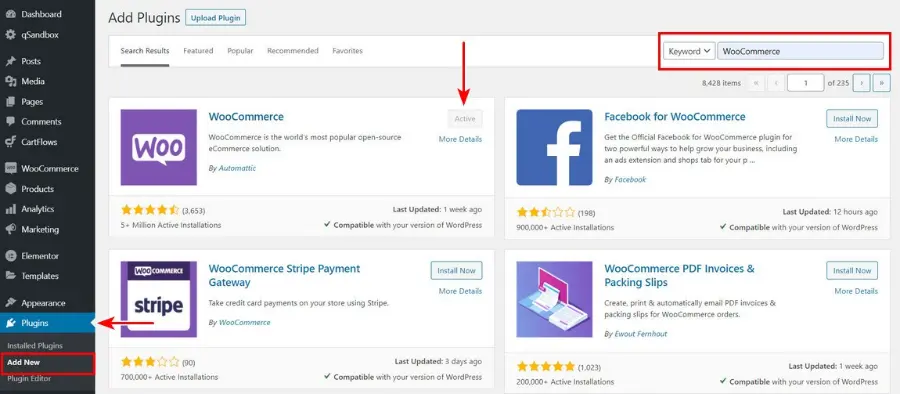
- Navigate to the Plugins section located on the left-hand menu of the WordPress dashboard.
- Select Add New.
- In the search bar, type the exact name of the plugin.
- Locate the correct application, which is authored by Automattic and features millions of active installations.
- Click Install Now, wait for the installation to finish, and then click Activate.
Upon activation, the system automatically redirects administrators to an introductory configuration screen. Understanding how to set up WooCommerce correctly begins with this initial onboarding wizard.
Navigating the Store Profiler
The initial setup wizard simplifies the technical backend by asking straightforward questions about the business model. Providing accurate information here ensures that default settings are configured properly.
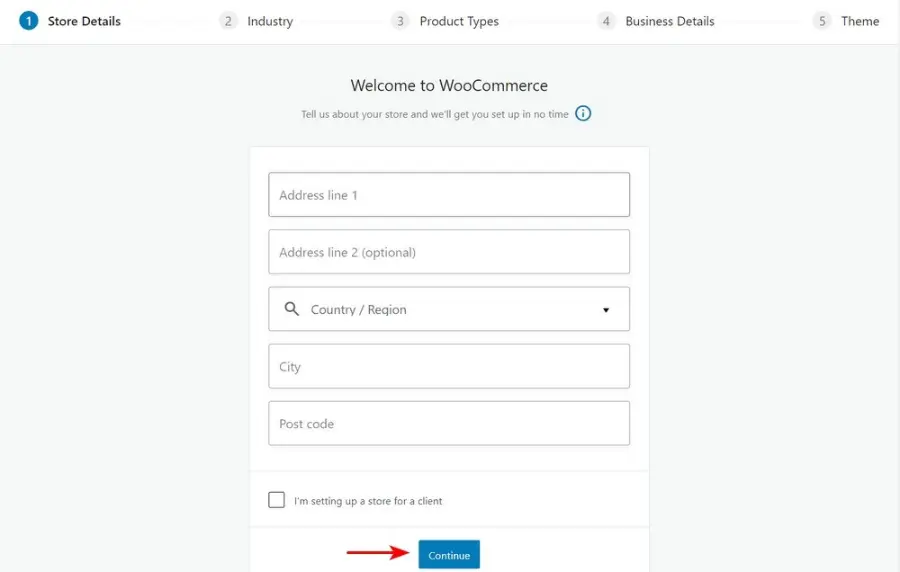
- Store Details: The system requires the physical address of the business. This information is critical because it dictates default currency settings, base shipping rates, and initial tax calculations. Even if the business operates entirely digitally, a primary address is still required for administrative compliance.
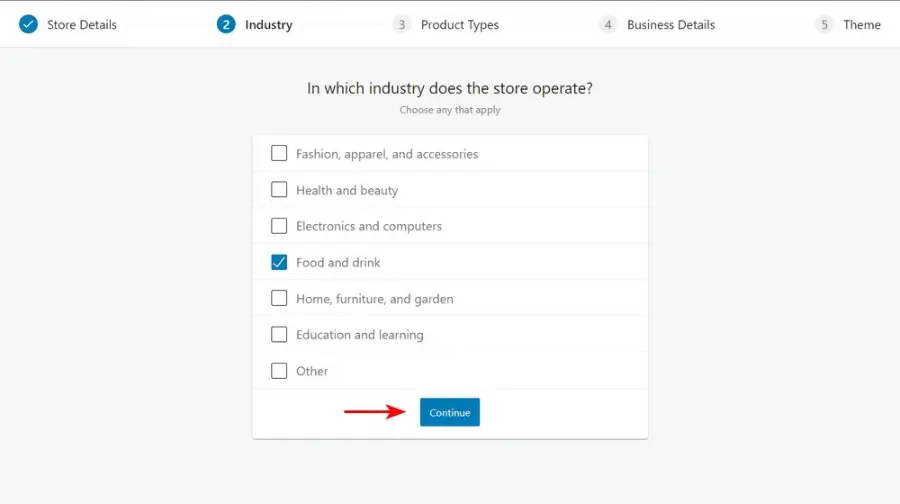
- Industry Selection: Select the industry that best represents the catalog. Options typically include fashion, electronics, health and beauty, food and drink, or an “other” category.
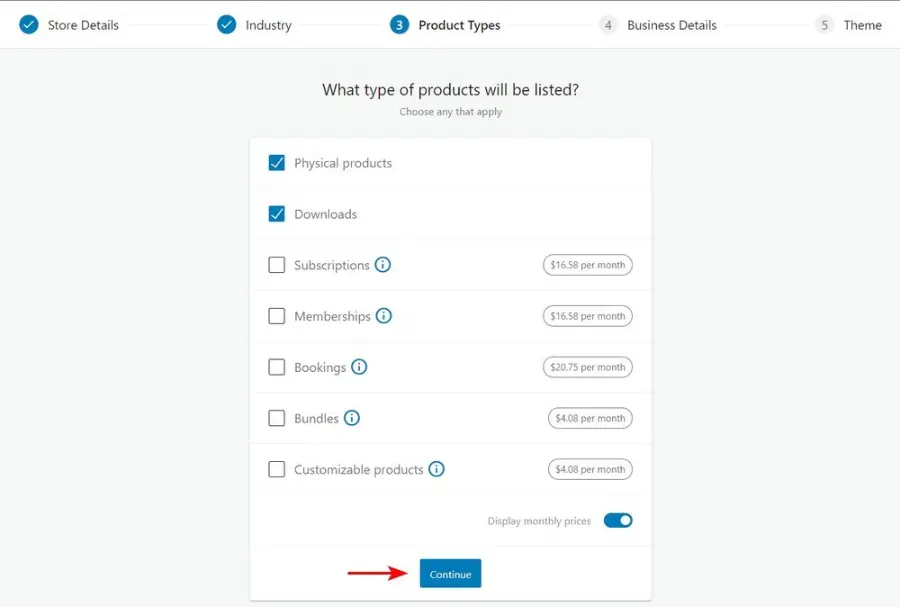
- Product Types: Specify the nature of the goods being sold. The default free options include physical products and digital downloads. If the business model relies on subscriptions, bookings, or customized product bundles, premium features can be integrated later. To expand store capabilities effectively, administrators can easily browse and install various WooCommerce extensions.
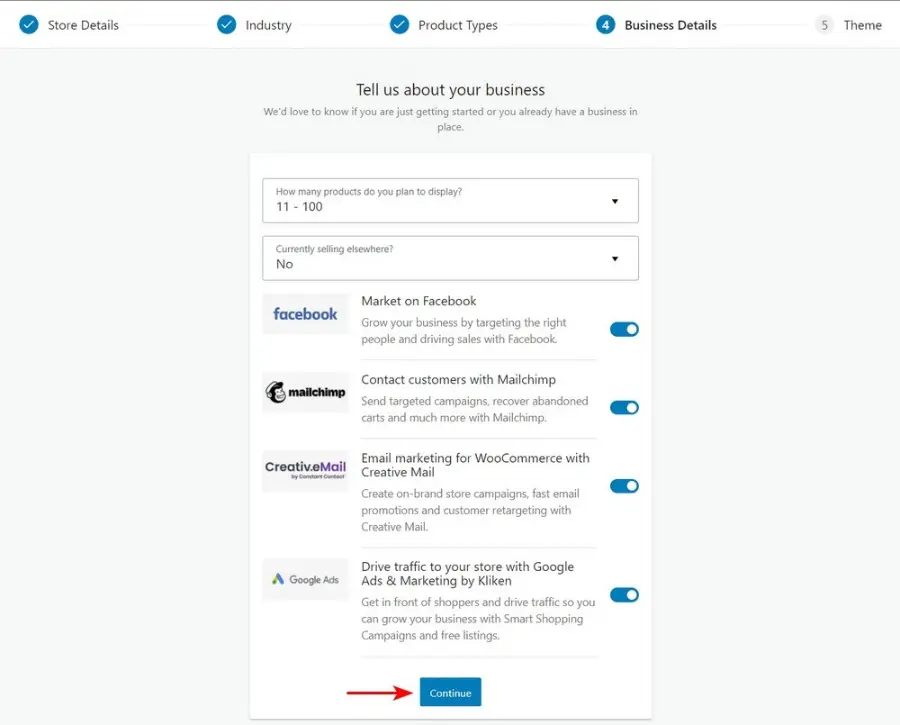
- Business Information: Indicate the estimated number of items planned for the catalog and state whether goods are currently being sold on another platform.
Phase 2: Visual Design and Structure
A functional catalog must also be visually compelling. The presentation of products directly impacts consumer trust and conversion rates.
To properly create an online store with WooCommerce, selecting the appropriate theme is vital.
Selecting an eCommerce Theme
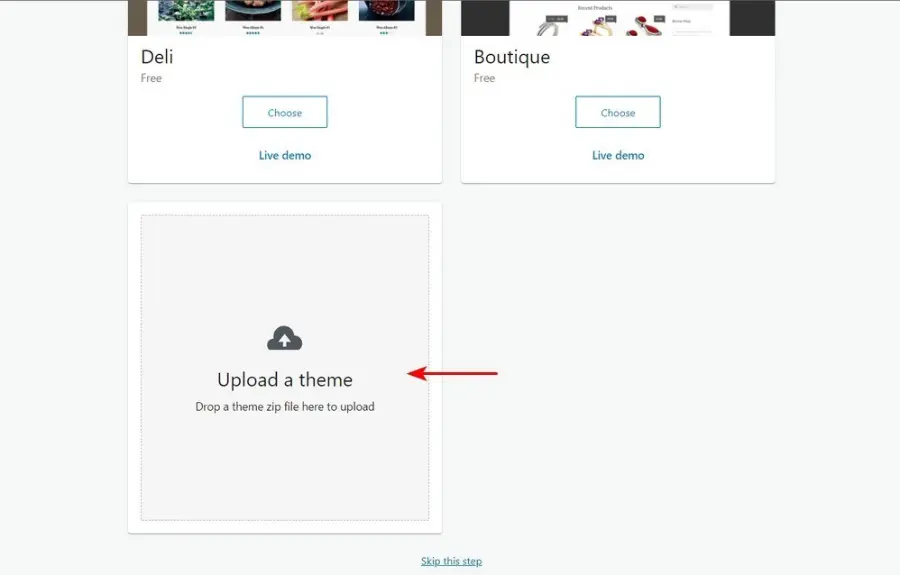
The visual structure of the website depends entirely on the active WordPress theme. If the current theme is incompatible with eCommerce functions, product galleries, shopping carts, and checkout pages may display incorrectly.
Many professionals prefer a dedicated eCommerce theme optimized for performance, such as adot. adot is renowned for its rapid loading times, deep integration with popular page builders (like Elementor), and an extensive library of starter templates designed specifically for retail.

To minimize initial startup costs while maintaining high quality, exploring the best free WooCommerce themes is a practical approach for new merchants.
Branding and Styling Configuration
Regardless of the chosen theme, specific branding elements must be configured to establish professionalism as you set up WooCommerce store step by step:
- Site Logo: Upload a high-resolution logo with a transparent background to ensure it displays cleanly across desktop and mobile devices.
- Color Palette: Establish a primary brand color for buttons, links, and highlights. Consistency in color psychology guides the consumer’s eye toward critical calls to action, such as the “Add to Cart” or “Proceed to Checkout” buttons.
- Typography: Select readable font pairings. A standard practice is to use a bold, stylized font for headings and a clean, legible sans-serif font for product descriptions and body text.
- Mobile Responsiveness: Ensure that the chosen design adapts seamlessly to smaller screens. A significant portion of digital transactions occurs on mobile devices, making a responsive design non-negotiable.
Phase 3: Catalog Management
With the visual foundation established, the next critical task is populating the digital shelves. A thorough WooCommerce setup guide must address the intricacies of inventory management.
Adding Products Manually
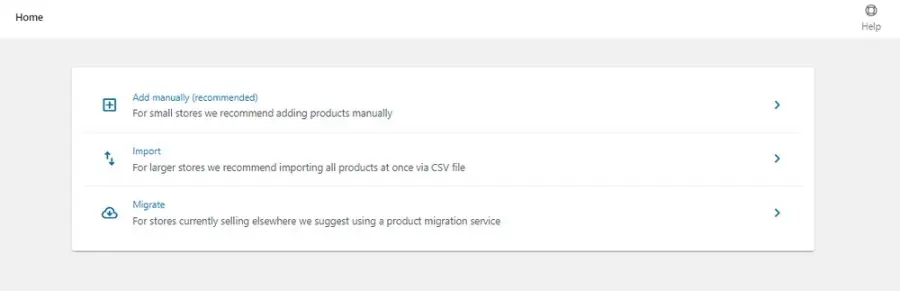
The platform accommodates multiple inventory strategies. Items can be migrated from a previous platform using a CSV importer, or they can be created manually. For a new business, manual creation ensures a deep understanding of the product data fields.
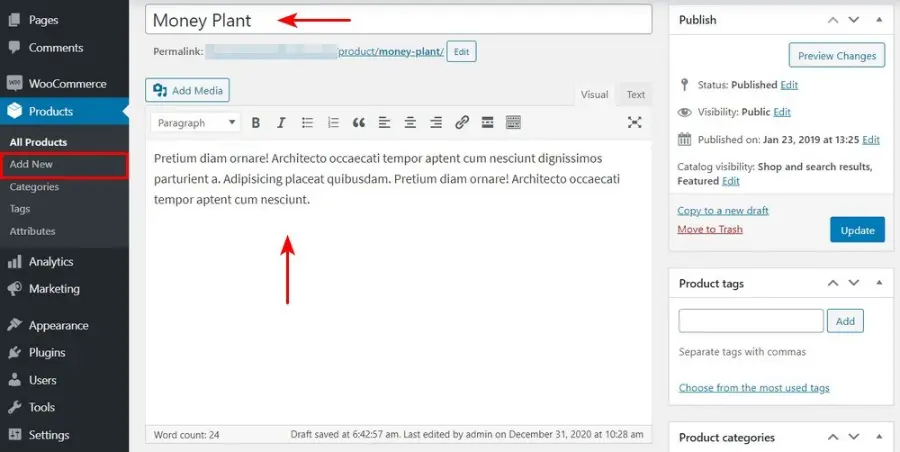
When adding a new item, knowing how to set up WooCommerce properly means focusing on several core sections:
- Title and Description: The title should be clear, descriptive, and optimized for search engines. The main text editor is utilized for a comprehensive long description detailing features, specifications, and benefits. A secondary “Short Description” box controls the concise text that appears immediately next to the product imagery at the top of the page.
- Product Imagery: Upload a high-quality main product image. Below this, add additional angles or lifestyle photos to the Product Gallery to provide a complete view of the item.
- Categories and Tags: Organize the catalog logically. Assign the item to a broad Category (e.g., “Men’s Clothing”) and apply specific Tags (e.g., “Summer”, “Cotton”) to aid site navigation.
Configuring the Product Data Box
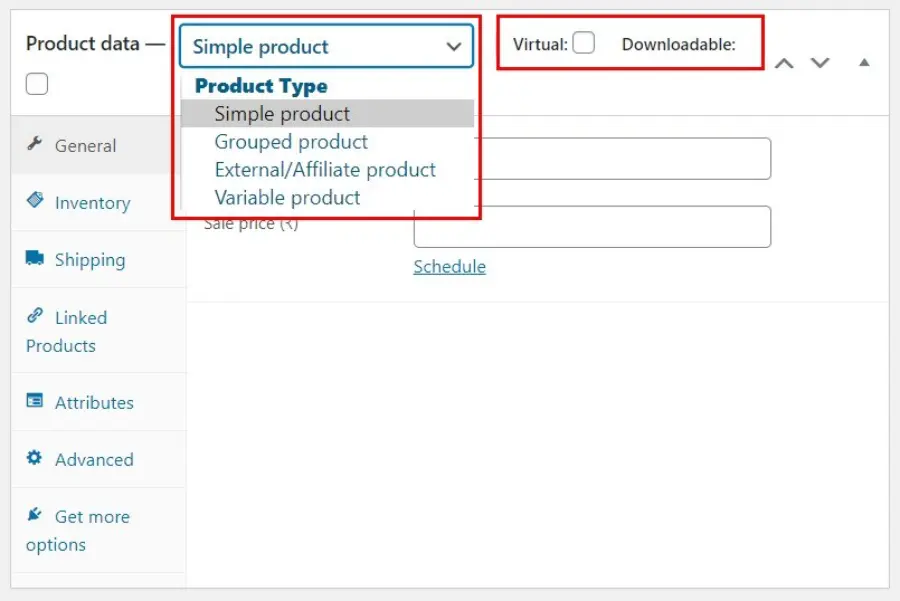
The Product Data Box is the operational core of the item. The exact product type must be selected from a dropdown menu:
- Simple Products: Standard physical items with no variations (e.g., a single printed book or a coffee mug).
- Variable Products: Items that require customer selection, such as a t-shirt available in multiple sizes and colors. This requires setting up “Attributes” (Size, Color) and generating “Variations” for each combination.
- Grouped Products: A collection of related items that can be purchased individually but are displayed together.
- External/Affiliate Products: Items listed on the site but sold and fulfilled by a third-party vendor.
If a simple product is a service, checking the “Virtual” box removes shipping calculations at checkout. If it is an eBook or software, checking “Downloadable” provides fields to upload the digital file and set strict download limits.
Finally, navigate to the Inventory tab within the Product Data Box. Enter the regular price, sale price, and SKU (Stock Keeping Unit). Enable stock management to track inventory quantities accurately and automatically hide out-of-stock items from the public catalog.
Phase 4: Financial and Logistical Operations
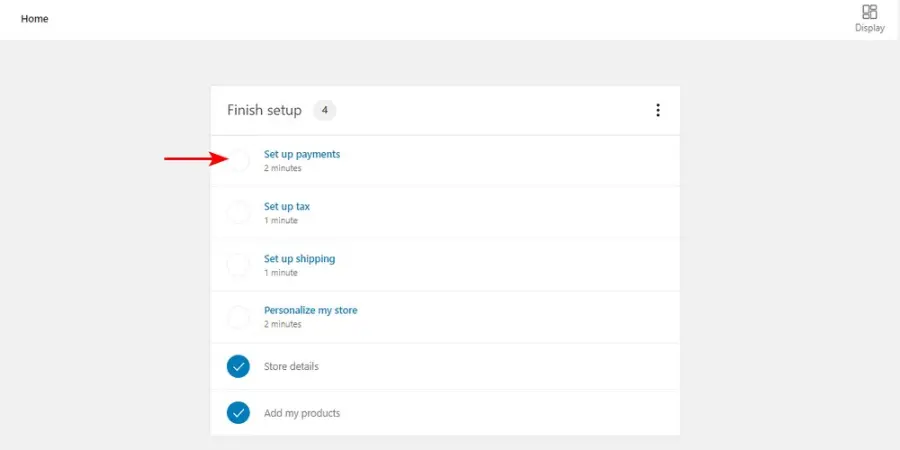
A retail website cannot function without the ability to process payments, calculate taxes, and charge for delivery. This WooCommerce tutorial for beginners details how to configure these vital operational metrics.
Establishing Secure Payment Gateways
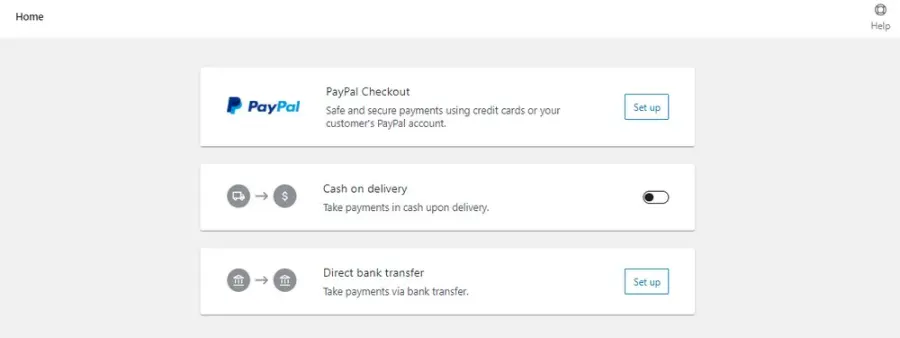
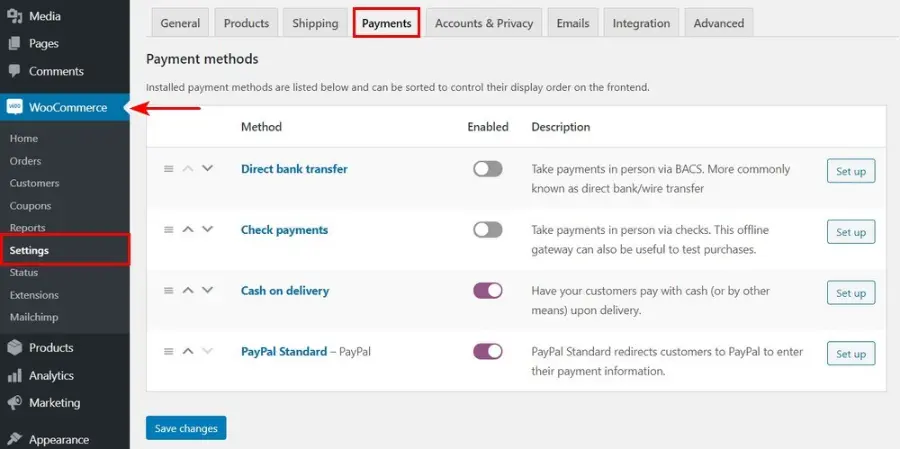
Navigating to the Payments settings reveals multiple methods for capturing funds securely when you create an online store with WooCommerce. The platform supports a vast ecosystem of international and local payment processors.
For platforms focusing specifically on digital knowledge and courses, selecting the best payment gateways for eLearning guarantees smooth and secure student transactions.
- WooPayments: The native solution simplifies financial management by allowing administrators to view deposits, track customer disputes, and manage transactions directly within the WordPress dashboard. It streamlines the checkout experience and keeps users on the website.
- Third-Party Processors: Depending on regional availability, globally recognized options like Stripe, PayPal, or Square can be activated. Each requires secure account authentication with the respective provider.
- Offline Payments: For localized businesses or B2B operations, manual methods such as Cash on Delivery (COD), direct bank transfers (BACS), or check payments can be enabled. These bypass immediate credit card processing.
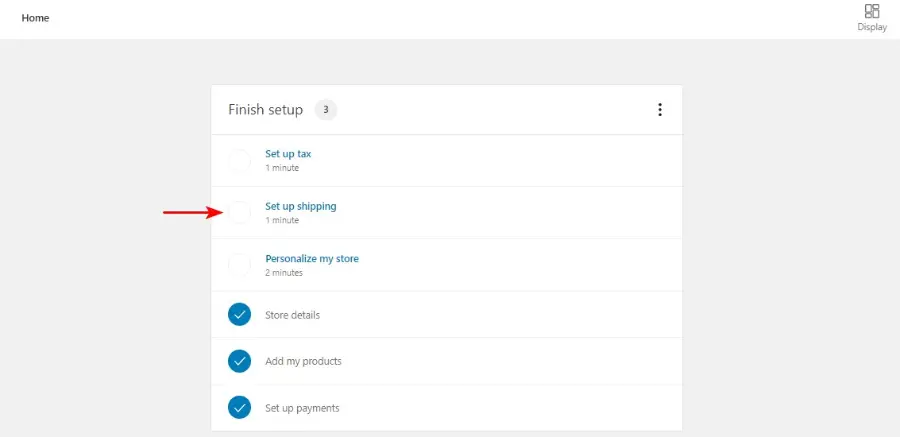
Structuring Shipping Parameters
Shipping is often the most complex logistical hurdle to overcome. To manage this effectively, geographical shipping zones must be defined.
- Shipping Zones: Create a distinct zone (e.g., “North America,” “Europe,” or “Local Region”) and assign specific countries, states, or postal codes to it.
- Shipping Methods: Within each established zone, assign available delivery methods. Common options include Flat Rate (a fixed fee applied per order or per individual item), Free Shipping (often triggered automatically by a minimum order threshold or a specific promotional coupon), and Local Pickup.
- Shipping Classes: For catalogs containing items of vastly different weights and sizes, shipping classes are used to group similar items. For instance, a “Heavy Freight” class can be created to apply a mandatory surcharge whenever exceptionally heavy goods are added to the cart.
Ensuring Tax Compliance
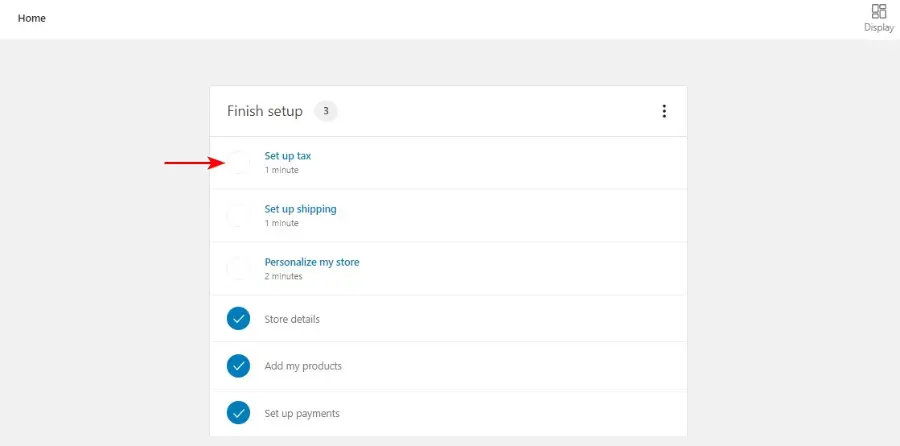
Legal compliance regarding sales tax or Value Added Tax (VAT) is mandatory for commercial operations. The system provides three primary avenues for handling taxation:
- Automated Taxes: Automated tax features can calculate rates dynamically based on the store’s registration location and the customer’s exact shipping address.
- Manual Tax Tables: Administrators can manually input specific tax rates for different countries, states, and postal codes. This requires vigilance to maintain accurate percentages based on ever-changing local tax laws.
- Tax Exemptions: If the business exclusively operates wholesale or resides in a completely tax-free jurisdiction, tax calculations can be disabled entirely in the general settings tab.
Phase 5: Testing and Optimization
Legal & Compliance Automation
Before launching your store to the public, ensuring it complies with regional laws is just as important as site performance. For example, if you sell to European customers, the upcoming EU Directive 2023/2673 requires a clear, compliant withdrawal and returns flow.
To handle this seamlessly, we highly recommend the EasyReturn Withdrawal Button. It is a lightweight, open-source solution built specifically to support this EU compliance across WooCommerce. It is completely plug-and-play, meaning you can integrate a fully compliant returns infrastructure without requiring any custom development.
Before announcing the launch to the public, the entire infrastructure must be rigorously tested and optimized to prevent lost revenue and poor customer experiences. To set up WooCommerce store step by step perfectly, the final testing phase cannot be skipped.

Validating Default Pages and Workflows
Upon initial installation, the software automatically generates several indispensable pages: the Shop (the main catalog archive), the Cart, the Checkout, and the My Account page.
Administrators must navigate through the live website exactly as a potential customer would. Open an incognito browser window, add an item to the cart, and proceed to the checkout screen.
An excellent tip from this WooCommerce tutorial for beginners is to always test the front-end experience. Verify that the layout renders correctly, paying special attention to mobile devices. Ensure that the selected payment gateways load properly and that shipping calculations update dynamically when a test address is entered.
Processing a live test transaction using a real credit card—and subsequently refunding it from the dashboard—is the best way to confirm funds are captured correctly.
Extending Functionality with Plugins
The core software is intentionally streamlined to maintain fast performance. As highlighted in this WooCommerce tutorial for beginners, the core software is intentionally streamlined to maintain fast performance. To ensure the catalog loads instantly and efficiently under heavy traffic, administrators often rely on the best WordPress speed optimization plugins available in the repository. To maximize conversion rates and automate workflows, additional WordPress tools are frequently employed.
- Sales Funnels: They can replace the default, generic checkout page with frictionless, conversion-focused designs. Features like one-click post-purchase upsells and pre-purchase order bumps can significantly increase the average order value.
- Cart Enhancements: To further improve the shopping experience, integrating the best WooCommerce sliding side cart plugins allows users to review their selections, apply coupons, and see shipping estimates without leaving the current product page, thereby reducing friction.
- Form Builders: If products require custom data collection prior to purchase (e.g., engraving text, custom measurements, or special instructions), a dedicated form builder can capture this data cleanly without breaking the standard checkout flow.
- Workflow Automation: Automation plugins can connect the store to external CRM platforms, email marketing software, or inventory management spreadsheets, reducing manual administrative labor.
Conclusion
By methodically configuring the installation wizard, optimizing product data for visibility, structuring precise shipping rules, and rigorously testing payment integrations, administrators establish a highly resilient retail foundation.
Mastering how to set up WooCommerce grants total autonomy over the digital retail experience. It frees businesses from the financial constraints of hosted platforms, avoids unnecessary commission fees, and opens the door to limitless scalability and custom functionality.
Following this WooCommerce setup guide frees businesses from the financial constraints of hosted platforms, avoids unnecessary commission fees, and opens the door to limitless scalability and custom functionality.
For a detailed breakdown of potential expenses, reviewing a comprehensive guide on WooCommerce pricing can help with long-term financial planning. With the catalog populated and operations optimized, the store is now prepared to welcome customers and process sales efficiently.
Frequently Asked Questions: How to Set Up WooCommerce for Your Website
1. Is it difficult to configure this platform for the first time?
The initial configuration is highly accessible for users familiar with the WordPress dashboard. The built-in setup wizard guides administrators through the fundamental requirements, such as business location, currency, and product types. While advanced features like conditional shipping logic or complex variable products may require a brief learning curve, the basic launch process can be completed swiftly.
2. Are there mandatory recurring costs associated with the core plugin?
The core plugin is open-source and entirely free to download and use. However, operating a website inherently carries foundational costs. Administrators must pay for a domain name, reliable web hosting, and an SSL certificate. Furthermore, while the base software is free, specific premium extensions for recurring subscriptions, advanced payment gateways, or specialized shipping API integrations may require annual licensing fees.
3. Can this platform handle an unlimited amount of inventory?
Yes, the software architecture is designed to scale and does not impose hard limits on the number of products, categories, or variations that can be added to the database. The true limitation lies in the capability of the chosen web hosting environment. A store with tens of thousands of variable products requires a robust, high-performance hosting server to maintain fast page load speeds and prevent database timeouts.
4. What happens if the default checkout page is not converting well?
The default checkout experience is functional but intentionally generic. Administrators can heavily modify this flow using third-party plugins. Tools are readily available to create frictionless single-page checkouts, implement automated abandoned cart recovery emails, and offer pre-purchase order bumps. Implementing these strategies is proven to optimize conversion rates and recover otherwise lost revenue.
5. Do I have to use a specific theme to create an online store with WooCommerce?
While the software technically works with most standard WordPress themes, utilizing a dedicated eCommerce theme is strongly advised. Themes specifically built for retail operations ensure that crucial elements like product image galleries, mini-cart widgets, and mobile checkout displays function flawlessly. Standard blogging themes often require extensive custom CSS modifications to display retail elements properly.
Read more: 7 Best AI Blog Post Generators For SEO Success
Contact US | ThimPress:
Website: https://thimpress.com/
Fanpage: https://www.facebook.com/ThimPress
YouTube: https://www.youtube.com/c/ThimPressDesign
Twitter (X): https://x.com/thimpress_com