Engaging website visitors and gathering actionable feedback requires a seamless user experience. Whether the goal is to collect customer inquiries, register students for an online course, or gather post-purchase reviews, interactive elements are essential. However, installing numerous heavy plugins to build questionnaires can severely impact performance. To improve website speed, the most efficient and lightweight solution is to embed Google Form in WordPress.
By utilizing this completely free and powerful application, website administrators can gather real-time data, collaborate with team members, and maintain excellent site performance. Understanding how to embed Google Form in WordPress allows webmasters to bypass the limitations of local server storage.
This comprehensive Google Forms WordPress tutorial will explain the benefits of this integration, explore advanced use cases like eCommerce and educational platforms, and provide a detailed walkthrough on how to add these elements to any site seamlessly.
Eduma – Education WordPress Theme
We provide an amazing WordPress theme with fast and responsive designs. Let’s find out!
Step-by-Step Summary: How to Embed Google Form in WordPress
Before diving into the detailed guide, here is a quick summary of the steps required to complete this integration successfully:
- Create the Survey: Build the questionnaire using the Workspace platform. Choose from templates or start blank, add required fields, and customize the design.
- Get the Code: Generate the exact Google Form WordPress embed code by clicking “Send,” navigating to the HTML tab (< >), adjusting the dimensions, and copying the snippet.
- Paste the Code: Add Google Form to WordPress page using your editor of choice (Custom HTML block in Gutenberg, an HTML widget in Elementor, or the Text tab in the Classic Editor).
- Publish & Test: Verify the frontend display to ensure the form is responsive on mobile devices and that submissions register correctly.
An Introduction to the Platform
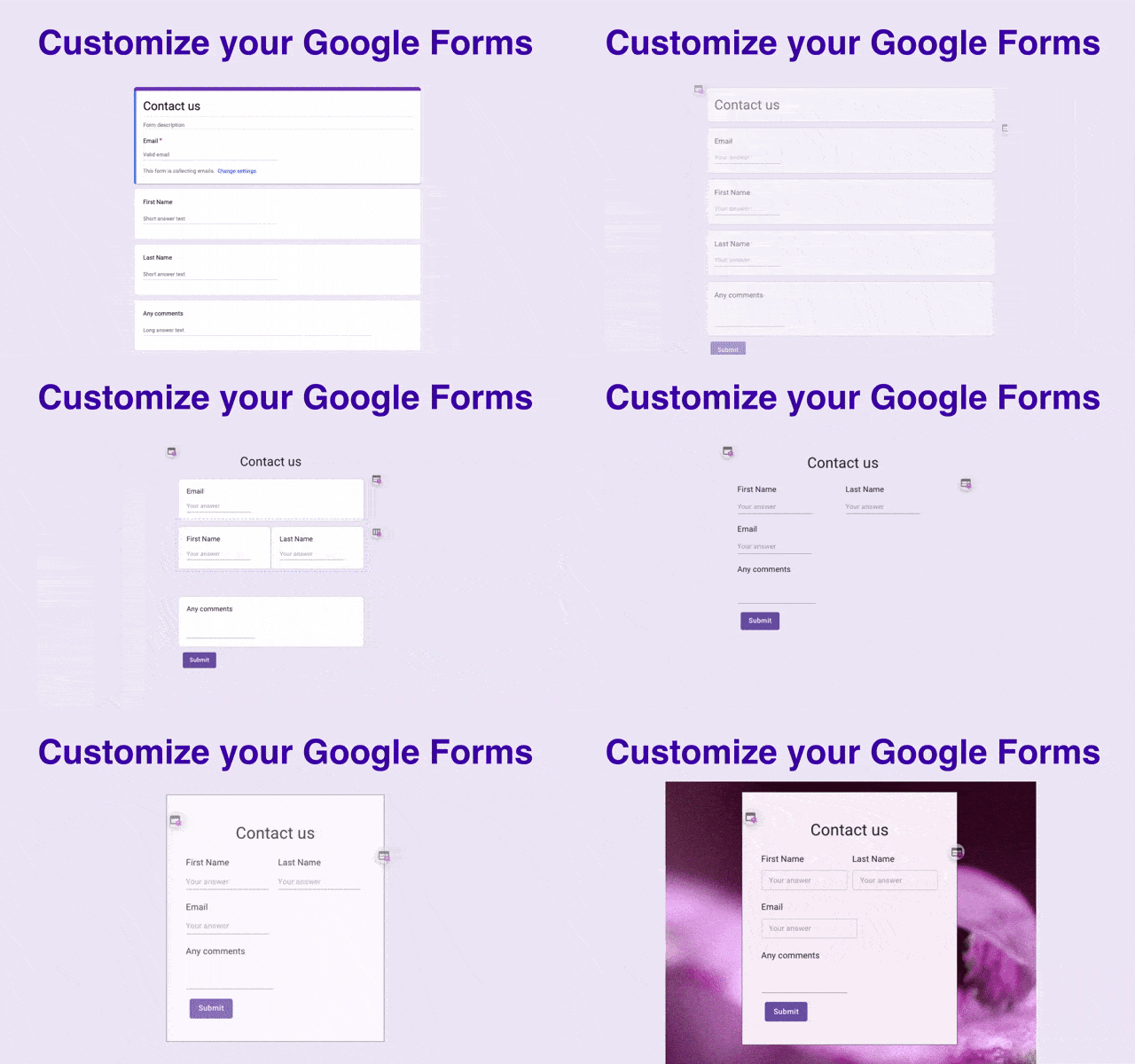
The primary subject of this guide is a highly versatile web application, functioning similarly to Docs or Sheets. It is primarily used to create interactive surveys, questionnaires, and data collection tools. Because it is hosted entirely on external cloud servers, it requires zero database resources from the host server.
Some common, high-converting use cases include:
- Event and webinar registrations for digital marketing campaigns.
- User polls, feedback surveys, and detailed questionnaires.
- Email subscription sign-up interfaces to feed top email marketing platforms.
- Interactive quizzes for LMS plugins like LearnPress and other online education tools.
- Custom product order requests for niche eCommerce stores.
- Standard contact forms for corporate landing pages.
Similar to other Workspace applications, all created assets are securely stored within Drive. This ecosystem provides a robust sharing function, which is particularly beneficial for marketing teams and content creators who need to collaborate on survey design before publication.
The platform simplifies the entire creation process. Users can select from a wide variety of pre-built templates or design custom layouts to save for future campaigns.
Furthermore, styling options allow for basic brand consistency; administrators can adjust color palettes, modify typography, and upload custom logos. The system automatically optimizes the layout for responsiveness, ensuring that the form functions flawlessly on smartphones, tablets, and desktop computers.
Finally, one of the most powerful features is real-time data collection. Responses are immediately logged within the account and can be instantly exported to Sheets. This seamless data transfer makes organizing, assessing, and sharing results with external stakeholders or management teams incredibly convenient.
Why You May Want to Embed Google Form in WordPress
When researching ways to collect user input, many site owners immediately turn to dedicated contact form plugins for WordPress. While these native tools offer integrated functionality, there are several compelling reasons why choosing to embed Google Form in WordPress is often a superior strategy for specific workflows.
- Utilizing external Workspace applications allows website managers to take full advantage of cloud storage and advanced sharing features without utilizing local server space.
- Avoiding the installation of additional heavy plugins is a proven method for maintaining optimal Core Web Vitals. Fewer active plugins generally result in fewer database queries, faster page loading times, and a cleaner backend environment.
- While native plugins allow administrators to grant form-building permissions to other registered site users, utilizing an external platform provides much more granular control over collaboration.
- Project managers can invite specific individuals via email to edit the form, providing enhanced security, preventing unauthorized changes, and avoiding accidental publishing errors.
- Using external forms also unifies cross-channel marketing efforts. A form built with a native plugin is restricted to that specific website domain. Conversely, a standalone link can be distributed across social media profiles, embedded in email marketing campaigns, and integrated into the website simultaneously.
- Regardless of where the audience interacts with the form, all responses funnel into one centralized database.
For those wanting to maintain a lean, fast website, learning how to embed Google Form in WordPress is a critical technical skill.
Prerequisites Before Starting
Before diving into the integration process, ensure the following prerequisites are met:
- An active account (either standard free Gmail or a professional Workspace account).
- Administrator or Editor access to the target website backend.
- A clear understanding of the data that needs to be collected (e.g., text, multiple-choice, file uploads).
- High-quality hosting. It is highly recommended to research the best WordPress hosting providers to ensure your website handles incoming traffic smoothly.
Step 1: Create the Survey
The initial phase of this Google Forms WordPress tutorial requires building the actual survey or questionnaire. Log in to the appropriate account and navigate to the Forms application via the Workspace menu grid. For users familiar with Docs or Sheets, the interface will feel incredibly intuitive.

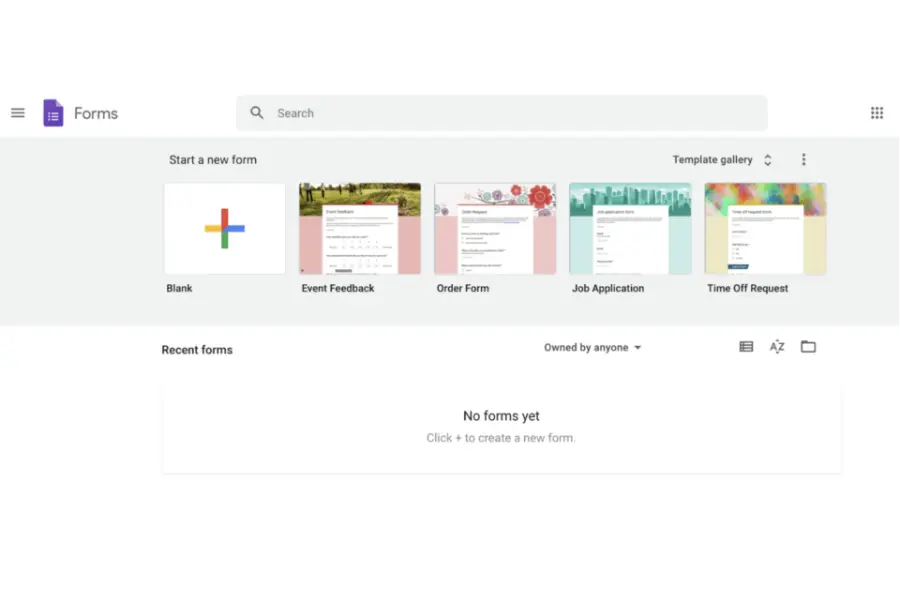
To initiate a new project, select the “Blank” document tile from the upper toolbar or browse the template gallery for a pre-configured layout suitable for the specific campaign.
Once inside the editor, input a descriptive title and a clear set of instructions in the description field. Begin constructing the required fields by typing questions and utilizing the right-hand dropdown menu to define the input type (e.g., short answer, paragraph, checkboxes, linear scale).
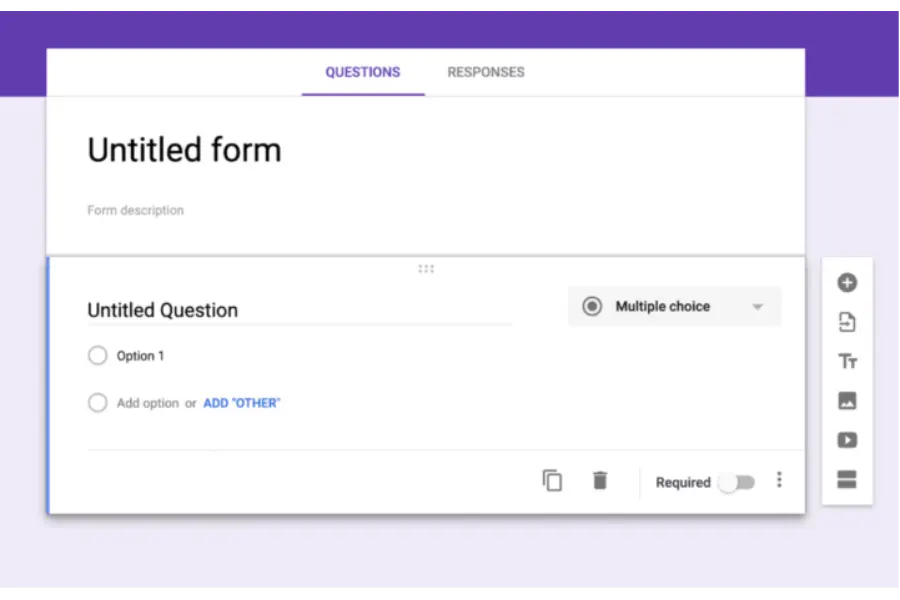
The floating toolbar on the right side of the screen provides extensive customization tools:
- Add Question: Insert new data fields to collect specific information.
- Import Questions: Pull existing fields from previously created surveys to save time.
- Add Title and Description: Create distinct sub-sections for complex questionnaires.
- Add Image/Video: Insert multimedia elements to increase engagement or provide context for educational questions.
- Add Section: Break long surveys into multiple pages to reduce user fatigue and improve completion rates.
To ensure visual alignment with the website’s branding, click the palette icon at the top of the screen to adjust theme colors and fonts. The eye icon allows for a live preview of the final product. All modifications are saved automatically to the cloud. Once the design is finalized and approved by the team, the asset is ready for website integration.
Step 2: Access the Google Form WordPress Embed Code
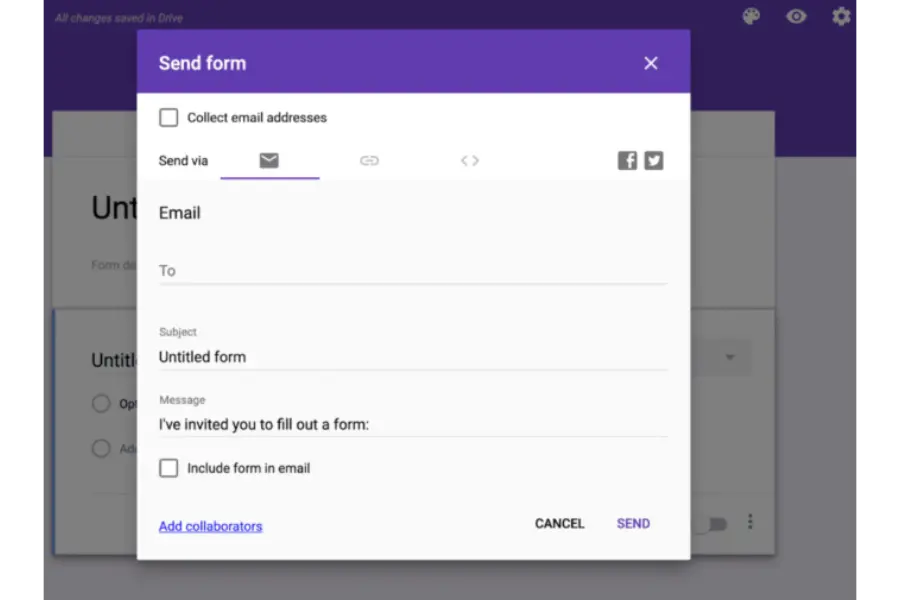
To successfully display the asset on a web page, the exact HTML iframe snippet must be extracted from the platform. Navigate to the top right corner of the editor and click the prominent “Send” button.
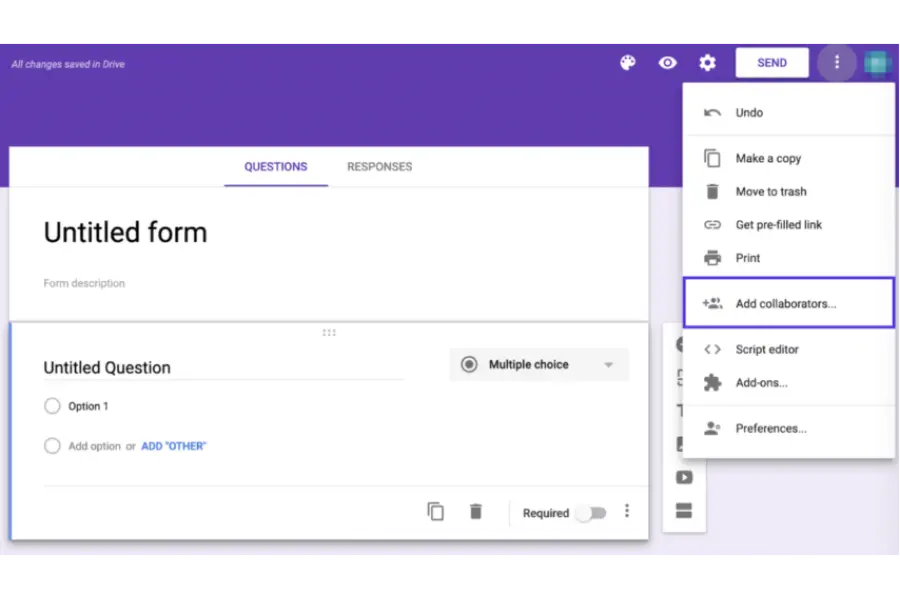
A modal window will appear, presenting various distribution methods, including email, direct link, HTML, Facebook, and Twitter. While the direct link is useful for sharing via instant messaging or email marketing automation flows, website integration requires the raw HTML markup.
Click on the tab featuring the < > brackets. This specific section contains the crucial Google Form WordPress embed code. Beneath the code snippet, there are input fields to adjust the width and height dimensions of the iframe.
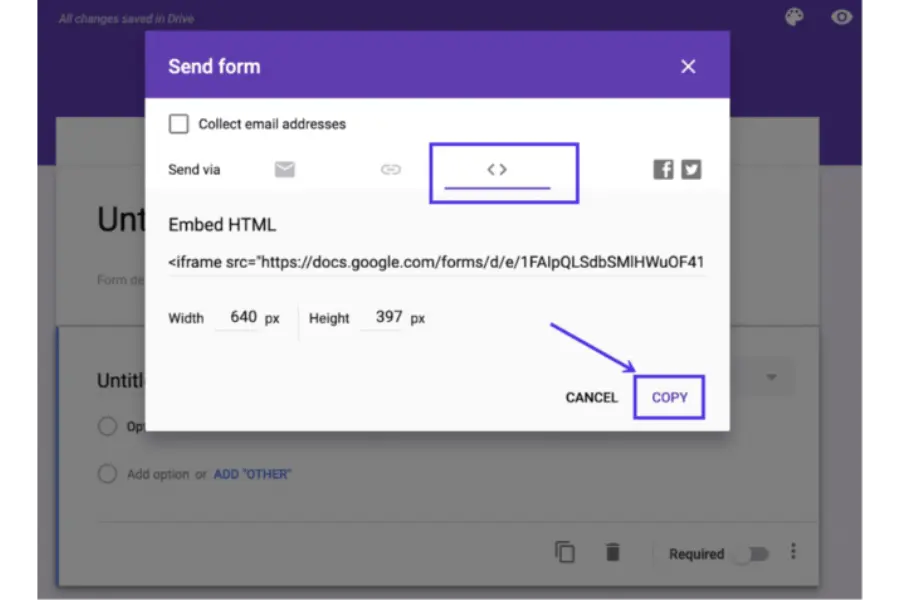
Optimization Tip: While the default dimensions are often sufficient, changing the width to “100%” instead of a fixed pixel number can significantly improve responsiveness across different device screens. This ensures the iframe adapts fluidly to the container size regardless of whether the user is on a desktop or mobile device.
Once the dimensions are configured appropriately, click the “Copy” button located in the bottom right corner of the modal window. With this Google Form WordPress embed code safely secured on the clipboard, proceed to the website’s administrative dashboard for the final placement step.
Step 3: Add Google Form to WordPress Page
The final step involves pasting the copied iframe into the desired location on the website. The exact methodology depends entirely on the type of editor currently active on the site. Below are the specific instructions for the most popular editing environments.
Using the Gutenberg Block Editor
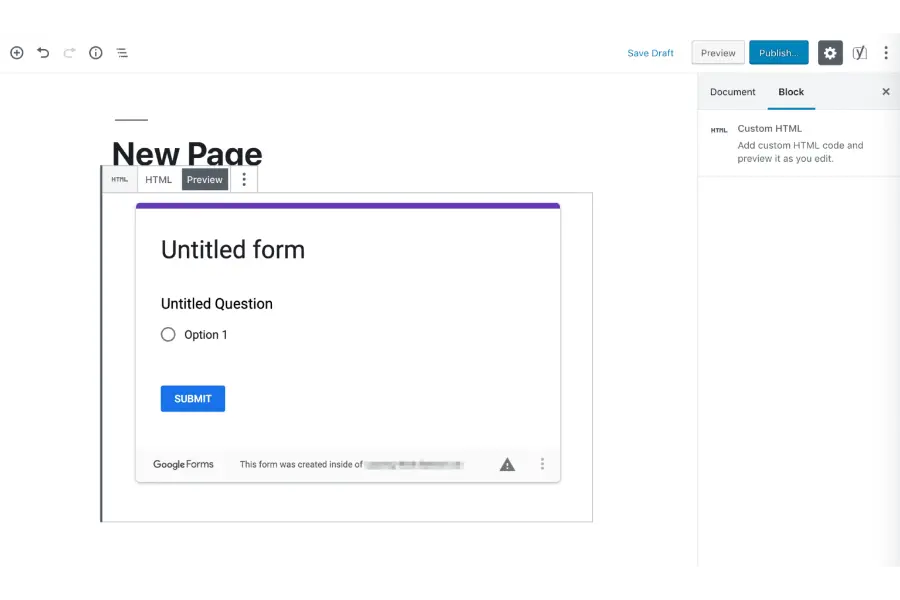
For modern setups utilizing the default Block Editor (Gutenberg), the process to add Google Form to WordPress page is seamless:
- Navigate to “Pages” or “Posts” via the left-hand menu and select “Add New” or edit an existing entry.
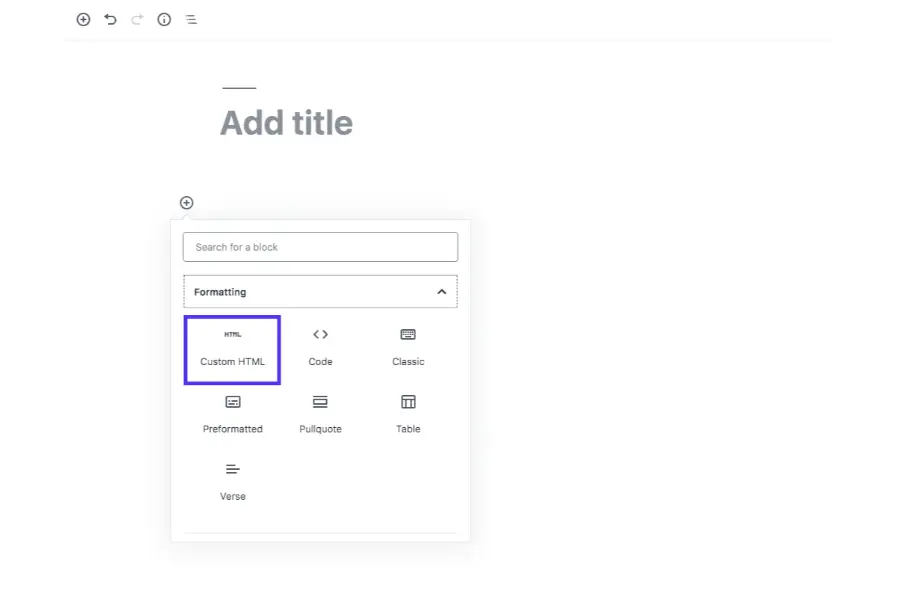
- Click the “+” icon to add a new block to the content area.
- Search for “Custom HTML” in the block directory and insert it into the layout.
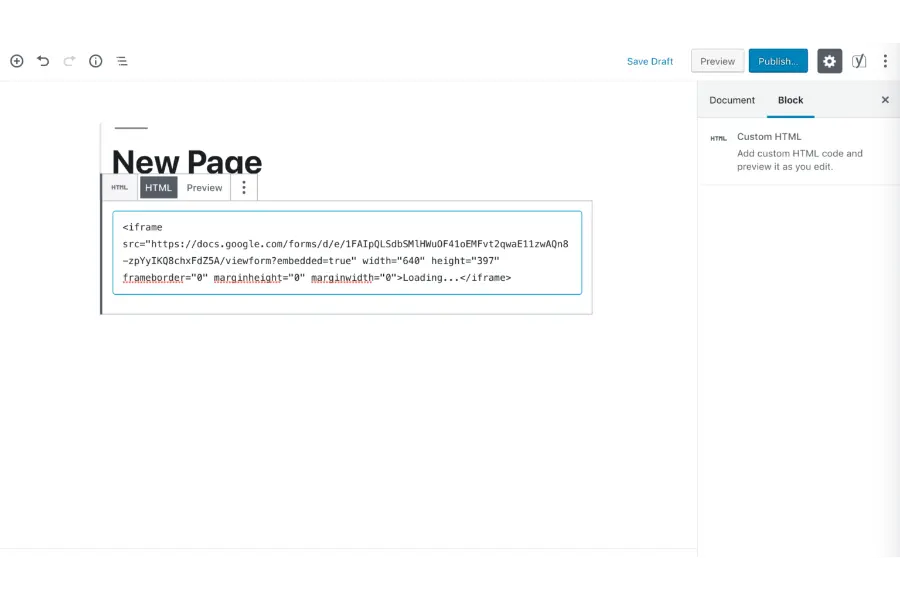
- Click inside the newly placed Custom HTML block and paste the Google Form WordPress embed code into the text field.
- To verify the appearance, click the “Preview” tab located directly on the block’s toolbar. The survey should render exactly as it will appear to visitors.
Using Visual Page Builders (Elementor)
Many professionals designing educational sites, LMS platforms, or complex landing pages utilizing Elementor WordPress themes will use visual builders. To add Google Form to WordPress page using Elementor:
- Open the target page with the Elementor visual editor.
- In the left-hand widget panel, search for the standard “HTML” widget.
- Drag and drop the HTML widget into the desired column or structural section.
- In the widget’s properties panel on the left, paste the Google Form WordPress embed code into the “HTML Code” text box.
- The visual builder will immediately render the external content within the live preview area, allowing for immediate spatial adjustments.
Using the Classic Editor
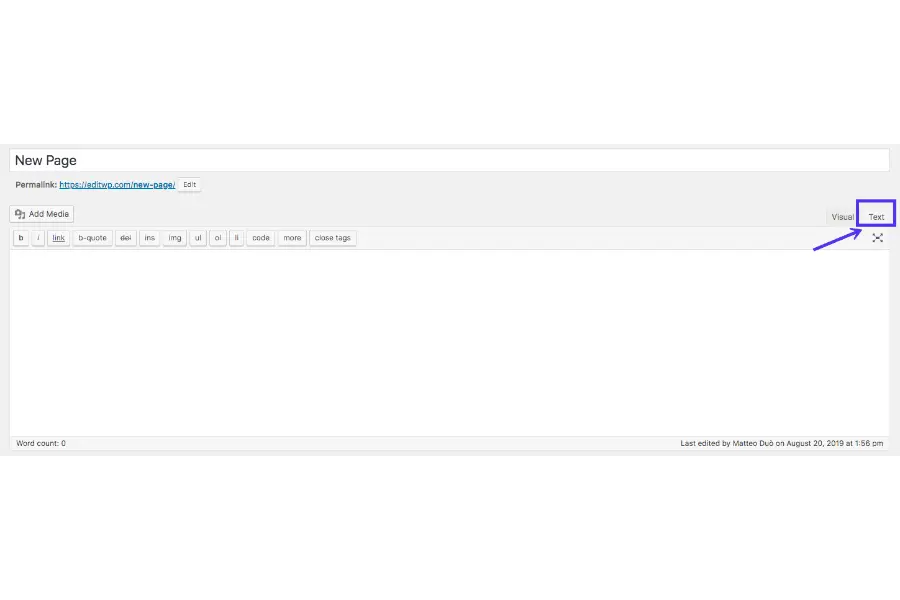
For legacy systems or sites maintaining the Classic Editor for specific workflow reasons, knowing how to embed Google Form in WordPress requires toggling the view mode:
- Open the desired page or post.
- In the top right corner of the main content box, switch from the default “Visual” tab to the “Text” tab. (Pasting HTML into the Visual tab will only display the raw text of the code to visitors, breaking the integration).
- Locate the exact spot where the questionnaire should appear within the HTML structure and paste the snippet. You can read more about how to add HTML forms in WordPress for further context.
- Switch back to the “Visual” tab to confirm the iframe has generated a gray placeholder box, indicating the code is recognized.
After placing the code using any of the above methods to add Google Form to WordPress page, update or publish the page.
Always navigate to the live frontend of the website to test the interface thoroughly, ensuring all fields are clickable, the text is readable, and the submit button functions correctly without being cut off.
Advanced Integration
LMS Platforms and E-commerce
Beyond basic contact pages, data collection is critical for digital commerce and online education. Whether running a WooCommerce store or utilizing dedicated LMS WordPress themes to sell online courses, custom forms can significantly enhance the user experience. This section of the Google Forms WordPress tutorial covers advanced integrations.
Site administrators often require specialized data capture, such as custom pre-order requests, detailed student onboarding questionnaires, or post-course evaluation surveys.
While placing an iframe on a product or course page is easy, a simple embed does not natively share data with the internal database of WooCommerce or the LMS plugin. To achieve synchronized functionality, third-party automation tools are necessary.
SEO and Performance Impacts
A critical aspect of any Google Forms WordPress tutorial is addressing the impact on Search Engine Optimization (SEO). Website speed is a confirmed ranking factor. Every time a native plugin is installed, it adds CSS and JavaScript files to the website’s header, potentially slowing down the page rendering time. Using SEO audit tools can help identify exactly which plugins are causing slowdowns.
When you choose to embed Google Form in WordPress, you circumvent this issue entirely. The iframe loads asynchronously, meaning the main text and images of the website will load first, and the survey will populate shortly after without blocking the main rendering path.
Google Forms vs. Dedicated Native Plugins
To fully understand the landscape of data collection and why one might choose to embed Google Form in WordPress, it is helpful to compare external embedding with native plugins like WPForms, Contact Form 7, or Gravity Forms.
| Feature Category | Google Forms (Embedded) | Native WordPress Plugins |
| Performance Impact | Zero database bloat, incredibly fast loading. | Can increase database queries and slow page speed. |
| Data Storage Location | Securely hosted on Drive and exported to Sheets. | Stored directly in the local WP database. |
| Financial Cost | 100% Free with a standard account. | Advanced conditional logic often requires premium licenses. |
| Styling Integration | Basic color matching, distinct external user interface. | Seamlessly adopts active theme styling and fonts automatically. |
| Dynamic Workflows | Requires third-party tools (Zapier, Make) to trigger events. | Can natively trigger internal site functions and user roles. |
For simple feedback, surveys, student evaluations, and maintaining strict Core Web Vitals performance standards, external embedding remains the most efficient choice. Native plugins are generally only necessary when the interface must directly manipulate internal user roles, process immediate on-site credit card payments, or require complex conditional logic tied directly to other active site plugins.
Best Practices for High Conversion Rates
Simply knowing how to embed Google Form in WordPress and placing a questionnaire on a page does not guarantee user participation. To maximize the volume and quality of responses, implement the following best practices:
- Keep it Concise: Only ask for information that is absolutely essential. Every additional field decreases the overall completion rate. If an email address is all that is required, do not ask for a phone number or physical address.
- Clear Value Proposition: Explain exactly why the information is being collected and how it benefits the user. For educational themes, phrase it as “Help us improve our course materials.”
- Logical Sequencing: Use the section feature within the editor to group related questions together. A multi-step process feels far less overwhelming to visitors than a single massive page of twenty questions.
- Strategic Placement: Ensure you add Google Form to WordPress page high enough in the layout so that users do not have to scroll excessively to find it. Placing it immediately after a strong call-to-action yields the best results.
Troubleshooting Common Display Issues
While learning how to embed Google Form in WordPress is generally straightforward, occasional display anomalies can occur due to theme conflicts or restrictive server settings. Here are solutions to the most common issues encountered after you add Google Form to WordPress page.
Issue 1: The Content is Cut Off at the Bottom
Because an iframe creates a window to an external page, it cannot automatically detect the exact height of the content within it if the user adds long paragraph answers or if multiple error messages appear.
Fix: Return to the Workspace editor, grab a new snippet, and manually increase the height=”xxx” value in the Google Form WordPress embed code to allow extra breathing room for the submit button. You may need to learn how to edit HTML in WordPress safely if the code becomes malformed.
Issue 2: The Iframe is Not Responsive on Mobile Devices
Some older themes enforce strict width constraints that conflict with external iframes, causing the content to bleed off the edge of smartphone screens.
Fix: Ensure the width attribute in the embed code is set to a percentage (e.g., width=”100%”) rather than a fixed pixel count (e.g., width=”640″). This forces the element to expand or contract based on the parent container’s size. Many free education WordPress themes handle responsive iframes automatically.
Issue 3: Scrollbars Appearing Inside the Frame
This occurs when the embedded height is slightly shorter than the actual form height, forcing the browser to add a secondary vertical scrollbar inside the webpage.
Fix: Slightly increase the height attribute in the Custom HTML block until the secondary scrollbar disappears.
Conclusion: Google Forms WordPress Tutorial Recap
Managing website performance while aggressively collecting user feedback requires a delicate technical balance. Utilizing heavy native plugins can slow down critical infrastructure, particularly on resource-intensive setups like eCommerce stores or high-traffic educational portals utilizing LMS frameworks.
By following this comprehensive Google Forms WordPress tutorial, site owners can bypass these performance bottlenecks entirely. The process requires only three distinct steps: creating the survey within the Workspace environment, acquiring the exact HTML snippet from the sending options, and utilizing a Custom HTML block or widget to paste the code onto the desired page.
This streamlined method guarantees zero database bloat, provides instant cloud backups via Sheets, and allows for seamless cross-departmental collaboration. Once website administrators master how to embed Google Form in WordPress, they will possess a reliable, lightweight method for scaling user engagement without compromising website speed or technical SEO integrity. The ability to seamlessly add Google Form to WordPress page layouts is an invaluable asset for modern web management.
Frequently Asked Questions (FAQs)
1. Does deciding to embed Google Form in WordPress slow down my website loading speed?
No. Because the content is hosted entirely on external servers and loaded via an HTML iframe, the processing power is handled by external infrastructure, not your hosting server. This makes it an exceptionally lightweight alternative to installing dedicated local plugins, ensuring your Core Web Vitals remain strong.
2. Where do I find the specific Google Form WordPress embed code?
To locate the code, open your survey in the editing interface, click the purple “Send” button in the top right corner, and click on the tab featuring the HTML brackets < >. This section provides the exact iframe snippet needed for your website integration.
3. Will the survey look good on mobile devices after I add Google Form to WordPress page layouts?
Yes. The interface is inherently designed with mobile responsiveness in mind. To ensure the absolute best fit on smaller smartphone screens, it is highly recommended to change the width attribute in the embed code to “100%” instead of a fixed pixel width before publishing the post.
4. Can I customize the appearance after I embed Google Form in WordPress?
Customization is somewhat limited compared to native plugins. While you can change the header image, background color, and font style within the Workspace editor to match your website’s branding, you cannot apply custom CSS directly to the embedded iframe to change its fundamental structure.
5. Can users upload files (like images or PDFs) through the interface?
Yes, but with a strict security caveat. You can add a “File Upload” field to your survey. However, to utilize this specific field type, the person filling out the questionnaire must be actively signed into an authenticated Google Account, as the uploaded files are deposited directly into your Drive for security purposes.
Read more: How to Embed Google Reviews on WordPress in Minutes
Contact US | ThimPress:
Website: https://thimpress.com/
Fanpage: https://www.facebook.com/ThimPress
YouTube: https://www.youtube.com/c/ThimPressDesign
Twitter (X): https://x.com/thimpress_com