Shoppers actively seek out third-party validation before committing to any purchasing decision. Positive feedback left by real customers acts as the ultimate trust signal in the modern digital marketplace. Displaying authentic, unedited feedback is the ultimate validation tool.
To maximize this impact, businesses must proactively learn how to get more customer reviews and showcase them effectively across all digital touchpoints. Bridging the gap between a casual, hesitant website visitor and a confident buyer often comes down to one critical technical implementation: knowing how to embed Google reviews on WordPress.
For website owners, making the technical decision to embed Google reviews on WordPress is the fastest, most effective way to turn those hesitant visitors into confident, paying customers. This exhaustive guide delivers the exact, actionable steps required to display top ratings automatically, completely bypassing the need for complex software engineering while ensuring maximum search engine visibility.
Eduma – Education WordPress Theme
We provide an amazing WordPress theme with fast and responsive designs. Let’s find out!
The Power of Social Proof and Customer Feedback

Before exploring the technical steps required to add Google reviews to website architectures, it is crucial to understand the underlying mechanics of why customer feedback is universally effective. Social proof dictates that individuals rely on the actions and experiences of others to guide their own choices.
1. Establishing Unshakable Trust
Consumers consistently report trusting online testimonials as much as personal recommendations from friends or family members. A visually appealing layout is important, but nothing validates a company quite like reading detailed, positive experiences from past clients.
Displaying star ratings, detailed comments, and reviewer names guarantees that trust is established the very moment a visitor starts reading the content.
2. Enhancing Search Engine Optimization (SEO)
Search engines continuously evaluate domains based on relevance, user engagement, and content freshness. User-generated content provides a steady stream of new text for search engine crawlers to analyze and index. Furthermore, when prospective buyers stop to read lengthy testimonials, their total dwell time on the page increases significantly.
This increased dwell time acts as a positive signal to ranking algorithms, indicating that the content is valuable.
To further boost your rankings, you might want to explore advanced AI search engine optimization tools that can automate your keyword strategies and content planning.
Additionally, understanding the nuances of machine learning vs AI can help you choose the most effective analytical software for your marketing stack.
3. Driving Higher Conversion Rates
Placing a testimonial near a checkout cart, a contact submission form, or a pricing table serves as a final reassurance for a hesitant prospect. By eliminating doubt precisely at the point of decision-making, administrators can observe a direct, measurable improvement in overall conversion metrics and sales figures.
Key Features of a High-Quality Integration Solution
When deciding to display feedback, selecting the appropriate tool is a pivotal step. Whether opting for a premium service or a capable Google reviews widget free of restrictive paywalls, the chosen solution must possess several critical features to maximize its effectiveness.
Selecting the right best customer reviews plugin for WordPress can make this process entirely seamless.
- Real-Time Data Synchronization: The most efficient tools automatically fetch new testimonials. This functionality guarantees that the interface always displays the most recent feedback without necessitating manual interventions from the webmaster.
- Comprehensive Reviewer Profiles: Authenticity is thoroughly verified when visitors can observe the reviewer’s full name, profile picture, and the exact date the rating was submitted.
- Direct Interaction Elements: A prominent “Write a Review” button actively encourages currently satisfied customers to leave their own ratings, thus creating a continuous loop of positive reputation enhancement.
- Advanced Content Filtering: Not all feedback perfectly aligns with every single service page. Robust filtering options allow administrators to display strictly 4-star and 5-star ratings or exclude specific comments containing irrelevant phrasing.
- Responsive and Adaptive Formatting: The chosen integration must render flawlessly across desktop monitors, tablets, and smartphones. Mobile responsiveness is an absolute necessity for retaining visitors.
Fast Tutorial: Quick Setup to Add Google Reviews to Website for Beginners
For users seeking the quickest route to get their testimonials live, the following streamlined process provides immediate results. This approach utilizes an intuitive visual builder designed for efficiency.
- Navigate to a reputable widget editor platform.
- Select a pre-designed template that aligns visually with the current branding.
- Connect the tool directly to your specific Google Business Profile to authorize the secure data retrieval.
- Customize the layout structure, color palette, and typography.
- Generate and copy the unique installation script.
- Paste the code into the desired page, post, or footer section through the backend dashboard.
Comprehensive Step-by-Step Guide: How to Embed Google Reviews on WordPress
For those requiring a profound understanding of the setup procedure, this section delivers a meticulous breakdown of every stage required to successfully integrate the display. Understanding exactly how to embed google reviews on wordpress guarantees a flawless presentation.
Step 1: Selecting the Ideal Visual Template
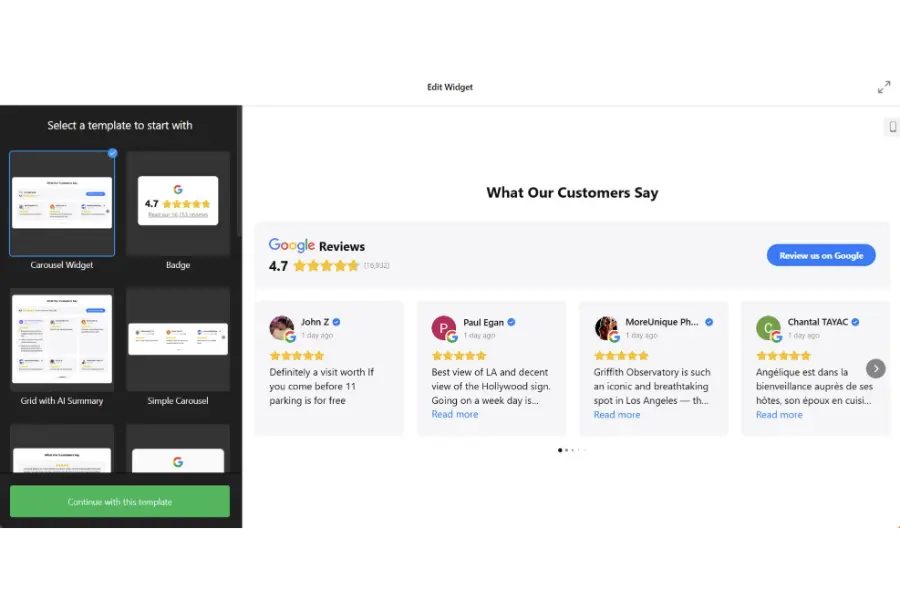
The structural presentation of testimonials drastically influences how they are perceived by the audience. Begin the process by selecting a primary layout within the editor.
- Classic Layout: This structural style mimics the native look of the search engine’s interface, offering immediate visual familiarity and inherent trust to the user.
- Bubble Layout: This format places the primary text inside a stylized speech bubble, positioning the author’s credentials neatly below. It serves as a highly effective option for modern, dynamic brand identities.
- Spotlight Layout: This minimalist design centers the text and removes all distracting outer borders. It is optimal for highlighting long, detailed, and highly emotional stories.
Step 2: Connecting the Business Profile
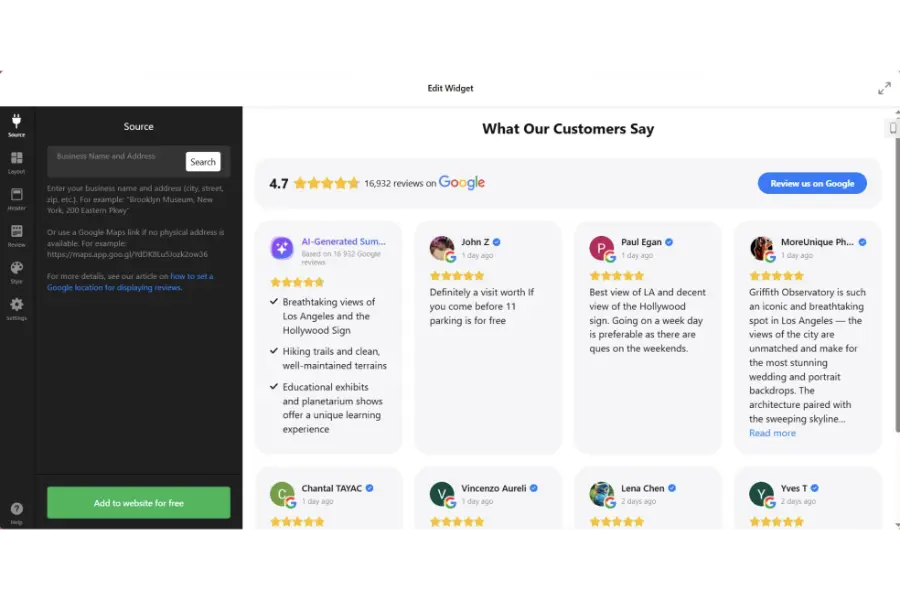
The chosen tool requires explicit permission to read and display public data associated with a specific entity.
- Locate the source connection settings within the editor interface.
- Search for the exact business name or securely input the precise location URL.
- Once the system is authorized, it will pull the historical data directly into the preview pane.
- Apply immediate filtering parameters. If the objective is to curate a highly positive landing page, adjust the minimum rating threshold strictly to four stars and above.
Step 3: Configuring the Structural Layout
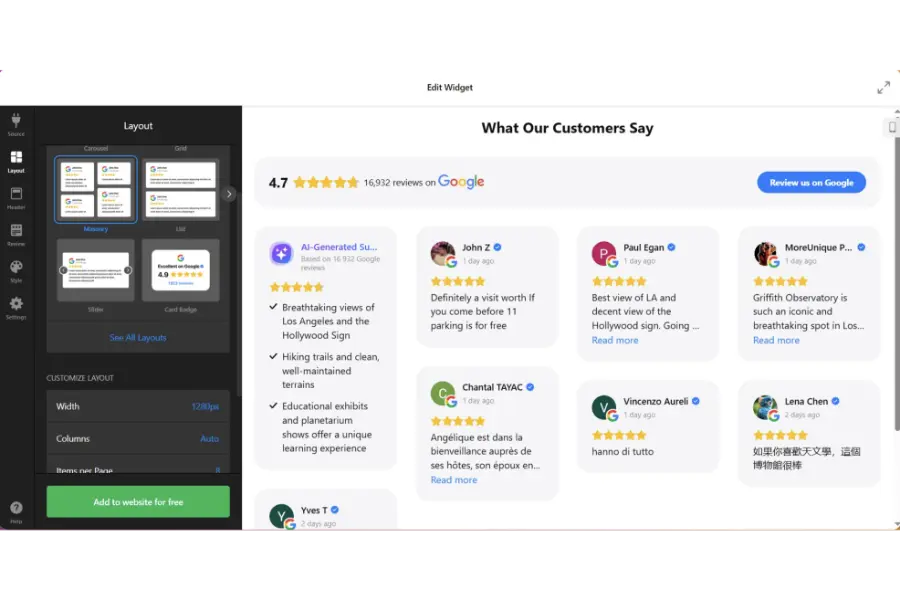
The precise way items are arranged dictates the entire flow of the webpage. Choose a configuration that respects the existing whitespace.
- List Format: Best suited for dedicated testimonial pages where users anticipate scrolling vertically through extensive blocks of text.
- Grid Format: Ideal for expansive, full-width sections. It displays multiple items simultaneously, utilizing available screen real estate with maximum efficiency.
- Slider (Carousel): The universally preferred choice for homepages. It allows multiple items to exist within a highly compact space. Visitors can swipe or click navigational arrows to consume more content.
- Masonry: A highly dynamic configuration that optimally packs items of varying word counts together, successfully eliminating awkward empty spaces.
- Floating Badge: A non-intrusive, sticky element that remains constantly visible in the corner of the screen as the user scrolls downward.
Step 4: Deep Customization and Styling
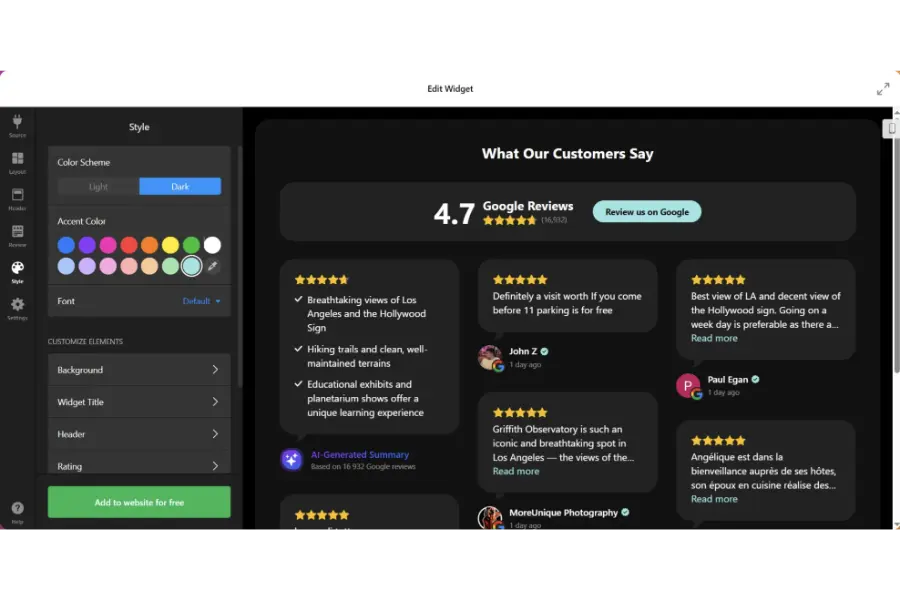
A visually disjointed element actively damages brand authority. The integration must appear as a native part of the underlying content management system.
- Typography Modifications: Match the font family, specific size, and weight to the primary stylesheets. Ensure the main paragraph text is highly legible against its chosen background.
- Color Palette Adjustments: Modify the background color of the individual cards, the text color, and the star elements. Always ensure adequate contrast ratios for strict accessibility compliance.
- Element Visibility Toggles: Decide whether to display or hide specific elements such as the corporate logo, the exact date of submission, or the reviewer’s profile image based on aesthetic minimalism.
Step 5: Advanced Behavior Settings
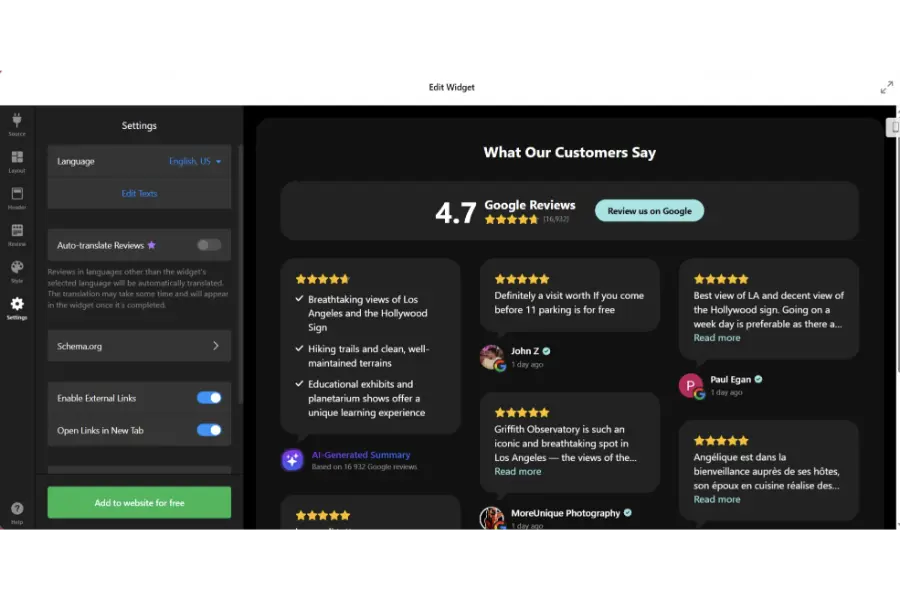
Webmasters must control exactly how the user interacts with the new element.
- Header Configuration: Choose whether to display the aggregate overall rating (for example, “4.8 out of 5 stars based on 350 reviews”) prominently at the top of the section.
- Call-to-Action Modifications: Customize the exact text displayed on the submission button. Instead of a generic label, consider highly localized or brand-specific phrasing.
- Language Adaptation: Ensure the interface elements automatically translate or can be manually adjusted to match the primary language spoken by the target demographic.
Step 6: Generating and Embedding the Code
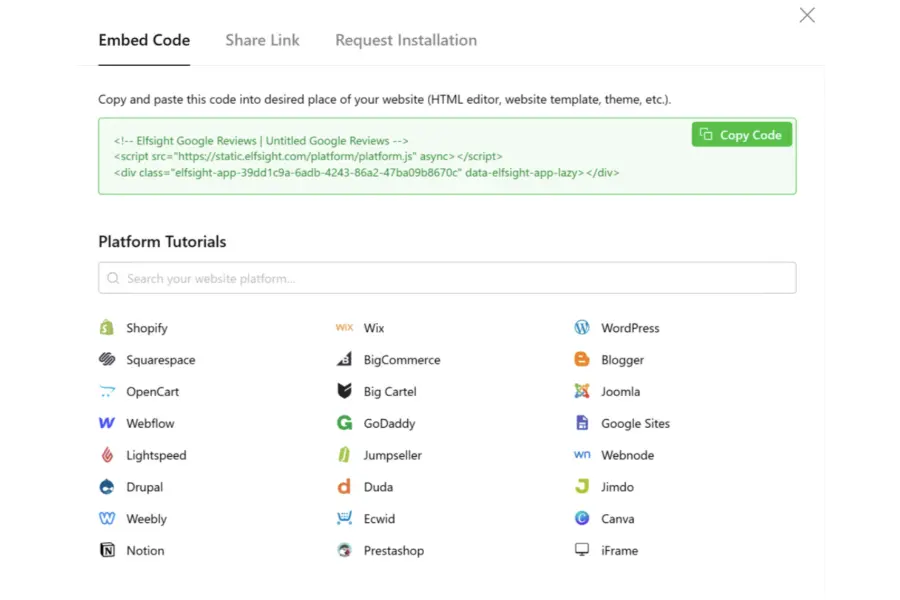
Once the visual preview perfectly matches the desired aesthetic outcome, generate the integration code. The platform will instantly provide a snippet of HTML or JavaScript. Copy this snippet securely to the clipboard.
Executing the Installation Across Different Builders
There are numerous methods to finalize the installation depending precisely on where the element should prominently appear. It is crucial to understand these variations to embed google reviews on website pages effectively.
Installation via the Native Gutenberg Block Editor
- Navigate to the specific Page or Post within the backend dashboard.
- Click the plus (+) icon to add a completely new block to the digital canvas using the native Gutenberg Block Editor.
- Search for and subsequently select the “Custom HTML” block option.
- Paste the previously copied snippet directly into the block’s text field.
- Click the preview button to verify the appearance, then proceed to click “Update” to push the newly created changes live.
Installation Site-Wide via Theme Widgets
For those who want trust signals to remain visible regardless of which specific page the visitor is currently browsing, utilizing footer areas is optimal.
- Navigate to Appearance, then precisely select the Widgets sub-menu.
- Locate the desired widget area, such as “Footer Column 1” or the “Main Sidebar.”
- Drag and drop a “Custom HTML” block securely into this specific widget area.
- Paste the snippet and save all applied changes.
Installation via Page Builders
If utilizing a specialized WPBakery page builder plugin or modern alternatives, the procedure remains largely identical. Add a Raw HTML element or an equivalent widget to the desired column, paste the script, and save the layout.
Exploring Alternative Integration Methods
While utilizing a dedicated visual builder is highly efficient, there are alternative methodologies to achieve similar results. Understanding these variations assists administrators in making a fully informed technical decision.
Alternative 1: Using a Native WordPress Plugin
Many administrators deeply prefer keeping all their tools securely confined within their primary dashboard. Utilizing a specific Google reviews widget WordPress plugin represents a highly viable alternative approach.
The Implementation Process:
- Navigate to the Plugins section and click “Add New.”
- Search the public directory for highly-rated feedback plugins.
- Install and fully activate the chosen software.
- Navigate to the new settings menu automatically created by the plugin.
- Authenticate the necessary API connection by following the provided on-screen prompts.
- Use the plugin’s internal generator to create a shortcode in WordPress, then place that shortcode on specific pages.
Pros and Cons:
This exact method keeps all operations centralized. However, numerous free plugins suffer from severely limited customization options, and poorly coded variations can introduce security vulnerabilities or negatively impact site performance.
Alternative 2: The Official Maps HTML Embed
For localized businesses that primarily desire to showcase their physical geographic location alongside a basic link to their reputation profile, the official map embed is the absolute simplest, albeit most restricted, method.
The Implementation Process:
- Search for the exact business location on the official map platform.
- Click the designated “Share” icon located on the left-hand information panel.
- Select the specific “Embed a map” tab.
- Copy the provided iframe HTML code precisely.
- Paste this exact iframe code into a Custom HTML block placed on a standard contact page.
Pros and Cons:
This approach is entirely native and exceptionally reliable. However, it completely fails to display the actual written text of the testimonials on the webpage itself. It merely shows a map and a generalized star rating, forcefully requiring the user to click away from the domain to read the actual feedback.
For example, property agencies rely heavily on localized trust and visual proof. If you are building a property listing site, integrating full-text reviews into the best real estate WordPress themes can drastically increase inquiry form submissions from potential buyers much better than a simple map embed.
Alternative 3: Custom API Integration
For massive enterprise-level domains or highly complex web applications, dedicated developers can utilize the official Places API to add Google reviews to website architectures completely from scratch.
The Implementation Process:
- Access the official Cloud Developer Console interface.
- Create a completely new project and carefully enable the Places API.
- Generate secure API credentials and stringently restrict them strictly to the specific domain to prevent any unauthorized quota usage.
- Write entirely custom JavaScript or PHP to reliably send requests to the designated API endpoints, accurately retrieve the JSON data, and render it securely on the frontend display.
- Write complex, custom CSS to properly style the raw data output.
Pros and Cons:
This advanced path provides absolute, unrestricted control over every single pixel and data point. Conversely, it strictly requires significant programming knowledge, consistent ongoing maintenance to adapt to any API version changes, and potentially incurs heavy financial billing charges if monthly query quotas are exceeded.
Expert Setup Checklist for Maximum Impact
Simply placing the visual element onto a blank page is never enough. To genuinely benefit from a Google reviews widget free of technical performance issues, one must adhere stringently to this detailed optimization checklist. Taking the proper steps to improve website speed during this process is also paramount.
- Verify Geographic Location Accuracy: Double-check meticulously that the precisely correct geographic listing is actively connected. Multi-location corporate businesses must diligently ensure the fundamentally correct branch’s feedback is displayed accurately on its corresponding local landing page.
- Curate for Extreme Relevance: Actively utilize robust keyword filtering. If strategically placing the element on a highly specific product page, filter the feedback strictly to only show user comments explicitly mentioning that exact product.
- Optimize for Mobile Viewports: Rigorously test the live page across multiple physical mobile devices. Ensure touch-swiping functionality works flawlessly on carousel layouts and verify that all text sizes remain perfectly legible without necessitating manual zooming.
- Implement Asynchronous Script Loading: Diligently ensure the script powering the visual display loads asynchronously. This strategic action absolutely prevents the third-party script from negatively blocking the rendering of the primary page content, rigorously protecting crucial Core Web Vitals scores.
- Strategic Element Placement: Never arbitrarily hide vital trust signals at the very bottom of a long page. Strategically place them near known high-friction areas, such as directly above tiered pricing tables, immediately next to lead capture forms, or prominently on the checkout cart page.
- Monitor API Quotas: If utilizing a custom API-driven method, proactively set up strict billing alerts to ensure the visual display does not unexpectedly break due to unknowingly reaching hard usage limits.
- Provide a Clear Call to Action: Always ensure the dedicated button prompting new feedback remains highly visible. A steady, consistent stream of newly acquired ratings is undeniably crucial for maintaining local search dominance over competitors.
Troubleshooting Common Display Issues When Adding Google Reviews to Website

Even when utilizing the most refined and thoroughly tested tools, technical conflicts can occasionally materialize. Address these common issues systematically to ensure consistent, uninterrupted visibility.
1. The Element Completely Fails to Render
If the allocated space remains entirely blank after saving the page layout, the most common technical culprit is server-side or browser caching. Aggressive performance caching plugins frequently serve an older, stored version of the page that does not successfully include the newly injected code.
The Solution: Immediately purge the entire page cache, clear the content delivery network (CDN) cache comprehensively, and execute a hard-refresh within the web browser.
2. The Layout Appears Broken or Visually Distorted
Occasionally, the surrounding active theme’s underlying CSS will actively conflict with the tool’s integrated styling, causing paragraph text to overlap awkwardly or navigational buttons to misalign entirely. This happens sometimes when using overly complex Elementor WordPress themes with strict global styles.
The Solution: Carefully inspect the specific page elements using native browser developer tools. Search actively for strict CSS rules within the parent theme that might be aggressively overriding the tool’s intended styles. Switch the primary layout style temporarily (for example, transition from Grid directly to List) to observe if the structural conflict naturally resolves itself.
3. New Data Fails to Synchronize
If newly submitted feedback has been officially left on the public profile but consistently fails to appear on the site after several consecutive days, the secure connection may have abruptly timed out or successfully hit an imposed API limit.
The Solution: Proactively re-authenticate the secure connection entirely from within the builder dashboard or the plugin settings menu. Check meticulously if the specific tool possesses a manual “Sync Now” button to forcefully trigger a comprehensive data refresh.
4. Disappearing Content After Routine Updates
If the raw code snippet was dangerously placed directly into a core PHP file instead of safely via a designated widget or block editor, a routine automated theme update will entirely overwrite that specific file, permanently erasing the embedded code.
The Solution: Never arbitrarily modify highly sensitive core theme files directly. Always properly utilize a dedicated Child Theme if manual PHP editing is absolutely required, or strictly utilize the safe native Custom HTML blocks provided reliably by the dashboard interface.
Conclusion: Embeding Google Reviews on Website
Establishing immediate trust is the ultimate cornerstone of digital success in the modern marketplace. Deciding to embed Google reviews on WordPress is no longer an optional aesthetic enhancement; it is a fundamental technical requirement for maximizing conversion rates and building sustainable brand authority.
Whether a business chooses a premium API integration or begins with a basic Google reviews widget free of charge, the technical implementation must prioritize page speed, mobile responsiveness, and automated data synchronization.
By deeply understanding exactly how to embed Google reviews on WordPress, administrators can seamlessly transform static, underperforming landing pages into dynamic, high-converting sales environments. The strategic process to add Google reviews to website architectures—when executed flawlessly with strategic placement and proper schema markup—ensures that prospective buyers are met with undeniable social proof exactly when they experience purchasing hesitation.
Utilizing a dedicated Google reviews widget WordPress solution bridges the vital gap between a casual browser and a loyal, paying customer.
Frequently Asked Questions (FAQs): How to Embed Google Reviews on WordPress in Minutes
Do I require advanced programming knowledge to display this feedback on my pages?
Understanding how to embed Google reviews on WordPress is now accessible to all skill levels. Absolutely no programming knowledge is strictly required to achieve a professional result. By utilizing a reliable third-party visual builder interface or a high-quality, pre-compiled plugin, the entire technical deployment process is heavily simplified.
Will loading an external data feed negatively impact my core web vitals or SEO?
It strictly depends on the exact technical deployment method chosen by the system administrator. High-tier integration services implement asynchronous JavaScript loading (async or defer attributes), ensuring the external text, scripts, and image assets render only after the critical rendering path of your primary website has fully completed. This completely protects page speed scores. Conversely, poorly optimized plugins can cause severe render-blocking delays.
Is it technically possible to permanently delete negative feedback from the frontend display?
Even a basic Google reviews widget free tier usually includes this functionality. Administrators can easily configure the software ruleset to permanently hide any comment falling below a specific star threshold (e.g., hiding 1-star and 2-star ratings), ensuring only optimal feedback renders publicly on the owned domain.
What specific technical adjustments are required if I update my active site theme?
If the precise HTML snippet was injected directly into the main content area of a specific landing page using the standard block editor, completely changing or upgrading the active site theme will not disrupt the integration at all. The data remains tied to the page content. However, if the snippet was deployed inside a theme-dependent widget container (such as a specific footer column or a custom sidebar area defined by the old theme’s PHP files), administrators must manually re-insert the exact code snippet into the new theme’s corresponding container areas.
Can these specialized tools aggregate feedback from multiple different corporate platforms simultaneously?
Yes, advanced, enterprise-grade aggregator software possesses the sophisticated capability to fetch data from multiple independent APIs simultaneously. If you want to broadly embed Google reviews on website databases along with other platforms, seek out a premium aggregator.
Read more: How to Install WordPress on Subdomain for Beginners
Contact US | ThimPress:
Website: https://thimpress.com/
Fanpage: https://www.facebook.com/ThimPress
YouTube: https://www.youtube.com/c/ThimPressDesign
Twitter (X): https://x.com/thimpress_com