Every website you have ever used started as a template somewhere, whether that was a hand-coded HTML file, a Figma frame, or a set of blocks inside WordPress. Learning how to make a website template sounds like a big technical project, but it breaks down into a handful of decisions and a repeatable build process.
This guide walks through the whole thing, from picking the right format to shipping a template you can reuse across dozens of pages. Here is some information you can get from this article:
- What a website template actually is
- Decide what kind of website template you’re building
- Plan the structure before you touch code
- Build the template with HTML and CSS
- Make the template responsive and accessible
- Build a template inside WordPress
- Common mistakes that turn a template into a one-off page
Eduma – Education WordPress Theme
We provide an amazing WordPress theme with fast and responsive designs. Let’s find out!
What a website template actually is?
A website template is a reusable layout, a set of pages, sections, and styles built once so they can be filled with different content over and over without redesigning anything. Instead of building a homepage from zero every time you launch a project, you build the skeleton once (the header, the hero section, the grid, the footer) and swap in new text, images, and colors for each use case.
The payoff shows up the first time you need to change something across many pages at once. After building a single landing page template with color and spacing set through variables for a client site with around 40 landing pages, updating the primary button color across the entire site took one line of code instead of 40 separate edits.
Templates show up in a few different forms depending on where they get used.
Static template vs. dynamic template
A static template is just HTML, CSS, and maybe some JavaScript sitting in a folder. Open it in a browser and it works, no server or database required. A dynamic template lives inside a system like WordPress, Shopify, or a custom app, where the layout is separated from the content so the same template renders differently depending on which page, post, or product it’s pulling data from.
Where templates get used
Agencies build templates so every new client project doesn’t start from a blank canvas. Marketplaces like ThemeForest and Creative Market exist because people buy pre-built templates instead of hiring a designer for every project. And inside a CMS, templates are what let a blog with 400 posts look consistent without anyone touching 400 individual layouts.
Decide what kind of website template you’re building
Before opening a code editor, figure out where this template needs to live, because that decision changes every step after it.
HTML and CSS template (fully coded)
This is a template built entirely in code, with no CMS underneath. It’s the right call if you’re selling on a template marketplace, handing off static files to a developer, or building something lightweight that doesn’t need a content management system at all.
WordPress theme template
This version lives inside WordPress, either as a classic PHP theme or a modern block theme. It’s the right call if the end user needs to log in and edit content without touching code. WordPress still runs a large share of the web. According to W3Techs, it powers roughly 42% of all websites as of 2026, which is one reason WordPress-compatible templates stay in steady demand.
Page builder template (Elementor, Divi, and similar tools)
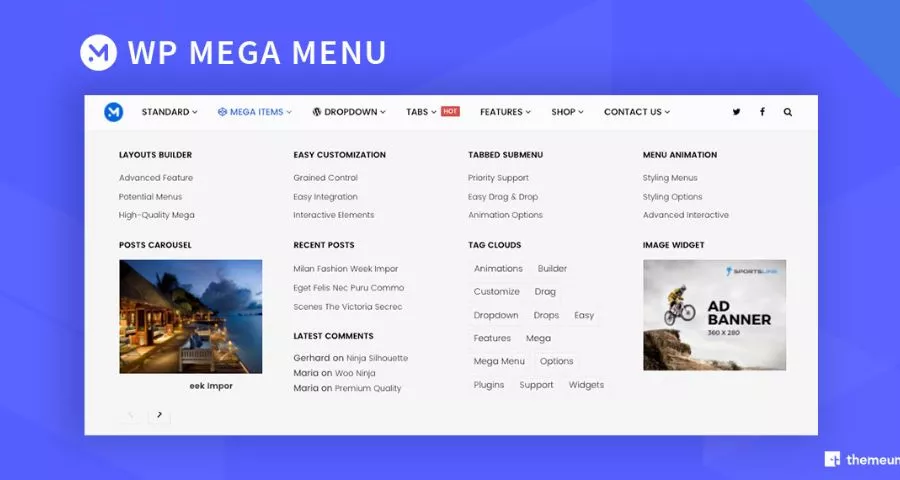
A page builder template is built with a drag-and-drop tool inside WordPress or a similar platform. It’s faster to produce than a coded theme and easier for non-developers to customize later, at the cost of some extra page weight from the builder’s own scripts.
Figma or design-only template
Sometimes the deliverable is just the design file, meant to be handed to a developer to code later. This version skips HTML entirely and focuses on layout, spacing, and component states in a design tool like Figma.
Plan the structure before you touch code
Jumping straight into a code editor is the fastest way to end up rebuilding the same section three times. A short planning pass saves hours later.
Wireframe the key pages
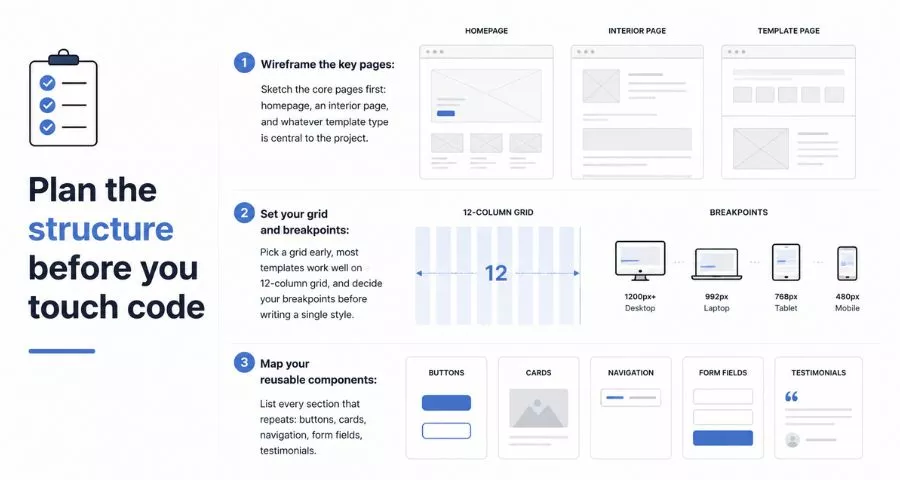
Sketch the core pages first: homepage, an interior page, and whatever template type is central to the project (a product page, a blog post, a service page). A wireframe at this stage doesn’t need color or real copy, just boxes showing where the header, hero, content blocks, and footer sit.
Set your grid and breakpoints
Pick a grid early, most templates work well on a 12-column grid, and decide your breakpoints before writing a single style. A common set is 480px for mobile, 768px for tablet, and 1200px for desktop, though the right numbers depend on the content you’re laying out.
Map your reusable components
List every section that repeats: buttons, cards, navigation, form fields, testimonials. Building each of these once as a standalone component, then reusing it across pages, is what actually makes something a template instead of a one-off page.
It helps to write this list out before opening a code editor, even as a simple bullet list in a notes app. A typical marketing template ends up with somewhere between 10 and 20 recurring components once you count buttons, form fields, cards, navigation states, and footer elements. Missing one at the planning stage usually means rebuilding a page later once the gap shows up in production.
Build the template with HTML and CSS
Once the plan is in place, the build itself moves fast if the file structure is set up right from the start.
Set up your file structure
HTML template keep a clean, predictable structure: an index.html for the homepage, a /css folder for stylesheets, a /js folder for scripts, and an /assets folder for images and fonts. Anyone handed this folder later, including future you, should be able to find any file within a few seconds.
For anything beyond a single page, split the CSS into a base stylesheet (resets, variables, typography) and separate files per component or section, rather than one long stylesheet with everything mixed together. It takes a few extra minutes to set up this structure at the start, but it’s the difference between finding a bug in seconds and scrolling through 2,000 lines of unrelated styles to find the one rule that’s misbehaving.
Build the layout with CSS Grid and Flexbox
CSS Grid handles the overall page layout (the header, main content area, sidebar, footer), while Flexbox handles alignment inside individual components like a navigation bar or a card row. Using them together instead of picking one keeps the CSS shorter and easier to adjust when the content changes.
Make typography and spacing consistent with variables
Define your fonts, colors, and spacing scale as CSS custom properties at the top of the stylesheet, something like --color-primary, --space-md, and --font-heading. When every component pulls from these variables instead of hardcoded values, changing the whole template’s look later means editing a handful of lines instead of hunting through every file.
Make the template responsive and accessible
A template that only looks right on a laptop screen isn’t finished, since most traffic to any given site now arrives on a phone.
Test breakpoints on real devices
Resize the browser window while building, but also open the template on an actual phone and tablet before calling it done. Emulators catch most issues, but touch targets, real font rendering, and actual load times only show up on real hardware.
Add semantic HTML and ARIA where it matters
Use <nav>, <header>, <main>, and <footer> instead of generic <div> tags wherever they apply, and add ARIA labels to icon-only buttons and interactive components that don’t have visible text. This is what lets screen readers, and search engines, actually understand the page structure instead of guessing at it.
Check color contrast
Run your text and background color combinations through a contrast checker before finalizing the palette. A template that looks stylish but fails contrast checks will need a redesign the first time it’s used for a client with accessibility requirements.
Build a template inside WordPress
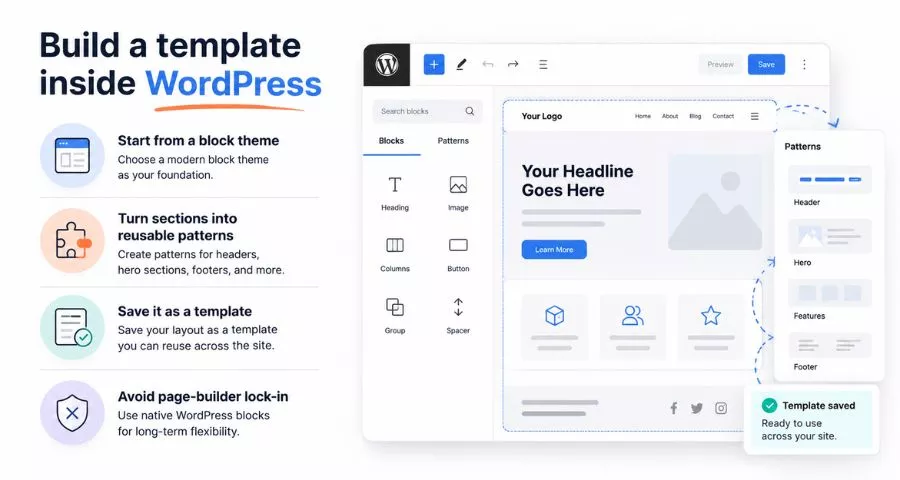
If the template needs to live inside WordPress rather than as standalone files, the process shifts from writing raw HTML to working within the block editor or a classic theme structure.
Start from a block theme
Modern WordPress uses block themes and full-site editing, meaning templates are built visually from the Site Editor rather than hand-coded PHP files. Start from a minimal block theme, then use the Site Editor to build out the header, footer, and page templates using blocks and patterns instead of custom code.
Turn sections into reusable patterns
Any section that repeats, a call-to-action banner, a pricing table, a testimonial block, should be saved as a reusable pattern. Once saved, dropping that pattern into a new page takes one click instead of rebuilding the section from scratch.
Save it as a template you can reuse across the site
WordPress lets you assign specific templates to specific post types or page types under Appearance > Editor > Templates. Once a template is built and saved here, every new post or page of that type inherits the layout automatically, which is the entire point of building a template instead of a single page.
Avoid page-builder lock-in
If the template is built with a page builder like Elementor or Divi, the layout data gets stored in a format specific to that builder. Switching to a different builder or a plain block theme later usually means rebuilding the template from scratch rather than exporting it cleanly, so it’s worth deciding early whether the extra flexibility of a page builder is worth that future switching cost.
Common mistakes that turn a template into a one-off page
A few habits are what separate a genuinely reusable template from a page that only happens to look reusable.
Hardcoding content instead of style
If a heading says “Welcome to Acme Corp” typed directly into the HTML instead of being pulled from a variable or a content field, the template only works for Acme Corp. Keep every piece of client-specific text, from headline copy to phone numbers, out of the core template files.
Skipping the component library
Building a card component three separate times, once for the homepage, once for the blog, once for the pricing page, guarantees they’ll drift apart the first time someone edits one and forgets the other two. Build each component once, store it somewhere central, and reuse the same code everywhere it appears.
Forgetting to document your template
A template with no notes on which files control what, or which CSS variables map to which design decisions, stops being reusable the moment the original builder isn’t around to answer questions. A short README covering the file structure, the color and spacing variables, and any dependencies saves the next person hours.
Test and optimize before you ship it
A template isn’t done the moment it looks right in a browser tab. It needs to hold up under real-world conditions before anyone else builds on top of it.
Run a Core Web Vitals check
Run the finished template through PageSpeed Insights and check Largest Contentful Paint, Cumulative Layout Shift, and Interaction to Next Paint. A template with a slow LCP or a layout that jumps around as it loads will drag down every single page built from it later, so it’s worth fixing at the template stage rather than page by page.
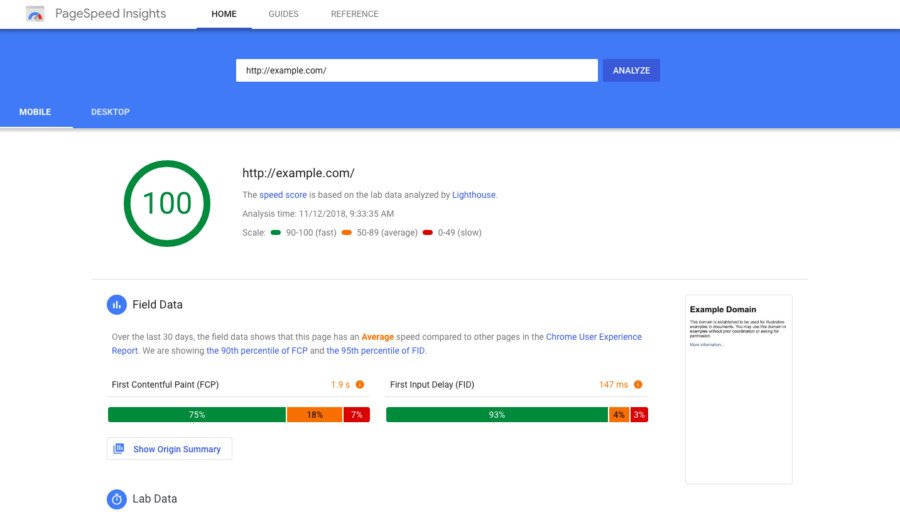
Common culprits at the template level include an unoptimized hero image, a web font that blocks rendering while it loads, and animations tied to scroll position that shift layout before the page settles. Fixing these once in the template file is far cheaper than patching each page individually after the template has already been used a dozen times.
Test across browsers and screen sizes
Open the template in Chrome, Safari, and Firefox at minimum, and check both mobile and desktop widths in each. Small CSS quirks, a flexbox gap that renders differently, a font that falls back unexpectedly, tend to surface in exactly one browser and stay invisible everywhere else until a client finds them.
Validate your code
Run the HTML through the W3C validator and check the CSS for unused or duplicate rules before calling the template finished. A clean, valid codebase is what makes the template easy for someone else, or future you, to build on without guessing why a particular style exists.
FAQs About How to Make a Website Template
A few questions come up often once someone starts actually building a template rather than just reading about it.
What’s the difference between a website template and a theme?
A template usually refers to the layout of a single page type, while a theme is the full package of templates, styles, and functionality that makes an entire site work together. In WordPress specifically, a theme contains multiple templates (for the homepage, blog posts, archives, and so on) plus the styling that ties them together.
Can you sell a website template you build yourself?
Yes, template marketplaces like ThemeForest, Creative Market, and TemplateMonster all accept independently built HTML, WordPress, and Shopify templates, provided they meet each marketplace’s code quality and documentation standards. Most marketplaces require clean, commented code and cross-browser testing before approving a submission.
Do you need to know how to code to make a website template?
Not necessarily. Page builders like Elementor and WordPress’s own block editor let you build a fully functional template through drag-and-drop, without writing HTML or CSS directly. Coding gives more control over performance and customization, but it isn’t a hard requirement to produce a usable template.
What file format should a website template use?
A static HTML template ships as HTML, CSS, and JavaScript files in a standard folder structure, while a WordPress template lives as PHP files or block patterns inside a theme. The right format depends entirely on where the template needs to run, a static HTML template won’t work inside WordPress without conversion, and a WordPress template won’t run as a standalone site.
Conclusion
Learning how to make a website template really just means turning a plan into reusable code: wireframe the pages, build each component once, and keep style separate from content so the same layout can be filled in over and over. Whether that ends up as a hand-coded HTML folder, a set of WordPress patterns, or a Figma file handed to a developer, the same rule holds. A template built this way outlasts the first project it was made for.
Read More: 5 Best Affordable Website Design Packages for Small Business
Contact US | ThimPress:
Website: https://thimpress.com/
Fanpage: https://www.facebook.com/ThimPress
YouTube: https://www.youtube.com/c/ThimPressDesign
Twitter (X): https://x.com/thimpress_com