Transforming professional expertise into a structured online curriculum is a powerful way to monetize knowledge, but the technical process can often seem daunting. The most efficient solution to overcome this challenge is to add a learning management system in WordPress, which empowers users to build a robust educational platform without relying on expensive third-party services. By integrating an LMS directly into an existing site on the open-source WordPress.org platform, course creators gain full control over content, student data, and revenue streams.
For educators and entrepreneurs looking to launch successful online academies, the market offers various tools. However, industry experts consistently recommend LearnPress combined with the Eduma theme. This combination provides the perfect balance of functionality and aesthetic appeal, allowing for the creation of “wow” content that keeps students engaged.
In this comprehensive guide, the following steps will demonstrate exactly how to set up a learning management system WordPress site, ensuring a professional foundation to start teaching immediately.
Eduma – Education WordPress Theme
We provide an amazing WordPress theme with fast and responsive designs. Let’s find out!
What Is a Learning Management System in WordPress?
A Learning Management System (LMS) acts as the digital infrastructure for an online school. Unlike a standard blog post, a WordPress LMS allows site owners to structure content into curriculums, manage student enrollments, administer quizzes, and track progress automatically.
Using a dedicated WordPress LMS plugin essentially upgrades a website from a simple brochure into a fully functional university. This capability is essential for anyone serious about how to create online courses in WordPress.
Why Choose LearnPress and Eduma?
If the goal is to create a site that looks trustworthy and professional, the choice of tools matters.
LearnPress is a comprehensive, free-to-use plugin that handles the “backend” logic—courses, lessons, and payments. It is lightweight, incredibly flexible, and regarded as one of the best free LMS WordPress plugins available.
However, a plugin only handles functionality. For the visual “wow” factor, Eduma is the recommended choice. As the best-selling education WordPress theme for LearnPress, Eduma is specifically engineered to support the plugin. It transforms standard course pages into beautiful, high-converting landing pages. Using Eduma saves hours of design work because it provides pre-built layouts that look like top-tier university websites right out of the box.
The following sections detail the technical installation to get the academy running.

Step-by-Step: How to Install LearnPress
There are three primary methods to install this plugin. Users can choose the one that best fits their technical comfort level. For a detailed breakdown, please refer to the guide on how to install LearnPress plugin.

Method 1: Installation Via WordPress Search (Easiest)
This is the most straightforward method, ideal for beginners who want to add a learning management system in WordPress quickly.
Step 1: Log in to the WordPress Dashboard. Navigate to Plugins and select Add New.
Step 2: In the search bar on the top right corner, type ‘LearnPress’.
Step 3: Look for “LearnPress – WordPress LMS Plugin” in the results. Click the Install Now button.
Step 4: Once the installation process is complete, click Activate to enable the plugin.

Method 2: Installation Via WordPress Admin Plugin Upload
If the plugin file (usually a .zip file) has been downloaded from the Thimpress website or WordPress repository, follow these steps.
Step 1: Visit the Dashboard, go to Plugins, and click Add New.
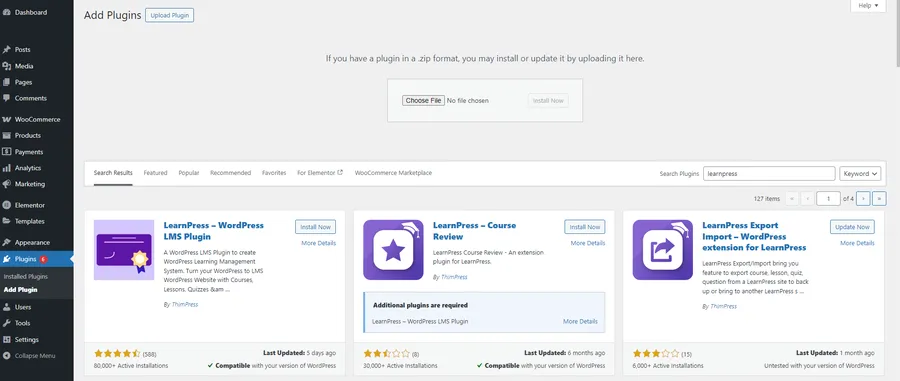
Step 2: Click the Upload Plugin button located at the top of the screen.
Step 3: Click “Choose File” and browse the computer for the learnpress.zip file. Select it and click Install Now.
Step 4: After the upload finishes, click Activate Plugin.
Method 3: Installation Via FTP
For advanced users or those with server restrictions, installing via FTP (File Transfer Protocol) is a reliable alternative. Using a trusted client like FileZilla is recommended for this process.
Step 1: Login to the FTP account using FTP software to access the host web server.
Step 2: Extract the learnpress.zip file on the local computer.
Step 3: Upload the extracted learnpress folder to the /wp-content/plugins/ directory on the server.
Step 4: Return to the WordPress Dashboard, navigate to Installed Plugins, find LearnPress, and click Activate.
Configuring Your LMS (Quick Setup)
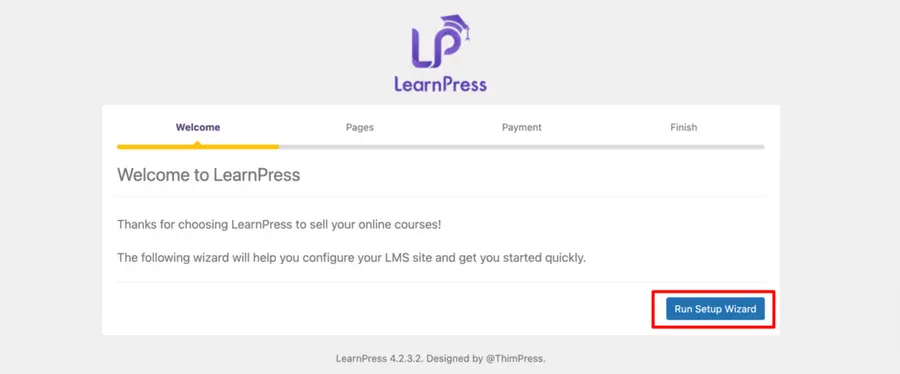
After successfully installing and activating LearnPress, some basic information must be configured before publishing the website. LearnPress provides a convenient “Quick Setup” wizard to streamline this process.
1. Launch the Setup:
Upon activation, a prompt to run the setup will appear. Click on it to begin. The screen will show setup options for LearnPress.
2. Setting Up Pages:
A WordPress LMS requires specific static pages to function correctly, such as Courses, Checkout, and Profile pages.
- The wizard will display a list of these necessary pages.
- Simply click Create to generate a new page title for each required section automatically.
- Click Continue to proceed to the next step.
3. Payment Configuration:
To monetize courses, a payment gateway is needed. For a smooth start, verifying the LearnPress payment gateway settings is advisable.
- Enter a PayPal email address in the provided field. This allows the acceptance of payments via PayPal immediately.
- Click Continue to finish the setup.
Note: If using the Eduma theme, these pages will automatically inherit a stunning, professional design. Without Eduma, manual styling might be required to ensure these pages look appealing to potential students.
Creating the First Course
Now that the system is active, let’s look at how to create online courses in WordPress using the LearnPress interface.
- Navigate to Courses: In the dashboard, click on LearnPress » Courses and select Add New.
- Add Title and Description: Give the course a catchy name. Use the description area to explain what students will achieve.
- Build the Curriculum: This is where LearnPress shines. In the “Curriculum” section, type in section headers (e.g., “Module 1”) and press Enter. Then, type lesson names within those sections. This allows for outlining the entire course in minutes.
- Edit Lessons: Click the pencil icon next to any lesson to add content, such as text, video embeds, or downloadable PDFs.
- Publish: Once satisfied, hit the Publish button.
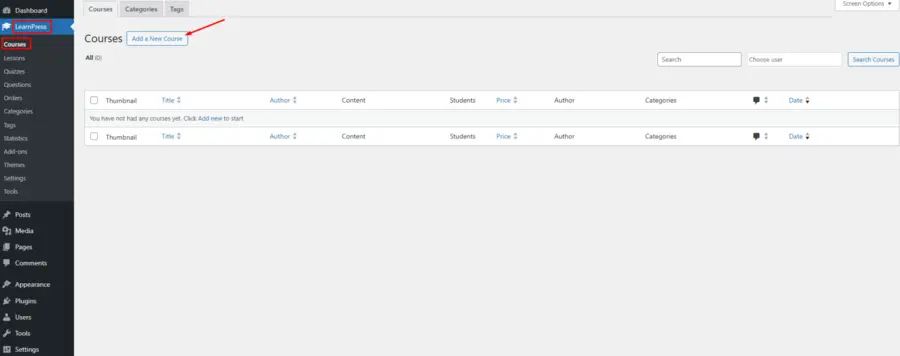
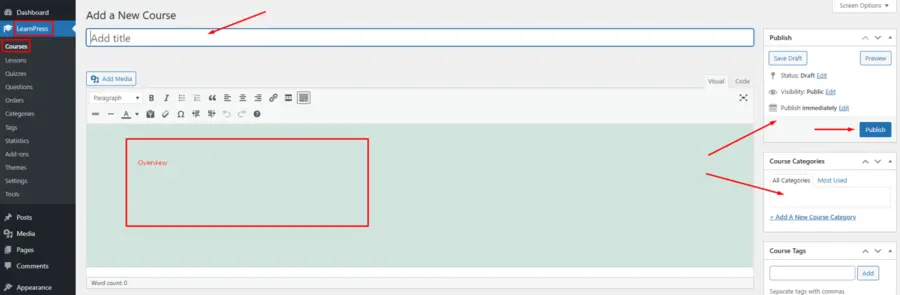
By following these steps, a WordPress LMS plugin has been successfully utilized to build a digital asset.
Why Design Matters: The Eduma Advantage
While functionality is critical, user experience is what sells. A standard LearnPress installation is functional but plain.
Integrating Eduma elevates the user experience significantly. It offers:
- One-Click Demo Import: Import a fully finished demo site that looks exactly like the Eduma preview, plroviding a head start.
- Drag & Drop Page Builder: Eduma works with Elementor and Thim Elementor, making it easy to customize the homepage without coding.
- Mobile Optimization: It is even possible to launch a dedicated Eduma mobile app to allow students to learn on the go.
If the goal is for the learning management system WordPress site to stand out, pairing LearnPress with Eduma is the industry standard for excellence.
Monetization and Growth
Once the system is live, the next step is growth.
Payment Gateways:
While the quick setup covers PayPal, options can be expanded. For example, using the WooCommerce add-on for LearnPress allows the use of any gateway supported by WooCommerce, giving students flexibility in how they pay.
Marketing:
Use the built-in SEO features of WordPress to rank course pages. Engaging students by offering rewards is also effective. Installing the Certificates add-on for LearnPress allows for the issuance of professional certificates automatically upon course completion, encouraging students to share their achievements.
Conclusion
Deciding to add a learning management system in WordPress is a strategic move that grants independence and unlimited growth potential. By following the installation steps above, the groundwork for a successful online business has been laid.
Remember, the combination of LearnPress (for the engine) and Eduma (for the chassis and paint) creates a high-performance vehicle for content. This setup ensures students enjoy a seamless, professional learning environment from enrollment to certification.
Frequently Asked Questions
1. Is LearnPress difficult for beginners to use?
No, LearnPress is designed with a user-friendly interface. As shown in this guide, the Quick Setup wizard handles the technical configuration for pages and payments, allowing users to focus on creating content.
2. Why use Eduma instead of a free theme?
While free themes work, they often lack specific integrations for LMS features. Eduma is built specifically for the WordPress LMS plugin ecosystem. It includes specialized layouts for course archives, instructor profiles, and student dashboards that standard themes simply do not have.
3. Can courses be sold immediately after installation?
Yes. During the Quick Setup phase, if a PayPal email is entered, the site is ready to receive payments. LearnPress also supports offline payments and has add-ons for Stripe and WooCommerce if more options are needed later.
4. Does this setup support video lessons?
Absolutely. Videos from YouTube or Vimeo can be embedded, or uploaded directly. However, for better performance, using high-quality hosting for LMS websites is recommended to ensure the site remains fast for students.
5. Is it necessary to know coding to manage this system?
Not at all. The goal of using a learning management system WordPress solution like LearnPress is to avoid coding. Courses, lessons, and students are managed through a visual dashboard, similar to writing a blog post or an email.
Read more: Run a Virtual Classroom Online with WordPress: 8 Easy Steps
Contact US | ThimPress:
Website: https://thimpress.com/
Fanpage: https://www.facebook.com/ThimPress
YouTube: https://www.youtube.com/c/ThimPressDesign
Twitter (X): https://x.com/thimpress_com