Are you struggling with unprofitable, low-value transactions or facing sudden stockouts due to unusually large purchases?
Setting WooCommerce order limits is the most effective way to solve this problem, protect your inventory, and stop overselling. Whether a customer buys too little to cover your shipping costs or too much of a limited item, lacking control over order quantities can disrupt your fulfillment process.
In this beginner-friendly guide, you will learn exactly how to configure minimum and maximum order restrictions using a free, straightforward WordPress plugin. This ensures every transaction remains profitable and manageable, without requiring complex code or advanced technical skills.
Eduma – Education WordPress Theme
We provide an amazing WordPress theme with fast and responsive designs. Let’s find out!
Why Set WooCommerce Order Limits?
Establishing a minimum or maximum threshold gives you complete control over the purchasing flow. It stabilizes inventory management and makes your revenue more predictable. Here is why implementing these boundaries is essential for a growing online store:
- Prevent Losses on Small Orders: Very small purchases often fail to cover the base costs of payment processing, packaging, and shipping. A minimum threshold ensures the order value justifies the fulfillment effort.
- Stop Overselling WooCommerce Inventory: A maximum limit prevents a single buyer from depleting your entire stock. This is crucial if you are selling high-demand physical products, promotional merchandise, or limited supplementary workbooks for an educational course.
- Encourage Higher Cart Values: Gently restricting the minimum checkout quantity encourages customers to browse further and add more items to their cart, boosting your average order value (AOV).
- Optimize Shipping Logistics: Standardizing the size of outbound orders makes packing highly predictable, reducing logistical overhead and shipping errors.
- Manage Special Corporate or Bulk Orders: If you frequently handle corporate clients purchasing access to internal training materials or bulk supplies, limits ensure that retail customers do not accidentally purchase bulk-only tiers, keeping your retail and B2B streams cleanly separated.
Best Practices for Communicating Order Limits to Customers
Before we dive into the technical setup, it is vital to discuss customer experience. If a buyer spends time adding items to their cart only to be met with an unexpected error at checkout, they may abandon their cart entirely. To successfully limit WooCommerce orders without losing sales, follow these best practices:
- Offer Incentives: If a customer is close to your minimum order threshold, remind them of your free shipping threshold. This turns a restriction into a rewarding challenge.
- Be Transparent Upfront: Mention your minimum or maximum limits directly in the product description. Do not hide this information.
- Explain the “Why”: Customers are much more understanding when they know the reasoning. A simple note stating, “To ensure we can offer the lowest possible shipping rates, this item requires a minimum purchase of 3 units,” goes a long way in building trust.
Method 1: Set Order Limits Using a Free Plugin
If you are a beginner looking for a reliable way to add these restrictions without navigating complex conditional logic or premium paywalls, using a dedicated free plugin is the absolute best approach.
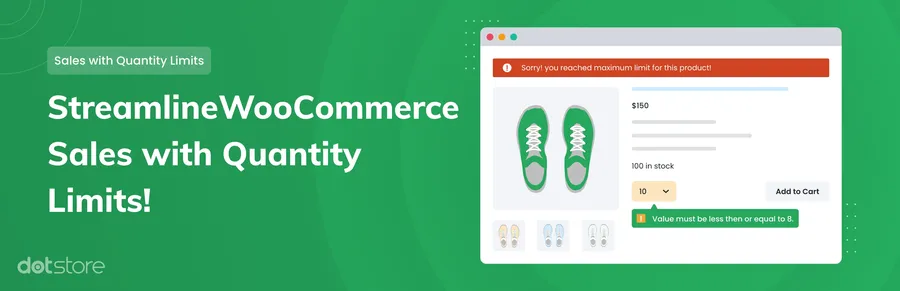
For this tutorial, we will use the WooCommerce min max quantity plugin developed by Dotstore. It is incredibly lightweight, requires zero PHP coding, and applies basic, reliable rules to individual products or entire product categories effortlessly.
Step 1: Install and Activate the Plugin
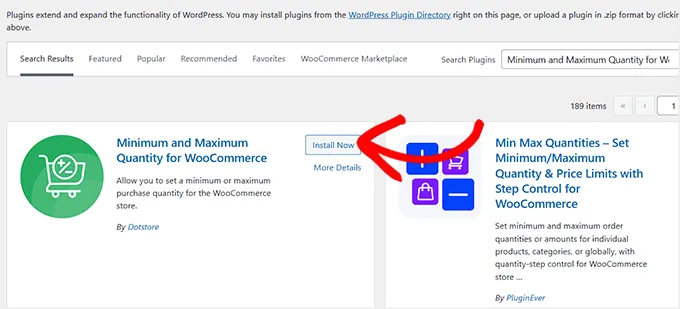
To begin, you need to add the plugin to your WordPress environment.
- Navigate to your WordPress dashboard.
- Go to Plugins > Add New.
- In the search bar, type in the WooCommerce min max quantity plugin.
- Locate the specific plugin authored by “Dotstore” (always verify the author to ensure you install the correct software).
- Click Install Now, followed by Activate.
Step 2: Configure Your Order Limit Rules
Once the plugin is active, you must define the parameters for your inventory.
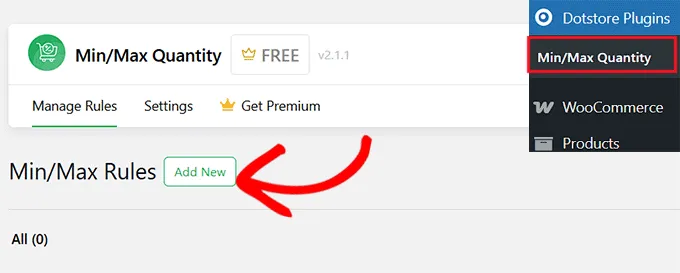
- From your WordPress dashboard, click on Dotstore > Min/Max Quantity.
- Click the Add New button to create your first restriction rule.
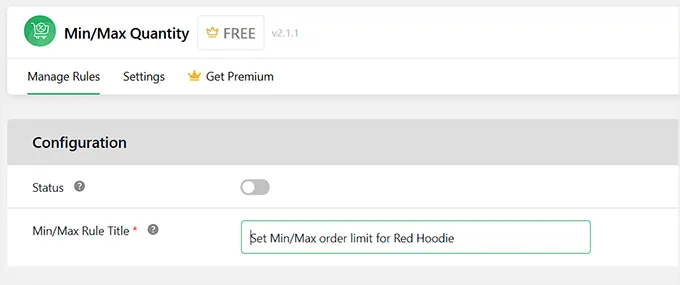
- Assign a descriptive Title to your rule (e.g., “Max Limit for Course Workbooks”). This title is for internal organization and will not be visible to your customers.
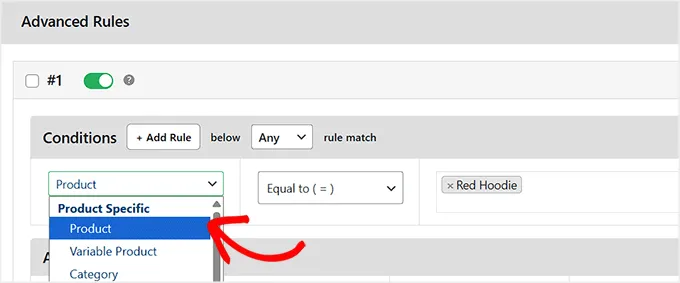
- Scroll down to the Advanced Rules section. This is where you determine the scope of the restriction. Use the dropdown menus to apply the rule to a single product, a variable product, or an entire product category.
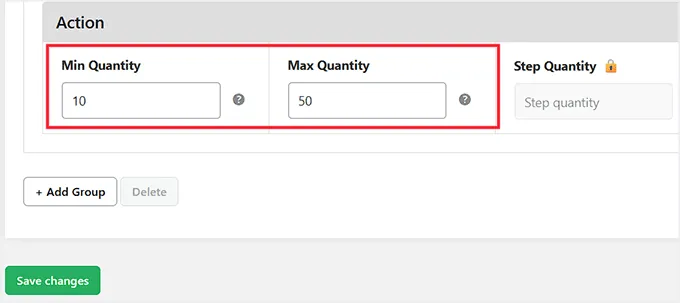
- Next, move to the Action section. Here, input your precise numerical limits into the minimum and maximum quantity fields.
- Scroll back to the top of the page, ensure the Status toggle is switched to the active (green) position, and click Save Changes.
Step 3: Test Your New Limits
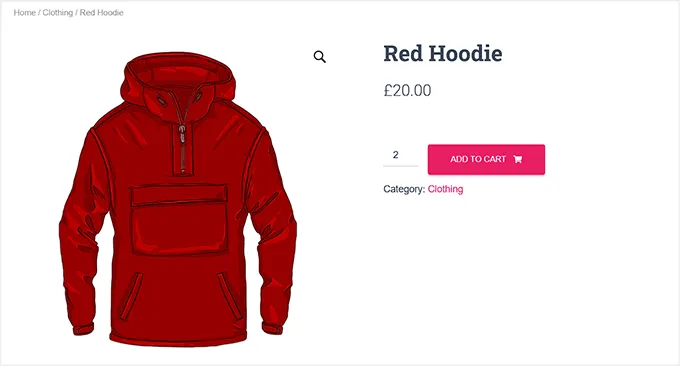
Before finalizing your setup, it is a standard EEAT best practice to verify that your configurations work as intended on the front end of your website.
Navigate to the public-facing product page where you applied the rule. You should now see the minimum required quantity automatically populated next to the “Add to Cart” button. Attempt to increase the quantity beyond your set maximum. The system should restrict the input and display a clear notification.
Troubleshooting Common Plugin Issues
If you do not see the limits applying on your live site after completing Step 3, do not panic. Here are two quick troubleshooting steps:
- Check for Theme Conflicts: Very rarely, highly customized legacy themes might override standard WooCommerce quantity hooks. If the buttons look broken, temporarily switch to a default theme like Twenty Twenty-Four to see if the issue resolves, which helps isolate the problem.
- Clear Your Cache: If you use a caching plugin (like LiteSpeed or WP Rocket) or server-side caching, purge your cache. Old versions of your product pages might still be loading for visitors.
Other Methods for Advanced Store Owners
While the free method above is perfect for beginners and standard store setups, some businesses eventually outgrow basic rules. If your store scales to require role-based pricing, wholesale (B2B) infrastructure, or varied limits based on specific cart totals, you will need advanced premium solutions.
Tools like YITH WooCommerce Minimum Maximum Quantity offer complex tagging and conditional cart total restrictions. Similarly, the Wholesale Suite allows you to set distinct limits based on specific user roles. We will explore these advanced techniques in depth in our next blog post.
FAQs About WooCommerce Order Limits
Can I set a minimum order quantity in WooCommerce without a plugin?
No, the core WooCommerce software does not include built-in functionality to enforce minimum or maximum quantities. You must use a dedicated plugin to add this feature.
What happens if a customer ignores the limits?
The plugin actively prevents the customer from proceeding to the checkout page. If they attempt to add too few or too many items, a notification will appear explaining the required limits they must meet to finalize the purchase.
Will adding order limits hurt my conversion rate?
While it may deter a few very low-value transactions, the overall impact is generally positive. By setting a minimum order quantity, you eliminate unprofitable sales and increase your average cart value, ultimately resulting in a more sustainable profit margin.
Does this free method work for digital products?
Yes, it can. However, maximum limits are generally more useful for physical goods where inventory is finite. For digital goods, you typically restrict purchases to “1” per order using WooCommerce’s native “Sold Individually” checkbox located in the product data settings, making a plugin unnecessary for that specific use case.
Conclusion
Learning how to set WooCommerce order limits is a foundational step in managing a profitable, scalable e-commerce business.
By utilizing the free Minimum and Maximum Quantity for WooCommerce plugin, beginners can easily secure their inventory and maintain standardized order sizes.
Take a few minutes today to install the plugin, configure your rules, and confidently stop overselling WooCommerce products for good.
Read more: 15 Best Free WooCommerce Themes
Contact US | ThimPress:
Website: https://thimpress.com/
Fanpage: https://www.facebook.com/ThimPress
YouTube: https://www.youtube.com/c/ThimPressDesign
Twitter (X): https://x.com/thimpress_com