Most WordPress sites get compromised not because hackers are particularly clever, but because site owners skip updates. Running an outdated version leaves known security holes wide open, and exploit kits are built to target exactly those gaps.
If you have been putting off a WordPress update because you are worried about breaking something, this guide gives you a clear, step-by-step update WordPress process that covers every method, from the one-click dashboard update to a full manual FTP upgrade, so you know exactly what to do and when.
Eduma – Education WordPress Theme
We provide an amazing WordPress theme with fast and responsive designs. Let’s find out!
Why updating WordPress matters
Here is what an outdated WordPress installation costs you in practice:
- Security exposure. Every patched vulnerability in a new release is publicly documented in the WordPress changelog. Once a patch ships, exploit authors update their automated tools to scan for sites still running the old version. The gap between a security release going live and active exploitation attempts can be measured in hours, not weeks.
- Plugin and theme conflicts. Plugins are tested and certified against specific WordPress versions. When your core is multiple major versions behind, plugin authors may have already dropped compatibility testing for your version. You can end up with broken checkout flows, failing contact forms, or a WooCommerce cart that silently drops items.
- Performance degradation. WordPress 6.8 shipped speculative loading and bcrypt security improvements. WordPress 6.9 added optimized database queries, refined caching, and an improved LCP pipeline for block themes. These are not cosmetic changes; they affect how fast your pages load for real visitors on real devices.
- Hosting compatibility. Most managed hosts (WP Engine, Kinsta, SiteGround) enforce PHP version requirements. When WordPress raises its minimum PHP requirement, which it does with each major release, hosts eventually drop support for older PHP versions. A site stuck on WordPress 6.4 may find itself running a PHP version that no longer receives security patches from its host.
Understanding WordPress update types
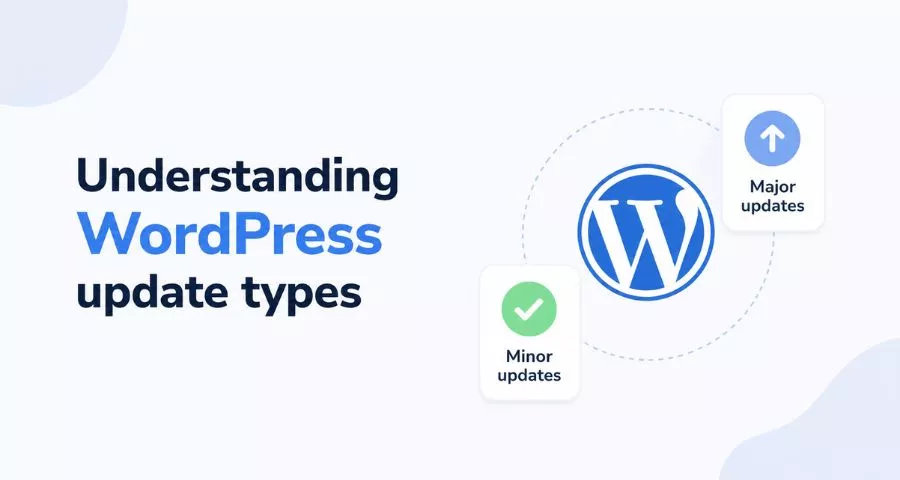
WordPress ships two categories of releases: major and minor.
Major updates
Major updates shift the version number in a significant way, from 6.8 to 6.9, for example. These introduce new features, update the block editor, change how the database handles certain queries, and sometimes modify template behavior. WordPress 6.9 “Gene”, added block-level Notes for team collaboration, a site-wide Command Palette, and improvements to how the Site Editor handles template management. Major updates are the ones most likely to surface a plugin conflict, so they need the full pre-update checklist.
Minor updates
Minor updates increment only the patch number, 6.9 to 6.9.1. These address specific bugs and security vulnerabilities. WordPress applies these automatically by default for good reason: waiting on a security patch because you want to test first is usually a worse trade-off than applying it promptly. The risk of a minor update causing a site-breaking conflict is low.
Before you update: the pre-update checklist
Working through this list before every major update takes about 15 minutes and prevents the kind of emergency you would otherwise spend hours recovering from.
1. Back up your site
A complete backup means both your database and your files. Your files include everything under wp-content, your plugins, themes, and uploaded media. If you are on a managed host like WP Engine or Kinsta, your host likely takes daily snapshots, but do not rely on those alone. Take a manual backup immediately before the update using a plugin like UpdraftPlus or BlogVault. Store the backup somewhere off the server, Google Drive, Dropbox, or Amazon S3.
2. Check plugin and theme compatibility
Go to Dashboard > Updates before touching the core update. Look at which plugins and themes have pending updates. If a plugin has not released a new version in the past six months, check its WordPress.org plugin page and look for the “Tested up to” version number. A plugin marked “Tested up to 6.7” is not guaranteed to break on 6.9, but it has not been verified, and you should check the support forum before proceeding.
3. Test on a staging environment
Most managed hosts give you a one-click staging environment. If yours does, clone your live site to staging and run the updates there first. This is the single most effective way to catch conflicts before your visitors do. On staging, apply the core update, then activate each plugin one by one and test the front end after each activation.
4. Deactivate non-essential plugins
Some teams disable all plugins before a major core update, then reactivate them one at a time after the update completes. This is especially useful on complex sites with 20 or more plugins, where a conflict could come from anywhere. If you cannot afford downtime, at minimum deactivate plugins you know have not been updated recently.
5. Clear your cache
Before and after the update, clear your site’s cache. If you use WP Rocket, WP Super Cache, or LiteSpeed Cache, purge everything from the plugin settings panel. If your host runs server-side caching (common on managed WordPress hosts), purge that too from your hosting control panel. Cached files from a pre-update state can make a successfully updated site look broken.
How to update WordPress from the dashboard
The dashboard update is the standard method for the vast majority of WordPress sites. You need admin access and the ability to connect to the internet, that is it.
Step 1: Navigate to Dashboard > Updates
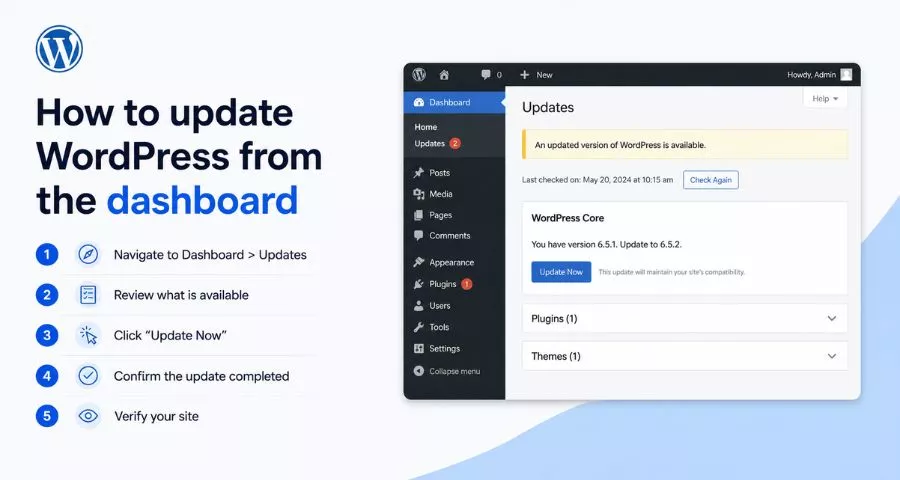
Log in to your WordPress admin area and go to Dashboard > Updates in the left-side navigation. WordPress checks for available updates each time you visit this page. If a core update is available, you will see a banner at the top of the page: “An updated version of WordPress is available.”
Step 2: Review what is available
The Updates page shows three categories: WordPress core, plugins, and themes. Do not update everything at once. Start with core, verify the site is stable, then move to plugins and themes individually.
Step 3: Click “Update Now”
Under the WordPress core section, click the blue “Update Now” button. WordPress will download the update files, put your site into maintenance mode briefly (visitors see a generic maintenance message during this window, which typically lasts under 60 seconds), replace the core files, and run any necessary database migrations automatically.
Step 4: Confirm the update completed
After the process finishes, WordPress redirects you to the About WordPress page showing the new version number. Check the version in Dashboard > Updates or at the bottom of the dashboard page. If the version number matches the update you applied, the core update succeeded.
Step 5: Verify your site
Navigate to your site’s front end in a new browser tab. Check your homepage, a blog post, a product page (if you run WooCommerce), and your contact form. Click through the main navigation. If anything looks broken, do not panic, go to the troubleshooting section below.
How to update WordPress manually via FTP
You need the manual FTP method when you cannot access the WordPress dashboard, when the automatic update stalls mid-process and leaves your site in maintenance mode, or when you are managing a server where automatic updates are disabled for compliance reasons.
This walkthrough assumes you have FileZilla or another FTP client installed and your hosting FTP credentials ready. If your host supports SFTP (port 22), use that instead of plain FTP, the connection is encrypted and more secure.
Step 1: Download the latest WordPress version
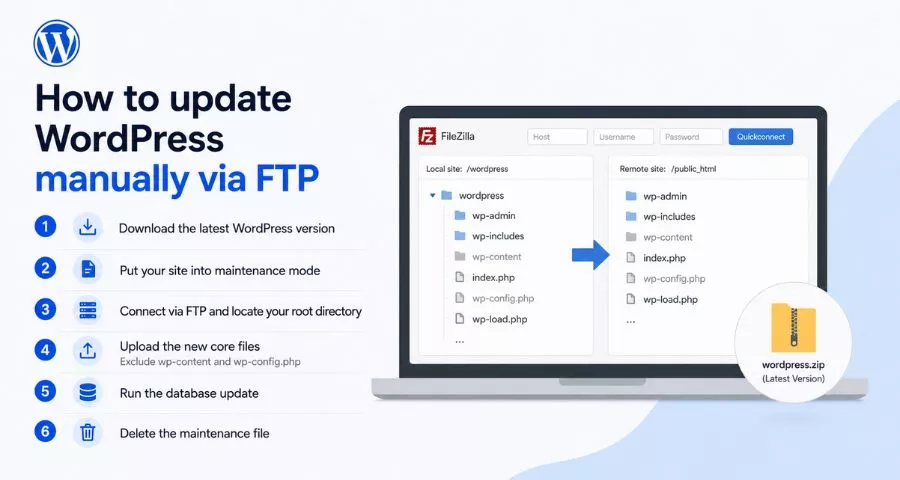
Go to wordpress.org/download and download the zip file for the current release. At the time of writing, that is WordPress 7.0.x. Extract the zip file to your desktop. You will have a folder named wordpress containing all core files.
Step 2: Put your site into maintenance mode
Create a file called .maintenance in your WordPress root directory containing the following line:
<?php $upgrading = time(); ?>Upload this file via FTP to your site’s root folder (the same directory where wp-config.php lives). This tells WordPress to display a maintenance message to visitors while you work.
Step 3: Connect via FTP and locate your root directory
Open your FTP client and connect to your server using your host’s FTP credentials. Navigate to the WordPress root directory, this is typically public_html or www depending on your host.
Step 4: Upload the new core files
From your local wordpress folder, select all files and folders except the wp-content folder and wp-config.php. These two items contain your site’s content and configuration; you do not want to overwrite them. Upload the remaining files to your server root, choosing “Overwrite” when prompted. The upload replaces the old core files with the new ones.
Step 5: Run the database update
Navigate to your site’s admin URL (yourdomain.com/wp-admin). WordPress will detect that the database schema needs updating and prompt you with a “Database Update Required” screen. Click “Update WordPress Database.” This step completes the upgrade at the database level.
Step 6: Delete the maintenance file
Go back to your FTP client and delete the .maintenance file from your root directory. Your site is now live again. Verify the front end and confirm the version number in the dashboard.
What to do after updating WordPress
The update completed successfully. Now do a proper post-update check before considering the job done.
Check Site Health
Go to Tools > Site Health. WordPress runs a series of diagnostic checks and surfaces any issues that appeared after the update. Critical issues appear in red and should be addressed immediately. Recommended improvements appear in a separate list.
Test critical user flows
If you run a WooCommerce store, add a product to the cart and complete a test checkout using a payment gateway in test mode. If you run a membership site, log in as a member and confirm access to gated content. If you use a contact form plugin, submit a test entry and verify it reaches your inbox. The dashboard looks fine after most updates, but functional problems only show up when you actually use the site.
Review your Core Web Vitals
Run a PageSpeed Insights test on your homepage and a representative inner page. WordPress 6.9 shipped improvements targeting LCP specifically, after updating, sites running block themes with on-demand block styles should see measurable improvements in LCP scores. Comparing before-and-after readings is a useful baseline for evaluating whether the update had any performance impact.
Update any hardcoded version references
If your wp-config.php, custom deployment scripts, or CI/CD pipeline references a specific WordPress version number, update those references now to avoid confusion on future update runs.
How to enable automatic WordPress updates
Automatic updates are appropriate for most sites, with some nuance depending on your site’s complexity.
Enabling automatic major updates from the dashboard
Go to Dashboard > Updates. Under the WordPress core section, you will see a note about automatic updates. Click “Enable automatic updates for all new versions of WordPress.” This enables updates for both major and minor releases. For a simple content site or small business website, this setting is a reasonable default.
Enabling updates selectively via wp-config.php
If you want more control, you can configure automatic update behavior by adding constants to your wp-config.php file:
// Enable automatic minor (security/maintenance) updates only
define( 'WP_AUTO_UPDATE_CORE', 'minor' );

// Enable automatic updates for all versions including major
define( 'WP_AUTO_UPDATE_CORE', true );

// Disable all automatic core updates
define( 'WP_AUTO_UPDATE_CORE', false );
For most managed WordPress hosting environments (WP Engine, Kinsta, Pressable), the host controls core update timing and the wp-config.php constants may be overridden by the hosting platform’s own update management system.
Enabling automatic plugin updates in bulk
Go to Plugins > Installed Plugins. Check the boxes next to all plugins you want to auto-update. From the “Bulk actions” dropdown, select “Enable auto-updates” and click “Apply.” You can also enable or disable auto-updates per-plugin from the individual plugin row on this page, look for the “Enable auto-updates” link in the far right column.
A note on large page builder plugins: automatic updates for Elementor, Divi, or similar heavyweight builders carry more risk than smaller utility plugins. Major version updates to page builders have historically introduced visual regressions. Consider keeping those on manual update control while auto-updating smaller security-focused plugins.
Troubleshooting common WordPress update issues
Even when you follow every step correctly, updates occasionally go sideways. Here is what to do when something breaks.
White screen of death after updating
A completely blank page with no error message usually points to a fatal PHP error, often from a plugin or theme incompatible with the new WordPress version. If you can still access the admin area, go to Plugins and deactivate all plugins. Reload the front end. If the site comes back, reactivate plugins one at a time until the blank screen returns, the last plugin you activated is the culprit.
If you cannot access the admin area, connect via FTP and rename the /wp-content/plugins/ folder to /wp-content/plugins-disabled/. WordPress will then fail to load any plugins at startup. Once the front end loads, rename the folder back to plugins and deactivate from the dashboard.
Site stuck in maintenance mode
If the update was interrupted, network dropped, server timed out, WordPress sometimes leaves a .maintenance file in the root directory. Connect via FTP and delete it. The site will exit maintenance mode immediately.
Error establishing a database connection
This error after an update usually means the database update step did not complete. Navigate directly to yourdomain.com/wp-admin/upgrade.php to run the database upgrade manually. If you see a permissions error, contact your host, the database user may have insufficient privileges for schema changes.
Broken layout after a theme update
If the update overwrote custom CSS or template changes made directly in the parent theme, you will need to either restore from your backup and re-migrate your changes to a child theme, or manually re-apply the changes using the backup as a reference. This is the most common consequence of not using a child theme.
Plugin asking for FTP credentials to update
This happens when WordPress does not have direct write access to the filesystem. It is most common on shared hosting with incorrect file ownership. The quick fix is to add the following line to wp-config.php:
define( 'FS_METHOD', 'direct' );If that resolves the issue, confirm your server’s file permissions are set correctly, WordPress files should be owned by the web server user (typically www-data on Ubuntu or apache on CentOS).
Conclusion
Updating WordPress is one of the lowest-effort, highest-impact things you can do for your site. Back up first, test on staging if your setup is complex, and work through core, plugins, and themes in that order. Do it consistently and you will rarely have a problem, skip it and you eventually will.
Read More: User Experience Design Basics: A Complete Guide
Contact US | ThimPress:
Website: https://thimpress.com/
Fanpage: https://www.facebook.com/ThimPress
YouTube: https://www.youtube.com/c/ThimPressDesign
Twitter (X): https://x.com/thimpress_com