
Adding nofollow links in WordPress is an important step to manage how search engines treat your outbound links. The rel="nofollow" attribute tells search engines not to pass SEO value or authority to a specific link.
This knowledge base explains when to use it and how to add it using two simple methods.
What Is rel=”nofollow”?
The rel="nofollow" attribute is an HTML tag used in links to instruct search engines not to follow or transfer ranking value to the linked page.
When Should You Use Nofollow Links?
You should use nofollow links in WordPress in the following situations:
- Sponsored or paid links: To comply with search engine guidelines
- Affiliate links: To avoid appearing as part of a link scheme
- Untrusted content: When linking to sources you do not fully endorse
- User-generated content: Such as blog comments or forums
Using nofollow on all external links is not necessary and is not recommended as a general SEO strategy.
How To Add Nofollow Links in WordPress (Gutenberg Editor)
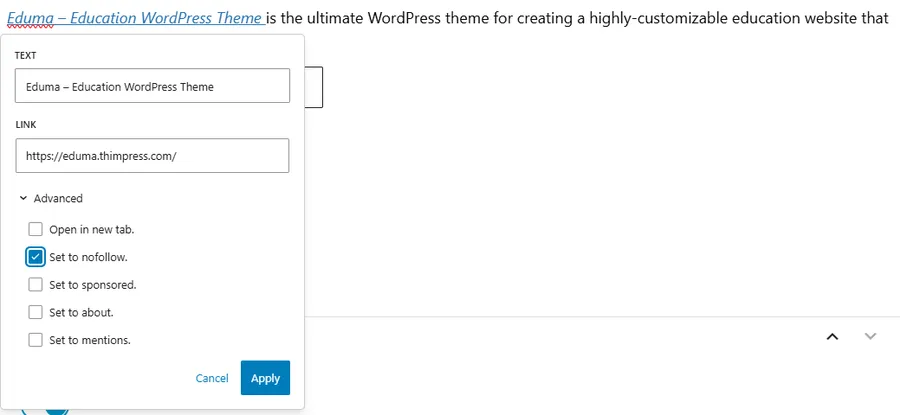
If you are using the block editor, adding nofollow links in WordPress is quick and requires no coding.
Step 1: Select the Text
Open your post or page and highlight the text you want to turn into a link.
Step 2: Insert the Link
Click the link icon in the toolbar and enter your URL.
Step 3: Enable Nofollow Option
In the link settings panel:
- Toggle “”
Step 4: Save Changes
Apply the link and update your post.
Your link will now include the rel="nofollow" attribute.
How To Add Nofollow Links Manually (Classic Editor)
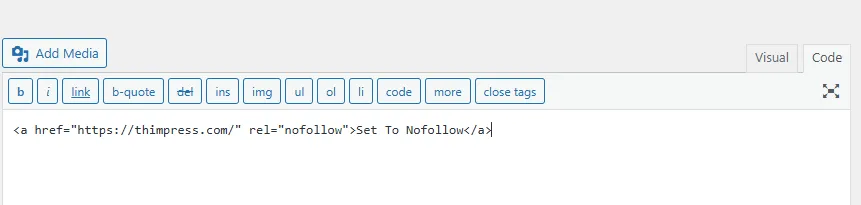
This method is useful if you prefer working with HTML or are using the Classic Editor.
Step 1: Add a Normal Link
Insert your hyperlink as usual in the Visual editor.
Step 2: Switch to Text Mode
Click the Text tab to view the HTML code.
Step 3: Add the Nofollow Attribute
Locate the link code:
Edit it to:
Step 4: Return to Visual Editor
Switch back to the Visual tab and continue editing.
The link will appear unchanged visually, but the nofollow attribute remains active.
Additional Link Attributes in WordPress
Besides nofollow, WordPress also supports other link attributes:
- rel=”sponsored”: For paid or affiliate links
- rel=”ugc”: For user-generated content
- rel=”noopener”: For security when opening links in a new tab
These can be combined when necessary for better SEO and compliance.
FAQs
What are nofollow links in WordPress?
Nofollow links in WordPress are links that include the rel="nofollow" attribute to prevent search engines from passing SEO value.
Do nofollow links affect SEO?
They do not pass ranking authority, but they can still bring traffic and improve link diversity.
Should I use nofollow for all external links?
No. It is best to use nofollow only for sponsored, affiliate, or untrusted links.
Can I add nofollow without plugins?
Yes. You can use the Gutenberg editor toggle or manually edit the HTML code.
Is nofollow the same as sponsored?
No. nofollow is general, while sponsored is specifically for paid links. They can be used together.
Conclusion
Knowing how to add nofollow links in WordPress helps you stay compliant with SEO best practices and search engine guidelines. Whether you use the Gutenberg editor or manual HTML editing, the process is simple and effective.
Use nofollow strategically for sponsored or untrusted links, and combine it with other attributes when needed. This ensures your website maintains credibility while optimizing overall SEO performance.
Learn More from ThimPress Knowledge Base Articles:
- Install and Set up the FundPress plugin
- How To Submit A ThimPress Support Ticket
- How To Disable The Demo Slider Images
- Active Included Premium Plugins: What You Need to Know
- How to Back Up Your WordPress Site: 3+ Simple Methods
- How To Submit A ThimPress Support Ticket
- How to Create a ThimPress Account and Access Support?
- How to Deregister and Reactivate Your ThimPress License?
- How To Enable Register Button In WordPress
- How To Get My Envato Purchase Code?
Contact US | ThimPress:
Website: https://thimpress.com/
Fanpage: https://www.facebook.com/ThimPress
YouTube: https://www.youtube.com/c/ThimPressDesign
Twitter (X): https://twitter.com/thimpress
