Growing a digital brand often means rethinking how a website is organized. Whether launching a dedicated customer support portal, a separate online store, or a regional branch for an enterprise, keeping content neatly structured is essential. One highly effective method to achieve this is to install WordPress on subdomain. This strategy creates a completely independent web environment while maintaining the recognizable brand name of the primary domain.
If you want to install WordPress on subdomain efficiently, this comprehensive guide explains the entire setup process clearly and logically. From understanding server rules to navigating the details of search engines, the following sections cover everything needed to complete your WordPress subdomain setup successfully and securely.
Eduma – Education WordPress Theme
We provide an amazing WordPress theme with fast and responsive designs. Let’s find out!
Quick Content Summary: How to Install WordPress on Subdomain for Beginners
The table below outlines the core components and expectations for this technical procedure:
| Component | Detailed Description |
| Primary Objective | To deploy a completely separate website instance attached to an existing primary domain (e.g., blog.example.com). |
| Technical Requirements | Access to a hosting control panel, domain registrar access, and basic knowledge of file management. |
| SEO Impact | Search engines typically treat subdomains as distinct entities, requiring dedicated ranking strategies. |
| Common Methodologies | Automated installation scripts or manual deployment via FTP and MySQL database creation. |
| Estimated Time | 15 to 30 minutes, depending on DNS propagation speeds. |
1. The Strategic Advantage of Subdomains
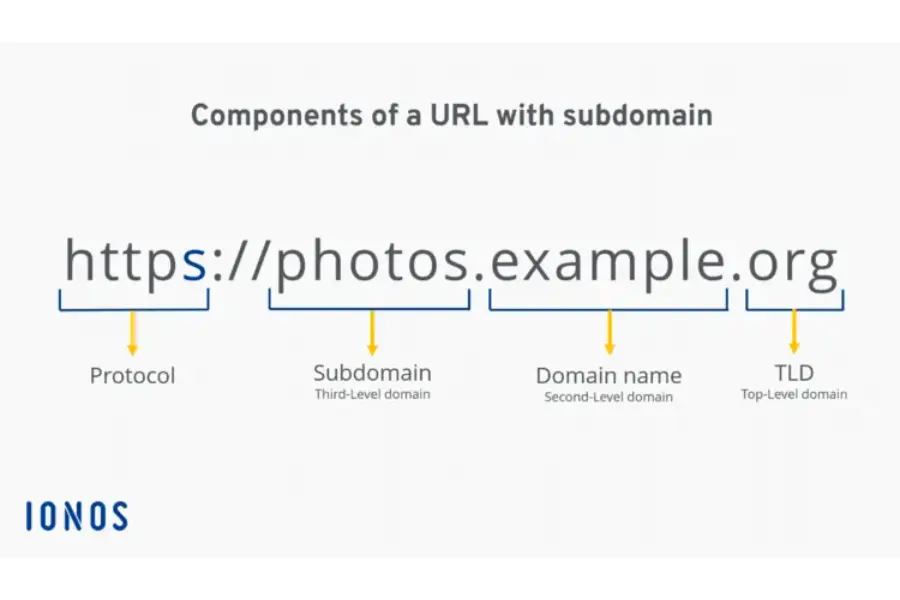
Before starting the technical execution, it helps to understand the fundamental architecture of the internet. When people build a WordPress website, they typically secure a primary URL, such as example.com. A subdomain acts as a prefix to this primary URL, resulting in a new structure like store.example.com.
Why choose this specific architecture? The main reason is complete isolation. A subdomain functions as a distinct entity on the web server. It operates with its own file directory, its own database, and its own administrative dashboard. If you are unsure about the technical requirements, learning how to install WordPress on a subdomain is a foundational skill for website managers.
Common use cases include:
- Knowledge Bases and Support Forums: (e.g., docs.yoursite.com) Keeping support tickets and documentation away from marketing pages ensures that high visitor traffic on the forum does not slow down the main site.
- eCommerce Integration: (e.g., shop.yoursite.com) Online stores require heavy processing power and strict security protocols. Isolating the store prevents technical conflicts with the primary informational website.
- Geographic Localization: (e.g., uk.yoursite.com) Companies targeting multiple countries can create distinct regional hubs tailored to specific languages and currencies.
- Staging and Development: (e.g., staging.yoursite.com) Developers rely on subdomains to safely test new features, updates, or redesigns without risking the live, public-facing website.
2. Pros and Cons of Subdomain Architecture
Before you execute a complete WordPress subdomain setup, evaluating these factors ensures the chosen architecture aligns perfectly with long-term digital goals. Choosing to proceed with a new installation carries specific advantages and disadvantages. Evaluating these factors ensures the chosen architecture aligns perfectly with long-term digital goals.
The Advantages
- Absolute Separation: Because the files and databases are entirely separate, a critical error or software conflict on the subdomain will not crash the primary website.
- Design Flexibility: Site managers can utilize completely different themes, page builders, and design frameworks. Attempting to force two radically different visual styles onto a single installation is notoriously difficult; subdomains eliminate this friction entirely.
- Server Resource Allocation: High-traffic segments, such as membership portals or learning management systems, can be hosted on entirely different servers or premium hosting tiers. This preserves the speed and performance of the main site.
- Streamlined Backups: Databases can be backed up on independent schedules. A static corporate site might only need weekly backups, while a busy eCommerce section requires hourly backups.
The Disadvantages
- Increased Administrative Tasks: Managing two separate environments means performing core updates, applying security patches, and monitoring performance twice.
- Software Licensing Costs: Many premium themes and plugins recognize a subdomain as a completely separate website. This often requires purchasing additional license keys.
- Fragmented Analytics: Webmaster tools and analytics platforms generally require separate property verifications and tracking codes for each individual subdomain.
3. The Core Debate: WordPress Subdomain vs Subdirectory SEO
One of the most important considerations for digital marketers involves WordPress subdomain vs subdirectory SEO. This structural choice heavily influences organic search visibility over time.
A subdirectory (or subfolder) utilizes the following structure: [example.com/blog/](https://example.com/blog/).
A subdomain utilizes the following structure: blog.example.com. Understanding the nuances of WordPress subdomain vs subdirectory SEO ensures you choose the correct architectural path for your specific goals.
When examining the fundamental rules of what is SEO, the main difference revolves around “link equity” or domain authority. Search engine algorithms generally view subdirectories as integral parts of the primary domain. Therefore, the established trust, authority, and ranking power of the main site flow seamlessly into the subdirectory. If the main site ranks well, the subfolder benefits immediately.
Conversely, search engines historically treat subdomains as standalone websites. While modern algorithms are sophisticated enough to recognize the connection between a root domain and its subdomains, practical experience shows that subdomains often require their own dedicated marketing and link-building campaigns. They do not automatically inherit the full ranking power of the parent domain.
Strategic Recommendation:
- Use a subdirectory when the new content relates closely to the main website and the primary goal is to boost overall organic traffic (e.g. thimpress.com).
- Use a subdomain when the content serves a completely different intent, targets a different audience, or functions as a standalone application (e.g. eduma.thimpress.com).
4. Essential Prerequisites for Installation
A flawless WordPress subdomain setup requires careful preparation. Before you install WordPress on subdomain, ensure the following elements are in place before altering any server configurations.
- Sufficient Server Resources: Verify that the current hosting plan allows for the creation of additional databases and has adequate storage space. If resources are limited, it may be necessary to choose the best WordPress hosting providers that offer scalable solutions.
- DNS Access: Ensure access to the platform where the domain’s nameservers are managed. This could be the domain registrar or a third-party DNS provider.
- SSL Certificate Availability: Modern browsers demand secure connections. Ensure the hosting environment provides Wildcard SSL certificates or allows for the generation of specific Let’s Encrypt certificates for new URLs.
Step 1: Create Subdomain WordPress cPanel
For many administrators, the fastest route is to create subdomain WordPress cPanel directories using the host’s graphical interface. For the vast majority of websites hosted on traditional Linux servers, the control panel is the primary administrative interface. To successfully create subdomain WordPress cPanel environments, site managers must first define the URL structure on the server.
The exact interface varies slightly depending on the software version running on the server.
For Modern cPanel Versions (Version 107 and Higher)
Recent updates have streamlined the interface, combining multiple domain management tools into a single, cohesive area.
- Log into the hosting dashboard and navigate to the cPanel interface.
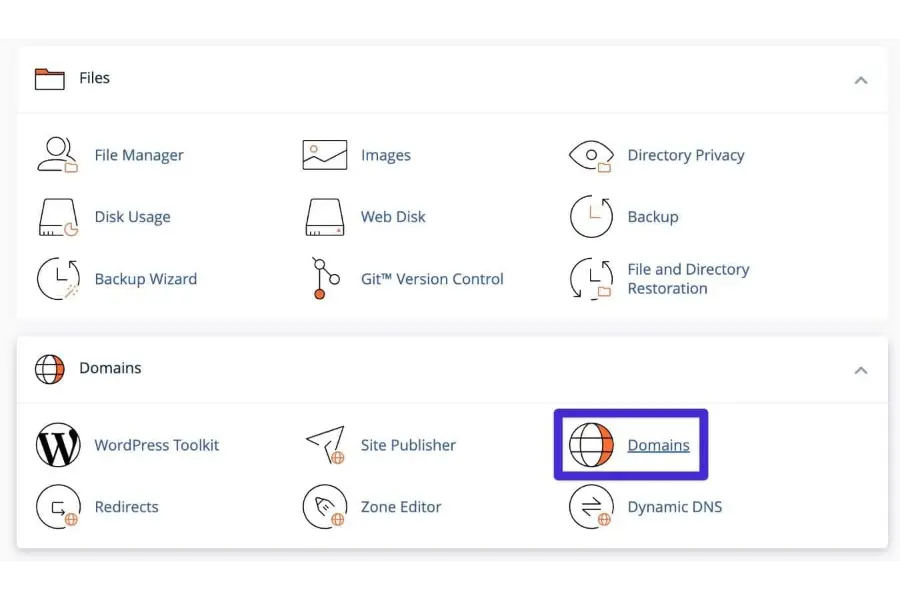
- Scroll down to the Domains section and click on the Domains icon.
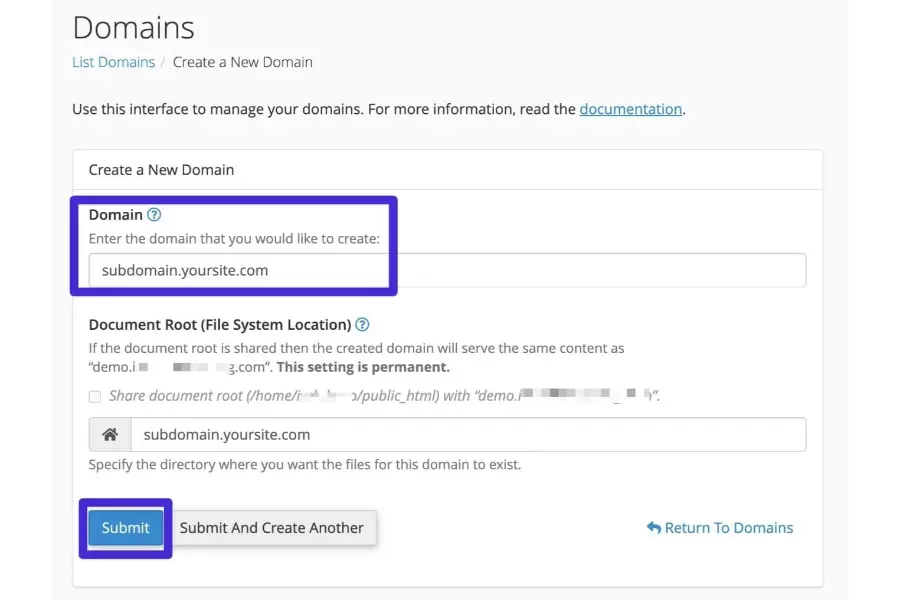
- Click the prominent button labeled Create A New Domain.
- In the text field provided, enter the complete desired URL (e.g., support.example.com).
- The system will automatically suggest a document root folder (typically /public_html/support.example.com). It is highly recommended to accept this default path to maintain server organization.
- Click the Submit button.
For Older cPanel Versions (Version 106 and Lower)
Older environments maintain a dedicated interface specifically designed for this task.
- Log into the control panel.
- Locate the Domains section and click on the specific Subdomains icon.
- Enter the desired prefix (e.g., support) in the designated text field.
- Select the correct primary domain from the adjacent dropdown menu.
- Click Create.
Once the system processes the request, the server will generate an empty folder dedicated entirely to the new web property. Depending on the DNS configuration, it may take a few minutes for the new URL to resolve globally across the internet.
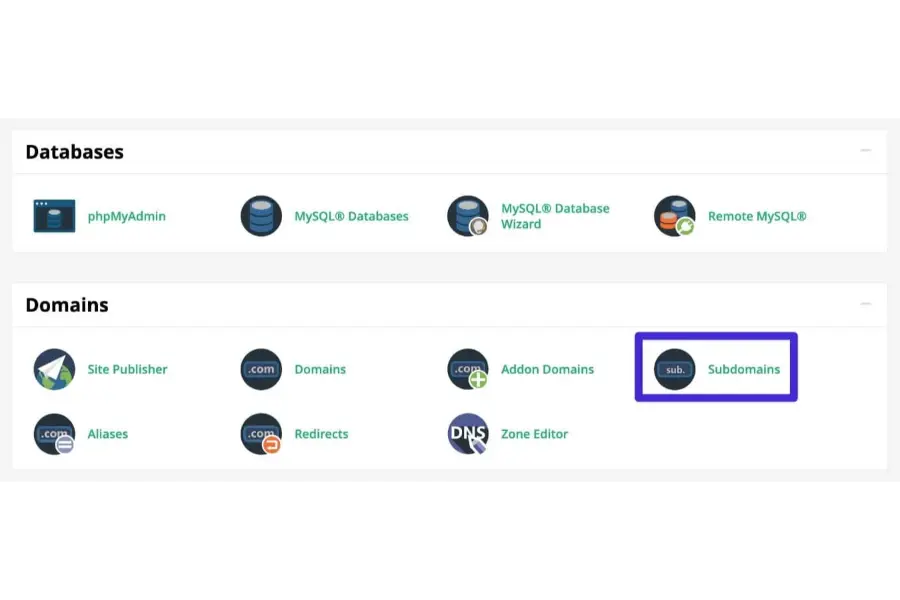
Step 2: How to Install WordPress on a Subdomain (Automated Method)
With the URL successfully registered on the server, the next phase is to deploy the software. If the hosting environment provides an automated script installer (such as Softaculous or Installatron), understanding how to install WordPress on a subdomain becomes a rapid, highly automated process.
This robust content management system requires a database and specific file structures, all of which the auto-installer handles seamlessly in the background.
- Return to the main control panel dashboard.
- Navigate to the Software section and locate the Softaculous Apps Installer (or click the application icon directly if it is pinned to the dashboard).
- Click the Install button to open the configuration menu.
- Crucial Step: Locate the Choose Installation URL section. First, select the https:// protocol to ensure a secure connection. Second, click the domain dropdown menu and carefully select the newly created prefix (e.g., support.example.com).
- Ensure the In Directory field remains completely empty. If text is left in this box, the site will install in the wrong location.
- Complete the Site Settings section by providing a logical Site Name and a brief Site Description.
- Establish an Admin Account. Enter a secure Admin Username, a highly complex Admin Password, and a valid Admin Email address.
- Scroll to the bottom of the page and click Install.
A progress bar will appear as the script creates the database, binds the user privileges, and unpacks the core files. Once the progress bar reaches 100%, the new administrative dashboard will be ready for access. Once you learn how to install WordPress on a subdomain using these tools, you can deploy new sites safely in minutes.
5. The Manual Installation Method
While automated tools are incredibly convenient, they are not universally available, particularly on virtual private servers (VPS) or custom cloud environments. In these scenarios, administrators must manually upload the files to the correct directories to install WordPress on subdomain. This method guarantees absolute control over the deployment process and offers an alternative way to install WordPress to your website.
Phase 1: Establish the Database
The software relies entirely on a database to store written content, user credentials, and site configurations.
- Inside the hosting control panel, locate the Databases section and select MySQL Databases.
- Under the “Create New Database” heading, input a recognizable name (e.g., db_subsite) and click Create Database.
- Scroll down to the “MySQL Users” section. Create a new user with a unique name and generate a highly secure password. Click Create User.
- Finally, scroll to “Add User to Database.” Select the newly created user and the newly created database from the dropdown menus. Click Add.
- On the next screen, check the box for All Privileges to grant the user full read and write access to the database.
- Important: Save the exact database name, username, and password in a secure text file. These details will be required shortly.
Phase 2: File Transfer and Configuration
- Visit the official WordPress repository and download the latest core software package (a ZIP file).
- Extract the ZIP file on the local computer, revealing a folder containing files like wp-login.php and directories like wp-admin.
- Connect to the web server using a secure file transfer protocol client (such as FileZilla) or the web-based File Manager provided by the host.
- Navigate directly into the document root folder that was created for the new URL (e.g., /public_html/subdomain.example.com).
- Upload all the extracted core files directly into this empty directory.
- Once the upload is complete, locate the file named wp-config-sample.php.
- Rename this file exactly to wp-config.php.
- Open wp-config.php using a text editor. Locate the database credentials section and input the Database Name, Database Username, and Database Password that were saved during Phase 1. Save and close the file.
Phase 3: The Five-Minute Setup
- Open any web browser and navigate to the new URL (e.g., [https://subdomain.example.com](https://subdomain.example.com)).
- Because the configuration file is now linked to an empty database, the browser will automatically trigger the standard installation script.
- Select the preferred language.
- Enter the Site Title, establish the administrative credentials, and input a recovery email address.
- Click the Install button.
The manual setup is now complete, resulting in a perfectly clean, highly secure environment.
6. Post-Installation Optimization Checklist
After you successfully install WordPress on subdomain, completing the technical deployment is only the first phase. A proper WordPress subdomain setup demands several critical administrative actions must be taken immediately to ensure the site is secure, visually appealing, and prepared for search engine indexing.
Enforce HTTPS and SSL
A secure connection is mandatory for modern web browsing. Browsers will block access to the site or display a warning if an SSL certificate is missing. Navigate to the hosting dashboard and ensure a security certificate is active for the new URL. Then, log into the new dashboard, navigate to Settings > General, and verify that both the “WordPress Address” and “Site Address” utilize the correct https:// prefix.
Configure SEO-Friendly Permalinks
By default, the system often uses a non-descriptive URL structure for articles. This is detrimental to the user experience and search visibility. Navigate to Settings > Permalinks and select the Post name structure. This simple change ensures URLs are highly readable and keyword-rich.
Deploy the Visual Architecture
With the backend secured, it is time to install WordPress themes step by step. Because this is a separate installation, site managers can choose a visual framework that perfectly matches the specific purpose of the new section, completely independent of the parent domain’s design choices.
Implement Core Plugins
Install essential software to govern the site’s functionality. This includes security firewalls, caching mechanisms, and a dedicated SEO plugin to manage meta titles, descriptions, and XML sitemaps. Furthermore, administrators should immediately implement strategies to speed up WordPress website load times, such as image compression and code minification.
Webmaster Tools Verification
Because search engines treat this environment as an independent entity, the URL must be manually submitted to Google Search Console. Verify ownership of the new property and submit the newly generated XML sitemap to prompt search engine crawlers to begin reading the content.
7. Troubleshooting Common Setup Errors
Even under perfect conditions, server misconfigurations can cause deployment failures. When working to install WordPress on subdomain environments, encountering the most common WordPress errors is a standard part of the web development process.
DNS Propagation Delays (Site Cannot Be Reached)
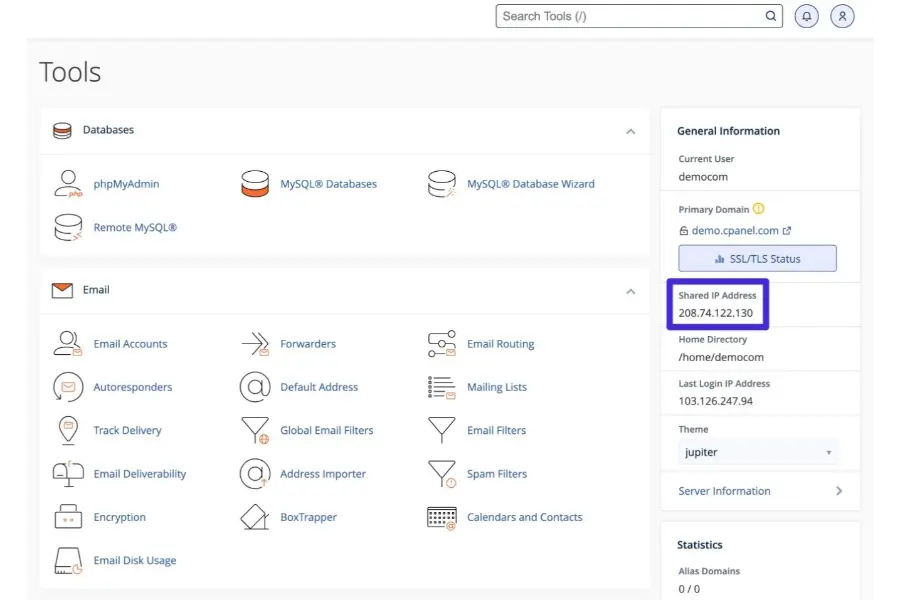
If navigating to the new URL results in a “Server IP Address Could Not Be Found” error, the Domain Name System (DNS) has not yet been updated globally. When a new record is created, it must propagate across internet service providers worldwide. This can take anywhere from 15 minutes to 48 hours. Check the DNS zone editor to ensure the records point correctly to the server’s IP address, and then wait patiently.
Error Establishing a Database Connection
This critical error means the software cannot communicate with the database. The cause is almost always a minor typo within the wp-config.php file. Double-check the database name, username, and password carefully. Additionally, verify that the user was explicitly granted “All Privileges” within the database control panel.
404 Errors on Subpages or 500 Internal Server Errors
If the homepage loads correctly but clicking any article results in a “Not Found” error, the .htaccess file is either missing or misconfigured. To resolve this instantly, log into the dashboard, navigate to Settings > Permalinks, and simply click the “Save Changes” button. This action forces the server to generate a fresh, correct routing file automatically.
Mixed Content Warnings
If the site loads but the browser displays a broken padlock icon indicating the site is not fully secure, a mixed content issue is occurring. This means the site is loading over HTTPS, but some media assets or styling files are still being served over the older, insecure HTTP protocol. Utilizing a dedicated SSL plugin can usually fix these insecure links instantly.
Conclusion
Structuring a digital property for scalability requires excellent foresight and technical precision. The decision to install WordPress on subdomain architecture empowers website owners to launch complex, specialized platforms—such as expansive learning management systems, isolated testing grounds, or high-volume eCommerce stores—without jeopardizing the stability or search rankings of their primary domain.
Whether leveraging the speed of automated cPanel installers or executing the granular control of a manual FTP deployment, the underlying mechanics remain consistent: secure DNS routing, precise database creation, and careful software configuration. By adhering to the clear steps and post-installation practices detailed in this guide, administrators can confidently expand their digital footprint and build highly organized, professional web environments.
Frequently Asked Questions (FAQs): How to Install WordPress on Subdomain for Beginners
1. Does creating a subdomain cost extra money?
In most standard hosting scenarios, no. The vast majority of domain registrars and web hosting companies allow administrators to create unlimited subdomains under a single registered parent domain at no additional charge. However, if the new installation draws massive amounts of traffic, it may require a necessary upgrade to a higher-tier hosting plan to handle the increased server load comfortably.
2. Can the exact same premium theme be used on the main site and the subdomain?
The physical theme files can be uploaded to both installations safely. However, because they operate as completely independent websites, premium theme and plugin developers typically require a unique, separate license key for each installation to receive automatic updates and dedicated developer support.
3. Will high traffic on the new setup slow down the main website?
If both the primary domain and the new installation are hosted on the exact same shared server environment, they share the same processing and memory resources. Therefore, a massive spike in traffic or resource-heavy processing on one site can indeed bottleneck the server, causing both websites to slow down. Upgrading to a Virtual Private Server (VPS) mitigates this risk entirely.
4. How is the setup migrated to a completely new root domain in the future?
The procedure is identical to a standard website migration. Administrators must securely back up the site’s files and database, upload them to the new hosting environment tied to the new root domain, and run a safe database “search and replace” script to permanently update all internal links from the old structure to the new one.
5. Is it possible to share user login accounts between the main site and the subdomain?
By default, completely separate installations feature completely isolated user databases; an account registered on the main site will not grant access to the newly created environment. To share user credentials seamlessly, administrators must either configure the platform’s Multisite feature or utilize advanced Single Sign-On (SSO) bridging tools to synchronize the two independent databases.
Read more: Exactly How to Set Up WooCommerce for Your Website
Contact US | ThimPress:
Website: https://thimpress.com/
Fanpage: https://www.facebook.com/ThimPress
YouTube: https://www.youtube.com/c/ThimPressDesign
Twitter (X): https://x.com/thimpress_com