When students attempt to complete an online curriculum in isolation, they often experience a significant drop in motivation. Without the presence of a community or a structured timeline, lessons are frequently skipped, and many learners fail to reach the final module. This is precisely why more educators are choosing to run cohort-based online courses WordPress to foster higher engagement. By shifting from a solo study model to a collaborative one, you create a sense of momentum that keeps students moving forward together toward their certification.
Eduma – Education WordPress Theme
We provide an amazing WordPress theme with fast and responsive designs. Let’s find out!
The Power of WordPress Group Learning
Modern education is moving away from static, “evergreen” content that students consume alone. Instead, the industry is embracing the model of cohort-based courses. In this format, a group of participants moves through the educational material as a unified group. This structure mimics a traditional classroom by having a defined start date, a clear end date, and a shared schedule for all participants.
For the instructor, offering cohort-based courses provides a way to manage student support more effectively. Instead of answering the same questions year-round, you focus your energy on one specific group for a set duration. Research on professional platforms like WordPress.org indicates that interactive environments lead to much higher completion rates.
Why Use WordPress for Your Learning Platform?
To host a successful group program, you need a platform that offers both stability and creative freedom. WordPress remains the premier choice for professional educators.
By using a WordPress LMS plugin, you retain 100% ownership of your content and student data. Unlike third-party platforms that charge high monthly fees or take a percentage of your sales, WordPress allows you to scale your business without financial penalties.
A group learning LMS WordPress setup provides the flexibility to integrate various tools. You can add community forums, live video conferencing via Zoom, and automated progress tracking. When you combine the world’s most popular CMS with a high-performance LMS WordPress theme, you create a powerful environment for student success.

Step 1: Detailed Course Creation with LearnPress
To build a professional site, you need a robust best LMS plugin for WordPress. LearnPress is the leading choice, offering a comprehensive suite of tools to manage your curriculum.
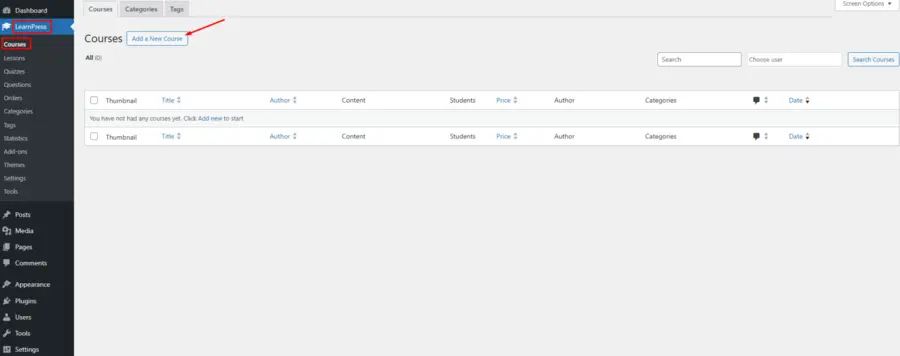
1. Creating the Initial Course
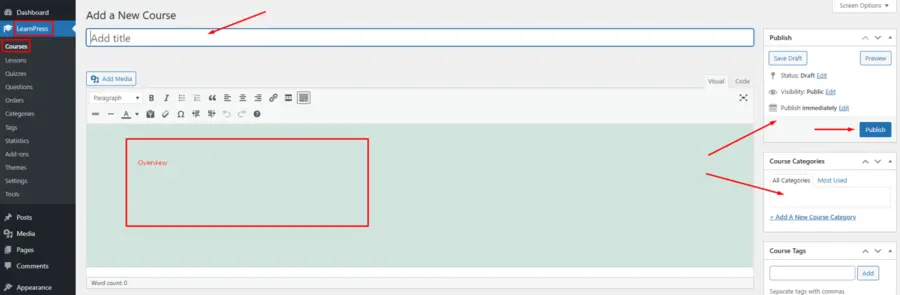
To begin, navigate to your Dashboard => LearnPress => Course => Add New. A course in LearnPress is divided into three main sections: Course Overview, Curriculum, and Course Settings.
- Course Overview: In this area, write a detailed introduction to your course. What you write here will be displayed in the “Overview” tab on the single course page. It is vital to set clear expectations for the cohort.
- Categories and Featured Image: Assign your course to specific categories in the “Course Categories” area. Always upload a “Featured Image,” as this will be the primary visual for your course on the archive page.
- Publishing: You can set a specific publish date. For cohort-based online courses WordPress, students can only enroll and see the content once the course is officially published.
2. Building the Curriculum
The Curriculum section is where you organize your modules. You can create sections by writing a name and pressing Enter. Inside each section, you can create new lessons or quizzes.
- Content Bank: If you have previously created lessons, click the “Content Bank” button to select items and add them to the course. Note that you can only add lessons that are not yet assigned to another course.

Step 2: Creating and Configuring Lessons
Lessons are the core of your WordPress group learning experience. LearnPress provides a flexible editor to help you deliver content effectively.
1. Lesson Creation Paths
You can create lessons in two ways:
- Independent Creation: Go to Dashboard => LearnPress => Lessons => Add New Lesson.
- On-the-Fly Creation: Add new lessons while editing a course by using the Curriculum builder mentioned above.
2. In-Depth Lesson Settings
Each lesson page contains four main areas: Title, Content, Settings, and Discussion. In the Settings area, you can configure:
- Lesson Duration: Set how long the lesson should take to complete.
- Preview: Enable this to allow potential students to view content before they buy the course.
- Discussion: Enable comments so students in the cohort can interact with each other and the instructor. This is a vital feature for any group learning LMS WordPress platform.
3. Multimedia and Materials
LearnPress supports text and media. For videos, you can upload them directly or paste a URL from Vimeo or YouTube. We recommend pasting a URL to improve site speed.
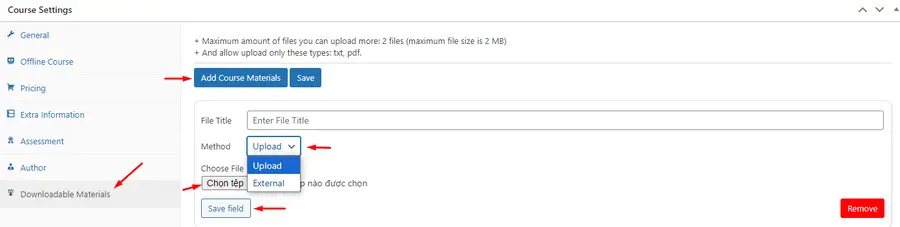
- Course Materials: Click “Add course material” to upload supplementary files like Docx, PDF, or Txt. You can set file size limits and allowed file types in LearnPress -> Settings -> Courses -> Materials Settings. These materials are essential for deep study within cohort-based online courses WordPress.
You can learn more about LearnPress Installation through this video:
Step 3: Configuring Cohort Logic in Settings
The “Course Settings” section is where you define how your cohort operates.
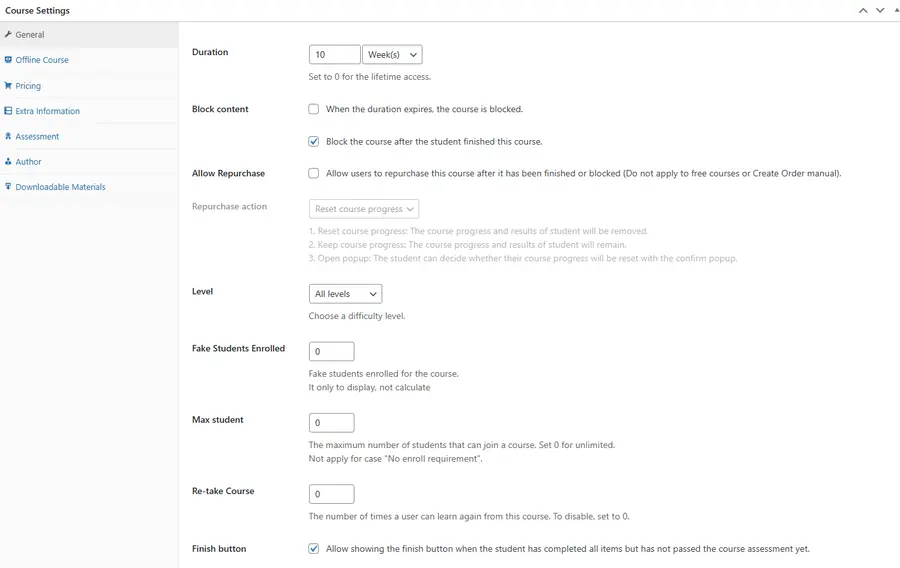
1. General Settings for Groups
- Duration: Define the total time for the cohort. This is usually counted from the day students enroll.
- Block Content: For a fixed cohort, enable this to block access once the duration expires or after the student finishes.
- Max Students: Set the maximum number of participants to maintain a high-quality learning environment.
- Fake Students Enrolled: This is a marketing strategy to display a simulated number of participants to encourage new sign-ups.
2. Pricing and Enrollment
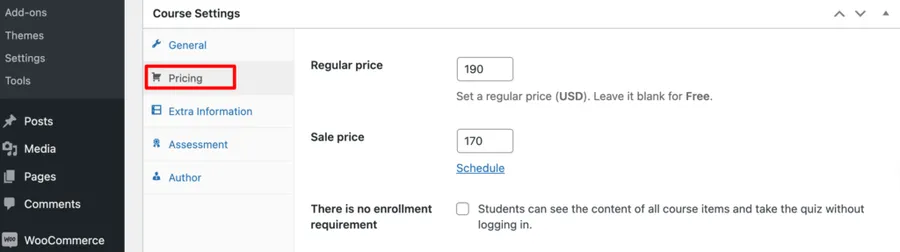
Set a “Regular Price” or a “Sale Price.” If you leave it blank, it becomes a free course with a “Start Now” button. For paid programs, you can use the Stripe add-on for LearnPress to accept credit card payments securely.
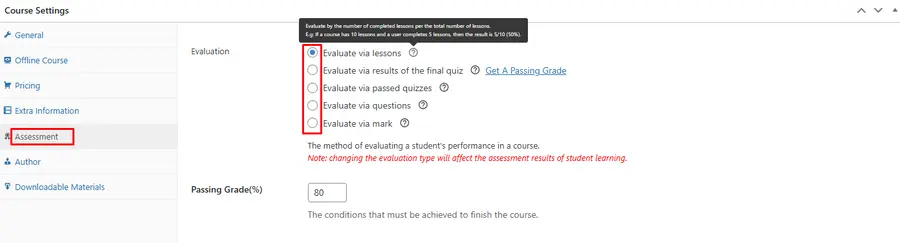
3. Assessment and Passing Conditions
In the Assessment tab, choose the passing conditions. You can evaluate the cohort based on quizzes, completed lessons, or a final mark. This ensures everyone meets the required standard before receiving their certificates add-on for LearnPress.
Step 4: Enhancing Engagement with Add-ons
To run successful cohort-based online courses WordPress, you should utilize specific add-ons that facilitate group management.
- Content Drip Add-on: Use the content drip add-on for LearnPress to release lessons on specific dates. This keeps the whole cohort synchronized.
- Assignments Add-on: This is perfect for group work. Use the assignments add-on for LearnPress to provide homework instructions, set points, and allow students to upload their work for manual grading.
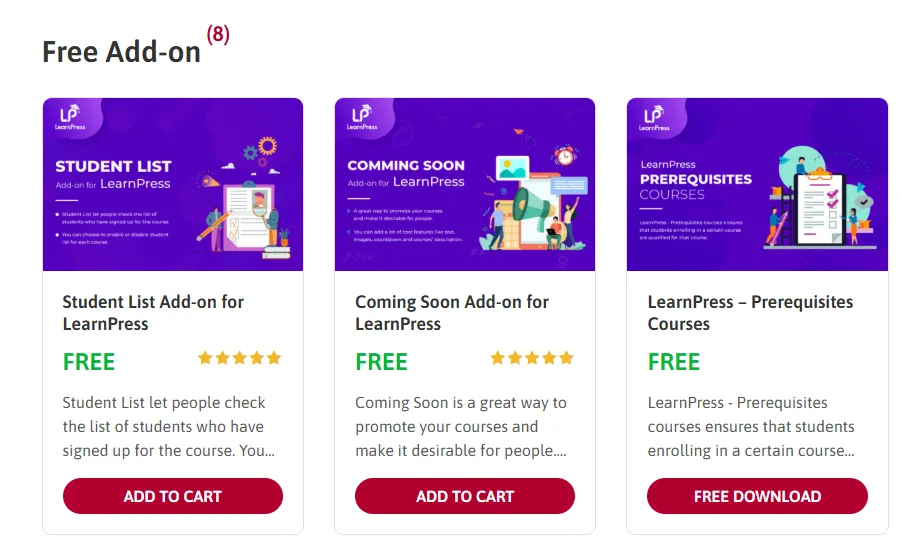
- Student List Add-on: Help students see who else is in their group by using the student list add-on for LearnPress.
- Gradebook: Track everyone’s progress in one place with the gradebook add-on for LearnPress.
Step 5: Designing with the Eduma Theme
The Eduma theme is designed to work perfectly with LearnPress. It includes over 39 demos, such as the new “Education News” or “Yoga Coaching” layouts, which are optimized for WordPress group learning.

1. Drag & Drop Builder
Eduma is compatible with Elementor, allowing you to build stunning pages with no coding. You can customize headers, footers, and course grids to fit your brand.
2. Premium Features Included
By using Eduma, you get bonus features like the “Offline Course” mode. When you enable the offline feature, the system disables online functions like quizzes and curriculum, allowing you to sell live in-person training or Zoom-based sessions. This is a flexible way to manage cohort-based online courses WordPress for different needs.
3. Community and Social Learning
Eduma supports bbPress and BuddyPress integration. This allows you to create a vibrant community forum where students can network and support one another. A strong community is the backbone of any group learning LMS WordPress platform.
Technical Tips for Site Performance
Running a cohort means many students might log in at once. To keep your site fast:
- Hosting: Use a dedicated server or high-quality managed hosting.
- Lazy Load: If your videos don’t show, turn off lazy loading for iframe tags in your optimization plugins.
- Security: Regularly scan WordPress themes for malware to protect student data.
- Mobile Access: Consider using the Eduma mobile app to let students learn on their phones.
Conclusion
Launching cohort-based online courses WordPress is the most effective way to build a sustainable and high-impact educational business. By utilizing the Eduma theme and the LearnPress Pro Bundle, you gain access to a professional suite of tools that automate course management. From drag-and-drop building to advanced assignment tracking and content dripping, these tools allow you to focus on teaching. Offering cohort-based online courses WordPress will transform your digital classroom into a thriving, collaborative community. If you are ready to begin, the first step is to learn how to create an online course in WordPress and select the demo that best fits your vision.
FAQs about Cohort-Based Online Courses / WordPress Group Learning
1. What is the primary benefit of cohort-based online courses WordPress?
The main advantage is the high completion rate. Because students move through the curriculum together, the social interaction and shared deadlines keep them engaged and accountable throughout the program.
2. Can I use LearnPress to offer free courses in a cohort?
Yes. To make a course free, simply leave the pricing field blank in the settings. A “Start Now” button will appear, allowing students to enroll and join the cohort immediately without a payment process.
3. How do I limit the number of participants in my cohort?
In the LearnPress course settings under the “General” tab, you can set a “Max Student” number. Once this limit is reached, the system will prevent further sign-ups, helping you maintain a high-quality, manageable learning environment.
4. Does the Eduma theme support mobile learning?
Absolutely. Eduma is fully responsive and offers a dedicated mobile app integration. This allows your students to access their lessons and materials from any mobile device, which is perfect for modern, on-the-go learners.
5. How can I manage multiple instructors for a single course?
You can use the co-instructors add-on for LearnPress. This allows the admin to assign more than one instructor to a course, enabling collaborative teaching and easier management of a large student group.
Read more: Create a WordPress LMS Website: From Zero to Pro in Minutes
Contact US | ThimPress:
Website: https://thimpress.com/
Fanpage: https://www.facebook.com/ThimPress
YouTube: https://www.youtube.com/c/ThimPressDesign
Twitter (X): https://x.com/thimpress_com