
Managing an online educational platform requires strategic delivery methods to ensure student success and platform growth. One of the most effective techniques to improve engagement, reduce overwhelm, and increase retention is to add automatic drip content in WordPress. This method prevents learners from accessing an entire library of information at once, instead releasing lessons and materials gradually to ensure a structured and effective learning journey.
For course creators and site administrators, understanding how to implement this system is crucial. Without a scheduled release of content, students often binge-watch material without retaining it or become intimidated by the volume of work required. By utilizing specific tools within the WordPress ecosystem, specifically the LearnPress LMS plugin, educators can take full control of the student pacing. This guide provides a comprehensive, step-by-step walkthrough on installing, configuring, and optimizing WordPress drip content strategies.
Eduma – Education WordPress Theme
We provide an amazing WordPress theme with fast and responsive designs. Let’s find out!
Understanding the Power of Content Dripping
Before diving into the technical installation, it is important to define why WordPress drip content is a standard practice in the e-learning industry. Drip content refers to the automated process of releasing access to protected material based on a schedule or user actions.
In a traditional classroom, a professor does not hand out the final exam on the first day of the semester. Instead, knowledge is built layer by layer. A drip content membership site mimics this pedagogical approach digitally. It ensures that a user masters “Lesson A” before “Lesson B” becomes available. This structure not only aids in learning retention but also protects the value of the course. If a user can download every video in the first hour, the perceived value of a monthly subscription diminishes rapidly. By dripping content, the site ensures sustained engagement over weeks or months, significantly reducing churn rate.
Step 1: Install the LearnPress Content Drip Add-on
To enable these advanced scheduling features, the standard LearnPress installation requires a specific extension known as the Content Drip Add-on for LearnPress. If you are new to the platform, you might first want to review how to install LearnPress plugin correctly before adding extensions.


There are two primary methods to install this drip content plugin WordPress supports: via a direct file download or by using a purchase code.
Learn MoreMethod A: Installation via Download (.zip file)
This method is ideal for users who prefer manual file management or have limited server connectivity for remote installations.
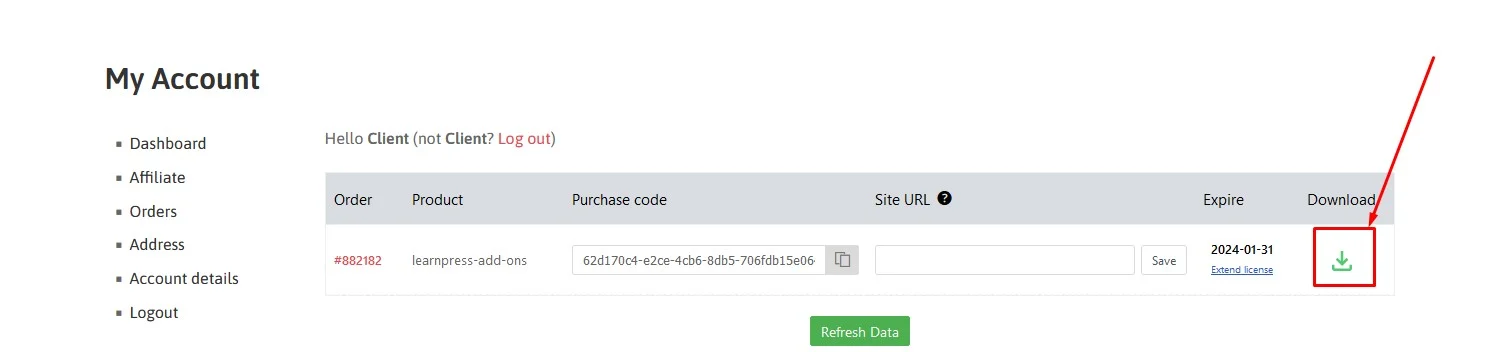
- Access the ThimPress Account: The process begins after purchasing the Content-Drip Addon for LearnPress. Navigate to the official ThimPress website, select “Sign In,” and proceed to the “My Account” section.
- Download the Asset: Inside the account dashboard, locate the purchase history. Click the ‘Download‘ button or ‘Select version‘ to save the plugin .zip file to a local computer.
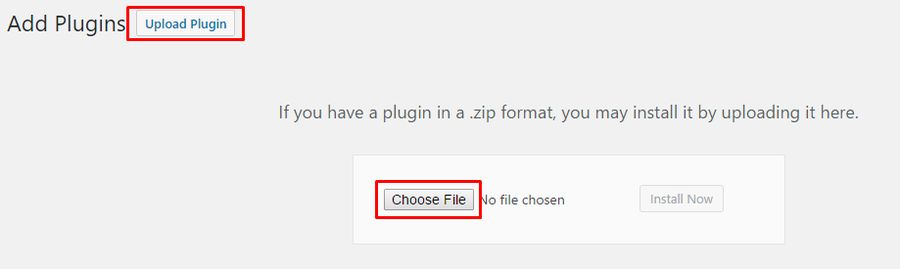
- Upload to WordPress: Log in to the website’s administrative area. Visit WordPress Dashboard > Plugins > Add New.
- Install the File: Select the ‘Upload Plugin‘ button located at the top of the screen. Choose the .zip file that was previously downloaded and click ‘Install Now‘ to initiate the installation process.
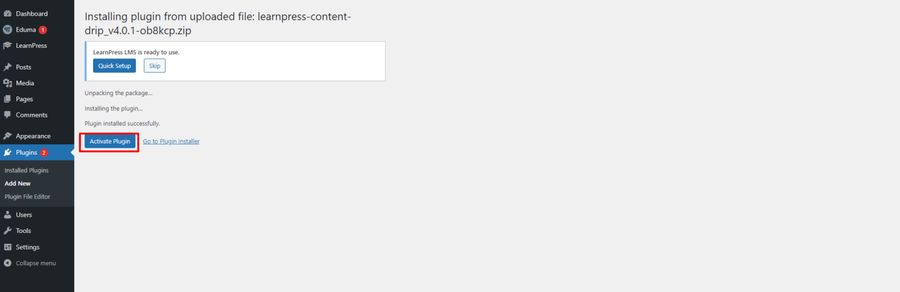
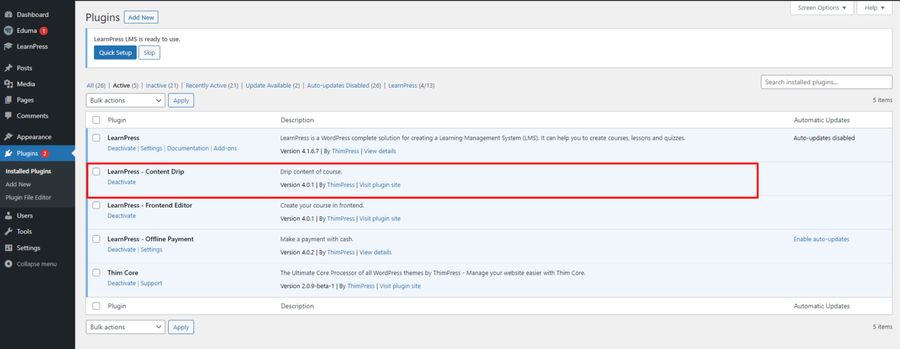
- Activation: Once the installation creates the necessary folders, click “Activate Plugin.” A system notice will appear confirming that the plugin is successfully activated and ready-to-use.
Method B: Installation via Purchase Code
This method is highly recommended as it connects the specific website URL to the license, ensuring smoother updates and support.
- Retrieve License Details: Sign in to the ThimPress account and go to My Account -> Dashboard. This area contains vital information regarding the purchase.
- Order: The unique order number.
- Product: The specific name of the add-on.
- Purchase code: The alphanumeric product code used to install and update add-ons. It is important to note that each purchase code is limited to one website.
- Site URL: The field where the active domain must be configured.
- Expire: The expiration date for support and upgrade licenses.
- Download: The option to download different versions manually.
- Configure the Site URL: Copy the domain name of the WordPress site where the plugin will be used. Paste this into the “Site URL” field in the ThimPress dashboard and click “Save.” This assigns the specific website to the purchase code.
- Copy the Purchase Code: After the URL is successfully assigned, copy the “Purchase code” to the clipboard.
- Install via Dashboard: Return to the WordPress admin panel. Navigate to Dashboard -> LearnPress -> Add-ons.
- Submit the Code: Select the “All” tab and find the Content Drip add-on. Paste the copied code into the “Install” field and click “Submit.”
- Verification: To confirm the process was successful, navigate to LearnPress -> Add-ons -> Installed. The add-on should be listed there, indicating the site is ready for WordPress content dripping.
Step 2: Advantages of Using LearnPress for Content Dripping
Choosing LearnPress as the engine for this strategy offers specific benefits over generic membership plugins. According to a recent LearnPress review, the logic is built specifically for education rather than just file protection.
- Progressive Difficulty Management: When you create an online course in WordPress that contains many lessons and quizzes, the subsequent material is typically more difficult than the previous content. Locking future content prevents students from attempting advanced concepts without the necessary foundation.
- Guaranteed Comprehension: Educators often want students to fully understand the lesson before moving on. By restricting access, the system forces a linear progression of study.
- Certificate Integrity: It ensures students have studied all required information before being awarded a certificate. This prevents the common issue of users skipping videos just to claim a completion badge. You can seamlessly integrate this with the Certificates Add-on for LearnPress to automate the reward process.
- Study Effectiveness: This is a great way to guarantee better study effectiveness. You can use the Content Drip Add-on alongside the Assignments Add-on for LearnPress or with quizzes after each lesson to verify knowledge retention. For even more robust assessment, you might consider the Random Quiz Add-on for LearnPress to ensure unique testing experiences.
Step 3: Configure Automatic Drip Content Rules
Once the software is installed, the next phase is configuration. The settings for WordPress drip content are located within individual course setups, allowing for granular control. A beginner course can have different rules than an advanced masterclass.
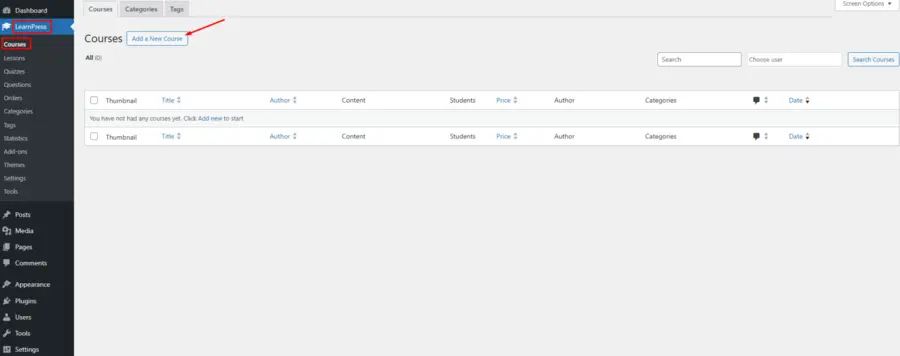
To begin, visit LearnPress > Courses and either click ‘Add New’ or choose any existing course to edit. If you want to ensure your site looks professional while setting this up, using a dedicated theme like Eduma or checking out other best education themes for WordPress will make the interface more intuitive.
Enabling the WordPress Drip Content Functionality
Scroll down to the “Courses Settings” section.
- Select the Content Drip tab.
- Enable the setting: “All settings in items of this course will become locked if turn off”. This acts as a master switch; if disabled, the lessons may revert to being open to everyone.
- Select the Drip Type. This decision dictates the logic the system uses to unlock content.
Click “Setting” under “Drip Type” to open the Drip Item page. This is where specific values are assigned to lessons.
Step 4: Selecting the Drip Strategy (The 3 Cases)
LearnPress provides three distinct “Cases” or modes for dripping content. Understanding the difference between these cases is essential to add automatic drip content in WordPress effectively.
Case 1: Specific Time After Registering
This strategy is time-based relative to the user’s enrollment. It is perfect for cohort-based courses or “30-day challenges.”
- Configuration: The administrator chooses to set a specific time when students can open the course items. For example, Lesson 1 is available immediately, Lesson 2 opens 24 hours later, and Lesson 3 opens 48 hours later.
- Student Experience: On the front end, if a student tries to access a locked lesson, the system displays a countdown or a date indicating when the material will become available. This feature works seamlessly even on mobile devices if you are using the LearnPress Mobile App.
Case 2: Open Course Items Sequentially
This strategy forces a linear path. It does not rely on a clock, but rather on completion status.
- Configuration: Select “Open the course items sequentially.”
- Student Experience: With Case 2, the front end will display the course outline, but future items are inaccessible. To unlock Item B, the student must complete Item A. This is the most common method for academic courses where you need to create a lesson with LearnPress that builds directly on the previous one. To keep track of how students are progressing through these sequential steps, installing the Gradebook Add-on for LearnPress is highly recommended.
Case 3: Open Item Based on Prerequisite Items
This is the most flexible and advanced option. It allows for non-linear dependencies.
- Configuration: The administrator can select specific prerequisites here. For instance, a “Final Exam” item might require the completion of “Quiz 1,” “Quiz 2,” and “Quiz 3,” regardless of the order in which those quizzes were taken.
- Student Experience: With Case 3, the front end will show the item as locked until the specific condition is met. This is excellent for gamified learning paths where unlocking a “bonus lesson” requires passing a specific difficult quiz.
Strategies for Optimizing the Drip Experience
Successfully implementing the software is only the first step. To truly benefit from a drip content membership site, the strategy must be managed with the user experience in mind.
1. Synchronize with Email Marketing
Automated content releases should be paired with automated communication. When LearnPress unlocks a new lesson via the drip schedule, the student is not automatically notified. It is vital to set up an email sequence that runs parallel to the WordPress drip content schedule.
- Day 0: Welcome email.
- Day 7: “Week 2 is now unlocked! Log in to continue.”
- Day 14: “Week 3 is ready.”
Integrating tools like Mailchimp or Constant Contact keeps the course top-of-mind and brings traffic back to the site.
2. Monetize Effectively with Payment Gateways
If you are dripping premium content, ensure your payment processing is robust. You can integrate the Stripe Add-on for LearnPress or the WooCommerce Add-on for LearnPress to handle recurring subscriptions.
For more complex membership structures, combining this with Paid Memberships Pro for LearnPress ensures that a student only receives their weekly content drip if their monthly payment has successfully cleared via major processors like PayPal.
3. Monitor Student Drop-off Points
If analytics show that a significant percentage of students stop progressing at Week 3, the drip schedule might be too slow (causing boredom) or the content might be too difficult. Utilizing tools like Google Analytics allows you to track these user behaviors. Adjusting the WordPress drip content settings based on this data is key; perhaps unlocking content faster will keep engagement higher.
Conclusion
The ability to add automatic drip content in WordPress is a transformative feature for any online educator. It shifts the platform from a simple file repository to a dynamic, guided learning environment. By controlling the pace of information, site owners can ensure better student outcomes, higher retention rates, and a more professional user experience.
Frequently Asked Questions (FAQs)
1. Is the Content Drip Add-on free with LearnPress?
No, LearnPress is a free core plugin, but the Content Drip functionality is a premium add-on. You must purchase it from ThimPress or as part of a premium bundle to access the advanced locking and scheduling features.
2. Can I change the drip type after a course has started?
Yes, you can switch between “Specific Time” and “Sequential” modes. However, doing so while students are actively taking the course may cause confusion or accidentally lock/unlock content unexpectedly for existing users. It is best to finalize the strategy before enrollment begins.
3. Does this work for quizzes as well as lessons?
Yes. You can apply drip rules to lessons, quizzes, and assignments. For example, you can lock a quiz until a specific lesson is completed, or lock a lesson until a previous quiz is passed.
4. What happens if I forget to renew my purchase code support license?
The plugin will continue to function on your website, and your content will remain dripped. However, you will no longer receive updates or technical support from the developer, which could pose security or compatibility issues in the future.
5. Can I test the drip schedule as an administrator?
Administrators usually have full access to all content regardless of drip settings. To properly test the schedule, you should create a dummy student account and log in via a private browser window to experience the site exactly as a new user would.
Read more: Easiest Way to Add a Learning Management System in WordPress
Contact US | ThimPress:
Website: https://thimpress.com/
Fanpage: https://www.facebook.com/ThimPress
YouTube: https://www.youtube.com/c/ThimPressDesign
Twitter (X): https://x.com/thimpress_com

