Online shoppers often leave a website when they cannot quickly decide which product matches their needs. Too many choices can create confusion, especially for stores with multiple product categories or variations.
A product quiz solves this problem by guiding visitors through a short set of questions and recommending products based on their answers. Instead of browsing dozens of pages, users receive a personalized suggestion within minutes.
A well-designed product quiz in WordPress can also support email marketing, customer segmentation, and higher conversion rates. By connecting quiz responses to an email platform, store owners can follow up with targeted offers and useful recommendations.
This guide explains how to build a product recommendation quiz in WordPress using WPForms. The process is beginner-friendly, requires no coding knowledge, and works well for WooCommerce stores, digital products, online courses, and service-based businesses.
Eduma – Education WordPress Theme
We provide an amazing WordPress theme with fast and responsive designs. Let’s find out!
Why Use a Product Quiz on Your WordPress Website?
A quiz is more than an interactive feature. It acts like a digital shopping assistant that helps customers make faster decisions.
Improve Product Discovery
Many visitors leave a store because they cannot find the right item quickly enough. A quiz narrows down choices and directs users to products that fit their interests.
For example, a skincare store can ask about skin type, concerns, and preferred routines before suggesting products.
Increase User Engagement
Interactive content keeps users on a page longer than standard product listings. Since quizzes require participation, they naturally encourage users to stay involved.
Support Lead Generation
A lead generation quiz can collect email addresses before revealing the final result. This creates opportunities for follow-up campaigns, promotions, and personalized recommendations.
Deliver Personalized Recommendations
Customers respond better to tailored suggestions than generic product promotions. A product recommendation quiz helps create a more personal shopping experience.
Gather Valuable Customer Insights
Quiz responses reveal customer preferences, budgets, habits, and goals. Businesses can use this information to improve products, marketing campaigns, and customer targeting.
What You Need Before Creating a Product Quiz
Before starting, prepare the following tools and assets:
- A WordPress website
- WPForms Pro
- WPForms Quiz Addon
- An email marketing platform
- Dedicated result pages for quiz outcomes
It is also important to define your quiz goals before building anything.
Ask yourself:
- What products should the quiz recommend?
- What customer problems should it solve?
- What information do you want to collect?
- What action should users take after seeing the result?
Planning these details first will make the setup process easier.
Step 1: Install WPForms Pro
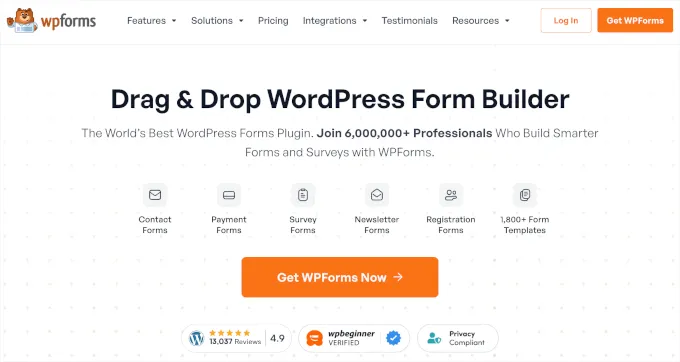
WPForms is one of the most popular form builders for WordPress. Its drag-and-drop interface makes it suitable for beginners and business owners who want to create advanced forms without coding.
To begin, purchase and download WPForms Pro.
After downloading the plugin:
- Log in to your WordPress dashboard.
- Go to Plugins → Add New.
- Upload the WPForms ZIP file.
- Install and activate the plugin.
- Enter your license key inside the WPForms settings panel.
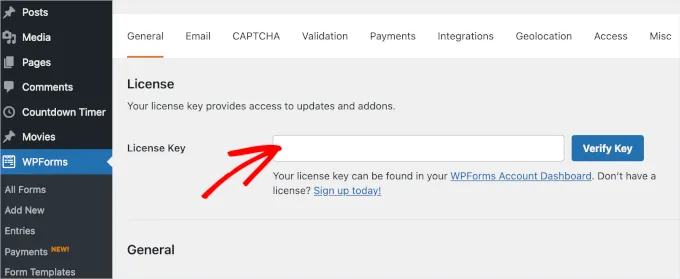
Once activated, the premium features become available.
Step 2: Activate the Quiz Addon
The WPForms Quiz Addon enables quiz-specific features such as scoring, personality outcomes, and answer mapping.
To install it:
- Open WPForms → Addons.
- Search for the Quiz Addon.
- Click Install Addon.
- Wait for activation to complete.
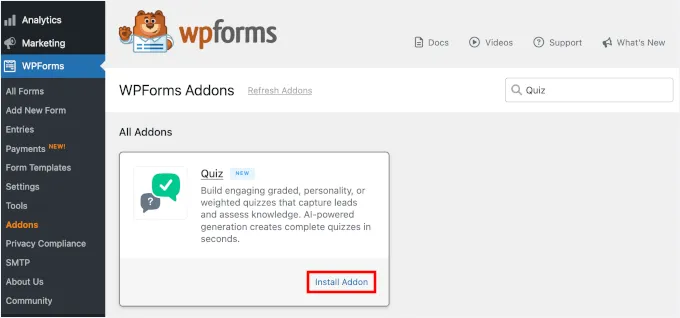
After installation, the quiz settings will appear inside the form builder.
Step 3: Create a New Product Quiz Form
Go to WPForms → Add New Forms.
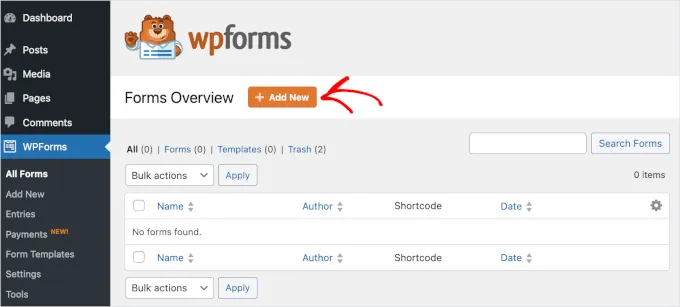
You can either:
- Start from a blank form
- Use a pre-built template
For better customization, a blank form is recommended.
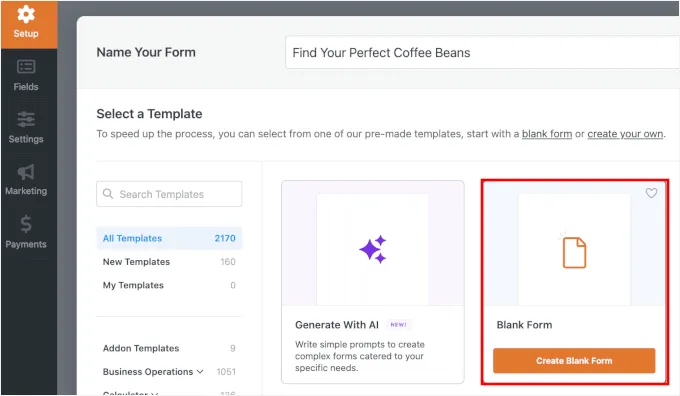
Name your quiz clearly. Examples include:
- Find Your Perfect Coffee Blend
- Which Laptop Fits Your Workflow?
- Discover Your Ideal Fitness Plan
The title should immediately explain the value of the quiz.
Step 4: Enable Quiz Features
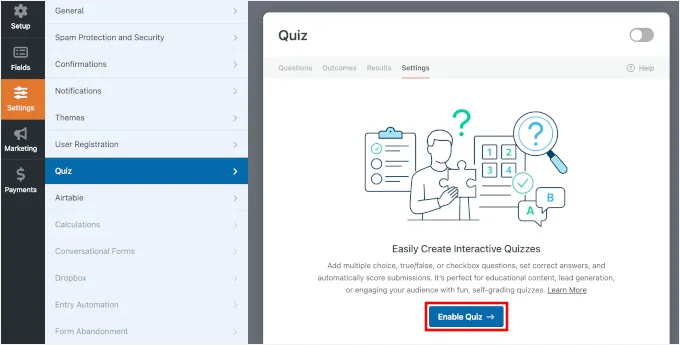
Inside the form builder, open the Quiz settings and activate Quiz Mode.
WPForms offers different quiz types. For product recommendations, the best option is usually:
Personality Quiz
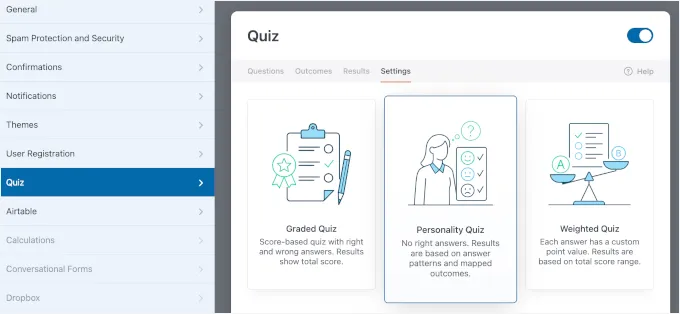
This format assigns users to a result category based on their answers rather than calculating scores.
For example, a coffee store might create these outcomes:
- Smooth and balanced
- Bold and intense
- Light and fruity
Each outcome can connect to a different product page.
Step 5: Add Quiz Questions
Now it is time to create your questions.
A successful quiz should feel simple and conversational. Avoid complicated wording or unnecessary steps.
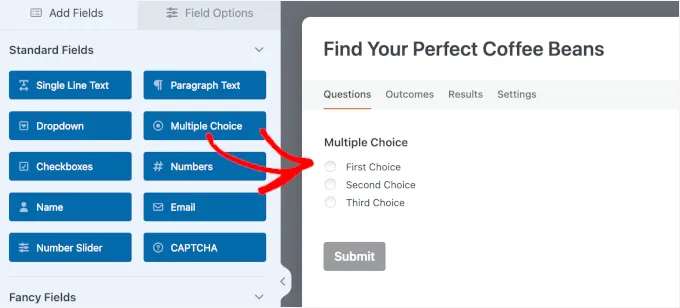
Best Question Types
WPForms supports several field types that work well for quizzes:
Multiple Choice
This is the most effective option for most quizzes because users can answer quickly.
Dropdown Menus
Useful when there are many answer choices.
Checkboxes
Helpful when users need to select multiple preferences.
Example Questions
A coffee quiz might include:
- How strong do you like your coffee?
- Do you prefer sweet or bold flavors?
- How do you usually brew coffee?
- What time of day do you drink coffee most often?
A skincare quiz might ask:
- What is your skin type?
- What is your main concern?
- How often do you use skincare products?
Keep the quiz short. Four to six questions are usually enough.
Step 6: Connect Answers to Quiz Results
This step determines how the quiz generates recommendations.
Each answer should map to a specific outcome.
For example:
- “I prefer strong coffee” → Bold and intense
- “I like smooth flavors” → Smooth and balanced
- “I enjoy fruity notes” → Light and fruity
Carefully review every mapping to ensure accurate results.
If the recommendations do not match user expectations, visitors may lose trust in the quiz.
Step 7: Add an Email Capture Step
One major advantage of a lead generation quiz is the ability to collect contact information naturally.
Add an email field near the final step of the quiz.
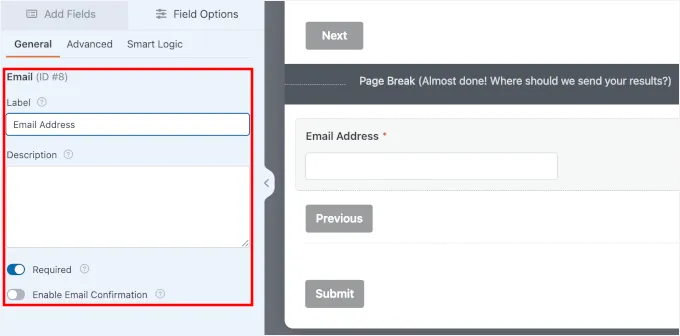
You can include a message such as:
“Enter your email to receive your personalized recommendation and bonus tips.”
This approach works well because users already expect a personalized result.
Add Consent Text
To improve transparency, include a consent checkbox that explains how emails will be used.
Example:
“I agree to receive recommendations and occasional promotional emails.”
This supports user trust and aligns with privacy best practices.
Step 8: Split the Quiz into Multiple Pages
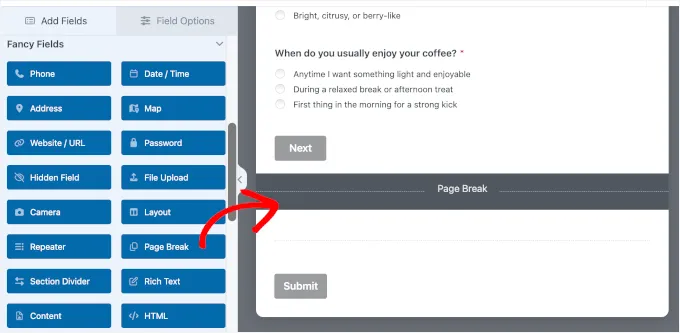
A multi-step design improves the user experience.
Instead of showing every question on one screen, divide the quiz into smaller sections.
Benefits include:
- Better readability
- Reduced form fatigue
- Improved mobile usability
- Higher completion rates
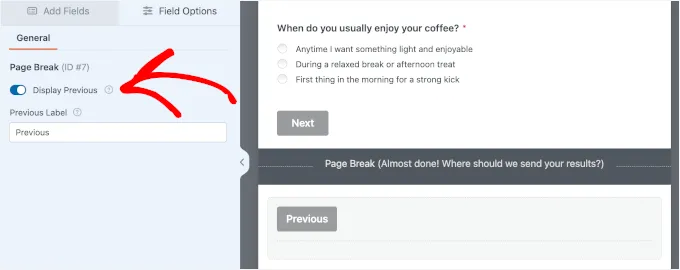
WPForms allows you to insert page breaks between sections.
You can also customize the Next and Previous buttons to create a smoother flow.
Step 9: Create Result Pages
Result pages are where users see their personalized recommendation.
Each outcome should have its own dedicated page.
What to Include on a Result Page
A strong result page should contain:
- The quiz result title
- A short explanation
- Recommended products
- Product images
- Customer benefits
- A call-to-action button
For example, if the result is “Bold and Intense,” the page might recommend dark roast coffee products with a direct purchase button.
The goal is to guide visitors toward a purchase decision immediately after the quiz.
Step 10: Connect Your Email Marketing Platform
WPForms integrates with popular email marketing services.
You can connect your quiz to platforms such as:
Create separate lists or tags for each quiz outcome.
For example:
- Smooth Coffee Lovers
- Espresso Fans
- Light Roast Subscribers
This allows you to send targeted follow-up campaigns based on quiz responses.
Step 11: Build Automated Follow-Up Emails
After users complete the quiz, automated emails can continue the customer journey.
Effective Follow-Up Ideas
Welcome Email
Thank users for taking the quiz and summarize their result.
Product Recommendations
Suggest products related to the quiz outcome.
Educational Content
Share blog posts, tutorials, or buying guides connected to the recommendation.
Special Discounts
Offer a coupon code to encourage first-time purchases.
Reminder Emails
Send replenishment reminders or related product suggestions later.
Automated sequences improve engagement without requiring manual work.
Step 12: Embed the Quiz on Your Website
Once the quiz is complete, publish it on your website.
WPForms allows you to embed forms using:
- The block editor
- Shortcodes
- Dedicated landing pages
A dedicated landing page usually performs best because it keeps visitors focused on the quiz.
Before publishing, test every possible result path.
Check:
- Required fields
- Email validation
- Result accuracy
- Mobile responsiveness
- Email integrations
A fully tested quiz creates a smoother experience for visitors.
Best Practices for Creating a High-Converting Product Quiz
Keep Questions Simple
Use short and direct language.
Avoid technical terms unless your audience already understands them.
Focus on User Intent
Every question should help improve the recommendation.
Remove questions that do not contribute useful information.
Use Clear Calls to Action
Result pages should encourage the next step.
Examples include:
- Shop now
- View recommended products
- Start your free trial
- Claim your discount
Optimize for Mobile Devices
Most users complete quizzes on mobile devices.
Make sure buttons, text, and images display correctly on smaller screens.
Track Performance
Measure:
- Completion rates
- Conversion rates
- Email signups
- Product clicks
This data can help improve your quiz over time.
Common Mistakes to Avoid
Asking Too Many Questions
Long quizzes reduce completion rates.
Giving Weak Recommendations
Recommendations should feel specific and useful.
Ignoring Mobile Optimization
A poor mobile experience can hurt conversions.
Forgetting to Test the Quiz
Always test every path before publishing.
FAQs
Do I Need Coding Skills to Build a Product Quiz in WordPress?
No. WPForms uses a drag-and-drop interface that does not require coding knowledge.
What Is the Best Plugin for a WordPress Product Quiz?
WPForms is one of the best options because it combines form building, quiz functionality, and email integrations in one tool.
Can I Use a Product Quiz for WooCommerce?
Yes. A product recommendation quiz works well with WooCommerce stores and can direct visitors to specific product pages.
How Many Questions Should a Product Quiz Include?
Most successful quizzes include between four and six questions.
Can I Connect the Quiz to an Email Marketing Platform?
Yes. WPForms supports integrations with many popular email marketing services.
Conclusion
A product quiz in WordPress can improve user engagement, simplify product discovery, and increase conversions.
Instead of forcing visitors to browse large product catalogs, a quiz helps them find the best option based on their preferences.
Using WPForms makes the process simple, even for beginners. With the Quiz Addon, email integrations, and personalized outcome pages, you can create an interactive shopping experience that supports both sales and lead generation.
The most effective quizzes are short, easy to complete, and focused on delivering meaningful recommendations. When combined with automated follow-up emails and optimized result pages, they can become a powerful conversion tool for any WordPress website.
Read more: What are the 5 Top Search Engines? (Google Alternatives Included)
Contact US | ThimPress:
Website: https://thimpress.com/
Fanpage: https://www.facebook.com/ThimPress
YouTube: https://www.youtube.com/c/ThimPressDesign
Twitter (X): https://x.com/thimpress_com