WordPress maintenance keeps your website available, secure, and ready for customers. It includes backups, tested updates, performance checks, security reviews, and the routine work that catches small problems before they interrupt sales or inquiries.
For a US business, a website outage can mean missed appointments, abandoned carts, or students unable to access a course. Even when the homepage loads, a broken payment form or failed confirmation email can quietly affect revenue.
This guide gives you a maintenance schedule and a practical repair process. If you are already searching “fix my WordPress site,” start with the troubleshooting section, preserve your current data, and work through one change at a time.
Eduma – Education WordPress Theme
We provide an amazing WordPress theme with fast and responsive designs. Let’s find out!
What Does WordPress Maintenance Include?
Maintenance covers the software, infrastructure, and customer journeys that make your website work. Updating WordPress is one part of the job. You also need to know whether backups can be restored, forms deliver messages, certificates remain valid, and security alerts receive attention.
A useful plan assigns each task an owner and a frequency. It also defines what happens when something fails. A backup notification is only valuable if someone investigates an unsuccessful run and confirms that a usable copy exists elsewhere.
Keep a simple record of hosting details, licenses, important integrations, recovery contacts, and recent changes. Store credentials securely rather than placing passwords in a shared maintenance document.
For a starting framework, read ThimPress’s essential WordPress plugins can help you review the tools supporting your plan.
A WordPress Maintenance Schedule You Can Follow
Daily: Monitor availability and important alerts
Check uptime monitoring, backup results, and urgent security notifications. For a transactional website, monitor a meaningful action as well as the homepage. A successful HTTP response does not prove that checkout, login, or course enrollment is working.
Choose backup frequency according to how much data you can afford to lose. A brochure website updated monthly has different needs from a store receiving orders throughout the day. Retain copies outside the production server and control access to them.
Weekly: Review updates and test customer journeys
Review available core, theme, and plugin updates. Check release notes and known compatibility issues, then test significant changes before deployment. Urgent security fixes may need faster handling than your normal weekly window.
Submit a contact form, check notification delivery, and review a representative mobile page. Stores should test the purchase path, while membership and education websites should test account access and protected content.
Monthly: Review performance and security
Compare performance on consistent pages and devices. Investigate new slowdowns instead of installing another optimization plugin automatically. Review administrator accounts, unused extensions, storage growth, and unusual authentication activity.
Check broken internal links, important redirects, and indexing settings. These tasks belong alongside updates because a technically available website can still lose useful traffic through accidental noindex settings or broken navigation.
Quarterly: Practice recovery and review responsibilities
Restore a backup into an isolated environment and confirm that files and database content work together. Review access permissions, renewal dates, and escalation contacts. Update the plan when your website adds payments, subscriptions, or another important service.
ThimPress’s backup plugin comparison can help you evaluate tools, but a successful recovery test is stronger evidence than a feature list.
How to Update WordPress Without Guesswork
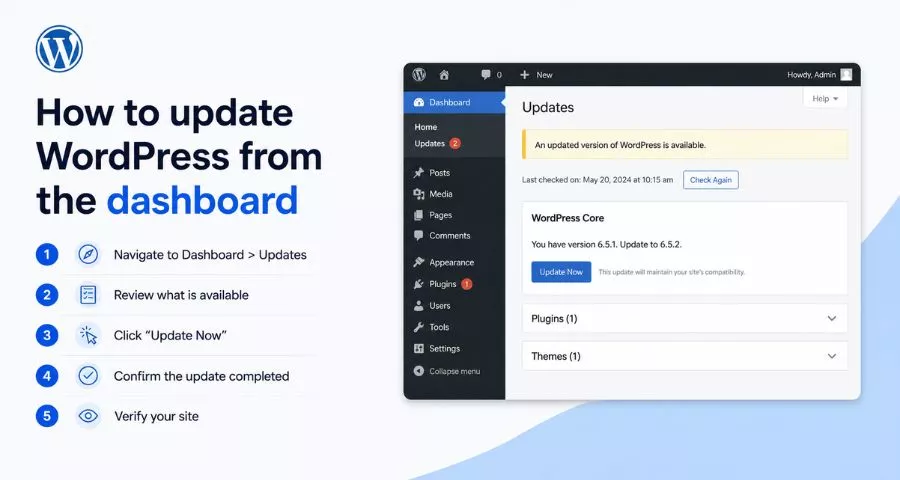
Start with a verified backup and a clear rollback plan. Check the supported WordPress and PHP versions for your important plugins, especially payment, learning, membership, and page builder extensions. Read vendor instructions for updates that include database changes.
Use a staging copy that resembles production. Protect it from public access, disable real outgoing campaigns, and use test payment credentials. Never assume a staging clone is harmless simply because customers cannot easily find its address.
Apply changes in a deliberate sequence and test after each meaningful step. The appropriate order can depend on compatibility requirements, so follow vendor guidance rather than treating one universal order as mandatory.
After deployment, clear relevant caches and test as a logged-out visitor. Check forms, account access, checkout, scheduled actions, and administrative editing. Keep monitoring alerts visible until you are confident that the update is stable.
Refer to ThimPress’s safe WordPress update walkthrough, its overview of WordPress update methods, and the official WordPress upgrade documentation when preparing your process.
Fix My WordPress Site: What to Do First
If your website is already broken, pause nonessential changes. Record the symptom, the approximate start time, and the last known successful action. Capture the error message without exposing customer information or credentials.
Test the website from another browser or network. Check whether the problem affects everyone, only logged-in users, one page, or one action. Compare the front end with the dashboard. Those differences help separate a browser issue from an application or hosting problem.
Review recent changes: plugin updates, theme edits, PHP upgrades, DNS changes, caching settings, and third-party outages. A timing match suggests where to investigate, but it does not prove the cause.
Preserve the current files and database before attempting repair. Even a broken website may contain new orders, registrations, and useful logs. If hosting is unavailable, ask the provider what recovery snapshots exist and whether an outage is already being investigated.
ThimPress’s overview of common WordPress errors can help you identify the symptom. Avoid applying every suggested fix at once; you need to know which change affected the result.
WordPress Plugin Update Failure Troubleshooting
WordPress plugin update failure troubleshooting starts by separating two situations: an update that could not finish and an update that finished but introduced a problem. The recovery steps differ, so read the message and inspect the installed version before proceeding.
Step 1: Identify the failure stage
Was WordPress unable to download the package, create a directory, replace files, or activate the updated plugin? Save the exact error. A download failure points toward a different investigation than a PHP fatal error after activation.
For paid plugins, check the license status and vendor account connection. An expired entitlement or unavailable update server can interrupt package delivery even when the existing plugin continues to function.
Step 2: Check hosting resources and permissions
Review available disk space, inode limits, and relevant server logs. Ask your host to verify file ownership and permissions if WordPress cannot write to the plugin directory. Do not make all files publicly writable as a shortcut.
Check PHP compatibility and execution limits against the vendor’s requirements. Increasing a limit may help an identified resource problem, but repeated increases without diagnosis can hide an underlying issue.
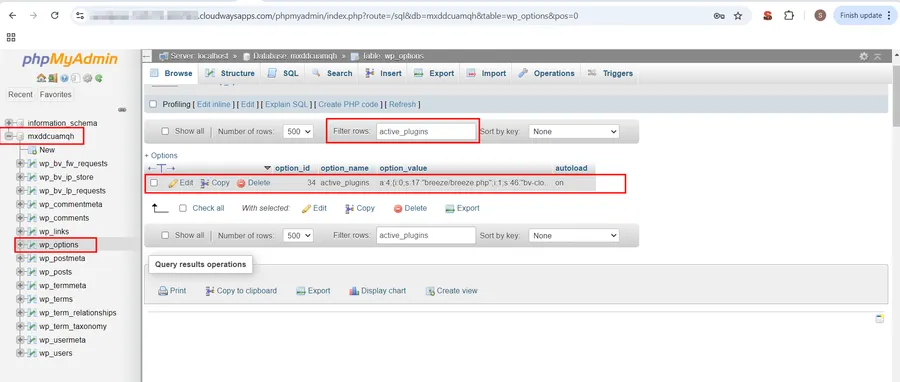
Step 3: Review the plugin package and dependencies
Confirm that the package came from WordPress.org or the legitimate vendor. Check whether the plugin depends on another extension or a matching premium component. A partial upgrade across related components can create version mismatches.
If a package must be replaced manually, use a documented procedure and preserve settings and data. Do not click Delete unless you understand whether the plugin’s uninstall routine removes business records or configuration.
Step 4: Isolate the affected component
If the failure started immediately after an update, test deactivating that specific plugin. Use staging when possible. If dashboard access remains available, deactivate it there and retest the original failing action.
When the dashboard is unavailable, an experienced administrator can temporarily rename the specific plugin directory through SFTP or the host’s file manager. This prevents normal loading of that plugin. Restore the directory name only when you are ready to manage its activation safely.
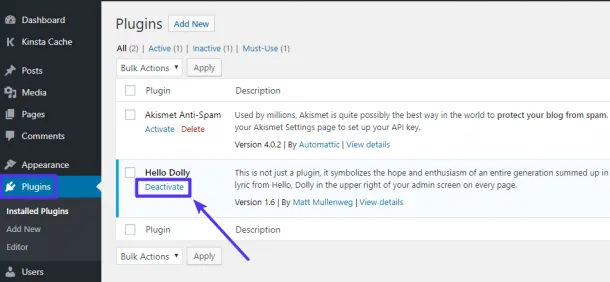
Review ThimPress’s methods for disabling WordPress plugins before making filesystem changes. On a live store, consider how disabling payments, memberships, or security controls affects current users.
Step 5: Test the fix and document it
Install a corrected release or apply the vendor-supported resolution on staging. If a temporary rollback is necessary, use a trusted package and review database compatibility and security implications. Rolling back files does not necessarily reverse a database migration.
After recovery, verify the installed version, repeat the failed workflow, and check fresh logs. Record the cause, temporary workaround, permanent fix, and any follow-up action. Keep unsupported or vulnerable versions from becoming a permanent solution.
WordPress Site Broken? Match the Symptom to the Next Check
Critical error or a blank page
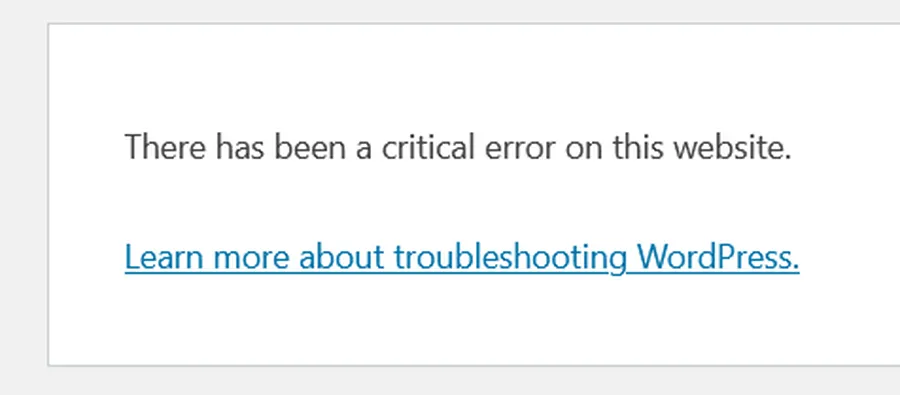
A fatal PHP error can interrupt page generation before useful content appears. Check any WordPress recovery email and review the hosting error log. Look for the relevant timestamp and the first meaningful error rather than assuming every warning caused the outage.
If a recent plugin or custom code change is implicated, isolate it carefully. If the theme is implicated, test a supported default theme on staging. Switching themes on production can alter layouts and functionality, so plan that test deliberately.
HTTP 500 error
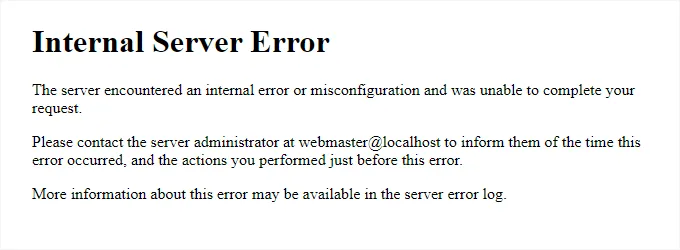
An HTTP 500 response is a general server error, not a diagnosis. Check the application and server logs, recent changes, and hosting status. Investigate configuration rules only when the evidence points there.
On Apache, a malformed .htaccess rule can be relevant; other server configurations work differently. Preserve the original configuration before changes. ThimPress’s guide to HTTP 500 errors in WordPress provides additional troubleshooting context.
Error establishing a database connection
Check database service availability with your host and compare configured credentials with the current hosting settings. A database password change, server interruption, or exhausted connection limit can produce similar symptoms.
Do not run database repair tools automatically. First confirm the cause and preserve a backup. Repairing tables will not solve incorrect credentials or a database server that is unavailable.
Stuck in maintenance mode
WordPress may leave a maintenance marker after an interrupted update. First confirm that no update process is still running. Removing the marker while files are being replaced can expose visitors to an incomplete installation.
If the update has stopped, a stale .maintenance file in the WordPress root may be removed through the hosting file manager or SFTP. Then check update status and plugin versions. Removing the message does not finish an incomplete update.
Layout problems or buttons that stop responding
Check the browser console, missing asset requests, and cache layers. A successful PHP page can still have JavaScript errors or stale stylesheets. Compare with optimization temporarily disabled on staging and inspect recent page builder changes.
If files or extensions appear unexpectedly missing, review ThimPress’s guide to plugins disappearing from the WordPress dashboard. Include a security review when changes have no known explanation.
Use Logs to Guide WordPress Repair
Logs help connect a visible symptom to the code or service involved. Start with your host’s PHP error log and the time of the failure. If you need WordPress debugging, reproduce the problem on staging whenever possible.
The official WordPress debugging guide describes WP_DEBUG, WP_DEBUG_LOG, and WP_DEBUG_DISPLAY. These settings can collect diagnostic details while controlling whether messages appear in page output.
Before editing wp-config.php, save a copy and check whether the constants already exist. Duplicate definitions and syntax mistakes can create another problem. Ask your host or developer for help if you are unfamiliar with configuration files.
Keep diagnostics private. Error messages can contain filesystem paths or other sensitive details, and log files may become accessible if the server is misconfigured. Disable temporary debugging after the investigation and handle retained logs according to your security process.
When escalating, provide the error, timestamp with time zone, affected URL, software versions, and steps to reproduce. Redact secrets and customer data. A concise reproducible report is more useful than a screenshot saying only that the site is broken.
Restore a Backup Without Losing Recent Business Data
A backup restore can recover a failed deployment, but it also returns selected data to an earlier point in time. Before restoring, identify what changed after the backup: orders, accounts, comments, course progress, subscriptions, and uploaded files.
Take a current snapshot if possible, even when the website is malfunctioning. Preserve transaction records and relevant external payment information. Ask your host or developer whether a targeted file recovery is sufficient or whether the database also needs restoration.
Restore into staging first when time and impact allow. Confirm that the backup contains a compatible set of files and database data. A file-only restore can leave software out of step with database changes introduced by an update.
For a busy store, avoid blindly overwriting the live database. Plan how to reconcile recent orders and payment events. The same principle applies to membership changes and student progress: recovery should preserve business continuity as well as page appearance.
After restoration, repeat customer journey tests and check integrations. Verify email delivery, payment webhooks, scheduled jobs, and account permissions. Record which recovery point you used and what data required reconciliation.
Maintain Speed, Security, and Search Visibility
Performance work should begin with measurement. Compare the same pages under similar conditions and identify whether delays come from hosting, database queries, images, external scripts, or browser rendering. Installing several overlapping cache tools can complicate diagnosis.
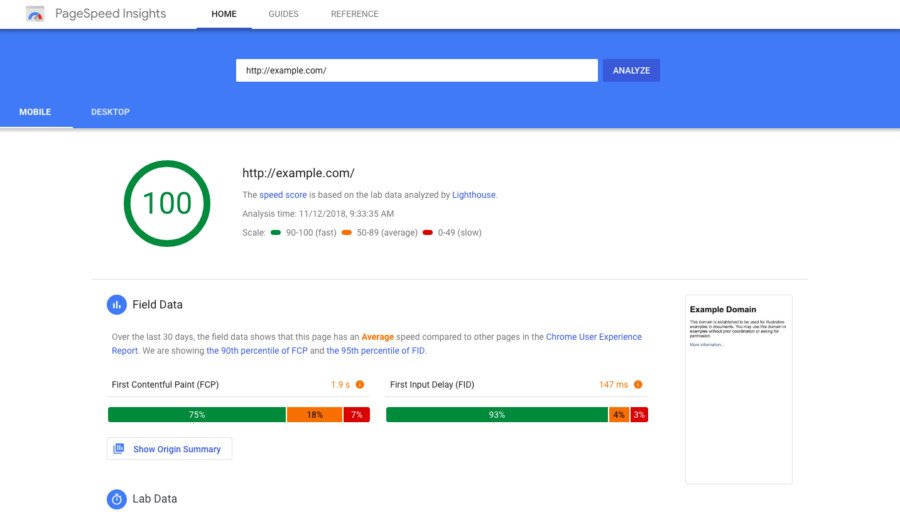
ThimPress’s WordPress speed improvement guide offers a starting point. Test changes individually and confirm that optimization does not break menus, forms, consent controls, or checkout.
For security, keep software supported, limit administrator access, use strong authentication, and review unusual activity. A security plugin can support monitoring and enforcement, but it cannot replace access management or a recovery plan. See ThimPress’s guide to installing a security plugin for setup context.
Review indexing settings and important redirects after migrations, redesigns, and restores. Keep staging protected, and confirm that production is not unintentionally blocked. ThimPress explains making a website discoverable in Google Search and compares WordPress SEO plugins.
Privacy controls deserve maintenance too. New marketing tools can change tracking behavior, so retest your consent configuration after relevant changes. Review ThimPress’s cookie consent plugin guide if your existing tools no longer match your requirements.
When Should You Hire WordPress Maintenance Help?
Professional help becomes useful when the website is commercially important, your team lacks recovery experience, or incidents keep returning. A store with complex payment integrations needs more specialized support than a small website with a few informational pages.
Ask what the service actually includes: monitoring, updates, backup frequency, restore testing, security investigation, and incident response. Confirm response windows in your time zone and whether support is available outside regular business hours.
Clarify exclusions and access arrangements. Malware cleanup, custom development, third-party vendor problems, and emergency weekend work may be priced separately. Keep ownership of your domain, hosting, and essential accounts even when another team manages maintenance.
For a ThimPress-powered website, provide your product versions and a staging reproduction when requesting support. ThimPress’s guide to editing WordPress themes also explains the context for safer customization decisions.
Choose a provider based on documented processes and relevant experience rather than promises that a website will never break. Good maintenance reduces avoidable incidents and improves recovery when problems occur.
Turn a Repair Into a Better Maintenance Plan
Once the website works again, spend a short review session on why the incident became disruptive. Separate the technical trigger from the process gap. A plugin conflict may have triggered the error, while an untested backup or missing alert made recovery slower.
Write a simple incident record with the customer impact, start and recovery times, relevant changes, confirmed cause, and final resolution. Mark uncertain explanations as uncertain. This prevents a guess from becoming the assumed explanation for every similar error later.
Choose one or two concrete improvements. For example, add a checkout test after payment plugin updates, notify a second person when backups fail, or document how to access hosting when WordPress login is unavailable. Assign each improvement an owner and completion date.
Keep an emergency contact path outside the website itself. If the contact page or business email depends on the same unavailable server, your team may struggle to communicate during an outage. Decide where customers will receive status updates when necessary.
Example: Recovering From a Broken Checkout Update
Suppose your store still displays products, but customers report that the payment button stopped working after an extension update. Begin by recording the affected browser, payment method, error message, and update time. Pause unrelated deployments so the evidence stays useful.
Reproduce the failure on staging with test payment credentials. Check the browser console and payment integration logs. If a script optimization rule is interfering with the new payment assets, test an exclusion recommended by the relevant vendors rather than replacing the payment system immediately.
After confirming the targeted fix, apply it to production and complete a controlled transaction using your processor’s recommended procedure. Verify the order status, payment status, confirmation email, and any fulfillment notification. Check for pending or duplicate transactions before retrying failed customer payments.
Finally, add that payment journey to your update checklist. The maintenance lesson is specific: your previous checks proved the storefront loaded, but they did not prove a customer could pay. Better checks should reflect the action your business depends on.
Frequently Asked Questions About WordPress Maintenance
How often should I perform WordPress maintenance?
Monitor availability and backup results daily, review routine updates weekly, and schedule broader performance and access reviews monthly. Adjust that baseline for your website’s activity and risk. Security issues and active failures should be handled when discovered.
Can I fix my WordPress site without a developer?
You may be able to resolve a cache problem, correct a setting, or isolate a recently updated plugin. Preserve a backup and follow a controlled process. Get help when the issue involves unfamiliar server changes, database recovery, suspected compromise, or important transaction data.
Should I enable automatic plugin updates?
Decide according to each plugin’s importance, your monitoring, and your recovery capability. Automatic updates can reduce delays, but they do not eliminate compatibility problems. Critical payment and membership workflows still need testing and a reliable response process.
Does maintenance mode protect the website?
A maintenance page communicates temporary unavailability; it is not a complete security control. Protect administrative access and staging separately. For extended planned downtime, use a suitable temporary response and confirm that customers can still reach essential support information.
How much does WordPress repair cost?
Cost depends on the cause, urgency, complexity, and data recovery involved. Request a scope that distinguishes diagnosis, immediate recovery, and permanent remediation. Avoid comparing quotes without checking whether backups, testing, and follow-up monitoring are included.
Make WordPress Maintenance a Repeatable Process
A reliable WordPress maintenance plan connects backups, tested updates, monitoring, and customer journey checks. Assign an owner, keep a change record, and practice recovery before an emergency.
When a website fails, preserve its current state and follow the evidence. Identify the symptom, isolate the cause, apply a targeted fix, and verify the full customer experience. That process makes WordPress repair more predictable and helps prevent the same problem from returning.
Read More: How to Choose and Set Up WordPress Cookie Consent
Contact US | ThimPress:
Website: https://thimpress.com/
Fanpage: https://www.facebook.com/ThimPress
YouTube: https://www.youtube.com/c/ThimPressDesign
Twitter (X): https://x.com/thimpress_com