When potential customers visit a website, they look for proof that the business is trustworthy. The primary challenge for most local businesses and e-commerce platforms is that these valuable testimonials live exclusively on Google, isolated from the actual transactional landing pages. However, many useful customer reviews remain on Google and never appear on the pages where visitors make buying decisions.
A Google reviews widget solves this problem by displaying feedback from a Google Business Profile directly on a website. It helps visitors see real customer experiences without leaving the page.
This guide explains how to add a Google reviews widget to your website, where to place it for better conversions, and how to install it on popular content management systems.
Eduma – Education WordPress Theme
We provide an amazing WordPress theme with fast and responsive designs. Let’s find out!
Understanding the Google Reviews Ecosystem
A Google reviews widget is a small code snippet that displays public reviews from a Google Business Profile on a website.

Most widgets sync with Google automatically. When a customer posts a new review, the widget can add it to the website during its next sync. This removes the need to copy and paste reviews manually.
The widget usually connects to Google through an Application Programming Interface (API). The provider handles the technical process in the background. It connects to the business profile, requests review data, formats the ratings and text, and displays them in a website-friendly layout.
Choose a reputable provider that uses approved methods to access and display Google review data.
Strategic Benefits of Displaying Google Feedback
Immediate Credibility and Social Proof
New visitors may hesitate to trust a business they do not know. Star ratings and comments from real customers can reduce that doubt.
Customer reviews often feel more credible than marketing copy because they describe first-hand experiences. A visible Google reviews widget can therefore help an unfamiliar brand appear more established and trustworthy.
Potential Reduction in Bounce Rates
Bounce rate is the percentage of visitors who leave a page without taking another action.
When visitors find useful reviews on a landing page, they may stay longer to read them. This can improve engagement and help customers make a more informed decision.
However, a widget does not automatically lower bounce rate or improve rankings. Its effect depends on the quality of the reviews, the page design, loading speed, and relevance to the visitor.
Automated Local SEO Content Refreshing
Search engine crawlers favor websites that consistently introduce fresh, original content. Every text-based testimonial synced to a page introduces relevant long-tail keywords, organic search phrases, and highly descriptive geographic references naturally provided by local consumers.
For example, a customer might write about a “fast plumbing service in downtown Chicago.” This user-generated content continuously expands the semantic SEO footprint of the page without requiring ongoing content writing resources.
Enhanced Search Visibility via Schema Markup
Some review tools add structured data, also called schema markup, to help search engines understand review information.
Valid markup may support review rich results for eligible content types. However, Google normally does not show self-serving review stars for LocalBusiness or Organization pages when the reviewed business controls the page, even if the reviews come from an embedded third-party widget.
Therefore, do not choose a Google reviews widget only because it promises golden stars in organic results. Use it mainly to improve on-page trust, and always test structured data against Google’s current guidelines.
Step-by-Step Configuration Guide
Google does not provide a built-in widget for embedding Google Business Profile reviews on an external website. Most businesses therefore use a third-party review tool.
You can set up a free Google reviews widget without coding experience. The following example uses WiserReview, but the general process is similar across many widget providers.
Step 1: Create a Free Account
Visit the provider’s website and create an account. A free plan may include basic layouts, Google review syncing, design controls, and limited monthly usage. Check the current plan limits before publishing the widget.
Step 2: Establish the Google Business Profile Integration
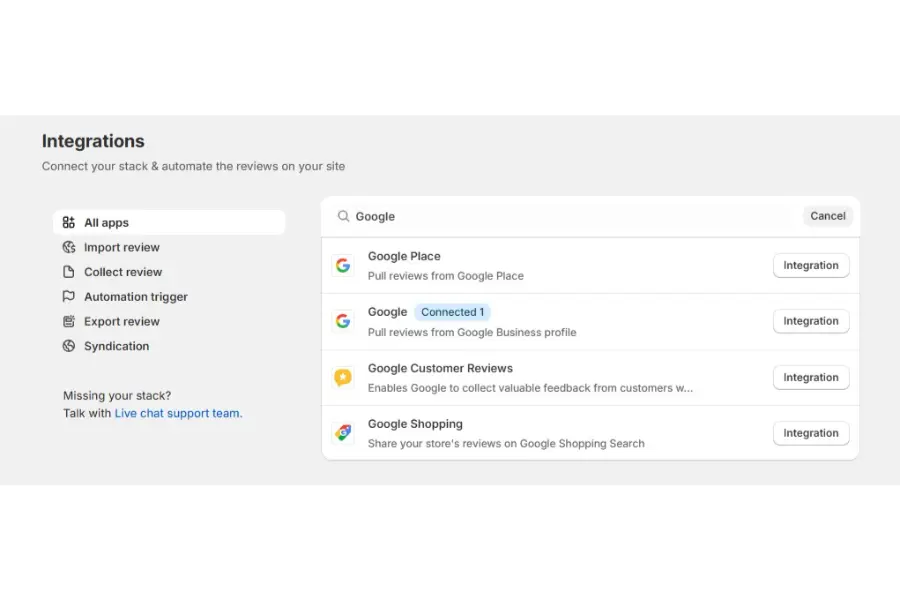
Open the dashboard, go to the integrations area, and select Google. Follow the instructions to connect the correct business profile.
If the business has several locations, connect them separately or combine them into one feed if the tool supports this feature. Confirm that the widget is using the correct location before continuing.
Step 3: Select the Visual Layout Architecture
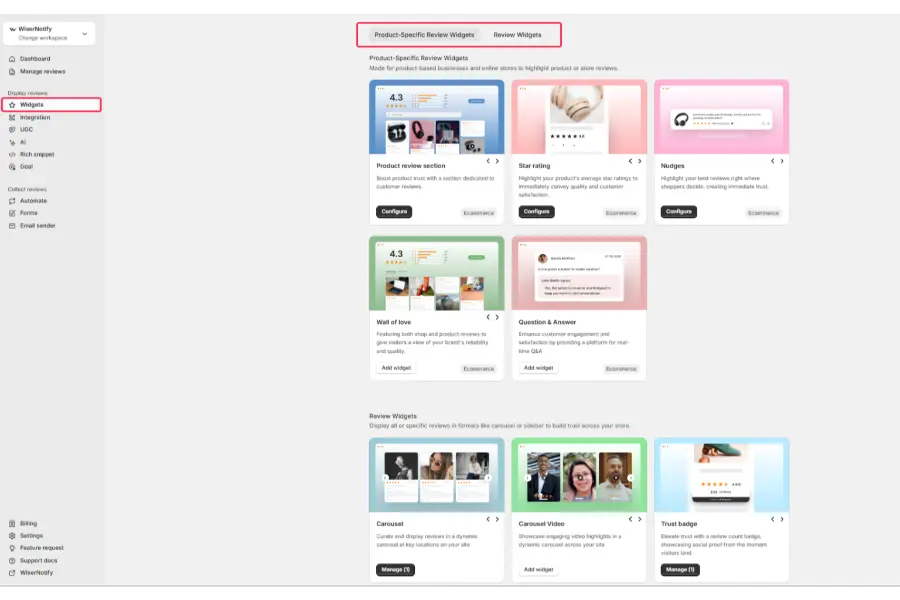
Open the design library to select a structural layout that aligns with the target page’s layout:
- Carousel: A horizontal slider that allows users to swipe through entries. It fits perfectly on main homepages where vertical screen real estate is limited.
- Grid: A multi-column layout showing several reviews side by side. This functions exceptionally well on dedicated customer testimonial or case study pages.
- Badge: A small, sticky block highlighting the aggregate rating score and total count. It is built specifically for global footers or floating sidebars.
- List: A traditional top-to-bottom stack that allows visitors to read longer, detailed case histories completely without truncation.
Step 4: Apply Brand Styling and Optimization Filters
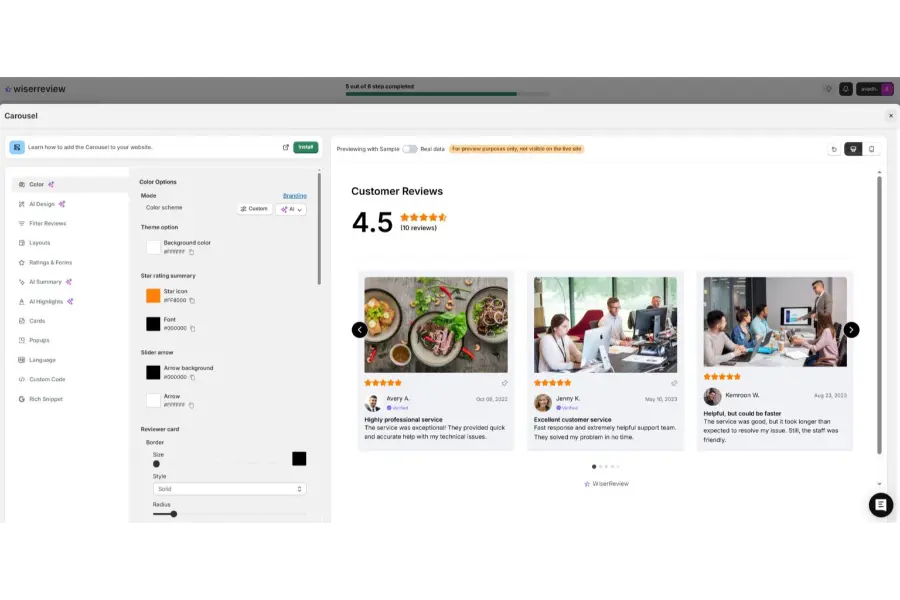
Adjust color palettes, font styles, border radiuses, and padding mechanisms to ensure the design feels like an organic extension of the website.
At this stage, configure the star-rating filter. Setting the threshold to display only 4-star and 5-star reviews keeps the focus entirely on excellent customer experiences.
Ensure the background colors of the widget contrast sufficiently with the website background to ensure legibility.
Step 5: Generate and Copy the Embed Snippet
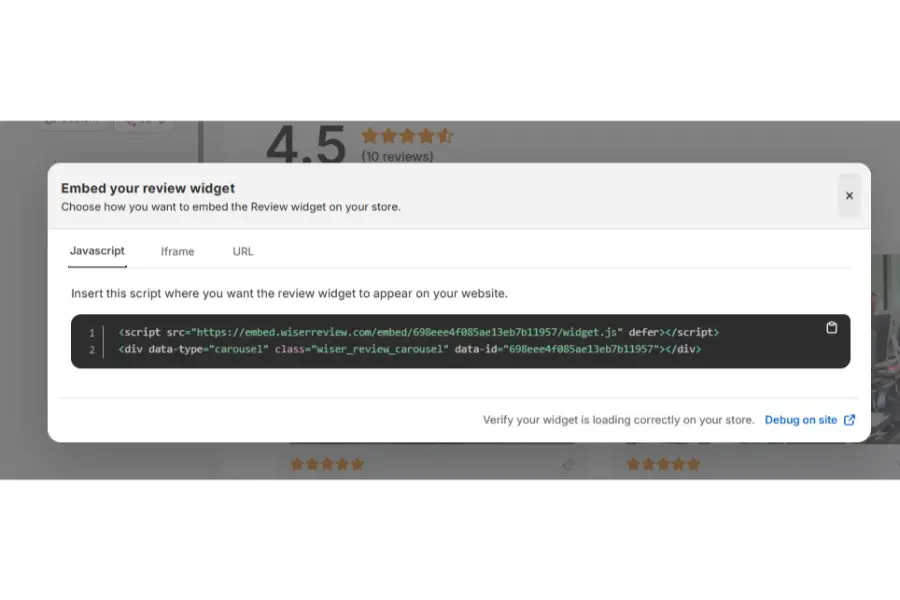
Once the design satisfies brand requirements, execute the publish command. The system generates an optimized, asynchronous JavaScript or HTML snippet. Copy this complete code block to the system clipboard.
Step 6: Deploy the Code to the Target Web Platform
Open the website builder backend, navigate to the specific page and section where the social proof is required, paste the code, and save the changes. The live widget will immediately render and populate with real-time customer data, finalizing the process to embed Google review on website frameworks.
CMS Platform Deployment Procedures in Detail
Different content management systems require distinct methods to handle external custom scripts. Follow these exact steps to safely embed Google review on website layouts across all major providers without causing formatting errors or database conflicts.
WordPress Integration Best Practices
WordPress supports custom scripts across all popular visual builders and the native block framework. The process does not require heavy plugin installations that clog database structures. Utilizing a lightweight script ensures maximum compatibility.
- Gutenberg Editor: Open the target page, click the plus icon to add a new element, search for Custom HTML, paste the generated snippet into the terminal window, and update the page. This method is exceptionally stable for adding a Google reviews widget.
- Elementor Builder: Open the layout canvas, search for the HTML Widget in the left sidebar panel, drag it into the desired section container, paste the code into the text input area, and click save. Elementor handles external JavaScript gracefully without blocking rendering.
- Divi Builder: Insert a standard Code Module within any row layout, drop the snippet inside the editor box, and publish the design changes.
- Caching Notes: After deploying the code, it is imperative to clear all site caches (such as WP Rocket, LiteSpeed Cache, or server-side caching) to ensure the new reviews widget displays correctly for all external visitors.
Shopify Deployment Strategies
To bring verified social proof directly onto e-commerce product pages or shopping carts, paste the code into the theme customization interface. E-commerce sites rely heavily on trust signals to secure conversions.
- Navigate to the Shopify admin dashboard, open Online Store, and select Themes.
- Click Customize on the active theme to open the live layout manager.
- Browse to the specific template page (such as the default product template) and select Add Section in the sidebar.
- Choose Custom HTML or Custom Liquid, paste the script snippet into the block settings panel, drag the block to the ideal position directly under the product description, and click save. This establishes a highly visible Google review widget for website shoppers.
Wix Implementation and Security Containers
Wix isolates external scripts inside secure containers (iframes) to prevent code conflicts, making the embed process straightforward but requiring careful dimension sizing.
- Open the Wix site editor, click the Add Elements (+) icon on the left menu strip.
- Hover over the Embed Code category and choose Embed HTML.
- Click the Enter Code button above the new empty box that appears on the canvas.
- Paste the snippet code, select Update, and scale the container dimensions manually. It is crucial to stretch the container wide and deep enough to ensure no scrollbars appear on desktop or mobile screens, which would otherwise disrupt the user experience of the reviews widget.
Squarespace Configuration Mechanics
Squarespace handles custom scripts via its dedicated code block tool, available on all business and commerce tier plans.
- Open the page layout manager and click Edit on the targeted section block.
- Hover over an insertion point and click the plus bubble to open the menu, then select Code.
- Clear out any default placeholder text inside the code pane, ensure the drop-down menu is set to HTML, and paste the script snippet.
- Save the page changes; note that Squarespace occasionally disables live script rendering during active edit sessions for security reasons, so view the live published URL to confirm accurate presentation of the reviews widget.
Webflow Setup for Professional Workflows
Webflow allows clean integration of asynchronous scripts directly into production layouts, favored by professional designers for its clean code output.
- Enter the Webflow Designer interface and locate the target page structure.
- Click the Add Elements (+) panel shortcut to launch the quick finder.
- Type Embed and place the element into the desired structural container.
- Paste the script code directly into the code editor pop-up window, click Save & Close, and publish the project to see the live results. Ensure the parent container does not have a hidden overflow setting that might cut off the bottom of the Google review widget for website elements.
Strategic Placement Architecture for Conversion Optimization
Simply installing a Google review widget for website layouts is only the first step. To truly accelerate conversions, place the social proof where visitors experience the highest cognitive friction or purchasing doubt. Understanding how to add Google reviews on website real estate strategically dictates the ultimate return on investment.
1. Homepage Hero Sub-Section
First impressions govern user retention. Placing a horizontal carousel immediately below the primary hero section answers structural trust questions before users scroll further. This placement quickly confirms the legitimacy of the brand within the first five seconds of the visitor’s journey.
2. Pricing and Checkout Landing Pages
Price objection is the most common hurdle in digital sales funnels. Placing a comprehensive Google reviews widget right next to a pricing matrix or checkout link addresses consumer hesitation at the exact moment it spikes, directly reducing cart abandonment. When a user asks “Is this worth the money?”, the adjacent widget answers with positive peer reinforcement.
3. E-commerce Product Description Layouts
Online buyers look for peer confirmation regarding product sizing, material quality, and shipping accuracy. To effectively embed Google review on website product pages, place a grid view directly below the primary item description. This gives shoppers immediate feedback without forcing them to exit the checkout funnel to research the brand elsewhere.
4. Booking and Contact Capture Points
When a visitor reaches a contact or appointment booking page, their intent to buy is high, but they may still hesitate to commit. A clean, compact badge widget placed adjacent to the form fields provides a final point of reassurance, boosting form completion rates and driving lead generation.
5. Sitewide Global Footer Framework
Deploying a subtle, compact trust badge across the global footer establishes continuous, passive social proof across every nested sub-page of the domain. This ensures that no matter where organic search traffic lands, a verified trust signal remains visible.
Functional Comparison of Review Widget Architectures
Selecting the correct design style depends heavily on the specific intent of the webpage. The table below breaks down the best use cases for various layouts when deciding how to add Google reviews on website properties.
| Layout Type | Visual Footprint | Ideal Page Location | Primary Conversion Goal |
| Carousel Slider | Sleek, compact, horizontal movement | Homepage, primary landing pages | High visual engagement with minimal screen space |
| Full Grid | Multi-column, immersive block | Testimonial hubs, about pages | Deep-dive social proof and long-term brand building |
| Trust Badge | Minimalist square or banner block | Sitewide footers, sidebar panels | Constant, unobtrusive trust signals across all URLs |
| Sidebar Snippet | Slide-out overlay or floating anchor | Blog paths, service pages | Accessible social proof that stays with the user |
Technical Features of Enterprise Review Tools
High-performing platforms offer more than just basic code delivery. To manage digital reputation effectively at scale, businesses require specific core functionalities built directly into the widget backend to ensure the reviews widget performs flawlessly.
Real-Time Auto-Synchronization
Manually scraping and uploading text blocks wastes valuable time and risks presenting outdated information. A modern tool connects directly to the underlying Google Places API to monitor, fetch, and display new customer entries automatically, ensuring the website reflects the most current brand sentiment.
Filtering and Content Moderation
Useful moderation tools can remove spam, duplicate entries, or irrelevant one-word comments. They may also filter by rating, keyword, location, or content length.
Do not use filters to create a misleading picture of customer sentiment. A balanced set of reviews often appears more credible than a perfect wall of 5-star ratings.
Core Web Vitals Optimization
Large JavaScript files can slow down a page and hurt the user experience. Choose a widget that loads asynchronously or uses lazy loading so the main page content can appear first.
Asynchronous loading alone does not guarantee good performance. Test the live page with PageSpeed Insights and compare the results before and after installation.
Critical Mistakes to Avoid During Setup
Avoid these common mistakes when adding a Google reviews widget:
- Over-filtering criticism: Displaying hundreds of 5-star reviews with no variation may look unrealistic. A fair 4-star review with a minor, resolved issue can make the feedback feel more authentic.
- Hiding all detailed reviews at the bottom: A footer badge is useful, but many visitors will never reach a large review section placed after a very long page. Show the strongest relevant feedback near high-intent content.
- Using a non-responsive container: Test the widget on several mobile screen sizes. Long text should wrap correctly without horizontal scrolling or broken margins.
- Ignoring broken connections: A change in profile ownership, location details, permissions, or provider settings can interrupt the feed. Check the live widget regularly and reconnect it when necessary.
- Assuming SEO results are automatic: Embedded reviews do not guarantee higher rankings, lower bounce rates, or review stars in search results. Measure performance with analytics and follow Google’s current structured data rules.
Summary: Activating the Reputation Engine
A Google reviews widget turns existing customer feedback into visible social proof. Instead of leaving valuable reviews only on Google Maps or Search, businesses can place them closer to the pages where visitors compare options, book services, or make purchases.
The setup is simple: connect a Google Business Profile, choose a suitable layout, customize the design, copy the embed code, and add it to the website. For better results, place the widget near high-intent areas and test its mobile layout, loading speed, and data connection.
A well-designed widget may support trust, engagement, and conversions. However, it is not a shortcut to higher rankings or guaranteed rich results. Its main value is helping visitors see relevant customer experiences at the right time.
Frequently Asked Questions
What is a Google reviews widget?
A Google reviews widget is a secure third-party code integration that pulls customer feedback directly from a Google Business Profile and displays it cleanly on a website. The system features an automated live sync, meaning new reviews posted on Google update on the site automatically without requiring manual code changes or backend maintenance.
How do I embed Google review on website platforms?
To embed Google review on website frameworks, create an account on a specialized reputation management platform like WiserReview. Connect the platform to a Google Business Profile via the integrations panel, select a preferred layout style, copy the generated code snippet, and paste it into the HTML or block editor of the website backend.
Is there a free Google review widget for website use?
Yes, professional tools provide highly capable free subscription tiers. These entry-level options give businesses access to standard layouts like carousels and badges, live Google Business Profile syncing, and basic design customization options. This makes it easy to utilize a Google review widget for website displays to show authentic social proof without any upfront costs.
Where should I place the widget on my website?
For the highest conversion impact, place a Google review widget for website traffic near high-intent decision areas. Excellent placements include immediately below the homepage hero section to build fast credibility, right next to pricing tables to address cost concerns, and directly on checkout or booking paths to reduce abandonment rates.
How to add Google reviews on website code without slowing it down?
To understand how to add Google reviews on website code without impacting performance, always ensure the chosen third-party tool uses asynchronous loading. This method allows the main website elements (like text and images) to load first, while the review script downloads independently in the background, preserving Core Web Vitals and SEO rankings.
Read more: 9 Top Choices for the Best Free Keyword Research Tool
Contact US | ThimPress:
Website: https://thimpress.com/
Fanpage: https://www.facebook.com/ThimPress
YouTube: https://www.youtube.com/c/ThimPressDesign
Twitter (X): https://x.com/thimpress_com