A non profit organization website is often the first place a donor, volunteer, or partner decides whether to trust you. If the site is slow, confusing, or hard to give on, people leave and rarely come back.
This guide shows you how to plan, design, build, and grow a site that supports your mission, with practical steps you can follow on WordPress this week.
Eduma – Education WordPress Theme
We provide an amazing WordPress theme with fast and responsive designs. Let’s find out!
What a non profit organization website needs to do
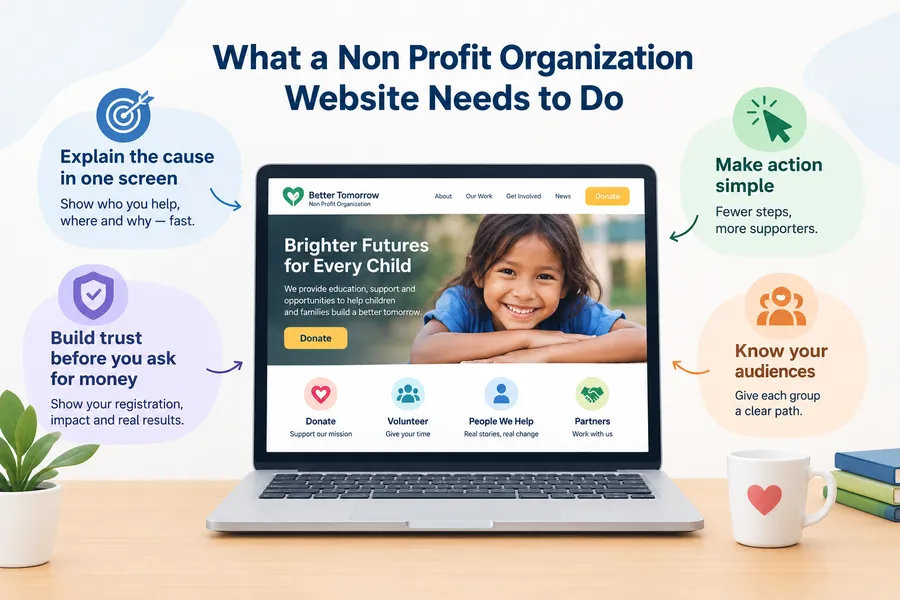
A good non profit organization website does three jobs: it explains your cause, proves you can be trusted, and makes it easy to act. Everything on the site, from the menu to the footer, should support one of those jobs.
Explain the cause in one screen
A visitor should understand who you help, where, and why within five seconds of landing on the homepage. Put a short mission statement and one strong photo above the fold, then a clear button such as “Donate” or “Volunteer.” Avoid long welcome messages. People on phones scroll past them.
Build trust before you ask for money
Donors check whether you are real before they give. Show your registration or charity number, board members, annual report, and where the money goes. A simple line such as “Every $25 provides one week of school meals” works better than vague claims about “making a difference.”
Make action simple
Every extra click between “I want to help” and “done” costs you supporters. On a typical donation flow, the fewer fields you ask for, the more people finish. Ask for the amount, name, email, and payment details. Collect the rest later by email.
Know your audiences
Most nonprofits serve at least four groups: donors, volunteers, the people you serve, and partners or the press. Give each group a clear path from the main menu. If you try to speak to everyone on one page, you end up speaking to no one.
Must-have pages and features
Every non profit organization website should have a core set of pages that answer the questions visitors always ask. Skipping one of them is the quickest way to lose trust.
Core pages
| Page | Purpose | What to include |
|---|---|---|
| Home | Explain the mission and drive action | Mission line, hero image, donate button, impact numbers, latest news |
| About | Build credibility | Story, team, board, registration details |
| Programs or causes | Show what you do | One page per program with goals, results, and a way to help |
| Donate | Collect gifts | Preset amounts, one-time and monthly options, secure payment, receipt info |
| Get involved | Recruit volunteers | Roles, time commitment, sign-up form |
| Impact and reports | Prove results | Annual report, financial summary, stories |
| Events | Promote fundraisers | Calendar, ticketing or RSVP, past event photos |
| Blog or news | Keep content fresh | Updates, stories, volunteer spotlights |
| Contact | Remove friction | Form, email, phone, address, social links |
Features that matter most
Start with a donation system that supports one-time and recurring gifts. Add a volunteer form, an email signup, an events calendar, and simple progress bars for campaigns. Then add extras such as donor dashboards or membership areas only if your team will actually use them.
After building several donation forms on WordPress, one setting that people often miss is the thank-you page. Many forms send donors to a plain “success” message. A custom thank-you page with a short note, a social share button, and a suggestion to sign up for updates turns a one-time gift into a relationship.
Legal and privacy basics
Include a privacy policy, cookie notice where required, and clear terms for donations and refunds. If you serve European supporters, follow GDPR rules for consent and data storage. Rules vary by country, so confirm the details with your legal adviser.
Design principles that build trust
Good design on a not for profit website is not about decoration. It helps people read quickly, believe you, and take the next step. The principles below apply whether you use a template or a custom build.
Lead with real photos and short stories
Stock photos of smiling strangers feel fake. Use real images of your team, your work, and the people you serve, with their consent. Pair each photo with a short caption that names the program or place. Real images also help people remember you.
Keep the layout simple
Use one main call to action per page. A homepage with six competing buttons confuses visitors. Choose one primary action (for example, “Donate”) and one secondary action (for example, “Volunteer”), and style them differently so they stand out.
Pick readable type and strong contrast
Use body text of at least 16px and keep line length comfortable. Check color contrast against the WCAG 2.1 AA guidelines from the W3C, which call for a contrast ratio of at least 4.5:1 for normal text. This helps visitors with low vision and everyone using a phone in bright sunlight.
Design for mobile first
Many people will first see your site on a phone, often after clicking a social media link. Test the donate button with your thumb. Make sure forms are easy to fill in, fields are large enough, and payment options such as Apple Pay or Google Pay work if your gateway supports them.
Show social proof
Short donor and volunteer quotes, partner logos, media mentions, and impact counters all signal that others trust you. Keep them real and specific. A line such as “I volunteered for two hours and left wanting to come back” says more than “Great organization.”
Cool nonprofit websites: what they do well
When people search for cool nonprofit websites, they usually want ideas they can copy in spirit, not pixel for pixel. The best examples share a handful of habits that any small team can follow.
Storytelling beats statistics
Strong sites open with a single person or place, then zoom out to the numbers. For example, a clean water charity might start with one village and one well, then show how many communities it serves overall. This approach keeps visitors reading and gives them something to share.
Clear impact, shown simply
Look for sites that turn data into simple visuals: a counter, a map, or a short before-and-after story. They avoid dense tables in the main view and link to full reports for people who want detail.
One bold action
Well-designed nonprofit homepages tend to have one dominant button and plenty of white space around it. Visitors never wonder what to do next.
Consistent brand voice
The tone of the writing matches the cause. A children’s charity may be warm and playful, while a legal aid group is calm and direct. Colors, fonts, and photos all reinforce that voice.
How to research examples yourself
Open five sites from organizations similar in size to yours. For each one, note how fast the page loads, how many clicks it takes to donate, and which section made you trust them most. Then list three ideas you can adapt. Keep the list short so you actually use it.
Choosing a platform: comparison table
The best platform for a non profit web development project depends on your budget, your team’s skills, and how much control you want. The table below compares the four most common options for small and mid-sized nonprofits.
| Factor | WordPress with a charity theme | Wix | Squarespace | Custom build |
|---|---|---|---|---|
| Setup difficulty | Moderate | Easy | Easy | Hard |
| Design control | High | Medium | Medium | Complete |
| Donation features | Plugins or theme tools, many gateways | Built-in and app options | Built-in and extensions | Anything you can code |
| Ownership of data | Full, if self-hosted | Limited to platform | Limited to platform | Full |
| Plugin or app ecosystem | Very large | Large | Smaller | Not applicable |
| SEO flexibility | High, with plugins such as Rank Math or Yoast | Good | Good | Depends on developers |
| Ongoing maintenance | You manage updates and backups | Handled by platform | Handled by platform | Developer required |
| Best for | Growing nonprofits that want control | Very small teams, quick launch | Visual storytelling, simple needs | Large organizations with unique needs |
How to read this table
If your team has no technical person, website builders like Wix or Squarespace can help you get online quickly. If you expect to grow, want to own your data, or need event, donation, and volunteer tools in one place, WordPress usually gives you more room. A custom build only makes sense when you have a specific need that no existing platform covers and a budget for long-term developer support.
For context, W3Techs reports that WordPress powers a large share of all websites, which means plenty of developers, tutorials, and themes are available if you get stuck. Check the W3Techs site for the current figure before you quote it.
Non profit web development with WordPress
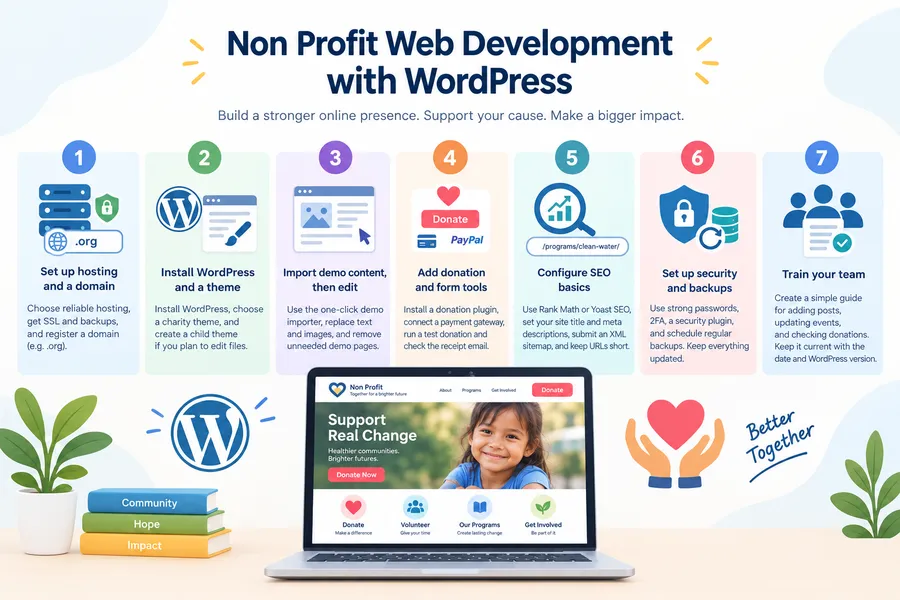
For most teams, non profit web development on WordPress is the most practical path because you can start small and add features as you grow. The steps below follow the order that has worked best on real projects.
Step 1: Set up hosting and a domain
Choose reliable hosting with automatic backups and SSL. Register a domain that matches your organization name, and prefer a .org if it is available. Some hosts offer nonprofit discounts, so ask before you buy.
Step 2: Install WordPress and a theme
Install WordPress from your host’s dashboard, then go to Appearance > Themes > Add New to choose a theme. For a charity or NGO, a purpose-built theme saves hours because the demo layouts already include donation sections, cause pages, and volunteer forms. If you plan to edit theme files, create a child theme first so updates do not erase your changes.
Step 3: Import demo content, then edit
Most charity themes include a one-click demo importer. Use it on a fresh install, then replace the text and images with your own. Working from a finished layout is faster than building each page from a blank screen. Delete any demo pages you do not need so they do not appear in search results.
Step 4: Add donation and form tools
Install a donation plugin or use the theme’s built-in tools, connect a payment gateway such as Stripe or PayPal, and run a real test donation. Check that the receipt email arrives, the amount is correct, and the thank-you page loads. Test on both phone and desktop.
Step 5: Configure SEO basics
Install Rank Math or Yoast SEO, set your site title and tagline, and write a unique title and meta description for the homepage and each program page. Submit your XML sitemap in Google Search Console. Keep your URLs short, for example /programs/clean-water/.
Step 6: Set up security and backups
Use strong passwords, two-factor login for admins, and a security plugin. Schedule daily or weekly backups and store a copy off the server. Keep WordPress core, your theme, and plugins up to date. Before any major update, take a fresh backup and test the update on a staging copy if your host provides one.
Step 7: Train your team
Write a one-page guide that shows staff how to add a blog post, update an event, and check donations. A site is only useful if more than one person can maintain it. Note the date and WordPress version in your guide so it stays accurate.
Version note: the steps above reflect the WordPress block editor and Site Editor as of 2026. Menu names may change in newer releases.
Web design services for nonprofits: build or hire?
Many teams ask whether they should use web design services for nonprofits or build the site themselves. The right answer depends on your timeline, skills, and budget, and a mix of both often works best.
When to build it yourself
DIY works well when you have a clear mission, a small page count, and someone on the team comfortable with WordPress or a site builder. A theme with demo import and a drag-and-drop editor can get a simple site live in days. It is also a good option when your budget is tight and you can accept a more standard look.
When to hire a professional
Consider hiring when you need a custom brand, complex integrations such as a CRM, or a large migration from an old site. A good agency or freelancer can also set up proper analytics, accessibility testing, and performance tuning, which many small teams skip.
What to ask before you hire
Ask for examples of previous nonprofit work, who owns the final files and accounts, what ongoing support costs, and how long the project will take. Make sure you receive admin access to your domain, hosting, and website. Avoid any agreement that keeps you locked in without clear exit terms.
Look for discounts and volunteers
Some designers offer reduced rates to registered charities, and some local tech groups connect nonprofits with volunteer developers. If you go this route, write down the scope in a short agreement so expectations stay clear for both sides.
A middle path
Many organizations buy a nonprofit theme, set up the basics themselves, and hire a freelancer for a few hours to polish the design, speed, and SEO. This keeps costs low and still gives you professional results.
Using Charitix for a charity site
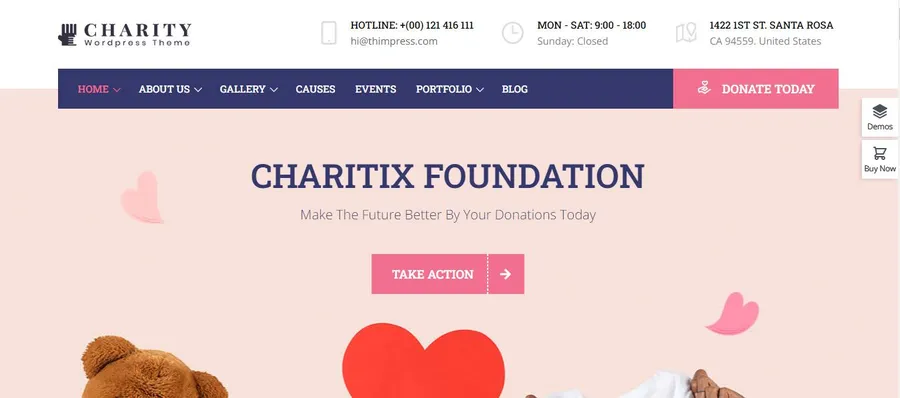
If you choose WordPress, a purpose-built charity theme can shorten your build time considerably. One option from ThimPress is Charitix, a WordPress theme made for charities, nonprofits, and fundraising sites. It is worth a look if you want a ready-made starting point instead of designing every page from scratch.
What to look for in a charity theme
Before you commit to any theme, check that it offers:
- Ready-made demo layouts for charity and cause pages
- Donation and fundraising features, or clear compatibility with a donation plugin
- Event and volunteer sections
- A mobile-friendly, responsive layout
- Clean code and good page speed
- A child theme option and regular updates
- Documentation and active support
Charitix is aimed at exactly this type of project. Review its demos on the ThimPress website, compare its current feature list with your needs, and run the demo through PageSpeed Insights before you buy. Features and versions change over time, so confirm the latest details on the product page.
Who it suits best
A charity theme like this fits small and mid-sized organizations that want a polished look quickly, have limited design budget, and prefer to manage their own content in WordPress. If you need heavy custom integrations or a unique brand system, you may still want a developer to adapt the theme.
A simple way to test it
Install the theme on a staging site, import the demo closest to your mission, and replace the text and images on the homepage, one program page, and the donation page. If you can finish those three pages in an afternoon without fighting the layout, the theme is probably a good fit for your team.
SEO, speed, and accessibility
A great design does not help if nobody finds the site or it takes too long to load. These three areas decide whether your non profit organization website reaches the people you want to serve.
Keyword research for nonprofits
Start with the phrases real people type: “volunteer opportunities near me,” “donate to animal rescue,” or “food bank in [city].” Add the location and cause to your page titles and headings where it fits naturally. Create one page for each program so each can rank for its own topic.
Google for Nonprofits
Eligible organizations can apply for Google for Nonprofits, which includes access to tools such as Google Ad Grants. Check Google’s official page for current eligibility rules and benefits before you apply.
Page speed and Core Web Vitals
Google recommends a Largest Contentful Paint (LCP) of 2.5 seconds or less for a good user experience. Compress hero images, use WebP format, enable caching, and avoid loading heavy sliders on the homepage. Page builders and large image sliders are the most common reason charity sites feel slow, so keep them light.
Structured data and trust signals
Add Organization schema with your name, logo, and social links. Use FAQ schema through Rank Math or Yoast for your FAQ section. Publish an author or editor name on blog posts, and show your registration number in the footer. These details help both visitors and search engines trust your content.
Accessibility basics
Add alt text to every image, use headings in order, make forms keyboard-friendly, and label every field. Run a free tool such as WAVE or Lighthouse to catch obvious issues. Accessibility also protects you legally in many regions and widens your audience.
Content that keeps ranking
Publish a short update at least once or twice a month. Good topics include impact stories, volunteer spotlights, event recaps, and answers to common donor questions. Link each post to a relevant program page and your donation page so authority flows toward the pages that matter.
Launch checklist
Use this list before you announce the new site. It catches the small problems that quietly cost donations.
- Run a real test donation and confirm the receipt email arrives.
- Click every menu link and button on desktop and phone.
- Check that forms send messages to the right inbox.
- Confirm SSL is active and there are no mixed-content warnings.
- Add Google Analytics or another analytics tool, and set a donation conversion goal.
- Submit the sitemap in Google Search Console.
- Test speed in PageSpeed Insights and fix any large images.
- Check contrast, alt text, and keyboard navigation.
- Add your privacy policy, cookie notice, and registration details.
- Back up the site and save the admin logins in a password manager.
After launch, review your analytics monthly. Look at which pages bring visitors, where people leave the donation flow, and which blog posts bring in volunteers. Small, steady fixes beat a big redesign every few years.
FAQs
How much does a non profit organization website cost?
Costs range from under a few hundred dollars per year for a DIY site to several thousand for a custom build. Typical expenses include a domain, hosting, a theme, a donation plugin or payment fees, and optional design help. Ask each provider for a full list of one-time and yearly costs before you decide.
Do nonprofits need a special type of web hosting?
No, nonprofits do not need special hosting, but they do need secure, reliable hosting with SSL and regular backups. If you process donations on your own site, choose a host with good uptime and support. Some hosts offer discounts for registered nonprofits, so it is worth asking.
How long does it take to build a nonprofit website?
A simple site built from a theme can go live in one to three weeks, while a custom project often takes two to four months. Most delays come from waiting on content, photos, and approvals, not from the build itself. Prepare your text, logo, and images early to shorten the timeline.
Can a nonprofit accept donations without a third-party platform?
Yes, you can accept donations directly on your WordPress site using a donation plugin or theme feature connected to a payment gateway such as Stripe or PayPal. You will still pay gateway processing fees, and you must follow local rules for receipts and data protection. Many organizations also keep a link to a third-party platform as a backup option.
Conclusion
A strong non profit organization website is clear about your mission, honest about your results, and simple to act on. Start with the core pages, keep the design clean, and make the donation and volunteer paths as short as possible. Choose a platform that fits your team’s skills, and be realistic about how much time you can spend on maintenance.
If you go with WordPress, a purpose-built charity theme such as Charitix from ThimPress can give you a solid starting layout so you can spend your time on content instead of code. Whether you build it yourself, use web design services for nonprofits, or mix both, launch a simple version first, test it with real visitors, and improve it every month. Your supporters care about your cause, so make your site easy for them to say yes.
Read more: 8+ Best Backlink Checker Tools
Contact US | ThimPress:
Website: https://thimpress.com/
Fanpage: https://www.facebook.com/ThimPress
YouTube: https://www.youtube.com/c/ThimPressDesign
Twitter (X): https://x.com/thimpress_com