The e-learning industry is booming. From cooking classes to coding bootcamps, people everywhere are seeking knowledge online. For experts and entrepreneurs, this presents an incredible opportunity to monetize skills. If you have been wondering how to create and sell online courses with WordPress, you have arrived at the right place.
Building a digital school might sound technically daunting, but it is surprisingly accessible. You do not need to be a developer to launch a professional online course website WordPress setup. With the right tools, you can transform a standard website into a fully functional elearning platform.
In this comprehensive guide, we will walk you through the entire process step-by-step. We will utilize LearnPress, a powerful and user-friendly solution that makes course creation seamless.
Eduma – Education WordPress Theme
We provide an amazing WordPress theme with fast and responsive designs. Let’s find out!
Why Choose WordPress for Online Courses?
Before we dive into the “how-to,” it is essential to understand the “why.” There are many hosted platforms available (like Teachable or Udemy), but they often come with high monthly fees and transaction costs.
Using a self-hosted WordPress site offers distinct advantages:
- Full Ownership: You own your data and your content.
- Customization: You have limitless design freedom.
- Cost-Efficiency: You avoid paying a “platform tax” on every sale.
- Scalability: You can start small and grow into a massive university.
To unlock this potential, you need a WordPress LMS plugin. An LMS (Learning Management System) handles the heavy lifting: curriculum management, quizzes, grading, and payment processing.
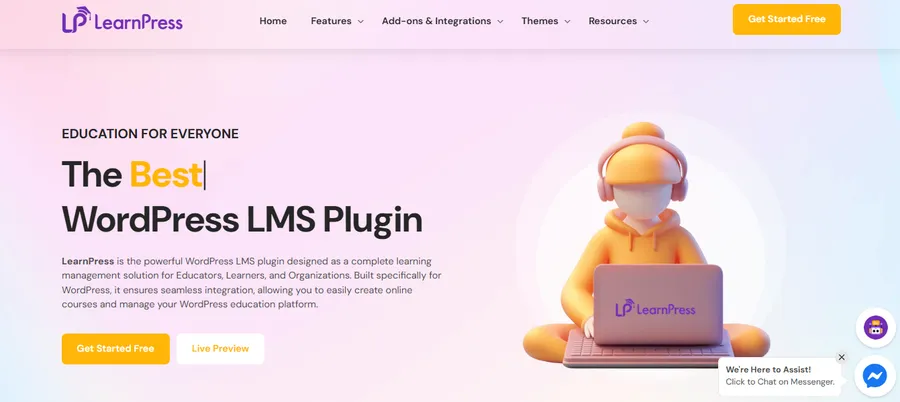
After testing numerous options, we highly recommend LearnPress. It is widely considered the best LMS for WordPress because its core version is free, it is lightweight, and it offers a range of premium add-ons that allow you to scale when you are ready.
Step 1: The Essentials to Get Started
To create and sell online courses with WordPress, you need a solid foundation. Here is your checklist:
- A Domain Name: This is your digital address (e.g., www.youracademy.com). Keep it short, brandable, and easy to spell. Avoid hyphens or numbers if possible.
- Web Hosting: This is where your website files live. Since you are building a dynamic site with students logging in, you need reliable hosting. We recommend providers like A2 Hosting or SiteGround for their speed and support.
- WordPress Installation: Most hosting providers offer a “One-Click Install” for WordPress.
- An LMS Plugin: We will be using LearnPress for this tutorial.
Note on Hosting: Avoid low-quality, overcrowded shared hosting. A slow website frustrates students and hurts your sales. Investing in quality hosting ensures your online course website WordPress runs smoothly.
Step 2: Installing and Configuring LearnPress
Once your WordPress site is live, it is time to install the engine of your school. LearnPress is fantastic because it offers an all-in-one solution for course management, lesson plans, and student progress tracking.
Installation
- Log in to your WordPress Dashboard.
- Navigate to Plugins » Add New.
- Search for “LearnPress”.
- Click Install Now and then Activate.

The Setup Wizard
Upon activation, LearnPress will launch a Setup Wizard. We strongly recommend running this wizard rather than skipping it. It ensures all critical settings are configured correctly from the start.
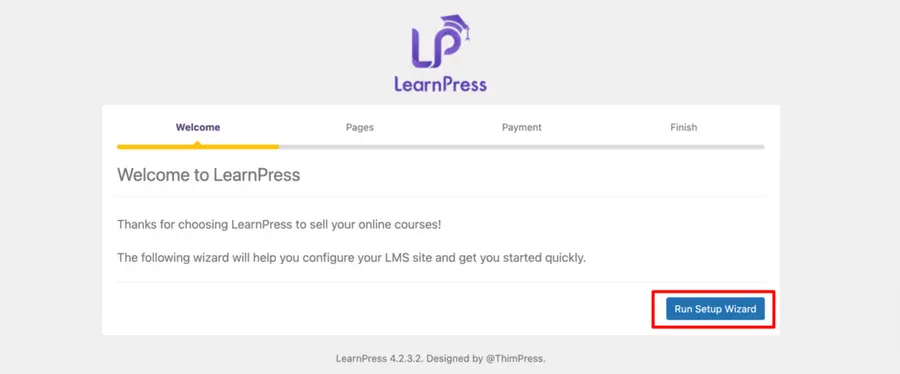
- Currency: Choose the currency you want to accept (USD, EUR, etc.) and configure the formatting (currency position, decimals).
- Static Pages: An LMS requires specific pages to function, such as Courses, Profile, Checkout, and Become a Teacher. The wizard can create these for you automatically. Simply click the button to generate them.
- Payment Settings: This is crucial if you want to know how to sell online courses immediately. LearnPress integrates with PayPal by default. You can refer to this guide on LearnPress payment gateway settings to ensure transactions run smoothly.
- Emails: Enable the default email notifications. These are automated messages sent to instructors and students regarding registration, course purchases, and lesson completion.
Once the wizard is complete, you can choose to “Install a Sample Course.” We suggest doing this so you can see how a finished course looks on the front end before building your own.
Step 3: Creating Your First Online Course
Now comes the exciting part: building your curriculum. LearnPress provides an intuitive interface that feels very similar to the standard WordPress editor.
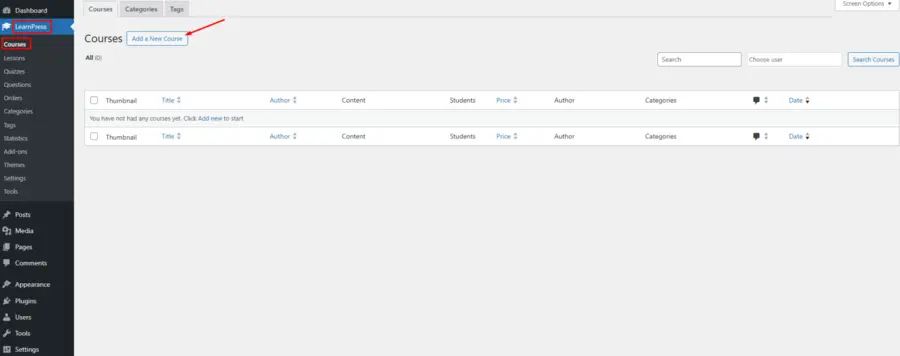
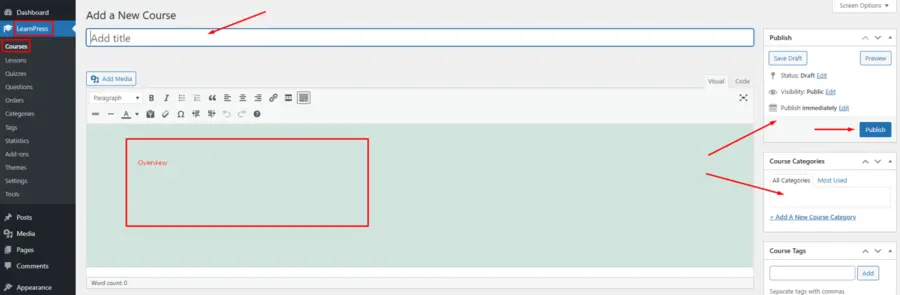
To begin, navigate to LearnPress » Courses in your dashboard sidebar and click Add New.
Course Details
- Title: Give your course a catchy, descriptive name.
- Description: Use the main editor to write a compelling description. Explain what students will learn, who the course is for, and the benefits they will gain. You can add images and an introductory video here.
- Course Category: Organize your courses by topic (e.g., “Photography,” “Marketing,” “Coding”) to help students browse your catalog easily.
Building the Curriculum
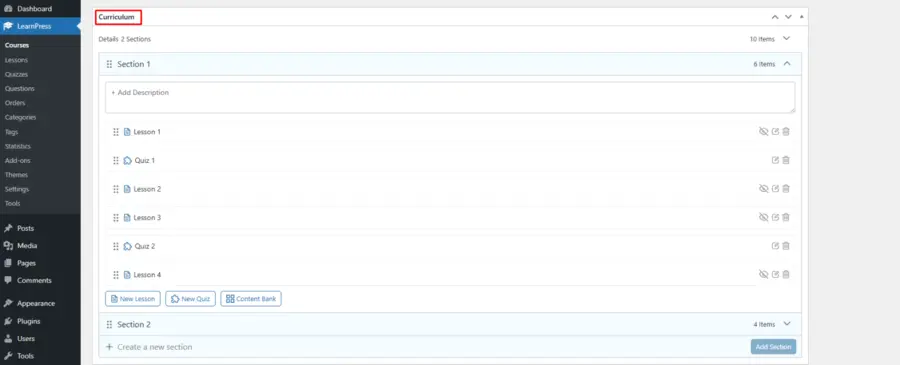
Scroll down to the Curriculum section. This is where you structure the learning path.
- Create Sections: Think of these as modules or chapters (e.g., “Module 1: Introduction”).
- Add Lessons: Inside each section, create individual lessons. You can type the lesson name and hit enter to create a placeholder.
Course Settings
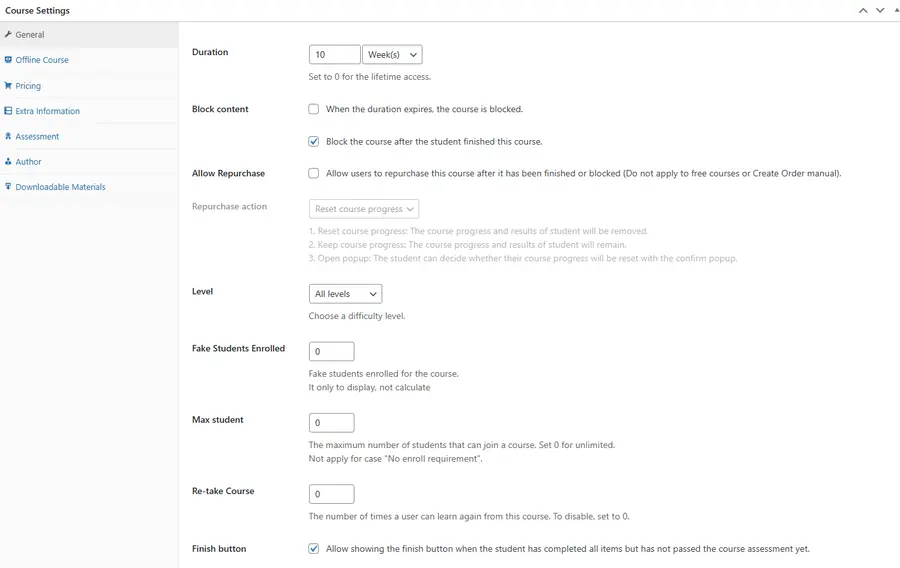
Below the curriculum area, you will find the Course Settings meta box. This gives you granular control:
- General: Set the total duration (e.g., 10 weeks) and the maximum number of students allowed.
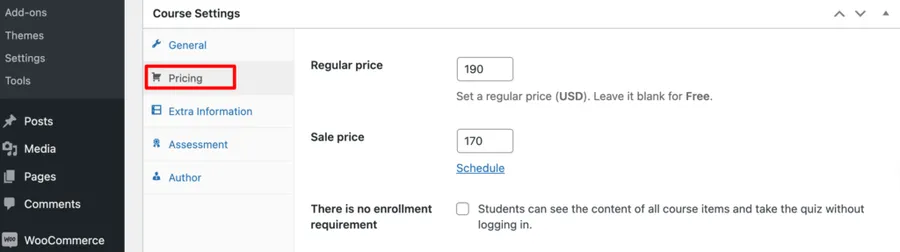
- Pricing: This is vital for your goal to create and sell online courses with WordPress. Set your standard price and, if you like, a “Sale Price” to incentivize purchases.
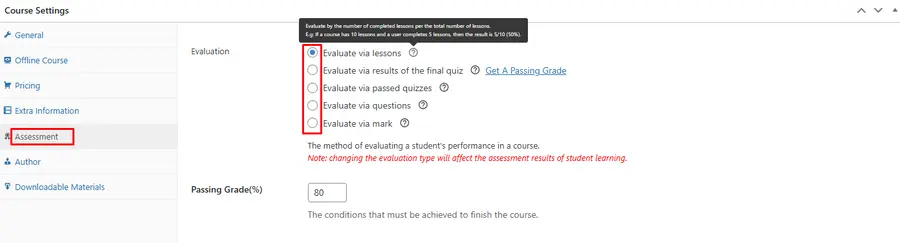
- Assessment: Decide how students pass. Will it be based on completing lessons or passing a final quiz?
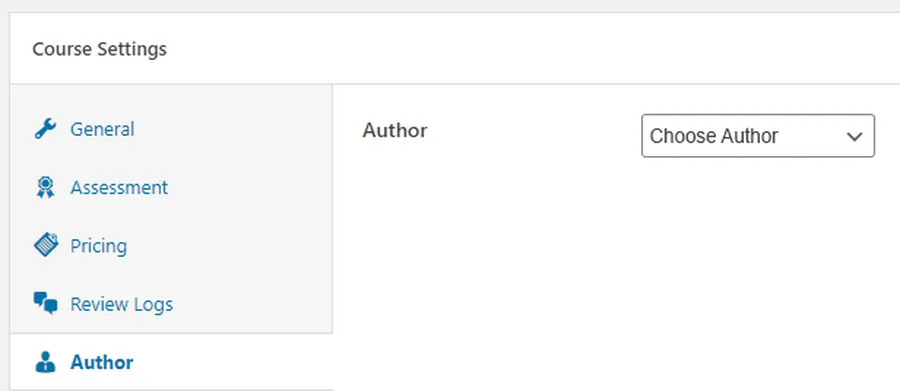
- Author: Assign the instructor for the course. For advanced scheduling, you might consider the Content Drip add-on to release lessons gradually.
Step 4: Adding Engaging Content (Lessons & Quizzes)
A course structure is nothing without content. You need to fill those lesson placeholders with valuable material.
Editing Lessons
Navigate to LearnPress » Lessons or click the “Edit” icon next to a lesson in the Course view.
- Multimedia: Do not just use text. Embed videos (hosted on Vimeo or YouTube to save server space), add audio files, and upload PDF worksheets.
- Preview Option: In the lesson settings, you can check “Preview Lesson.” This allows non-paying visitors to watch a specific lesson for free—a powerful marketing tactic to show value before they buy.
Creating Quizzes and Assignments
Interactive elements keep students engaged. As the best LMS for WordPress, LearnPress includes a robust quiz builder.
- Go to LearnPress » Quizzes and click Add New.
- Questions: Add True/False, Multi-choice, or Single-choice questions.
- Settings: You can set a time limit, a passing grade percentage, and allow (or disallow) retakes.
- Assignment: Once the quiz is built, go back to your Course Curriculum. If you need students to submit homework for review, the Assignments add-on is the perfect tool to assess their understanding deeply.
Step 5: How to Sell Online Courses Effectively
You have built the course; now you need to sell it. Monetization is the core reason many seek a WordPress LMS plugin.
Payment Gateways
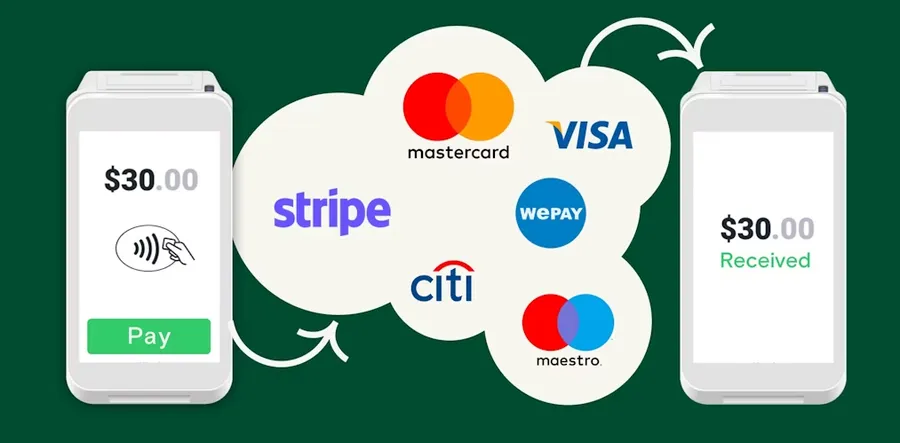
While the free version of LearnPress supports PayPal, you might want to offer more options. LearnPress offers premium add-ons for Stripe, Authorize.net, and 2Checkout. Offering credit card payments directly on your site usually increases conversion rates.
Pricing Strategies
To successfully create and sell online courses with WordPress, consider your pricing model:
- One-time Payment: Simple and effective for specific skills.
- Membership/Subscription: Use the Paid Memberships Pro integration with LearnPress to charge a recurring monthly fee for access to all courses.
- Bundles: Group related courses together for a discounted price.
The Checkout Experience
Ensure your checkout page (created during the setup wizard) is clean and trustworthy. Display security badges and clear terms of service. The friction between “Wanting to buy” and “Buying” must be minimal.
Step 6: Enhancing Design and Functionality
Your content might be excellent, but if your website looks outdated, trust will diminish.
Choosing a Theme
While LearnPress works with most themes, we recommend using a theme designed specifically for it. The Eduma theme is a popular choice that integrates perfectly with LearnPress, offering beautiful layouts for course listings and instructor profiles. A professional look makes your online course website WordPress setup appear authoritative.

Mobile Learning
Don’t forget that many students prefer learning on the go. Converting your site into a LearnPress mobile app can significantly boost engagement and completion rates.
Certificates
Reward your students! LearnPress has a Certificates add-on. You can design custom certificates that are automatically generated when a student completes a course. This provides students with a sense of achievement and a digital credential they can share on LinkedIn.
Step 7: Promoting Your Course
You cannot simply create and sell online courses with WordPress and expect students to magically appear. You need marketing.
- SEO: Use a plugin like All in One SEO or Yoast to index your website on Google and optimize your course pages. Use keywords like “learn [topic] online” in your titles and descriptions.
- Email Marketing: Capture leads using a plugin like OptinMonster. Offer a free mini-course or a discount code in exchange for an email address, then nurture those leads.
- Reviews: Encourage satisfied students to leave reviews. LearnPress has a built-in review system. Social proof is a massive psychological trigger for new buyers.
- Landing Pages: Create a dedicated landing page to drive traffic specifically to your flagship course, focusing on conversion and clear calls to action.
Conclusion
Creating an educational platform is a rewarding journey. It allows you to share your passion and generate income simultaneously. By choosing to create and sell online courses with WordPress and LearnPress, you are building on a foundation that is secure, scalable, and cost-effective.
Remember, the technology is just the vehicle. Your unique knowledge is the fuel. With the steps outlined above—from securing a domain to configuring the best LMS for WordPress—you have everything you need to launch your academy today. Consider exploring the LearnPress Pro bundle to access all powerful features at once.
Start small, focus on quality content, and interact with your students. The tools are ready; the rest is up to you.
Frequently Asked Questions (FAQs) about Create and Sell Online Courses with WordPress
1. Is LearnPress truly free to use for a commercial site?
Yes, the core LearnPress plugin is completely free and allows you to create unlimited courses, lessons, and quizzes. It also includes the PayPal integration standard. You only pay if you need premium add-ons like specific payment gateways (Stripe), content dripping, or certificates.
2. Can I use LearnPress with any WordPress theme?
LearnPress is designed to be compatible with any standard WordPress theme. However, for the best layout and user experience, it is highly recommended to use a theme specifically built for LearnPress, such as Eduma or Coaching, as they have styled the course elements professionally.
3. Do I need coding skills to manage the LMS?
No, you do not need coding skills. LearnPress uses a visual interface similar to the standard WordPress post editor. You can drag and drop lessons, edit text, and upload media easily. If you can write a blog post, you can manage this WordPress LMS plugin.
4. How do I prevent students from sharing accounts?
While it is hard to stop 100% of sharing, LearnPress has settings to limit the number of active sessions. Additionally, you can use membership add-ons to restrict access based on IP addresses or concurrent logins to protect your revenue when you create and sell online courses with WordPress.
5. What is the best hosting for an online course website?
An online course website WordPress setup requires more resources than a standard blog because of logged-in users and database queries. We recommend avoiding cheap shared hosting. Instead, opt for managed WordPress hosting or performance-oriented hosts like A2 Hosting, SiteGround, or Cloudways to ensure fast load times for your students.
Read more: How to Launch a Profitable Online Coaching Business
Contact US | ThimPress:
Website: https://thimpress.com/
Fanpage: https://www.facebook.com/ThimPress
YouTube: https://www.youtube.com/c/ThimPressDesign
Twitter (X): https://x.com/thimpress_com