At first glance, Wix is a highly attractive website builder. It allows users to launch simple, aesthetically pleasing sites with minimal technical knowledge. However, as your business or audience grows, you may quickly find yourself constrained by its limited ecosystem. When you hit that ceiling, transitioning your online presence to a more robust platform is the most logical next step.
While the thought of transferring all your data might feel overwhelming, learning how to move Wix site to WordPress is simpler than you might expect. Following established best practices, including choosing the right web host and using smart transfer methods, you can achieve a smooth Wix to WordPress migration.
In this comprehensive guide, we will explore the core benefits of switching platforms and walk you through the entire migration process from start to finish.
Eduma – Education WordPress Theme
We provide an amazing WordPress theme with fast and responsive designs. Let’s find out!
Wix vs WordPress: Why Making the Switch Makes Sense
Wix serves as an excellent starting point for beginners, but its simplicity comes at the cost of flexibility. If you want to scale your website, add advanced e-commerce features, or implement custom styling, the platform’s proprietary environment can become restrictive and costly.
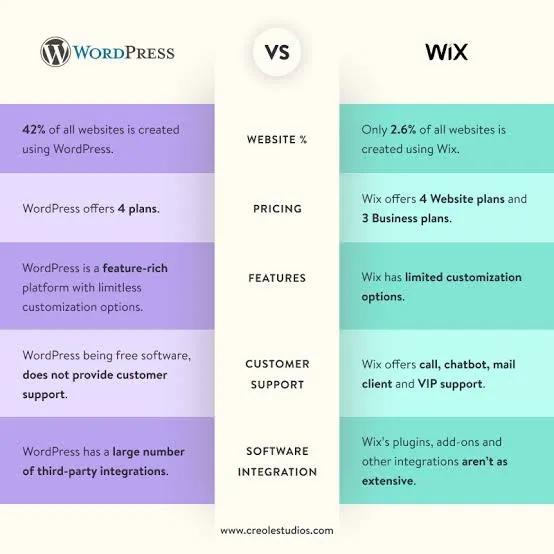
When comparing Wix vs WordPress, the latter stands out as the superior choice for long-term growth. Because WordPress is an open-source Content Management System (CMS), it grants you full ownership and control over your website.
Here are the primary advantages of making the switch:
- Limitless Customization: You are not restricted to the tools built by one company. You gain access to a massive repository of third-party WordPress plugins and themes to add nearly any feature imaginable.
- Hosting Freedom: With Wix, your site is locked into their servers. On a WordPress platform, you can choose any hosting provider that meets your specific performance, security, and budget requirements.
- Scalability: Whether you are running a small personal blog or a massive corporate enterprise, WordPress scales gracefully alongside your traffic and content needs.
Step-by-Step Guide: How to Migrate from Wix to WordPress
To ensure your data remains intact and your downtime is minimized, you must follow a structured approach. Let’s dive into the exact steps required to execute this transition.
Step 1: Secure and Register a Custom Domain Name

Before you can build your new site, you need a web address. Your first task is to secure a custom domain name. There are numerous domain registrars on the market, and many web hosts even offer domain registration as part of their sign-up packages.
To maintain brand consistency and avoid confusing your existing visitors, you should ideally register a domain name that matches or closely resembles the one you used on Wix. Once you have found an available name and purchased it, you are ready to secure server space.
Step 2: Select a Reliable WordPress Hosting Provider
Because WordPress is a self-hosted software, it requires a web server to live on. This is fundamentally different from your previous setup, where Wix handled the hosting invisibly in the background.
When evaluating potential hosting companies, pay close attention to critical metrics such as guaranteed uptime, total storage capacity, available bandwidth, and the quality of their customer support. You will also need to select an appropriate hosting tier:
- Shared Hosting: The most cost-effective option, suitable for smaller sites with lower traffic.
- VPS (Virtual Private Server) Hosting: Offers dedicated resources and enhanced security for growing websites.
- Managed WordPress Hosting: The premium choice. The hosting provider handles all technical maintenance, daily backups, and security optimizations on your behalf.
Step 3: Install the WordPress Core Software
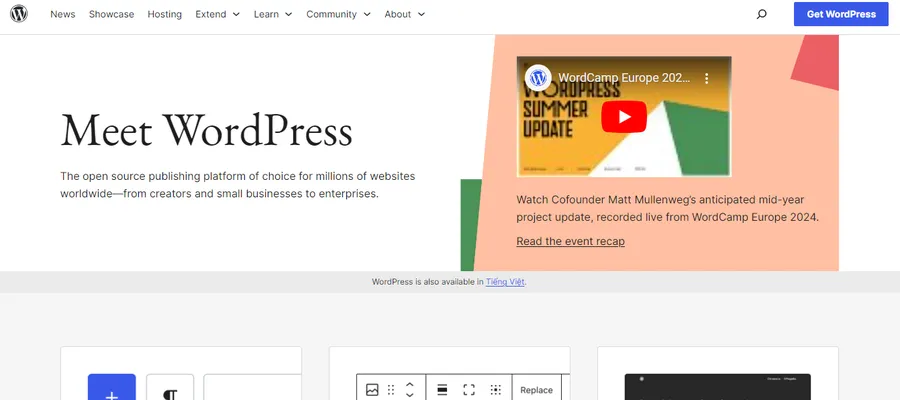
Once your hosting account is active, you must install the WordPress software. The exact mechanism for this varies based on the company you chose in Step 2.
While manual installation is possible, the vast majority of modern hosts provide a one-click installation feature directly within their control panels.
Step 4: Pick and Install a WordPress Theme
With the software installed, logging into your new dashboard allows you to define your site’s visual identity. In WordPress, this is controlled by “Themes.” While the CMS includes a few default themes, you have thousands of free and premium alternatives at your disposal.
Selecting the Right Theme
Navigating the WordPress Theme Directory can feel intimidating due to the sheer volume of choices. To narrow down your options, identify the specific functionalities your niche requires. Always preview a theme’s demo before committing. Crucially, ensure the theme you select is regularly updated by its developer and offers reliable support; outdated themes can trigger compatibility issues and introduce security vulnerabilities.
You can also explore premium options from ThimPress, which offers a wide range of professionally designed WordPress themes for education, business, eCommerce, and more. For inspiration, check out their guide to the most popular WordPress themes: Top 10 Most Popular and Best WordPress Themes
Installing Your Theme
To apply your chosen design:
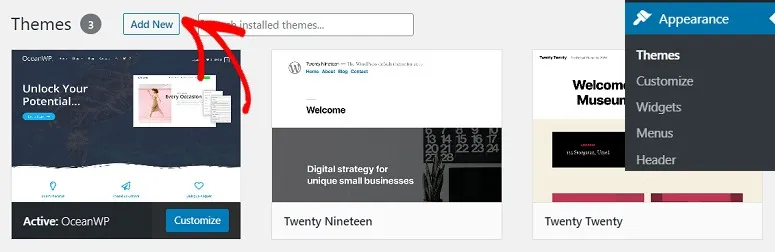
- Go to Appearance > Themes in your left-hand dashboard menu.
- Click the Add New button at the top of the screen.
- Search for your desired theme, click Install, and then hit Activate to make it live. (Note: Premium themes purchased from third-party marketplaces will require you to upload a .zip file instead).
If you need help setting up your new theme, read this step-by-step guide on how to install a WordPress theme.
Step 5: Migrate Wix Blog to WordPress Using RSS
Now it is time to move your actual content. Unfortunately, Wix does not offer a native export button. However, you can efficiently migrate Wix blog to WordPress by utilizing an RSS feed. This clever workaround saves you from the tedious process of copying and pasting every single article.
- Generate the Feed: Add an RSS button to your Wix interface.
- Save the XML Data: Click that RSS button on your live Wix site. It will open a new webpage displaying raw XML code. Right-click anywhere on this page, select Save As, and store the file safely on your computer.
- Import to WordPress: Log into your WordPress dashboard and navigate to Tools > Import. Locate the “RSS” option in the list and click Run Importer.
- Upload the XML file you just saved.
Once the importer finishes processing, review your “Posts” menu to verify that your articles formatted correctly.
Step 6: Transfer Wix Website to WordPress (Pages and Media)
While the RSS method works flawlessly for blog posts, it does not carry over standard website pages (like your About, Services, or Contact pages).
Because there is no built-in automation for pages, you will need to recreate them. To transfer Wix website to WordPress pages manually:
- Open a page on your current Wix site and copy the text.
- In your WordPress dashboard, navigate to Pages > Add New.
- Paste your content into the editor, assign the proper title, and meticulously format the layout.
- Manually re-upload and insert any images or multimedia files.
- Click Publish and check the front-end to ensure the design looks professional.
If you have a massive website and manual transfer is out of the question, you can invest in automated third-party migration tools like CMS2CMS. These premium services can port your entire site—pages, images, and posts included—for a fee.
Step 7: Redirect Traffic to Protect Your SEO
The final, critical phase of your Wix to WordPress migration is routing your existing visitors and search engines to the right place. Setting up redirects prevents users from hitting dead links and helps preserve your hard-earned SEO rankings.
Important Note: You can only implement proper redirects if you were using a custom domain on Wix. Free Wix subdomains do not support this feature. If you were on a free plan, your best option is to leave a prominent “We have moved!” link on the old site.
If you have a custom Wix URL, you must map your old URLs to your new WordPress slugs using a JavaScript snippet.
Copy the following code into a text editor:
JavaScript
var hashesarr = {
"#!about/ghit7":'/about-us/',
"#!contact-us/fe37":'/contact/',
"#!dog-article/c6hg":'/dog-article/'
};
for (var hash in hashesarr) {
    var patt = new RegExp(hash);
    if (window.location.hash.match(patt) !== null) {
        window.location.href = hashesarr[hash];
    }
}
You must replace the placeholder URLs in the hashesarr object. The first string (e.g., "#!about/ghit7") is your exact Wix URL structure, and the second string (e.g., '/about-us/') is the new URL path on WordPress.
Once you have mapped all your pages, save the file as redirects.js. Using an FTP/SFTP client, upload this file into your active WordPress theme’s /js/ directory (create the folder if it does not exist).
Finally, you need to call this script by adding the following code to the very bottom of your theme’s functions.php file:
PHP
function wpb_wixjs () {
    wp_enqueue_script( 'wixredirect', get_stylesheet_directory_uri() . '/js/redirects.js', array(), '1.0.0', true);
}
add_action('wp_enqueue_scripts', 'wpb_wixjs');
Save the file. Test the implementation by visiting an old Wix URL; it should seamlessly route you to the correct page on your new WordPress site!
FAQs
Will I lose my SEO rankings when I migrate?
If you carefully map your old URLs to your new ones using the redirect method outlined in Step 7, you will minimize any negative impact on your search rankings. Search engines will recognize the permanent move and transfer authority to the new pages.
Can I move my site from Wix to WordPress for free?
The migration process itself can be done manually for free using the RSS method for posts and manual copy-pasting for pages. However, WordPress does require you to pay for web hosting and a custom domain name.
Do I need coding skills to use WordPress?
No. While WordPress offers deep code access for developers, everyday users can build, design, and manage their entire website using intuitive visual page builders and the standard block editor without ever writing a line of code.
Conclusion
Making the decision to migrate from Wix to WordPress is a pivotal step in future-proofing your digital presence. While Wix provides a comfortable starting environment, WordPress delivers the unmatched ownership, scalability, and plugin architecture required to build a truly professional website.
By carefully securing a good host, leveraging the RSS feed for your blog, and meticulously setting up your URL redirects, you can execute a smooth transition and unlock the full potential of the web’s most popular CMS.
Read more: WordPress 7.0 Features: A Complete Guide to the New Release
Contact US | ThimPress:
Website: https://thimpress.com/
Fanpage: https://www.facebook.com/ThimPress
YouTube: https://www.youtube.com/c/ThimPressDesign
Twitter (X): https://x.com/thimpress_com